

Ngtoinfor.online – a treacherous site which notifications should never be enabled
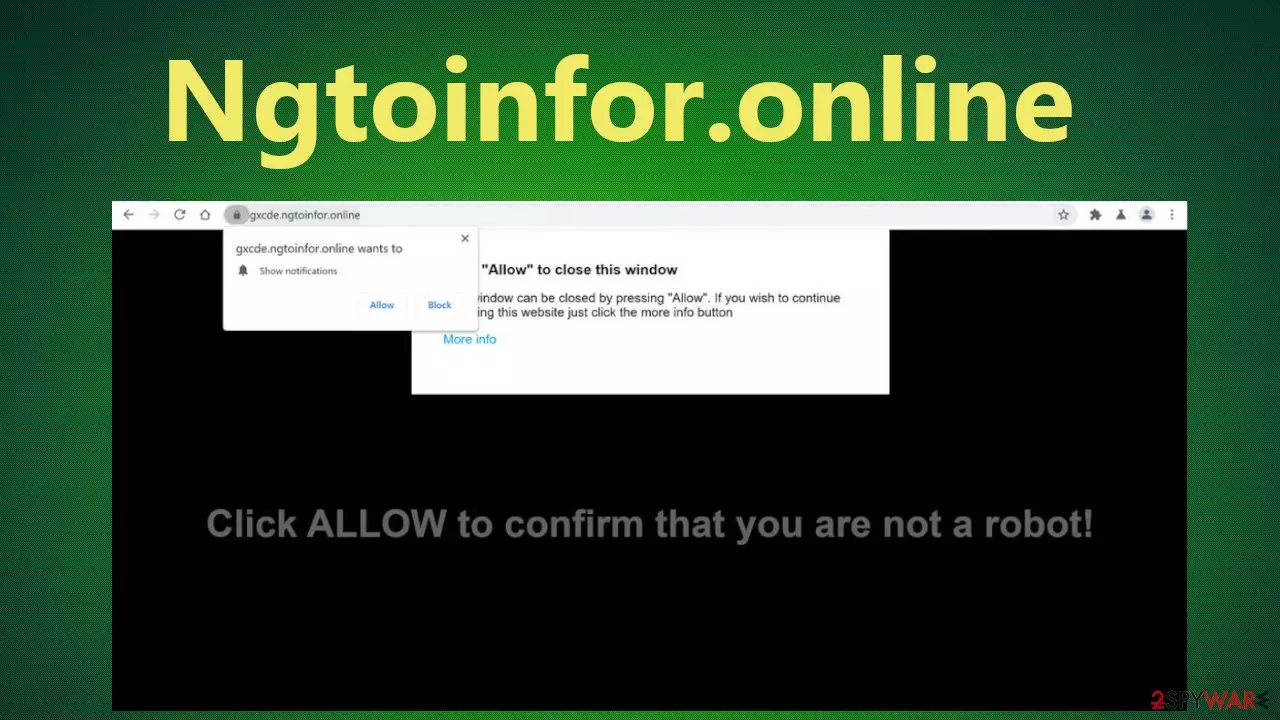
Ngtoinfor.online is trying to deceive visitors into accepting its push notifications by showing various misleading prompts. They depend on your geolocation, i.e., where you live. You might be asked to push the Allow button to enter the site, continue downloading, confirming that you're not a robot, etc.
You shouldn't enable Ngtoinfor.online notifications because your phone screen or computer desktop will be bombarded with tons of ads. They will pop up unexpectedly, and, in most cases, you won't be able to close them as clicking on the “X” button will launch a new tab with affiliated sites or do nothing at all.
If this treacherous portal opened up out of the blue, your device is infected with adware or other potentially unwanted programs[1] (PUPs). By reading this article, you'll find out how these PUPs are spread, what are their symptoms and risks, how to get rid of them, and how to repair your altered system files.
| name | Ngtoinfor.online |
|---|---|
| type | Adware, PUP, redirect virus |
| IP address | 34.196.151.230 |
| Purpose | Generate revenue by redirecting traffic to affiliated websites |
| Symptoms | Ads popping up in the form of notifications, sudden redirects to questionable portals, sluggish device performance |
| Risks | Installation of PUPs, malware infections, identity theft, monetary losses |
| Distribution | Software bundling, fake Flash Player updates, deceptive ads, file-sharing platforms |
| Removal | Dependable security tools can take care of any PUP infection automatically. In some cases, you will need to use our guides below to eliminate notification allowance from infected browsers |
| System Repair | System files and settings get altered by cyber infections, which may result in unstable device performance. To fix any system-related issues, users are advised to use the time-proven FortectIntego system tune-up tool |
Push notification viruses are created to increase internet traffic to questionable portals. If these sites choose to pay the developers of Ngtoinfor.online for advertising, they shouldn't be visited, as legitimate portals don't need to use shady techniques to attract visitors.
Our research suggests that when users accept notifications from dubious portals, they see ads in the form of notifications and see new tabs opening up out of the blue with sponsored content. Thus this push notification virus might force you to visit any of its affiliated sites without you even clicking on any of its ads.
Usually, the promotional sites of the threat actors behind such cyber threats include sites with PUPs, tech support scams, porn, malware, gambling, etc., in other words, portals that you don't normally visit. Thus notifications should be accepted only from legitimate sources, like your favorite webshop, news portal, etc.
As we've stated before, redirects to various dubious websites, including this article's culprit, might be caused by adware infections. This type of PUP should be removed, as you will be endangered by various ads originating from different sources that the sites you're visiting and by sudden redirects.

The best way to remove adware or any other potentially unwanted program is to scan your device with reliable anti-malware software. If you don't own one, you can download free security tools such as SpyHunterCombo Cleaner or MalwarebytesMalwarebytes to automatically take care of any cyber threat elimination.
When Ngtoinfor.online and PUP removal with AV tools is completed, you should perform a system tune-up. According to cybersecurity experts,[2] the best software to repair corrupted system files and clean up junk files is the FortectIntego system diagnostics tool.
Please stay away from Flash Player updates as they carry infections
Cybercriminals are always searching for new ways to spread their vile creations and infect the computers of innocent people around the globe. There are various methods available at their disposal. Software bundles, deceptive ads, and file-sharing platforms are among the most popular techniques.
There's one more method that threat actors actively exploit. They display adverts or prompts on various shady sites (could be owned by them) that suggest that you need to install or update Adobe Flash Player. If you ever come across such a prompt, please close the tab, clear your browsing history, and never visit it again.
Adobe has discontinued their Flash Player support. Thus any ad or prompt suggesting that you need to update or install it is fake. If you do, all kinds of PUPs or even severe malware, such as Trojans, ransomware, keyloggers, and so on, could get on your machine.

Eliminate adware and remove notifications to get rid of the irritating ads
Ngtoinfor.online virus will diminish your device's performance, slow down your internet connection, show annoying ads directly on your screen or desktop, and might pose real dangers. This push notification virus could act as a gateway to hazardous malware.[3]
Therefore you should remove Ngtoinfor.online notifications from your browser. You can do that by using our free instructions below. To eliminate the adware that possibly caused the initial redirect to the push notification virus site, scan your device with a trustworthy anti-malware tool.
Ngtoinfor.online removal won't be finished until you fix your system files and settings that usually are altered by cyber infections. Messy Registry and other core system directories might lead to BSoDs, severe lag, etc. You can fix all these irregularities by performing system diagnostics with compatible software.
Uninstall from Windows
Uninstall from Windows 10/8:
- Type Control Panel into the Windows search box and open the result.
- Under Programs, select Uninstall a program.


Uninstall from Windows 7/XP:
- Click on Windows Start > Control Panel (Windows XP users should click on Add/Remove Programs).
- In Control Panel, select Programs > Uninstall a program.


Remove the unwanted program:
- In the Programs and Features window, look for any recently installed suspicious entries, select them, and click Uninstall.
- If User Account Control appears, click Yes to confirm, then complete the removal.


Delete from macOS
Remove the unwanted application:
- From the menu bar, select Go > Applications.
- In the Applications folder, look for any suspicious entries, then drag them to Trash (or right-click and pick Move to Trash).


Delete leftover files and folders:
- Select Go > Go to Folder.
- Enter /Library/Application Support and remove any suspicious folders related to the unwanted program.
- Repeat the same check in the /Library/LaunchAgents and /Library/LaunchDaemons folders, deleting any suspicious entries.

- Finally, empty the Trash to permanently remove the leftovers.

Remove from Microsoft Edge
Delete unwanted extensions from MS Edge:
- Select Menu (three horizontal dots at the top-right of the browser window) and pick Extensions.
- From the list, pick the extension and click on the Gear icon.
- Click Remove.


Clear cookies and other browser data:
- Click on the Menu (three horizontal dots at the top-right of the browser window) and select Settings > Privacy, search, and services..
- Under Clear browsing data, pick Choose what to clear.
- Select Cookies and other site data and Cached images and files. (apart from passwords, although you might want to include Media licenses as well, if applicable) and click on Clear.


Restore new tab and homepage settings:
- Click the menu icon and choose Settings.
- Then find On startup section.
- Click Remove next to any suspicious startup page.
Reset MS Edge if the above steps did not work:
- Press on Ctrl + Shift + Esc to open Task Manager.
- Click on More details arrow at the bottom of the window.
- Select Details tab.
- Now scroll down and locate every entry with Microsoft Edge name in it. Right-click on each of them and select End Task to stop MS Edge from running.


Instructions for Chromium-based Edge
Delete extensions from MS Edge (Chromium):
- Open Edge and click select Settings > Extensions.
- Delete unwanted extensions by clicking Remove.


Clear cache and site data:
- Click on Menu and go to Settings.
- Select Privacy, search and services.
- Under Clear browsing data, pick Choose what to clear.
- Under Time range, pick All time.
- Select Clear now.


Reset Chromium-based MS Edge:
- Click on Menu and select Settings.
- On the left side, pick Reset settings.
- Select Restore settings to their default values.
- Confirm with Reset.
- This will disable extensions and reset startup pages but will not delete bookmarks, saved passwords, or browsing history.


Remove from Mozilla Firefox (FF)
Remove dangerous extensions:
- Open Mozilla Firefox browser and click on the Menu (three horizontal lines at the top-right of the window).
- Select Add-ons.
- In here, select the unwanted extension and click Remove.


Reset the homepage:
- Click three horizontal lines at the top right corner to open the menu.
- Choose Settings.
- Under Home, set your preferred homepage and new tab settings.
Clear cookies and site data:
- Click Menu and pick Settings.
- Go to Privacy & Security section.
- Scroll down to locate Cookies and Site Data.
- Click on Clear Data...
- Select Cookies and Site Data and Temporary cached files and pages, then click Clear.


Reset Mozilla Firefox
If clearing the browser as explained above did not help, reset Mozilla Firefox:
- Open Mozilla Firefox browser and click the Menu.
- Go to Help and then choose Troubleshooting Information.

- Under Give Firefox a tune up section, click on Refresh Firefox...
- Once the pop-up shows up, confirm the action by pressing on Refresh Firefox.



Remove from Google Chrome
Delete malicious extensions from Google Chrome:
- Open Google Chrome, click on the Menu (three vertical dots at the top-right corner) and select More tools > Extensions.
- In the newly opened window, you will see all the installed extensions. Uninstall all suspicious extensions related to the unwanted program by clicking Remove.


Clear cache and web data from Chrome:
- Click on Menu and pick Settings.
- Under Privacy and security, select Clear browsing data.
- Select Browsing history, Cookies and other site data, as well as Cached images and files.
- Click Clear data.


Change your homepage:
- Click menu and choose Settings.
- Look for a suspicious site in the On startup section.
- Click on Open a specific or set of pages and click on three dots to find the Remove option.
Reset Google Chrome:
If the previous methods did not help you, reset Google Chrome to eliminate all the unwanted components:
- Click on Menu and select Settings.
- In the Settings, scroll down and click Advanced.
- Scroll down and locate Reset and clean up section.
- Now click Restore settings to their original defaults.
- Confirm with Reset settings.


Delete from Safari
Remove dangerous extensions:
- Open Safari, click Safari in the menu at the top-left of the screen, and select Preferences.
- Go to the Extensions tab, look for any suspicious entries, and click Uninstall to remove them.


Clear history and website data:
- Click Safari in the menu and pick Clear History.
- Set Clear to all history and confirm with Clear History.


Reset Safari:
- Click Safari in the menu and select Preferences > Advanced.
- Enable Show Develop menu in menu bar.
- From the menu bar, click Develop and select Empty Caches.


Did this guide help?
Be the first to comment