

WinSecureAV is a dangerous program that can mess up Windows for good
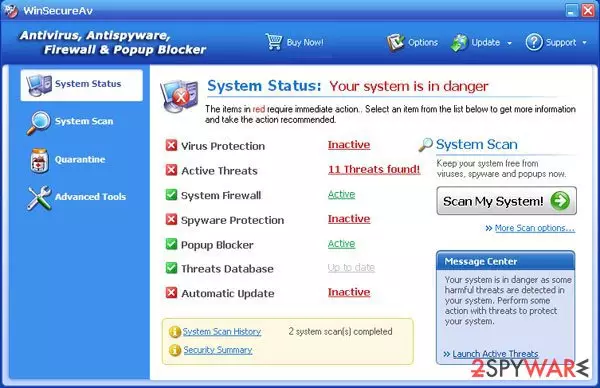
WinSecureAV is another corrupt anti-spyware parasite that claims to be a legitimate spyware removal tool. It uses false advertising and exaggerated error reports to mislead users into buying its full version. However, you should not buy this program as it will not only fail to protect you from real computer infections but will also result in monetary losses.
Keep in mind that the disclosed credit card details might be recorded by cybercriminals! Therefore, if you have found this application initiating scans on your Windows machine, you should immediately terminate with the help of the instructions we provide below.
| Name | WinSecureAV |
| Type | Rogue antispyware, malware, scam |
| Distribution | Fake online scanners, already installed Trojans, bundles |
| Dangers | Financial losses, fraud, malware infection |
| Uninstall | Follow the instructions below or scan the machine with SpyHunterCombo Cleaner antimalware |
| System fix | Clean your web browsers and fix virus damage with FortectIntego |
This rogue is one of those aggressive fake security programs that do everything to convince users about their systems being infected with alleged malware. They often plant hundreds of files on the infected Windows machine and then use them as a detection examples, claiming that these are the infection files.
Alternatively, WinSecureAV might use legitimate files or processes in its scan results in order to make users frightened. While this trick is very obvious for those who are more experienced with Windows operating systems, those who are less proficient can be easily convinced otherwise. Not to mention that the program uses various techniques, such as alerts, red color, notifications, and so on.
In reality, all these files are not malicious, although the program showing them to you definitely is. Therefore, you should never take this seriously. Instead, you should remove the program from your machine as soon as possible and never spend money on it.
Tricks of fake online scanners
Online fraud is very common, and while it is less prevalent thanks to various regulations that are employed by tech giants such as Google or Microsoft, the malicious activities still continue, mainly because of how vast the internet is. Malicious websites are created on a regular basis and trick millions of users yearly, resulting in financial losses or even identity theft.
It is important not to get tricked by browser notifications that claim that your system is infected, your credit card details are being stolen, and that you can undo all this damage only by scanning your PC with the suggested software. Never download anything on a website with such absurd claims. Also, use anti-malware with web protection – it could protect you from most online scams.
Do not get tricked by this malicious program and remove it instead
You might also encounter intrusive notifications coming from your taskbar or in a pop-up form. Ignore these and close them if possible. If not, try using the Task Manager to shut the program down. Unfortunately, these rogue apps often have defense mechanisms that prevent easy WinSecureAV removal.
Therefore, you should employ a powerful anti-malware solution, such as SpyHunterCombo Cleaner, and perform a full system scan. This would ensure that all the malicious files are eliminated at once. To clean your web browsers, follow the instructions below or employ an automatic tool for the job – FortectIntego.
Uninstall from Windows
Uninstall from Windows 10/8:
- Type Control Panel into the Windows search box and open the result.
- Under Programs, select Uninstall a program.


Uninstall from Windows 7/XP:
- Click on Windows Start > Control Panel (Windows XP users should click on Add/Remove Programs).
- In Control Panel, select Programs > Uninstall a program.


Remove the unwanted program:
- In the Programs and Features window, look for any recently installed suspicious entries, select them, and click Uninstall.
- If User Account Control appears, click Yes to confirm, then complete the removal.


Remove from Microsoft Edge
Delete unwanted extensions from MS Edge:
- Select Menu (three horizontal dots at the top-right of the browser window) and pick Extensions.
- From the list, pick the extension and click on the Gear icon.
- Click Remove.


Clear cookies and other browser data:
- Click on the Menu (three horizontal dots at the top-right of the browser window) and select Settings > Privacy, search, and services..
- Under Clear browsing data, pick Choose what to clear.
- Select Cookies and other site data and Cached images and files. (apart from passwords, although you might want to include Media licenses as well, if applicable) and click on Clear.


Restore new tab and homepage settings:
- Click the menu icon and choose Settings.
- Then find On startup section.
- Click Remove next to any suspicious startup page.
Reset MS Edge if the above steps did not work:
- Press on Ctrl + Shift + Esc to open Task Manager.
- Click on More details arrow at the bottom of the window.
- Select Details tab.
- Now scroll down and locate every entry with Microsoft Edge name in it. Right-click on each of them and select End Task to stop MS Edge from running.


Instructions for Chromium-based Edge
Delete extensions from MS Edge (Chromium):
- Open Edge and click select Settings > Extensions.
- Delete unwanted extensions by clicking Remove.


Clear cache and site data:
- Click on Menu and go to Settings.
- Select Privacy, search and services.
- Under Clear browsing data, pick Choose what to clear.
- Under Time range, pick All time.
- Select Clear now.


Reset Chromium-based MS Edge:
- Click on Menu and select Settings.
- On the left side, pick Reset settings.
- Select Restore settings to their default values.
- Confirm with Reset.
- This will disable extensions and reset startup pages but will not delete bookmarks, saved passwords, or browsing history.


Remove from Mozilla Firefox (FF)
Remove dangerous extensions:
- Open Mozilla Firefox browser and click on the Menu (three horizontal lines at the top-right of the window).
- Select Add-ons.
- In here, select the unwanted extension and click Remove.


Reset the homepage:
- Click three horizontal lines at the top right corner to open the menu.
- Choose Settings.
- Under Home, set your preferred homepage and new tab settings.
Clear cookies and site data:
- Click Menu and pick Settings.
- Go to Privacy & Security section.
- Scroll down to locate Cookies and Site Data.
- Click on Clear Data...
- Select Cookies and Site Data and Temporary cached files and pages, then click Clear.


Reset Mozilla Firefox
If clearing the browser as explained above did not help, reset Mozilla Firefox:
- Open Mozilla Firefox browser and click the Menu.
- Go to Help and then choose Troubleshooting Information.

- Under Give Firefox a tune up section, click on Refresh Firefox...
- Once the pop-up shows up, confirm the action by pressing on Refresh Firefox.



Remove from Google Chrome
Delete malicious extensions from Google Chrome:
- Open Google Chrome, click on the Menu (three vertical dots at the top-right corner) and select More tools > Extensions.
- In the newly opened window, you will see all the installed extensions. Uninstall all suspicious extensions related to the unwanted program by clicking Remove.


Clear cache and web data from Chrome:
- Click on Menu and pick Settings.
- Under Privacy and security, select Clear browsing data.
- Select Browsing history, Cookies and other site data, as well as Cached images and files.
- Click Clear data.


Change your homepage:
- Click menu and choose Settings.
- Look for a suspicious site in the On startup section.
- Click on Open a specific or set of pages and click on three dots to find the Remove option.
Reset Google Chrome:
If the previous methods did not help you, reset Google Chrome to eliminate all the unwanted components:
- Click on Menu and select Settings.
- In the Settings, scroll down and click Advanced.
- Scroll down and locate Reset and clean up section.
- Now click Restore settings to their original defaults.
- Confirm with Reset settings.


Did this guide help?
Be the first to comment