

PCPrivacyTool – a potentially unwanted program that leaves your device vulnerable to serious infections
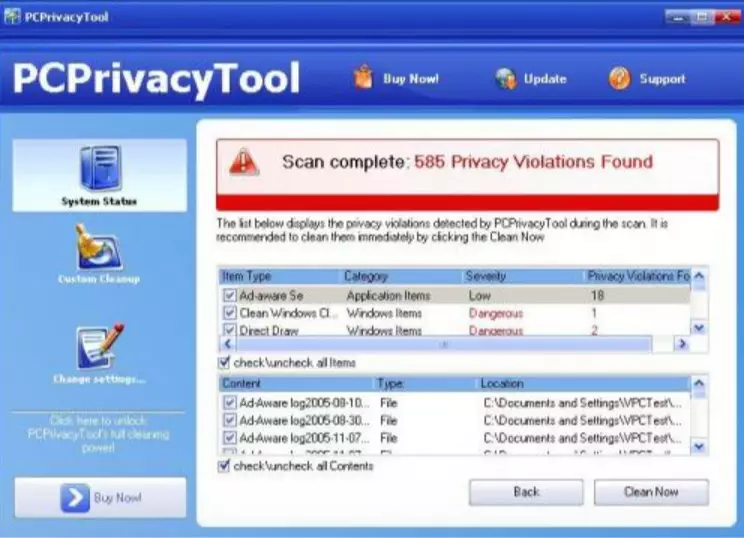
PCPrivacyTool is another rogue anti-spyware that uses counterfeit marketing to relieve unsuspecting users of their money. It does that by showing fake system issue scan results and annoying notifications with false claims that there's something wrong with your device.
The fake system tool requests to upgrade the software by purchasing its paid version to fix all imaginary issues. Please do not do that as this is nothing more but a scam. Although PCPrivacyTool does not work via trojans or web browser security flaws and must be manually installed to run, it is still a malicious computer threat.
| name | PCPrivacyTool |
|---|---|
| Type | Rogue antispyware software, PUP |
| Purpose | Convince users to buy its licensed version by showing imaginary system error reports and notifications with fake claims |
| Risks | Financial losses, privacy issues, malware infections |
| Distribution | Deceptive ads, software bundling, fake Flash Player installers |
| Elimination | You can remove this infection with the help of a reliable security tool |
| System repair | To repair the damage that this cyber threat has made to your device's system core settings and files, use the time-proven FortectIntego system diagnostics tool |
One of the biggest dangers of having PCPrivacyTool virus on your computer is that it can be left vulnerable to all kinds of cyber threats. No one should ever use such potentially unwanted programs because the lack of security devices might get infected with worms, Trojans, and other dangerous malware.
Remove PCPrivacyTool by scanning your computer with a trustworthy anti-malware tool. This will ensure that no other malware is present. Afterward, run system diagnostics to repair all system-related issues and prevent your device from BSoDs, freezing, severe lag, and other system irregularities.
Uninstall from Windows
Uninstall from Windows 10/8:
- Type Control Panel into the Windows search box and open the result.
- Under Programs, select Uninstall a program.


Uninstall from Windows 7/XP:
- Click on Windows Start > Control Panel (Windows XP users should click on Add/Remove Programs).
- In Control Panel, select Programs > Uninstall a program.


Remove the unwanted program:
- In the Programs and Features window, look for any recently installed suspicious entries, select them, and click Uninstall.
- If User Account Control appears, click Yes to confirm, then complete the removal.


Did this guide help?
Be the first to comment