

Quick Defragmenter – a dangerous computer infection masked as a system tool
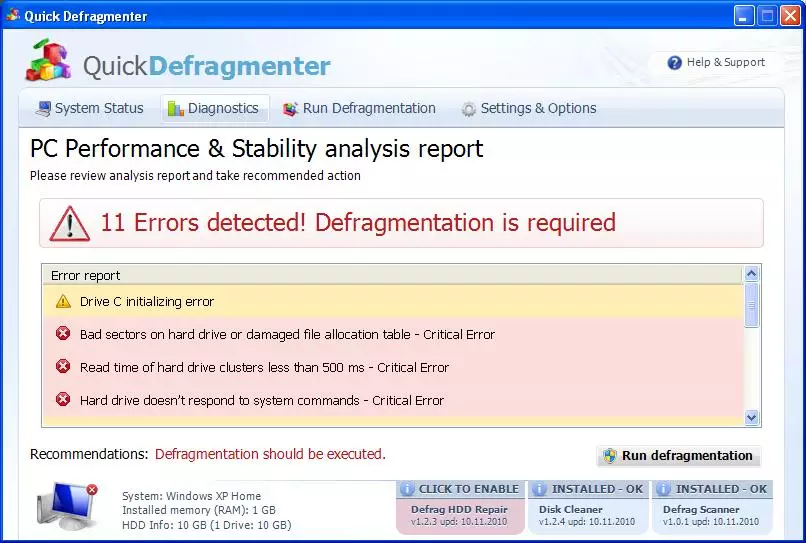
Quick Defragmenter is a stealthy virus, which, just like Smart Defragmenter or HDD Defragmenter, belongs to one dangerous family of rogue anti-spyware that have been actively spread through fake video codecs and flash updates. Being in the same group with malware, just like its relatives, this fake system tool uses quite aggressive methods to mislead users that they have tons of viruses.
It keeps on telling about numerous errors detected and then offers to purchase its useless license. Make sure you don’t pay for Quick Defragmenter because it’s not a reputable system optimizer! If you purchase its paid version, you will end up with many problems and a bit less money.
| name | Quick Defragmenter |
|---|---|
| Type | Fake system tool, potentially unwanted program |
| Purpose | Spread other related PUPs and convince users to purchase paid program version by using various scare tactics |
| Risks | Money loss, installation of additional PUPs, privacy issues |
| Elimination | You can try to remove this PUP manually, but we recommend sticking to automatic removal by using reliable anti-malware software |
| System recovery options | This fake tool does extensive damage to your system. You can resolve all issues by running a system tune-up with the FortectIntego PC repair tool |
Quick Defragmenter mostly hacks computers without any permission asked and does that secretly through Trojan viruses and other malware. This quite regular way of installation should surprise everyone who additionally will be attacked by continuous fake alerts and annoying browser redirections to malicious websites offering to purchase Quick Defragmenter.
After being astonished to see the program which has never been downloaded, victims will also get misleading information about numerous problems, such as:
Exe file is corrupted and can’t be run. Hard drive scan required.
Scan Hard Drive
A hard drive error occurred while starting the application.
Damaged hard drive clusters detected. Private data is at risk.
Hard Drive not found. Missing hard drive.
Windows can't find hard disk space. Hard drive error
The system has been restored after a critical error. Data integrity and hard drive integrity verification required.
Don’t take anything that was reported by Quick Defragmenter seriously! It tries to create an image that its licensed version is definitely needed on your PC and asks to pay the money for it additionally. So please do not get tricked. If you have already paid for it, contact your credit card details to dispute the charges.
You may also need to disable this malware, so launch safe mode with networking and stop its malicious processes running. Then download trustworthy security tools and perform a full system scan that will remove the fake system software.
This PUP could have made a lot of modifications to key system settings and files, so you need to revert all of them for your device to run smoothly again. To take care of all system-related issues automatically, use time-proven system diagnostics for this task.
Uninstall from Windows
Uninstall from Windows 10/8:
- Type Control Panel into the Windows search box and open the result.
- Under Programs, select Uninstall a program.


Uninstall from Windows 7/XP:
- Click on Windows Start > Control Panel (Windows XP users should click on Add/Remove Programs).
- In Control Panel, select Programs > Uninstall a program.


Remove the unwanted program:
- In the Programs and Features window, look for any recently installed suspicious entries, select them, and click Uninstall.
- If User Account Control appears, click Yes to confirm, then complete the removal.


Did this guide help?
Be the first to comment