

Antivirus 360 – a fake antispyware program with evil intent
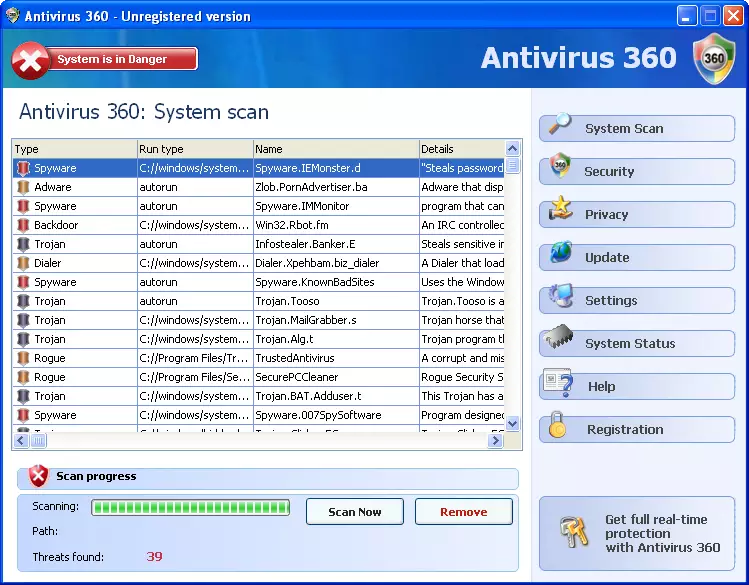
Antivirus 360 is a rogue system tool. Like many of its kind, this parasite tries to push users into purchasing a licensed version with falsified threats. Its name sounds very similar to the respected security tool Norton 360 developed by Symantec. The application makes its own way into the user’s computer via Trojan Zlob or by manual download.
This potentially unwanted program floods users with numerous pop-ups with imaginary virus infections and system risks after installation. Afterward, Antivirus360 advertises itself as an effective program that is able to fix all these fake problems, and of course, you have to pay for it. Please don't install this fake anti-malware tool, or if you already did – remove it with our instructions below.
| name | Antivirus 360 |
|---|---|
| Type | PUP, rogue antispyware tool, fake anti-malware software |
| Purpose | Convince users to purchase its paid version by showing misleading notifications and predetermined scan results |
| Risks | Malware infections, privacy issues, monetary losses |
| Distribution | Deceptive ads, freeware, Trojans, fake Flash Player updates, software bundles |
| Elimination | Remove this worthless program by running a full system scan with proper, time-proven anti-malware software |
| System repair | After any infection removal, a system tune-up is in order. Do it with the powerful FortectIntego system diagnostics tool to ensure your device runs smoothly |
This software is very dangerous, as it marks Windows files as infectious or serious threats. The main purpose of it is to show deceptive pop-ups and draw out money. It wasn't created to stop malware or PUPs. As a parasite, Antivirus360 can cause many serious problems for users: slow down computers, limit the internet connection, corrupt system files, infect the device with malware, etc.
Thus Windows computer users should never download or install this fake antispyware software. Unfortunately, it can be installed on your device without your direct consent through Trojans, software bundles, and other sneaky techniques used by threat actors.
If you spotted that Antivirus 360 virus is appeared on your device out of nowhere, or you've installed it willingly, please remove the cyber threat immediately. We recommend you scan your system with reputable anti-malware software such as SpyHunterCombo Cleaner or MalwarebytesMalwarebytes to safely and forever eliminate this fake antispyware tool.
Once the removal is finished, you must perform a system tune-up to revert any damage that your device's system files and settings sustained from the PUP. You can entrust the robust FortectIntego system diagnostics tool will this task as it will repair any system-related inconsistencies automatically and within minutes.
Fake Flash Player updates spread PUPs and malware
Cybercriminals have lots of ways to infect your device with their vile creations, including software bundling, file-sharing platforms, deceptive ads, drive-by downloads, etc. But one of the most popularly used methods is camouflaging PUPs and malware as Flash Player updates.
Pop-ups suggesting that you need to install or update this software can be encountered on high-risk, questionable, or hacked sites. If you ever see such a pop-up, please don't believe it, as the support for Flash Player was ceased late last year. Close the tab, clear your browsing history and cookies, and never visit that page again.
Remove Antivirus 360 virus with proper anti-malware software
Fake spyware tools can do a lot of harm to you and your device by leaving it unprotected and vulnerable to various cyber threats, like Trojans, ransomware, keyloggers, etc. Thus we advise not installing or removing Antivirus 360 immediately. The best way to do it is to use a time-proven security tool.
Perform a full system scan, and the threat should be identified and removed automatically. If the article's culprit prevents you from launching a new AV engine, do that in Safe Mode. Please run system diagnostics to undo any changes the infection might have caused to system directories and settings when all is said and done.
Uninstall from Windows
Uninstall from Windows 10/8:
- Type Control Panel into the Windows search box and open the result.
- Under Programs, select Uninstall a program.


Uninstall from Windows 7/XP:
- Click on Windows Start > Control Panel (Windows XP users should click on Add/Remove Programs).
- In Control Panel, select Programs > Uninstall a program.


Remove the unwanted program:
- In the Programs and Features window, look for any recently installed suspicious entries, select them, and click Uninstall.
- If User Account Control appears, click Yes to confirm, then complete the removal.


Did this guide help?
Be the first to comment