

SearchFor is an alternative search engine that tracks your personal info

Without a doubt, many of us like to use Google for searching the web at any time when it is needed. There are plenty of alternatives that exist – SearchFor is one of them. However, it is also important to note that the extension is also categorized as a browser hijacker.
The main reason it is usually put in this category is due to its modifications to the homepage, and new tab address – searchfor.cc is something you would see in the address bar of your web browser straight away. In fact, this information is stated by the developer itself on the Google Web Store, where you can download it from:
The extension will update your search settings and will change your New Tab and default search services provided by Bing.

Note: the extension we about to discuss should not be confused with a search provider of the same name, which uses 50% of its advertising revenue to support various charities.
| Name | SearchFor |
| Type | Browser hijacker, search hijacker |
| Assigned homepage URL | searchfor.cc |
| Operation |
|
| Uninstall | To get rid of the extension, you would have to access the settings of your web browser; a scan with anti-malware software is also recommended |
| Additional security | Keep in mind that there could be other PUPs on your computer, so make sure you delete them all; to ensure your privacy, you should also delete the web data and cookies from your web browsers – FortectIntego can do that for you quickly |
Changes to web browser settings are not considered to be malicious. In fact, Google Chrome now always warns users about the implemented alterations, and they can decline them at any time. However, it is important to note that many users might not understand the full implications of such changes and accept them without thinking twice.

First of all, it is important to note that, once the extension is installed, you can forget your default search sessions, as they will change drastically.
Browser hijackers often disguise the ads they promote as “enhanced” or “improved” search results. Let's call things for what they are – these are ads, and the links have been paid for. They are not organic and are there to influence the websites that you browse and shops you go to when trying to buy a service or an item online.
Each time such a click is made, the developers of the app receive a commission – it's like a way of monetization. While there is nothing wrong with it, you should look at it from your own perspective since you do not receive “improved” search results but ads. In other words, the hijacker does not provide any benefit for you in the long run – you simply add another third party that is able to collect your data and monetize your clicks.
In order to remove the extension, you should access the settings of your Chrome browser and perform the following steps:
- Click on three vertical dots at the top-right corner of your web browser
- Go to More Tools > Extensions
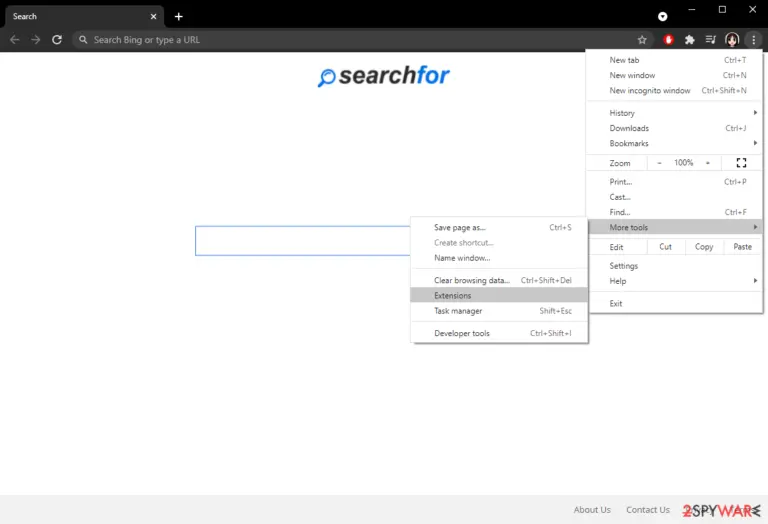
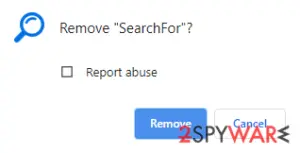
- Here, click Remove next to the unwanted add-on
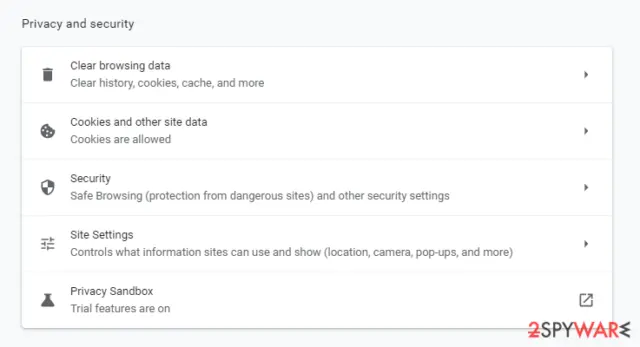
- Now go to Menu > Settings and select Clear browsing data
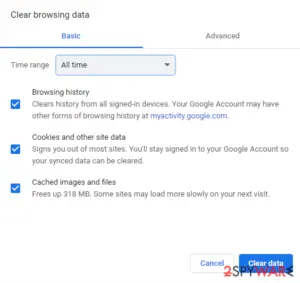
- Under time range, pick All time and select all three options (you can leave browsing history if you want) and click Clear data.


The instructions for other web browsers can be found at the bottom of this post.
The “personal information” problem
Google, Facebook, Microsoft, and many other tech giants collect a variety of personal data about you when you use your service. Additionally, any website that your visit is likely to capture your IP address, device data, and other technical details. This information is used for various purposes, such as maintaining the service, providing the best user experience, etc. And of course, it is also often used for marketing purposes.
Thanks to regulations such as GDPR,[1] users are now more protected from inadequate data gathering and have the right to withdraw the gathered information at any time. However, these restrictions go a long way, and there are many “buts.” GDPR regulation is only valid in the EU territory, meaning users from outside of this area are not protected in the same way.
Additionally, you should consider data breaches. Cybercriminals are hard at work to breach companies (high-profile ones even) and steal various customer data relatively easily.[2] This means that the more parties you share your information with, the more is the chance of it being stolen by malicious actors.
That being said, SearchFor.cc gathers a lot of information if such is provided by the user via the website, for example:
- Email address
- Device fingerprints
- Location (including Zip code, address)
- Payment information, etc.
The developer, Australian Clearing Pty Ltd, also discloses that it uses third-party tools to manage the website, which is capable of tracking data in the following way:[3]
We also use third-party tools to facilitate, operate and manage our website. These tools use cookies and other tracking technologies. Such tools are created and managed by parties outside our control. As such, Australian Clearing Pty Ltd is not responsible for what information is actually captured by such third parties or how such third parties use and protect that information.
It is probably very clear that this search site is not the one to choose if you care about your privacy, and we strongly recommend you get rid of the hijacker to stop these practices.

Keep in mind that simply by deleting the app, you might leave the mentioned tracking technologies on your web browsers intact – these might be able to continue monitoring your data. Thus, we recommend you follow the detailed instructions below on how to clean your browser effectively or use FortectIntego if you want to take care of your privacy efficiently.
Remove from Microsoft Edge
Delete unwanted extensions from MS Edge:
- Select Menu (three horizontal dots at the top-right of the browser window) and pick Extensions.
- From the list, pick the extension and click on the Gear icon.
- Click Remove.


Clear cookies and other browser data:
- Click on the Menu (three horizontal dots at the top-right of the browser window) and select Settings > Privacy, search, and services..
- Under Clear browsing data, pick Choose what to clear.
- Select Cookies and other site data and Cached images and files. (apart from passwords, although you might want to include Media licenses as well, if applicable) and click on Clear.


Restore new tab and homepage settings:
- Click the menu icon and choose Settings.
- Then find On startup section.
- Click Remove next to any suspicious startup page.
Reset MS Edge if the above steps did not work:
- Press on Ctrl + Shift + Esc to open Task Manager.
- Click on More details arrow at the bottom of the window.
- Select Details tab.
- Now scroll down and locate every entry with Microsoft Edge name in it. Right-click on each of them and select End Task to stop MS Edge from running.


Instructions for Chromium-based Edge
Delete extensions from MS Edge (Chromium):
- Open Edge and click select Settings > Extensions.
- Delete unwanted extensions by clicking Remove.


Clear cache and site data:
- Click on Menu and go to Settings.
- Select Privacy, search and services.
- Under Clear browsing data, pick Choose what to clear.
- Under Time range, pick All time.
- Select Clear now.


Reset Chromium-based MS Edge:
- Click on Menu and select Settings.
- On the left side, pick Reset settings.
- Select Restore settings to their default values.
- Confirm with Reset.
- This will disable extensions and reset startup pages but will not delete bookmarks, saved passwords, or browsing history.


Remove from Mozilla Firefox (FF)
Remove dangerous extensions:
- Open Mozilla Firefox browser and click on the Menu (three horizontal lines at the top-right of the window).
- Select Add-ons.
- In here, select the unwanted extension and click Remove.


Reset the homepage:
- Click three horizontal lines at the top right corner to open the menu.
- Choose Settings.
- Under Home, set your preferred homepage and new tab settings.
Clear cookies and site data:
- Click Menu and pick Settings.
- Go to Privacy & Security section.
- Scroll down to locate Cookies and Site Data.
- Click on Clear Data...
- Select Cookies and Site Data and Temporary cached files and pages, then click Clear.


Reset Mozilla Firefox
If clearing the browser as explained above did not help, reset Mozilla Firefox:
- Open Mozilla Firefox browser and click the Menu.
- Go to Help and then choose Troubleshooting Information.

- Under Give Firefox a tune up section, click on Refresh Firefox...
- Once the pop-up shows up, confirm the action by pressing on Refresh Firefox.



Delete from Safari
Remove dangerous extensions:
- Open Safari, click Safari in the menu at the top-left of the screen, and select Preferences.
- Go to the Extensions tab, look for any suspicious entries, and click Uninstall to remove them.


Clear history and website data:
- Click Safari in the menu and pick Clear History.
- Set Clear to all history and confirm with Clear History.


Reset Safari:
- Click Safari in the menu and select Preferences > Advanced.
- Enable Show Develop menu in menu bar.
- From the menu bar, click Develop and select Empty Caches.


Did this guide help?
Be the first to comment