

Fappening-online.com – a dubious website that notifications you must not accept

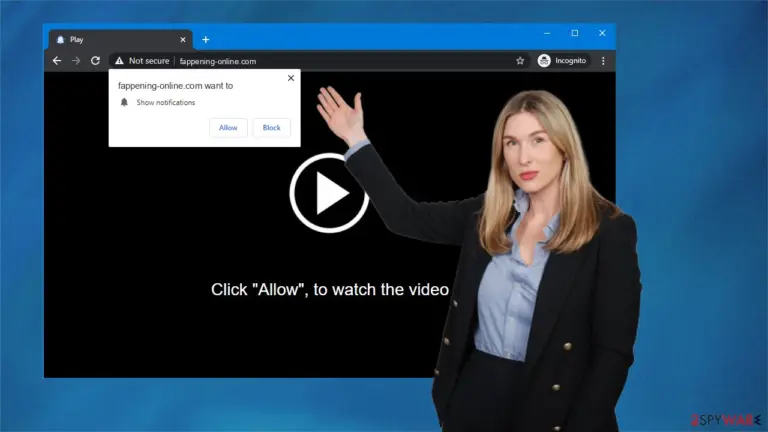
Fappening-online.com is a website that's categorized as a push notification virus. Right after enabling its alerts, you will start receiving ads in the top-right or bottom-right corners of your desktop (depending on the operating system) or straight on your phone screen. Thus please don't accept them.
If the ads in the form of notifications are already appearing, please refrain from clicking them as they might cause a lot of trouble. Since developers of such infections don't care about the privacy or safety of their victims, they might promote whoever pays the most.
That means you could be redirected to other treacherous sites that might try to draw out your private details, lure you into tech support scams, infect your devices with severe malware, steal your banking credentials, etc. Thus for your own safety, don't click on Fappening-online.com pop-ups.
If you didn't type in the article's culprit's address manually, in other words, if you didn't visit the website voluntarily, but it was still opened, you probably have a potentially unwanted program[1] (PUP) installed on your device. A program like adware can also cause redirects to shady websites.
But it's also capable of other shenanigans, like covering your whole browser screen with ads of its affiliated sites, recording your browsing activities, and selling or sharing the collected data with third parties, etc. Fortunately, neither the PUP nor Fappening-online.com are as dangerous as malware.
Although they could act as a bridge to it, therefore both of them should be removed without hesitation. This article contains detailed and illustrated instructions on getting rid of these cyber infections and repairing damaged system sectors. Follow each step in succession, and the ads and redirects will be gone within a few minutes.
| name | Fappening-online.com |
|---|---|
| Type | Redirect virus, adware, PUP |
| Symptoms of infection | Ads in the form of notifications appear directly on your desktop/screen; questionable pages open out of the blue; more than usual adverts on frequently visited sites; reduced browsing speed |
| Risks | Malware infections, privacy issues, PUP installation |
| Distribution | Software bundles, deceptive ads, fake Flash Player updates |
| Elimination | All cyber infections must be removed by using a reliable anti-malware tool that ensures that the threat with all of its components are deleted |
| System health | Use the FortectIntego system diagnostics tool to repair all system irregularities arising from the infection removal |

Comprehensive directions to remove PUPs and repair affected system settings and files
As previously pointed out, the initial redirect to Fappening-online.com was most likely caused by a potentially unwanted program installed on your device. Usually, they end up on user devices without their direct approval. That's done through a technique called software bundling.
Packs containing installers for multiple applications are usually downloaded from third-party software bundles. If users choose Quick/Recommended/Standard installation mode, all apps, including all PUPs, are automatically installed onto the device in use.
You can avoid these pesky threats by either picking the Custom/Advanced installation mode and deselecting all additional programs from installing on your device or using the SpyHunterCombo Cleaner anti-malware software that identifies PUPs and prevents you from installing them.
Adware can cause various browsing session intrusions. For example, it can open a new tab with Fappening-online.com or other push notification viruses out of the blue, show an abnormal amount of deceptive ads, etc. Thus it needs to be eliminated from your device as soon as possible.
You can remove all cyber infections by scanning your device with the MalwarebytesMalwarebytes security software. All you need to do is download the trustworthy tool, update its virus database with the latest signatures, and perform a full threat scan. The security program will do the dirty work for you and remove the PUP with all its components after detecting them.
Of course, you could try to uninstall the adware manually. But we do not recommend this option because if some files or entries are overlooked, the infection might renew itself, and you'd have to do that all over again. If we didn't convince you to change your mind, at least use these instructions that will provide the necessary guidance for Windows 10 users:
- Enter Control Panel into Windows search box and hit Enter or click on the search result.
- Under Programs, select Uninstall a program.

- From the list, find the entry of the suspicious program.
- Right-click on the application and select Uninstall.
- If User Account Control shows up, click Yes.
- Wait till the uninstallation process is complete and click OK.



Apple products were known to be impenetrable to various cyber infections, but those days are long gone. Potentially unwanted programs and more severe infections can infect practically any Apple device. The instructions below will help you to remove adware from your Macs:
- From the menu bar, select Go > Applications.
- In the Applications folder, look for all related entries.
- Click on the app and drag it to Trash (or right-click and pick Move to Trash)


To fully remove an unwanted app, you need to access Application Support, LaunchAgents, and LaunchDaemons folders and delete relevant files:
- Select Go > Go to Folder.
- Enter /Library/Application Support and click Go or press Enter.
- In the Application Support folder, look for any dubious entries and then delete them.
- Now enter /Library/LaunchAgents and /Library/LaunchDaemons folders the same way and terminate all the related .plist files.


Whichever method you choose, after completing the prior step, PUP causing redirects to Fappening-online.com should have been removed for good. The next step is to repair the affected system directories. You can't ignore the changes as they might result in various abnormal system behavior.
IT experts[2] point out that adware might have altered the registry and other core system settings, and leaving them unattended might result in severe lag, crashes, and other system issues. Therefore we highly recommend you download the FortectIntego system diagnostics tool.
It will find all system-related irregularities and suggest you repair them either one by one (in the free trial version) or all at once (paid version). Whichever method you choose, it's essential to use such optimization software as it will also delete all tracking cookies placed by dubious websites to spy on you.
Guidelines to remove Fappening-online.com notifications from your affected browsers
Push notification viruses use various deceptions to trick people into accepting them. Some of them might present background and prompt claiming that you need to press the Allow button to prove that you're not a robot, others to continue downloading an imaginary file, etc.
When the notifications from Fappening-online.com and similar treacherous sites are enabled, ads in the form of notifications are immediately presented. And they're not that easy to get rid of as the “X” button supposed to close them, not necessarily work. In fact, usually pressing it results in a redirect to one of the affiliated sites.
And that's where the real dangers lie, as you could be redirected to hacked sites riddled with malware that can be automatically downloaded to your device through drive-by download technique;[3] portals with tech support scams; websites that push to install other PUPs, and so on.
That's why you shouldn't interact with Fappening-online.com pop-ups in any way. Please ignore them and use the instructions posted below to remove the notifications from your infected browsers. For security purposes, we recommend checking all browsers. Let's start from the Google Chrome browser:
- Open Google Chrome browser and go to Menu > Settings.
- Scroll down and click on Advanced.
- Locate the Privacy and security section and pick Site Settings > Notifications.

- Look at the Allow section and look for a suspicious URL.
- Click the three vertical dots next to it and pick Block. This should remove unwanted notifications from Google Chrome.



Push notification viruses can also infect mobile devices. The difference is that the deceptive ads will appear directly on the screen of the infected device. Their equally dangerous as redirects to the same malicious sites might occur. That's why you have to remove Fappening-online.com notifications from your phone. These instructions will help you to do that from Android devices:
- Open Google Chrome and tap on Settings (three vertical dots).
- Select Notifications.
- Scroll down to the Sites section.
- Locate the unwanted URL and toggle the button to the left.


Although push notification viruses are mainly targeting the most popular browser in the world in Chrome, Mozilla Firefox is also susceptible to the article's culprits infection. Luckily, our experts have prepared detailed instructions to get rid of them. Follow this manual, and your browser will be virus-free:
- Open Mozilla Firefox and go to Menu > Options.
- Click on Privacy & Security section.
- Under Permissions, you should be able to see Notifications. Click the Settings button next to it.

- In the Settings – Notification Permissions window, click on the drop-down menu by the URL in question.
- Select Block and then click on Save Changes. This should remove unwanted notifications from Mozilla Firefox.



As well as Macs, Safari browsers can also be affected by Fappening-online.com. The instruction posted below will help you to remove them with a few simple steps:
- Click on Safari > Preferences…
- Go to the Websites tab and, under General, select Notifications.
- Select the web address in question, click the drop-down menu and select Deny.


After completing all the steps above, the ads from Fappening-online.com will stop appearing on your desktop/screen. Your device will also run smoother by performing system diagnostics with compatible repair software. If you encounter any troubles with any process, please feel free to contact our staff.
Did this guide help?
Be the first to comment