

Ourtopstories.com push notifications is an unwelcome occurrence on your browser
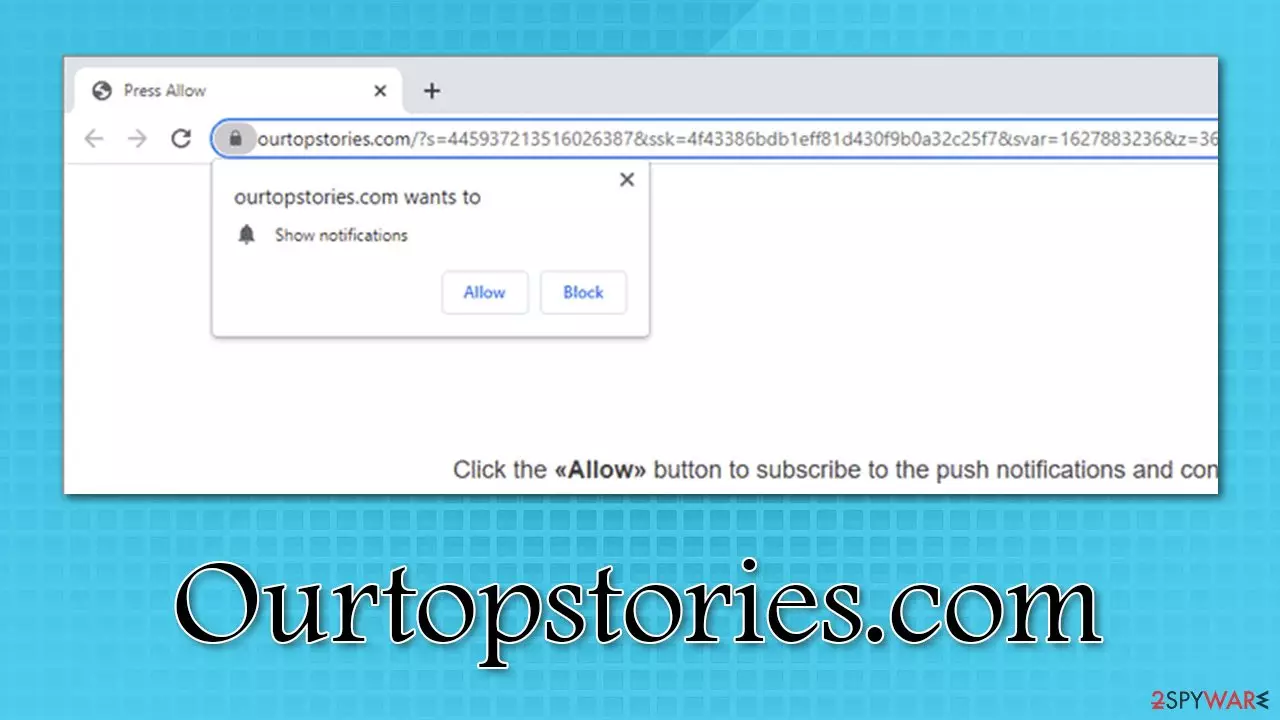
Pop-up advertising in itself is not harmful. It is a cheap and effective way for vendors to get their products in front of customers. But the ability to display ads by force is a perfect tool for manipulation.
Pop-ups can also be unwanted – these are usually fake pop-ups. This way, scammers can get any malicious link in front of a victim effectively. Untrustworthy sites can advertise legitimate websites as well to create revenue. However, it is not recommended to allow pages of this type to show notifications or click any of their promotional links.
A push notification virus is a type of browser disturbance that causes advertisements to show up on the desktop without the user's approval. They are typically acquired when users press “Allow” at the notification prompt after accessing a scam website.[1] However, the redirects to such sites are typically an indication of adware infection.
These types of potentially unwanted programs typically gain access to users' machines during the installation of freeware bundles, hence they rarely notice the entry point. In such a case, not only do you need to stop the unwanted notifications (if you have accepted them) but also look for adware[2] on your system.
If you're reading this, you probably have seen Ourtopstories.com push notifications and are searching for a solution. In this guide, we will help you understand how this website works and will provide different solutions according to your skills to get rid of it.
| Name | Ourtopstories.com |
|---|---|
| Type | Push notifications, scam, ads, pop-ups |
| IP address | 139.45.197.146 |
| Distribution | Website authors use various tricks to make users enable notifications. In particular, the injection of popups begins after the “Allow” button is pressed |
| Symptoms | Users start seeing popups on their desktops at any time when they open their browsers |
| Dangers | Clicking on the embedded pop-up links might lead to malicious websites. Consequently, users might be tricked into downloading malware/PUPs or disclosing their personal information |
| Elimination | To prevent the site from displaying notifications to you, access the site permission section via your web browser settings – you can find more details below |
| Further steps | Redirects and ads might indicate adware infection, so you should check your system with anti-malware, clean your browsers, and attempt to fix virus damage with a repair tool FortectIntego |
The dangers or malicious browser notifications and how to get rid of them
Ourtopstories.com is a website that asks users to click the “Allow Notifications” button in order to access content on their site, watch a video, enable Flash Player, etc. By subscribing to push notifications, it sends pop-up advertisements linking to dubious web pages, trying to encourage to install browser extensions, video games. Also, it can trick visitors into giving the site their personal information like credit card details and passwords.
Ads shown by this fake site are based on virtual location. It uses your computer's IP address,[3] so you might see ads in your language, making it look more legit.
You should not allow notifications on this site because they will appear even when the browser is closed. This adware can show you notifications that contain pay-per-view advertisements that generate income. These ads can consist of harmful malware or shocking imagery. If you have already allowed your browser to show these ads, you can quickly eliminate them.
Google Chrome
- Open Google Chrome browser and go to Menu > Settings.
- Scroll down and click on Advanced.
- Locate Privacy and security section and pick Site Settings > Notifications.

- Look at the Allow section and look for a suspicious URL.
- Click the three vertical dots next to it and pick Block. This should remove unwanted notifications from Google Chrome.



Mozilla Firefox
- Open Mozilla Firefox and go to Menu > Options.
- Click on Privacy & Security section.
- Under Permissions, you should be able to see Notifications. Click Settings button next to it.

- In the Settings – Notification Permissions window, click on the drop-down menu by the URL in question.
- Select Block and then click on Save Changes. This should remove unwanted notifications from Mozilla Firefox.



MS Edge (Chromium)
- Open Microsoft Edge, and go to Settings.
- Select Site permissions.
- Go to Notifications on the right.
- Under Allow, you will find the unwanted entry.
- Click on More actions and select Block.


If you keep getting unwanted notifications on your computer, it means you have been infected with adware, or a site you previously visited has redirected you to this page. In order to remove adware from your system, scan it with powerful anti-malware software, such as SpyHunterCombo Cleaner, or refer to manual elimination steps below.
Keep in mind that, if you indeed find potentially unwanted programs on your system you should also clean your web browsers from well after their elimination. You can do it automatically by performing a full scan with FortectIntego maintenance and repair software, or you can do that as per guidelines below (although this process might take awhile).
Some sites that you visit can advertise Ourtopstories.com to generate revenue. Sometimes users install programs without reading the Terms of Use and License Agreement. So they do not know that the program will show ads or change browser settings. In most cases, those are free or cracked versions of programs, and when installing them, users do not check if they are downloading unwanted files together.
How to prevent the installation of PUPs
To avoid unwanted notifications or browser extensions when downloading such programs, you should make sure to turn off third-party browser add-ons. It is also advisable to use official websites for downloading applications to your system.
Getting a good antivirus will help to detect and remove these PUP's (potentially unwanted programs). However, you should still be careful of clicking on random links and opening attachments in spam emails. Make sure whatever you are clicking on is reputable. Most frequently, links left in the comments, forums are used for boosting traffic. Shady advertisements could be created to implement malicious code and cause unwanted installations in the background. Any suspicious browser plug-ins, extensions should be uninstalled.
You should check your computer for malware if you have been redirected to the Ourtopstories.com website and do not know why. In this case, there may be adware installed on your computer.
If you want to download a free program, choose “Custom” or “Advanced” installation mode and uncheck boxes that ask for your permission to install third-party applications. If you cannot find the “Decline” and “Skip” buttons, most of the time, they have intentionally unshowy font type and color compared to the “Next” button.
Keep your browsers upgraded because cybercriminals always look for new susceptibilities in programs to exploit them for their gain. If a vulnerability is found, often software creators will release a patch to fix it.

Identify pop-up ads designed by cybercriminals
Extinguishing fake pop-ups from legitimate ones is not a hard task if you focus your attention on a couple of different things when you see one. Carefully look at the information presented to you. Check if there are spelling mistakes and if the imagery looks professional. A pop-up may claim to be from a popular service using its logo and branding. Compare the pop-up to the real thing and see if there are any discrepancies.
If you keep receiving notifications that seem to be from the same website and they appear more often than usual, it is a good idea to check the legitimacy of that website by searching for reviews on the internet or if other people experience it too.
Finally, you should check the guide we provide below on how to remove unwanted software from your PC effectively and then delete browser-related leftover components.
Uninstall from Windows
Uninstall from Windows 10/8:
- Type Control Panel into the Windows search box and open the result.
- Under Programs, select Uninstall a program.


Uninstall from Windows 7/XP:
- Click on Windows Start > Control Panel (Windows XP users should click on Add/Remove Programs).
- In Control Panel, select Programs > Uninstall a program.


Remove the unwanted program:
- In the Programs and Features window, look for any recently installed suspicious entries, select them, and click Uninstall.
- If User Account Control appears, click Yes to confirm, then complete the removal.


Delete from macOS
Remove the unwanted application:
- From the menu bar, select Go > Applications.
- In the Applications folder, look for any suspicious entries, then drag them to Trash (or right-click and pick Move to Trash).


Delete leftover files and folders:
- Select Go > Go to Folder.
- Enter /Library/Application Support and remove any suspicious folders related to the unwanted program.
- Repeat the same check in the /Library/LaunchAgents and /Library/LaunchDaemons folders, deleting any suspicious entries.

- Finally, empty the Trash to permanently remove the leftovers.

Remove from Microsoft Edge
Delete unwanted extensions from MS Edge:
- Select Menu (three horizontal dots at the top-right of the browser window) and pick Extensions.
- From the list, pick the extension and click on the Gear icon.
- Click Remove.


Clear cookies and other browser data:
- Click on the Menu (three horizontal dots at the top-right of the browser window) and select Settings > Privacy, search, and services..
- Under Clear browsing data, pick Choose what to clear.
- Select Cookies and other site data and Cached images and files. (apart from passwords, although you might want to include Media licenses as well, if applicable) and click on Clear.


Restore new tab and homepage settings:
- Click the menu icon and choose Settings.
- Then find On startup section.
- Click Remove next to any suspicious startup page.
Reset MS Edge if the above steps did not work:
- Press on Ctrl + Shift + Esc to open Task Manager.
- Click on More details arrow at the bottom of the window.
- Select Details tab.
- Now scroll down and locate every entry with Microsoft Edge name in it. Right-click on each of them and select End Task to stop MS Edge from running.


Instructions for Chromium-based Edge
Delete extensions from MS Edge (Chromium):
- Open Edge and click select Settings > Extensions.
- Delete unwanted extensions by clicking Remove.


Clear cache and site data:
- Click on Menu and go to Settings.
- Select Privacy, search and services.
- Under Clear browsing data, pick Choose what to clear.
- Under Time range, pick All time.
- Select Clear now.


Reset Chromium-based MS Edge:
- Click on Menu and select Settings.
- On the left side, pick Reset settings.
- Select Restore settings to their default values.
- Confirm with Reset.
- This will disable extensions and reset startup pages but will not delete bookmarks, saved passwords, or browsing history.


Remove from Mozilla Firefox (FF)
Remove dangerous extensions:
- Open Mozilla Firefox browser and click on the Menu (three horizontal lines at the top-right of the window).
- Select Add-ons.
- In here, select the unwanted extension and click Remove.


Reset the homepage:
- Click three horizontal lines at the top right corner to open the menu.
- Choose Settings.
- Under Home, set your preferred homepage and new tab settings.
Clear cookies and site data:
- Click Menu and pick Settings.
- Go to Privacy & Security section.
- Scroll down to locate Cookies and Site Data.
- Click on Clear Data...
- Select Cookies and Site Data and Temporary cached files and pages, then click Clear.


Reset Mozilla Firefox
If clearing the browser as explained above did not help, reset Mozilla Firefox:
- Open Mozilla Firefox browser and click the Menu.
- Go to Help and then choose Troubleshooting Information.

- Under Give Firefox a tune up section, click on Refresh Firefox...
- Once the pop-up shows up, confirm the action by pressing on Refresh Firefox.



Remove from Google Chrome
Delete malicious extensions from Google Chrome:
- Open Google Chrome, click on the Menu (three vertical dots at the top-right corner) and select More tools > Extensions.
- In the newly opened window, you will see all the installed extensions. Uninstall all suspicious extensions related to the unwanted program by clicking Remove.


Clear cache and web data from Chrome:
- Click on Menu and pick Settings.
- Under Privacy and security, select Clear browsing data.
- Select Browsing history, Cookies and other site data, as well as Cached images and files.
- Click Clear data.


Change your homepage:
- Click menu and choose Settings.
- Look for a suspicious site in the On startup section.
- Click on Open a specific or set of pages and click on three dots to find the Remove option.
Reset Google Chrome:
If the previous methods did not help you, reset Google Chrome to eliminate all the unwanted components:
- Click on Menu and select Settings.
- In the Settings, scroll down and click Advanced.
- Scroll down and locate Reset and clean up section.
- Now click Restore settings to their original defaults.
- Confirm with Reset settings.


Delete from Safari
Remove dangerous extensions:
- Open Safari, click Safari in the menu at the top-left of the screen, and select Preferences.
- Go to the Extensions tab, look for any suspicious entries, and click Uninstall to remove them.


Clear history and website data:
- Click Safari in the menu and pick Clear History.
- Set Clear to all history and confirm with Clear History.


Reset Safari:
- Click Safari in the menu and select Preferences > Advanced.
- Enable Show Develop menu in menu bar.
- From the menu bar, click Develop and select Empty Caches.


Did this guide help?
Be the first to comment