

Omnatuor.com virus is a browser hijacker that shows various ads and redirects you to suspicious websites
It is easy to spot a browser hijacker when this annoying piece of software is already running successfully in the browser. Omnatuor.com virus and other similar browser hijackers show pop-up ads, banners, and other advertisements, redirect users to suspicious websites, change the default homepage and search engine. As a result of such unpleasant activities, users very quickly start thinking about how to get rid of potentially unwanted programs. If you are one of these users, you will find explanations of what to do in this article.
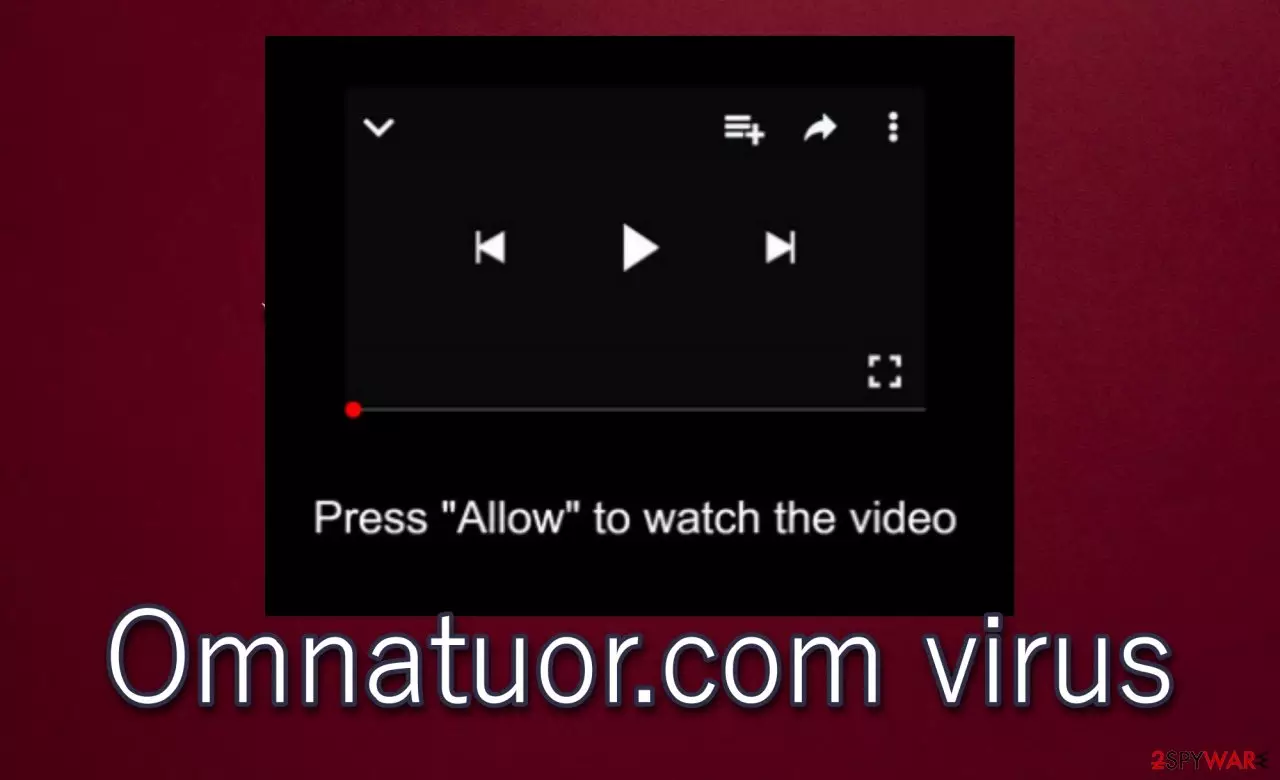
But first, you should find out what the browser hijacker[1] is and how it managed to get into the browser you are using. Omnatuor.com is a rogue website that tries to lure you into subscribing to its notifications. Since most users would not immediately accept such an offer, the page displays a fake error message encouraging them to accept these browser notifications. If you do not know what a fake error message looks like, here's an example:
Omnatuor.com wants to Show notifications
Press Allow to watch the video
Once the victim has successfully subscribed to this page, it can send annoying spam notifications directly to the desktop or phone. If the user clicks on the “Allow” button, the website starts to send spam pop-ups on the phone or computer even when the browser is completely closed.
It is important to note that these notifications are quite unpleasant or in some cases even risky. The website shows ads for:
- adult sites
- fake software updates
- online web games
- other unwanted programs
By visiting such pages, you may inadvertently download additional potentially unwanted programs, come across fake websites that try to trick you into paying money, etc. That’s why you should never press the “Allow” notifications button when you visit this or any other suspicious website. If you've already clicked the button, you'll find explanations of how to get rid of unwanted ads and redirects in this article. We hope our tips will help you fix the computer quickly and easily.
| Name | Omnatuor.com |
|---|---|
| Type | Browser hijacker, potentially unwanted program |
| Distribution | Software bundles, deceptive ads |
| Symptoms | Pop-up ads and other advertisements appear in places they shouldn't be; default browser homepage and search engine changed; websites are not displayed as they should |
| Removal | All removal methods are listed in this article |
| Optional steps | Computer infections can cause significant damage to system files or disrupt normal settings. If you want to revert these changes and remediate the OS, perform a full system scan with the FortectIntego repair tool |
If you don't remember going to this rogue website yourself, there's a simple explanation. Users usually end up on this or any other similar site by clicking on the fake link, going to misspelled URL, or if their computers are infected with adware.
The last example shows that your device was not properly protected or that you downloaded adware along with other software. To avoid something like this in the future, you should employ a reliable anti-malware program. We recommend using MalwarebytesMalwarebytes – a powerful tool that will protect your computer not only from potentially unwanted programs but also from much more serious threats.
Explanations on how to remove the Omnatuor.com ads
You probably shouldn’t be surprised that potentially unwanted programs like the Omnatuor.com virus are being developed. Adware helps their developers make money because pop-up marketing[2] itself is a cheap marketing tool that still works even when security specialists keep warning everyone not to click on suspicious ads.
However, these ads[3] can cause a lot of problems for users. Of course, they are annoying and appear constantly but the main problem is that these ads may slow down the browser. Adware also changes browser settings such as the home page and default search engine. In summary, such potentially unwanted programs shouldn't be kept on the device.
If you want to remove Omnatuor.com notifications, you can do it manually. Since this website is not a serious cyber threat like ransomware or trojan, its removal is quite simple. Just follow these steps to get rid of annoying pop-ups from Google Chrome:
- Scroll down and click on Advanced.
- Locate the Privacy and security section and pick Site Settings > Notifications.

- Look at the Allow section and look for a suspicious URL.
- Click the three vertical dots next to it and pick Block. This should remove unwanted notifications from Google Chrome.



If you have subscribed to notifications on your Android phone, you can also delete them manually. Here are the instructions:
- Open Google Chrome and tap on Settings (three vertical dots).
- Select Notifications.
- Scroll down to the Sites section.
- Locate the unwanted URL and toggle the button to the left (Off setting).


If you're using a different browser, you'll find instructions on how to get rid of unwanted pop-up notifications below. However, you should keep in mind that seeing suspicious advertisements can mean that there are other potentially unwanted programs on your computer. You should scan your system with a reliable antivirus program, f. e. SpyHunterCombo Cleaner. This program will help detect all cyber threats and remove them easily.
Also, after removing various infections, you may notice that the device still does not work as it should. This is because viruses can change system files, various settings, etc. Such issues are extremely difficult or even impossible to fix manually. We recommend using the FortectIntego repair tool. This software will fix system problems and you will no longer have to worry about having to reinstall the OS.
Remove from Microsoft Edge
Delete unwanted extensions from MS Edge:
- Select Menu (three horizontal dots at the top-right of the browser window) and pick Extensions.
- From the list, pick the extension and click on the Gear icon.
- Click Remove.


Clear cookies and other browser data:
- Click on the Menu (three horizontal dots at the top-right of the browser window) and select Settings > Privacy, search, and services..
- Under Clear browsing data, pick Choose what to clear.
- Select Cookies and other site data and Cached images and files. (apart from passwords, although you might want to include Media licenses as well, if applicable) and click on Clear.


Restore new tab and homepage settings:
- Click the menu icon and choose Settings.
- Then find On startup section.
- Click Remove next to any suspicious startup page.
Reset MS Edge if the above steps did not work:
- Press on Ctrl + Shift + Esc to open Task Manager.
- Click on More details arrow at the bottom of the window.
- Select Details tab.
- Now scroll down and locate every entry with Microsoft Edge name in it. Right-click on each of them and select End Task to stop MS Edge from running.


Instructions for Chromium-based Edge
Delete extensions from MS Edge (Chromium):
- Open Edge and click select Settings > Extensions.
- Delete unwanted extensions by clicking Remove.


Clear cache and site data:
- Click on Menu and go to Settings.
- Select Privacy, search and services.
- Under Clear browsing data, pick Choose what to clear.
- Under Time range, pick All time.
- Select Clear now.


Reset Chromium-based MS Edge:
- Click on Menu and select Settings.
- On the left side, pick Reset settings.
- Select Restore settings to their default values.
- Confirm with Reset.
- This will disable extensions and reset startup pages but will not delete bookmarks, saved passwords, or browsing history.


Remove from Mozilla Firefox (FF)
Remove dangerous extensions:
- Open Mozilla Firefox browser and click on the Menu (three horizontal lines at the top-right of the window).
- Select Add-ons.
- In here, select the unwanted extension and click Remove.


Reset the homepage:
- Click three horizontal lines at the top right corner to open the menu.
- Choose Settings.
- Under Home, set your preferred homepage and new tab settings.
Clear cookies and site data:
- Click Menu and pick Settings.
- Go to Privacy & Security section.
- Scroll down to locate Cookies and Site Data.
- Click on Clear Data...
- Select Cookies and Site Data and Temporary cached files and pages, then click Clear.


Reset Mozilla Firefox
If clearing the browser as explained above did not help, reset Mozilla Firefox:
- Open Mozilla Firefox browser and click the Menu.
- Go to Help and then choose Troubleshooting Information.

- Under Give Firefox a tune up section, click on Refresh Firefox...
- Once the pop-up shows up, confirm the action by pressing on Refresh Firefox.



Delete from Safari
Remove dangerous extensions:
- Open Safari, click Safari in the menu at the top-left of the screen, and select Preferences.
- Go to the Extensions tab, look for any suspicious entries, and click Uninstall to remove them.


Clear history and website data:
- Click Safari in the menu and pick Clear History.
- Set Clear to all history and confirm with Clear History.


Reset Safari:
- Click Safari in the menu and select Preferences > Advanced.
- Enable Show Develop menu in menu bar.
- From the menu bar, click Develop and select Empty Caches.


Did this guide help?
Be the first to comment