

Captchaverifier.top uses push notifications for spam purposes
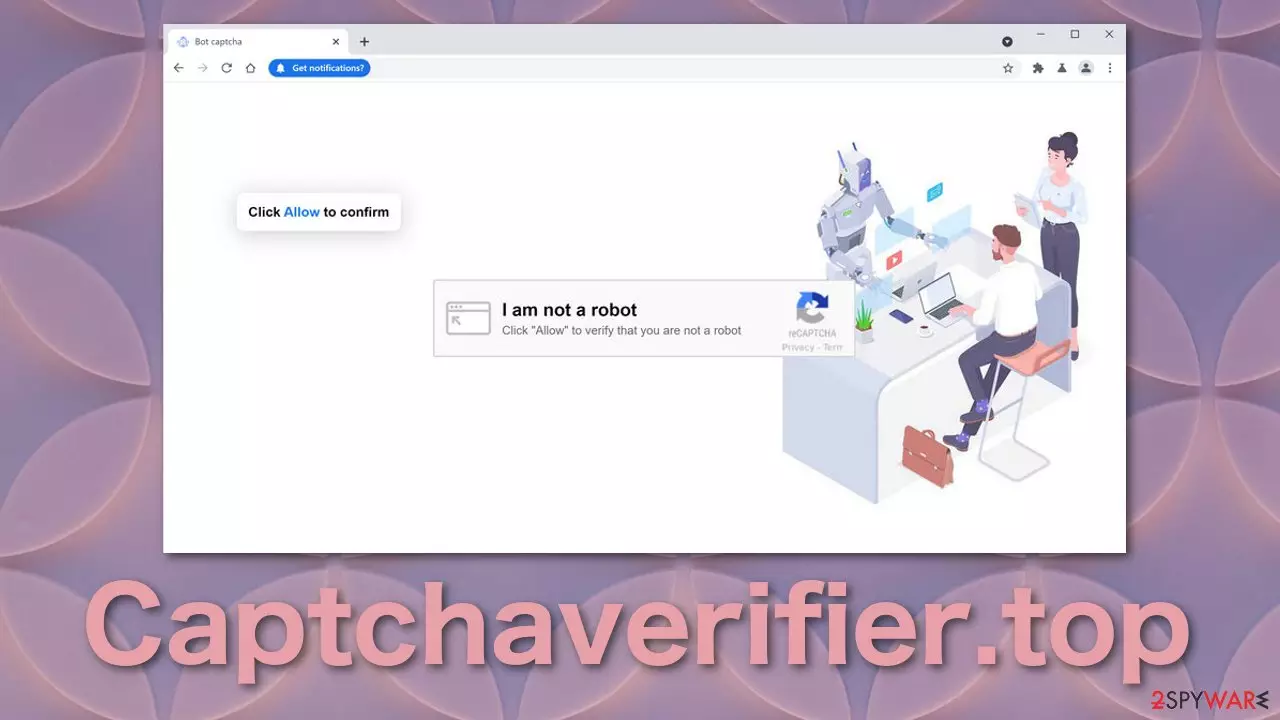
Captchaverifier.top does not actually verify if the user is real (human) or fake (bot). It is a dubious website that uses social engineering techniques[1] to fool people into granting permission to be shown push notifications. These notifications do not benefit users like the latest news, updates, or other things; instead, it sends ads from various sources and acts as a middleman.
The creators generate revenue from every click.[2] The more ads, the better, so they do not filter advertisements. Users can be exposed to pop-up ads created by shady individuals for scam or PUP [3] and malicious software distribution purposes. It is a rare occasion for users to come to this website on their own. Usually, they get redirected by clicking on deceptive ads[4] while browsing through already questionable sites.
It is always good to know that browsing through random pages is not always safe. There are a lot of individuals who want to take advantage of others and make easy money. In this article, we will discuss the techniques these kinds of websites use and how to eliminate the problem.
| NAME | Captchaverifier.top |
| TYPE | Push notification spam; adware |
| SYMPTOMS | Pop-up ads start appearing in the corner of the screen |
| DISTRIBUTION | Shady websites, deceptive ads, sneaky redirects, freeware installations |
| DANGERS | Ads shown by the website can lead to dangerous websites where they can give away their personal information or download potentially unwanted programs and malware |
| ELIMINATION | Remove notification permissions manually by going to your browser settings |
| FURTHER STEPS | FortectIntego is a maintenance tool that should be used after the removal is complete to get rid of any remaining damage and optimize the system |
Common tactics pages use to exploit internet users
The pop-up ads seem to appear out of nowhere, and users often think that they have been infected with a virus. But that is not true. The most common way that these spam pages are able to send ads is because people allowed it themselves. Authors of Captchaverifier.top and other websites use clever methods that trick not very tech-savvy people.
The page we are specifically writing about uses captcha verification process that users are familiar with. If they are rushing, they are likely to not think about it and not read the prompt in the browser, which is saying that the website wants to send push notifications.

The page looks friendly at first sight, and you would not think it has any bad intentions. You can see a robot with a pink heart in it which definitely does not ring alarm bells immediately. You can also come across other messages that are meant to reach the same goal. They could look something like this:
Click Allow to verify your age
Click Allow to watch the video
Download is ready. Click Allow to download your file
They can have still images and GIFs of loading screens to make them look trustworthy. But do not be fooled – legitimate sites do not need you to give them permission to display content or provide you with a download. After clicking the “Allow” button, users do not receive anything in return because there is no other content to explore. The most likely scenario is, they get redirected to another shady page or nothing at all.
Stop advertisements from showing up
Shortly after, victims start noticing pop-up ads in the corner of their screens. They are particularly annoying because sometimes they can appear even when the browser is closed. To block site permissions, you have to do it manually via browser settings:
Google Chrome (desktop):
- Open Google Chrome browser and go to Menu > Settings.
- Scroll down and click on Advanced.
- Locate the Privacy and security section and pick Site Settings > Notifications.

- Look at the Allow section and look for a suspicious URL.
- Click the three vertical dots next to it and pick Block. This should remove unwanted notifications from Google Chrome.



Google Chrome (Android):
- Open Google Chrome and tap on Settings (three vertical dots).
- Select Notifications.
- Scroll down to Sites section.
- Locate the unwanted URL and toggle the button to the left (Off setting).


Mozilla Firefox:
- Open Mozilla Firefox and go to Menu > Options.
- Click on Privacy & Security section.
- Under Permissions, you should be able to see Notifications. Click Settings button next to it.

- In the Settings – Notification Permissions window, click on the drop-down menu by the URL in question.
- Select Block and then click on Save Changes. This should remove unwanted notifications from Mozilla Firefox.



Safari:
- Click on Safari > Preferences…
- Go to Websites tab and, under General, select Notifications.
- Select the web address in question, click the drop-down menu and select Deny.


MS Edge:
- Open Microsoft Edge, and click the Settings and more button (three horizontal dots) at the top-right of the window.
- Select Settings and then go to Advanced.
- Under Website permissions, pick Manage permissions and select the URL in question.
- Toggle the switch to the left to turn notifications off on Microsoft Edge.


MS Edge (Chromium):
- Open Microsoft Edge, and go to Settings.
- Select Site permissions.
- Go to Notifications on the right.
- Under Allow, you will find the unwanted entry.
- Click on More actions and select Block.


Internet Explorer:
- Open Internet Explorer, and click on the Gear icon at the top-right on the window.
- Select Internet options and go to Privacy tab.
- In the Pop-up Blocker section, click on Settings.
- Locate web address in question under Allowed sites and pick Remove.


Privacy concerns
Almost every website you visit uses cookies nowadays to track you. Your browsing behavior is not private – the purchases you make, websites you click on, your IP address are used to personalize your experience and show ads that better suit your interests. This can be a good thing and a bad thing. We know that the most common way to infect yourself with push notification spam is by clicking through questionable sites.
They can collect your data and sell it to third parties, after which they will not be responsible for what happens to it and how it will be used, so you should be wary of that. After you disable unwanted push notifications, we recommend taking care of your browsers. Eliminate the data suspicious websites could have collected about you. Additionally, cache clogs up your storage, so using FortectIntego will improve your machine's performance as well. Besides that, it can fix system errors and corrupted files.
If manual removal did not work, it is a PUA
The ad spam could be caused by adware, which is a potentially unwanted program installed in your machine you probably do not know about. It monetizes your browsing by generating ads on your screen. Use SpyHunterCombo Cleaner or MalwarebytesMalwarebytes professional security tools to scan your machine automatically. It should detect most PUAs and other malicious programs and remove them successfully with all their files.
If you know what you are doing, you can remove the program manually. Look for instructions at the bottom of the page.
Uninstall from Windows
Uninstall from Windows 10/8:
- Type Control Panel into the Windows search box and open the result.
- Under Programs, select Uninstall a program.


Uninstall from Windows 7/XP:
- Click on Windows Start > Control Panel (Windows XP users should click on Add/Remove Programs).
- In Control Panel, select Programs > Uninstall a program.


Remove the unwanted program:
- In the Programs and Features window, look for any recently installed suspicious entries, select them, and click Uninstall.
- If User Account Control appears, click Yes to confirm, then complete the removal.


Delete from macOS
Remove the unwanted application:
- From the menu bar, select Go > Applications.
- In the Applications folder, look for any suspicious entries, then drag them to Trash (or right-click and pick Move to Trash).


Delete leftover files and folders:
- Select Go > Go to Folder.
- Enter /Library/Application Support and remove any suspicious folders related to the unwanted program.
- Repeat the same check in the /Library/LaunchAgents and /Library/LaunchDaemons folders, deleting any suspicious entries.

- Finally, empty the Trash to permanently remove the leftovers.

Did this guide help?
Be the first to comment