

Mytravelsday1.xyz displays fake messages to get users to subscribe to notifications
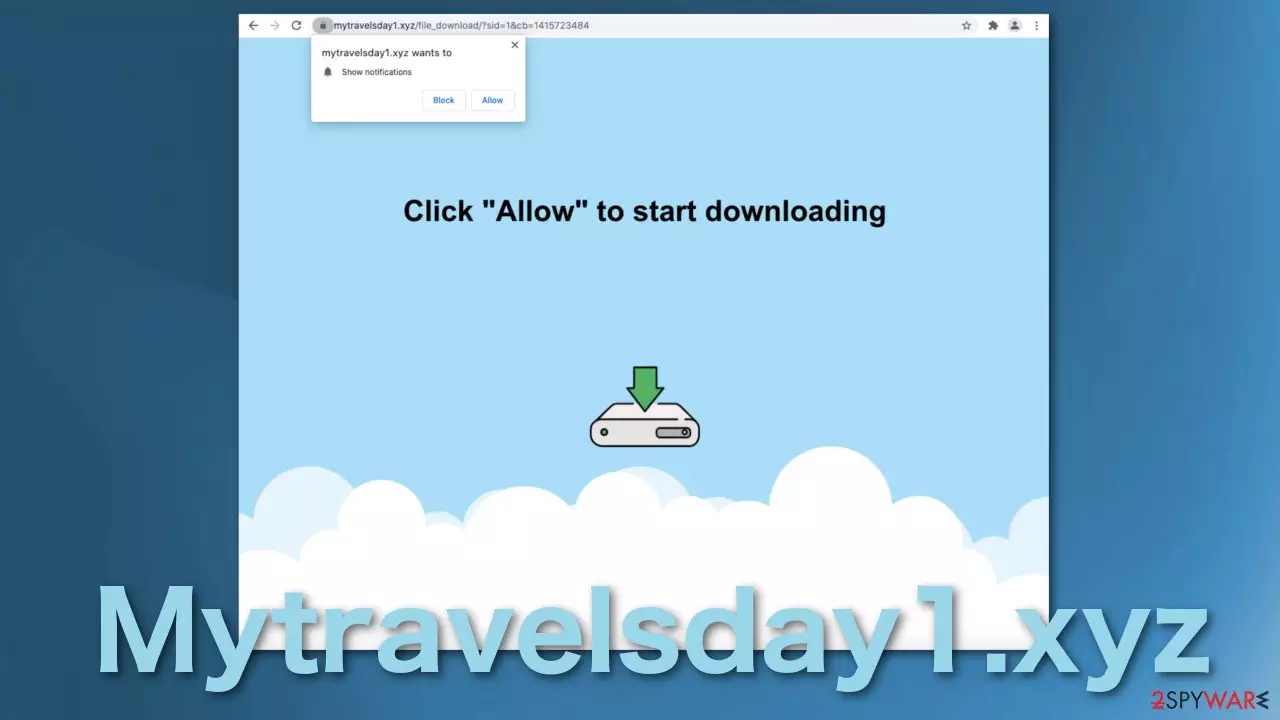
Mytravelsday1.xyz is a dubious page created by shady individuals that want to generate revenue from pay-per-click advertising. Upon visiting the site, users are shown a message that urges them to press the “Allow” button in order to receive a download, play a game, video, access a site, or receive a prize. The truth is, the site does not have any content to provide except for the false messages and different-looking pages that change every time you visit the site.
When users grant permission for the website to show push notifications, they start seeing pop-up ads in the corner of the screen. These advertisements are not always safe to click on because the page owners do not filter them and do not blacklist shady pages. So people can see not only legitimate promotions but also those that lead to dangerous websites created by fraudsters.
People who have this site's permissions turned on are at more significant risk of being scammed and suffer from monetary losses, download potentially unwanted programs,[1] or even malware and infect their machines. The website's authors do not care about user safety or privacy, so they do not take action to remove shady ads.
| NAME | Mytravelsday1.xyz |
| TYPE | Push notification spam; adware |
| SYMPTOMS | Pop-up ads start appearing in the corner of the screen, sometimes even when the browser is closed |
| DISTRIBUTION | Shady websites, deceptive ads, bundled software |
| DANGERS | Links embedded in the notification prompts can lead to dangerous websites created by scammers, which put users at risk of suffering from monetary losses |
| ELIMINATION | You can block push notifications via browser settings or remove adware by scanning your machine with anti-malware tools |
| FURTHER STEPS | Use FortectIntego to eliminate any remaining damage, fix errors, and optimize performance |
If you get redirected to this page or similar ones often, that could mean that you have adware[2] installed in your system that messes with your browser. Mytravelsday1.xyz is kind of unique because it changes its appearance every time you visit it. Users can be shown a fake loading screen, game, X-rated site, captcha verification, prize, etc. Here are some of the messages that users can encounter with this domain:
Click “Allow” to start downloading
Click “Allow” to play the video
Click “Allow” to win a prize and get it in our shop
Click “Allow” to close this window
You should never have to “Allow” something for the site to be able to function. Fraudsters use a familiar process for users – captcha verification to manipulate them. But that is not how a verification looks. The window that opens where people have to press the button says, “Mytravelsday1.xyz wants to Show notifications”. Users should know that push notifications are pop-ups that appear in the corner of the screen or at the top if you are on mobile.
Typically, this function is used by trustworthy websites to inform their customers about the latest news, discounts, updates, or other information. But these sites are created to fill the pockets of shady individuals.

How do users get on this site?
People rarely access websites like this on their own or find them in their search results. As we said before, users can get redirected to it because of adware action or because they are browsing through already shady pages. Websites that engage in illegal activities are rarely regulated, so they are filled with deceptive ads, have sneaky redirects that open new tabs when you do not even click on anything in particular on the page.
To believe the site and click the button, it has to be related to the previous page's content. Because this domain has many appearances, this simply happens by chance. If people are browsing through an illegal streaming platform[3] and want to watch a movie, they click on the play button, and a new tab opens with a page saying they need to give the site permission to continue playing the video. Looks pretty believable if you have no prior experience and never encountered it before.
Of course, after clicking the button, users do not receive anything – no downloads, no videos, no games because there is nothing else on the page. From that point, people will start seeing ads, sometimes even when their browser is closed.
Get rid of annoying pop-ups
The good news is that push notifications are a subscription-based model so that users can allow it only themselves, so they have to remove it the same way – manually. All you have to do is go to your browser settings and block the site's permissions:
Google Chrome (desktop):
- Open Google Chrome browser and go to Menu > Settings.
- Scroll down and click on Advanced.
- Locate the Privacy and security section and pick Site Settings > Notifications.

- Look at the Allow section and look for a suspicious URL.
- Click the three vertical dots next to it and pick Block. This should remove unwanted notifications from Google Chrome.



Google Chrome (Android):
- Open Google Chrome and tap on Settings (three vertical dots).
- Select Notifications.
- Scroll down to Sites section.
- Locate the unwanted URL and toggle the button to the left (Off setting).


Mozilla Firefox:
- Open Mozilla Firefox and go to Menu > Options.
- Click on Privacy & Security section.
- Under Permissions, you should be able to see Notifications. Click Settings button next to it.

- In the Settings – Notification Permissions window, click on the drop-down menu by the URL in question.
- Select Block and then click on Save Changes. This should remove unwanted notifications from Mozilla Firefox.



Safari:
- Click on Safari > Preferences…
- Go to Websites tab and, under General, select Notifications.
- Select the web address in question, click the drop-down menu and select Deny.


MS Edge:
- Open Microsoft Edge, and click the Settings and more button (three horizontal dots) at the top-right of the window.
- Select Settings and then go to Advanced.
- Under Website permissions, pick Manage permissions and select the URL in question.
- Toggle the switch to the left to turn notifications off on Microsoft Edge.


MS Edge (Chromium):
- Open Microsoft Edge, and go to Settings.
- Select Site permissions.
- Go to Notifications on the right.
- Under Allow, you will find the unwanted entry.
- Click on More actions and select Block.


Internet Explorer:
- Open Internet Explorer, and click on the Gear icon at the top-right on the window.
- Select Internet options and go to Privacy tab.
- In the Pop-up Blocker section, click on Settings.
- Locate web address in question under Allowed sites and pick Remove.


After you remove intrusive ads, it would be a good idea to take care of your browsers. The websites you visit can use cookies to track your browsing behavior, like the sites you visit, links you click on, purchases you make, and more. This data can later be sold to advertising networks which could be used to personalize ads further and take advantage of you. The storage of cookies can also clutter your system and make it perform worse.
We offer an automatic solution for this problem – FortectIntego. This repair tool can do the job for you and clear all your browsers, fix corrupted files, errors and improve performance. Of course, you can perform this manually if you'd like, but keep in mind this process can take a while if you use many browsers:
Clear cache and web data from Chrome:
- Click on Menu and pick Settings.
- Under Privacy and security, select Clear browsing data.
- Select Browsing history, Cookies, and other site data, as well as Cached images and files.
- Click Clear data.
Android:
- Go to Settings > Apps/Applications.
- Expand the full list of the installed apps.
- Tap on Chrome and select Storage & cache.
- Clear storage and clear cache of the app.
Mozilla Firefox:
- Click Menu and pick Options.
- Go to Privacy & Security section.
- Scroll down to locate Cookies and Site Data.
- Click on Clear Data…
- Select Cookies and Site Data, as well as Cached Web Content, and press Clear.
Safari:
- Click Safari > Clear History.
- From the drop-down menu under Clear, pick all history.
- Confirm with Clear History.
MS Edge:
- Click on the Menu (three horizontal dots at the top-right of the browser window) and select Privacy & security.
- Under Clear browsing data, pick Choose what to clear.
- Select everything (apart from passwords, although you might want to include Media licenses as well, if applicable) and click on Clear.
MS Edge (Chromium):
- Click on Menu and go to Settings.
- Select Privacy and services.
- Under Clear browsing data, pick Choose what to clear.
- Under Time range, pick All time.
- Select Clear now.
Internet Explorer:
- Press on the Gear icon and select Internet Options.
- Under Browsing history, click Delete.
- Select relevant fields and press Delete
If the manual removal was unsuccessful
That might mean that you have a potentially unwanted program installed in your system that generates ads in the background without your consent. Usually, users install PUPs from unofficial sites that distribute freeware. So if you recently did this, that is a possible reason.
You can use anti-malware tools like SpyHunterCombo Cleaner or MalwarebytesMalwarebytes or other trusted software to scan your system. Security software can also prevent virus infections in the future by giving you a warning about suspicious programs. If you want to try it yourself, you can find instructions for Windows and macOS under this post.
Uninstall from Windows
Uninstall from Windows 10/8:
- Type Control Panel into the Windows search box and open the result.
- Under Programs, select Uninstall a program.


Uninstall from Windows 7/XP:
- Click on Windows Start > Control Panel (Windows XP users should click on Add/Remove Programs).
- In Control Panel, select Programs > Uninstall a program.


Remove the unwanted program:
- In the Programs and Features window, look for any recently installed suspicious entries, select them, and click Uninstall.
- If User Account Control appears, click Yes to confirm, then complete the removal.


Delete from macOS
Remove the unwanted application:
- From the menu bar, select Go > Applications.
- In the Applications folder, look for any suspicious entries, then drag them to Trash (or right-click and pick Move to Trash).


Delete leftover files and folders:
- Select Go > Go to Folder.
- Enter /Library/Application Support and remove any suspicious folders related to the unwanted program.
- Repeat the same check in the /Library/LaunchAgents and /Library/LaunchDaemons folders, deleting any suspicious entries.

- Finally, empty the Trash to permanently remove the leftovers.

Did this guide help?
Be the first to comment