

RTX ransomware is developed to extort money from innocent users
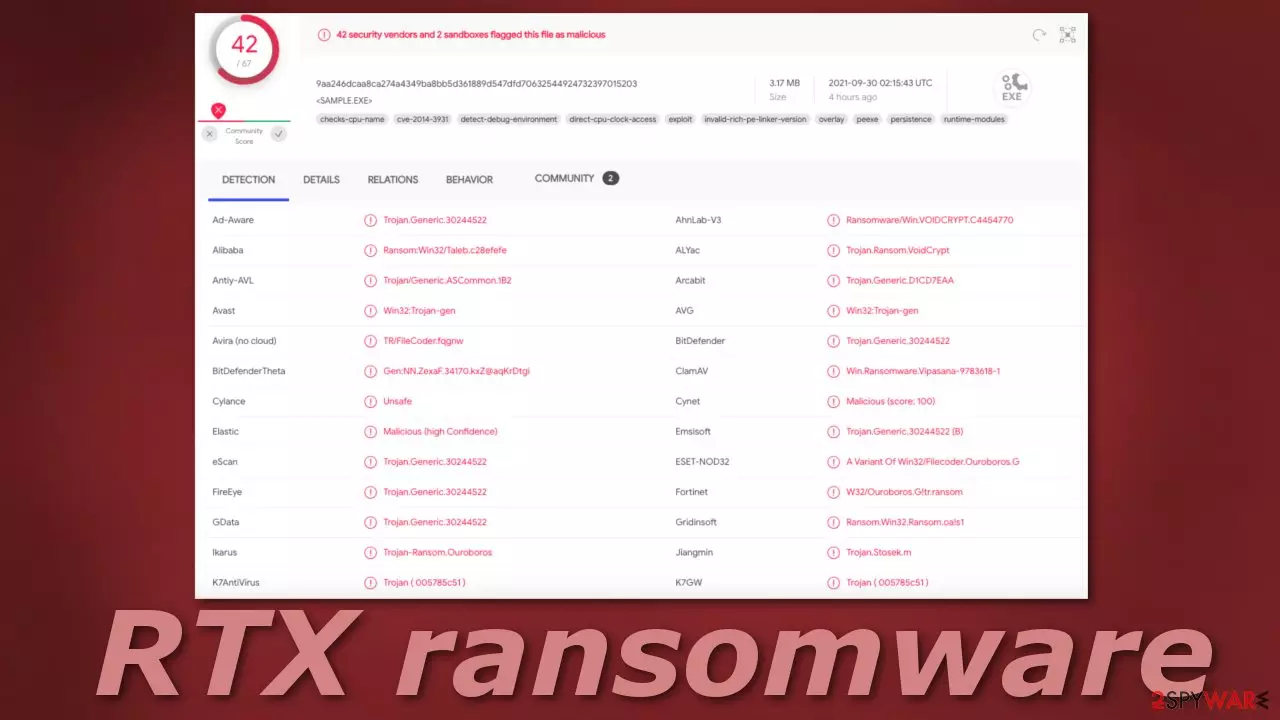
One of the most notorious cyber-attacks is ransomware attacks because of the damage they can cause to victims. The developers of these malicious programs target home users and big corporations too. The bigger the target, the bigger the reward. This type of malware is created to infiltrate users' devices and lock all of the personal files inside them. The icons get also changed to white pages, so users immediately notice that something is wrong.
RTX ransomware appends files with the .RTX extension, the attackers' contact details, and a unique ID generated to the victim is also included. So if a file was previously named picture.jpg, after encryption is complete, it would look like this – picture.jpg[hoti2020@tutanota.com][uniqueID].RTX. Shortly after the encryption process is complete, a ransom note is created on the machine which informs users about their current situation.
The file is named Read-this.txt and includes the attackers' contact information and some other instructions. This particular strain belongs to the Void ransomware family which was first detected at the beginning of April 2020. The family can also be known by the name of VoidCrypt because it demands payment in cryptocurrencies[1] and might also mine crypto using victims' devices.
| NAME | RTX |
| TYPE | Ransomware, cryptovirus, data locking malware |
| MALWARE FAMILY | Void ransomware |
| ENCRYPTION METHOD | AES + RSA |
| FILE EXTENSION | .RTX |
| RANSOM NOTE | Read-this.txt |
| DISTRIBUTION | Infected email attachments, peer-to-peer file sharing platforms, torrents, malicious ads |
| FILE RECOVERY | It is almost impossible to recover the data if users do not have backups or the decryption keys were not leaked; we provide third-party solutions that work in some cases |
| ELIMINATION | Scan your machine with anti-malware software to eliminate the virus safely, keep in mind that this will not recover the locked files |
| SYSTEM FIX | You can avoid windows reinstallation with FortectIntego maintenance tool, which can fix damaged files and system errors |
Ransomware distribution methods
Most people are completely uneducated about ransomware attacks and how they work. There are a lot of ways you could have gotten infected by it. Let's start with the most common one – installations of “cracked” software. Many people do not have money to buy expensive software licenses so they resort to using third-party distributors that provide them for free. The thing is, these websites are rarely regulated, so they are full of PUPs and malware, people do not even notice how they get infected.
Another popular method threat actors use is email. Typically, the malicious code gets introduced by an executable file (.exe) that may have been in a zip folder, embedded within Microsoft Office document’s macros,[2] or disguised as fax or other viable attachment. You should only open attachments that you were expecting to receive. If it was a surprise, double-check with the person through another platform.
Of course, ransomware can also be disguised as a legitimate program also, that users download themselves intentionally. It is important to do your research before installing anything and make sure it is safe to do so. Find reviews and inspect the site, try to find the official source. The most obvious way ransomware gets inside is by software vulnerabilities.[3] That is why it is very important to keep your operating system and applications always updated, as these patches can be very important and fix serious security problems.
The ransom note

The full ransom note Read-this.txt reads as follows:
All Your Files Has Been Encrypted
You Have to Pay to Get Your Files Back
1-Go to C:\ProgramData\ or in Your other Drives and send us prvkey.txt.key file
2-You can send some file little than 1mb for Decryption test to trust us But the test File should not contain valuable data
3-Payment should be with Bitcoin
4-Changing Windows without saving prvkey.txt.key file will cause permanete Data lossOur Email:hoti2020@tutanota.com
in Case of no Answer:Arenono@protonmail.com
We always strongly advise against contacting the attackers, as many ransomware victims have come forward and reported that after paying the ransom they never heard back. You should keep in mind, that cybercriminals are not required to keep their word, so there are no guarantees that after you pay the money, you will get your files back. You run the risk of losing your files and your money too.
The attackers like to use various scare tactics to make you act without thinking and send the payment as soon as possible without trying other solutions. In this guide we will show you how you can remove the malicious files, try to recover the files, and fix the damaged operating system, so you would need to reinstall Windows completely.
RTX ransomware removal
There are plenty of ransomware-type infections which self-destroy after they are finished with data encryption. However, this is not the case for all malware, and it well might be that RTX ransomware will continue running in the background in order to lock the incoming data. Besides, it might drop several modules that could be designed for some other malicious activities, such as cryptojacking.[4]
Therefore, the first step you should do after being infected with ransomware is to remove it with powerful security software. You can perform a full system scan with an updated anti-virus application and it should delete all the related files and other items automatically. There are plenty of tools that recognize
In some cases, ransomware might interfere with security software operations in one way or another (for example, it can immediately shut it down). Accessing Safe Mode with Networking can bypass this issue:
Windows 7 / Vista / XP
- Click Start > Shutdown > Restart > OK.
- When your computer becomes active, start pressing F8 button (if that does not work, try F2, F12, Del, etc. – it all depends on your motherboard model) multiple times until you see the Advanced Boot Options window.
- Select Safe Mode with Networking from the list.


Windows 10 / Windows 8
- Right-click on Start button and select Settings.
- Scroll down to pick Update & Security.
- On the left side of the window, pick Recovery.
- Now scroll down to find Advanced Startup section.
- Click Restart now.
- Select Troubleshoot.
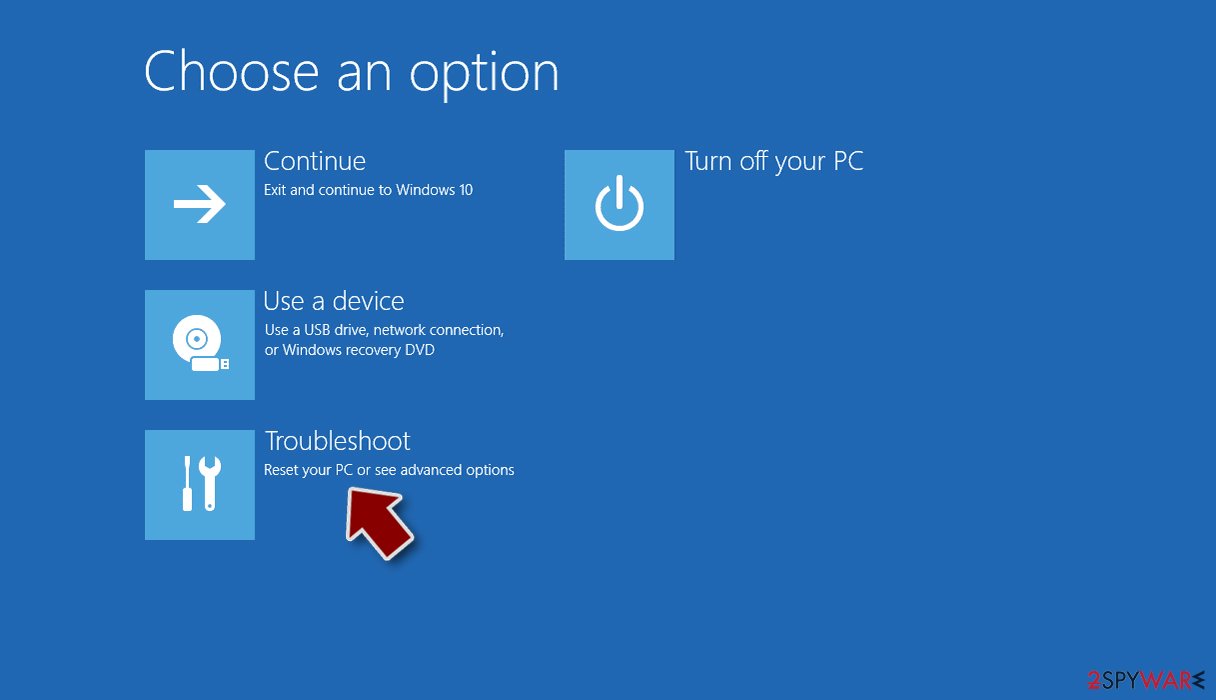
- Go to Advanced options.
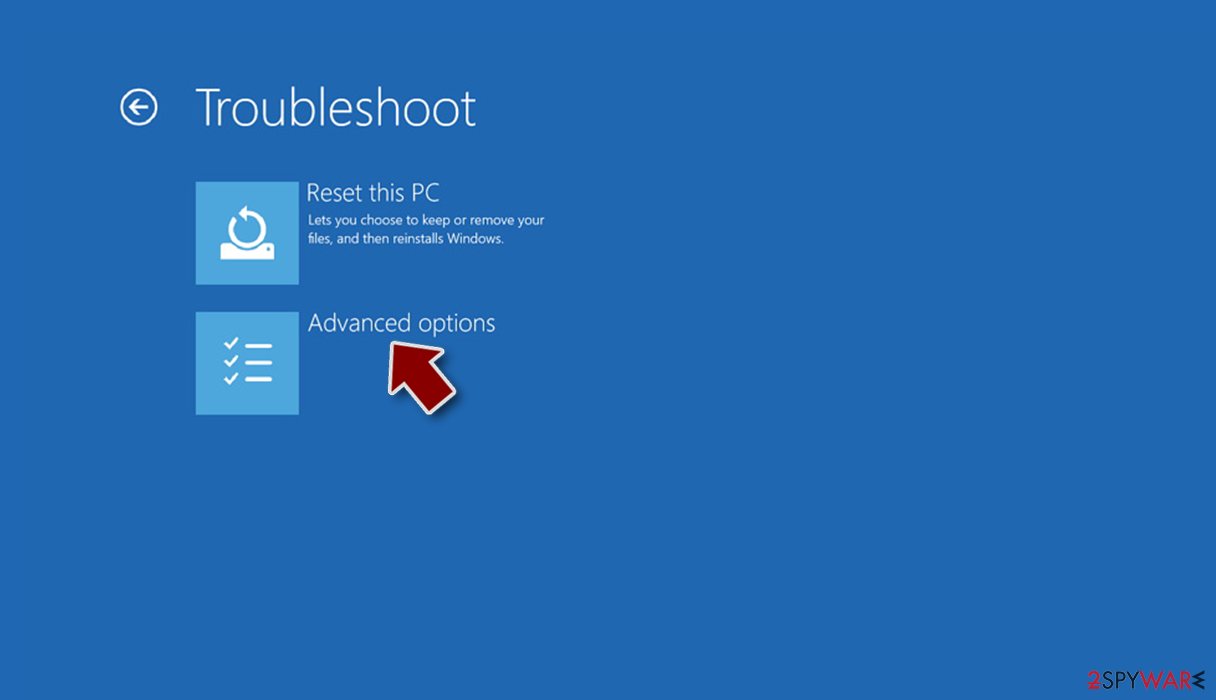
- Select Startup Settings.
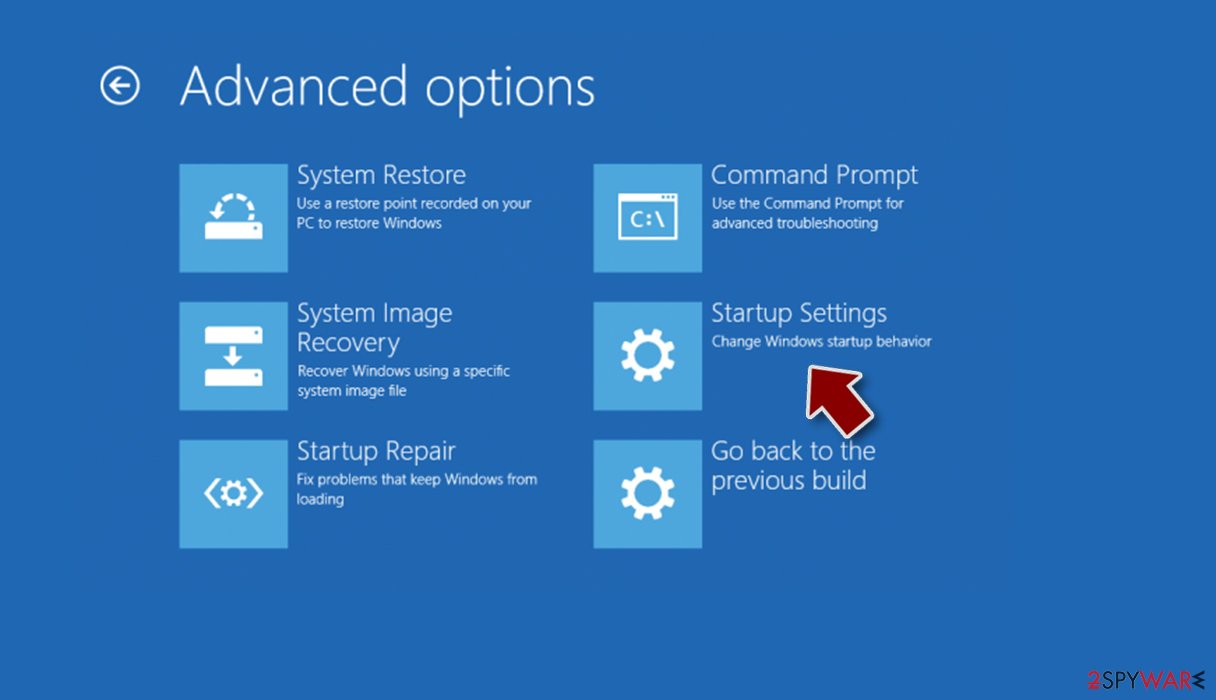
- Click Restart.
- Press 5 or click 5) Enable Safe Mode with Networking.


Once your computer reboots, your desktop background should be black, with “Safe Mode” markings in all four corners of the screen. Launch SpyHunterCombo Cleaner or MalwarebytesMalwarebytes and perform a full system scan. Your machine should be clean after that, and you can then restart it to go back to normal more to proceed with the next step.
Third-party solutions to recover .RTX files
Having your files encrypted by ransomware can be particularly devastating, especially if data consists of important work documents or schoolwork. As already mentioned, paying criminals is not recommended – these people can simply not be trusted. They might never send you the required key, especially when there are no contact details provided (they might not know who you are – usually crooks provide a personal ID they can identify victims by).
Thus, you should instead rely on other methods. There is no guarantee they will work for you, but you should definitely try it.
- Download Data Recovery Pro.
- Double-click the installer to launch it.

- Follow on-screen instructions to install the software.
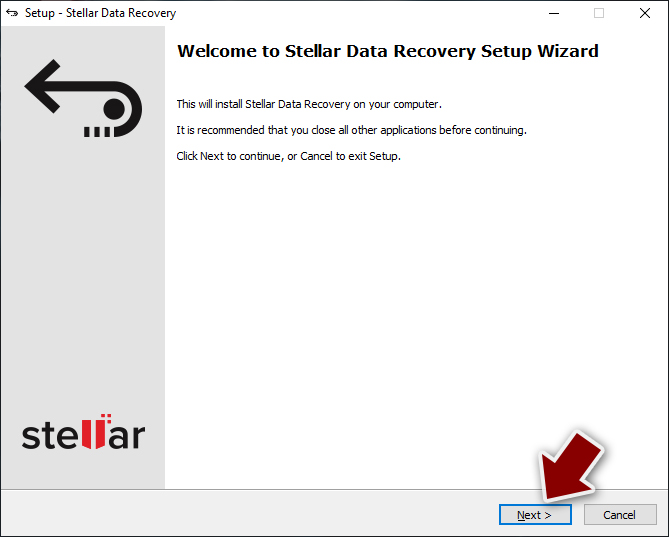
- As soon as you press Finish, you can use the app.
- Select Everything or pick individual folders where you want the files to be recovered from.
- Press Next.
- At the bottom, enable Deep scan and pick which Disks you want to be scanned.

- Press Scan and wait till it is complete.
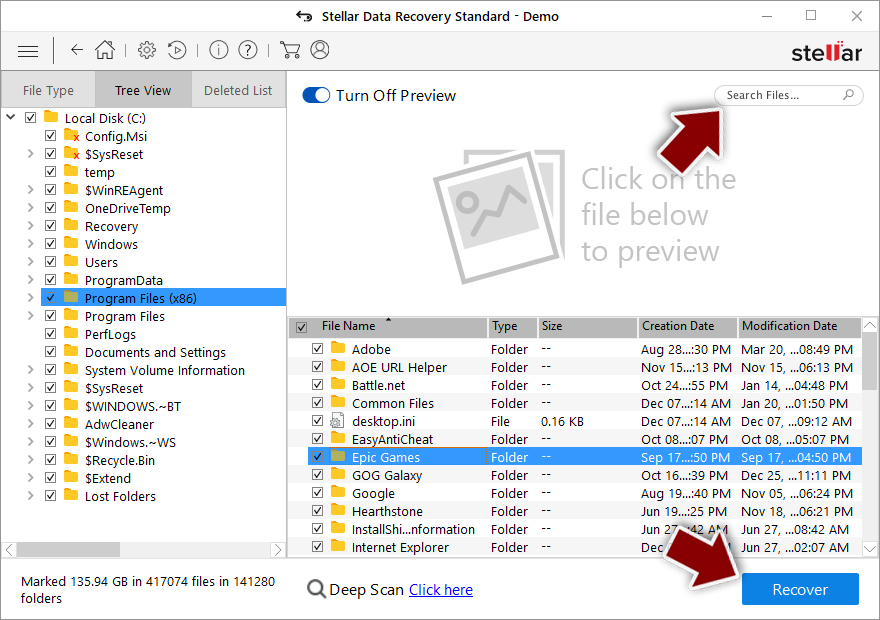
- You can now pick which folders/files to recover – don't forget you also have the option to search by the file name!
- Press Recover to retrieve your files.


Repair the damaged operating system
Malware, such as ransomware, can negatively impact Windows system files, damaging them during the infection period. New ransomware strains are more prone to bugs due to malware creators' inexperience, so it can mess things up really quickly. Unfortunately, security software is not capable of fixing damaged system components, which might later result in system crashes, errors, and other issues. If you are experiencing similar problems after RTX ransomware removal, you should proceed with the following solution to repair damaged system files:
- Download FortectIntego
- Click on the ReimageRepair.exe

- If User Account Control (UAC) shows up, select Yes
- Press Install and wait till the program finishes the installation process
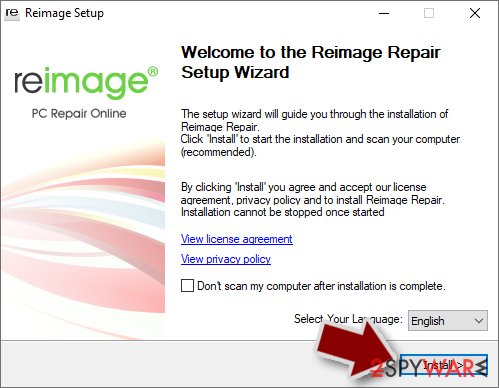
- The analysis of your machine will begin immediately
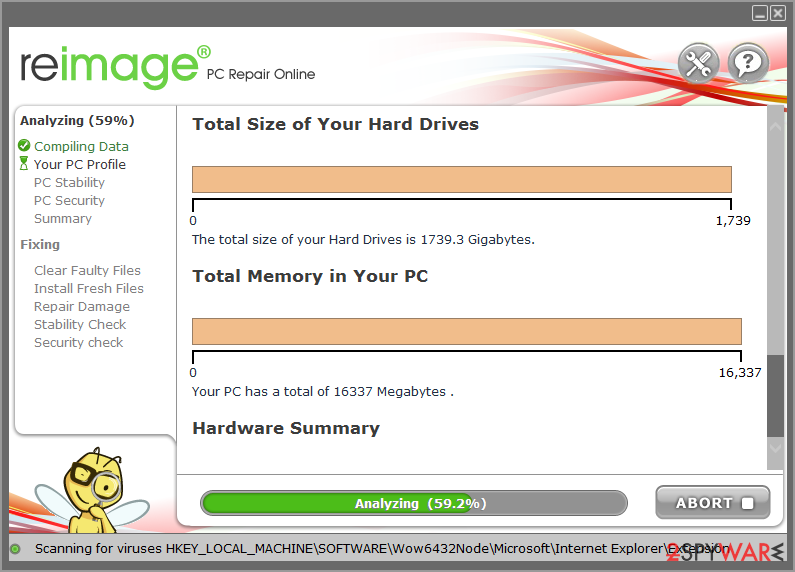
- Once complete, check the results – they will be listed in the Summary
- You can now click on each of the issues and fix them manually
- If you see many problems that you find difficult to fix, we recommend you purchase the license and fix them automatically.



Did this guide help?
Be the first to comment