

Naijawide.com is not the website you should use to entertain yourself
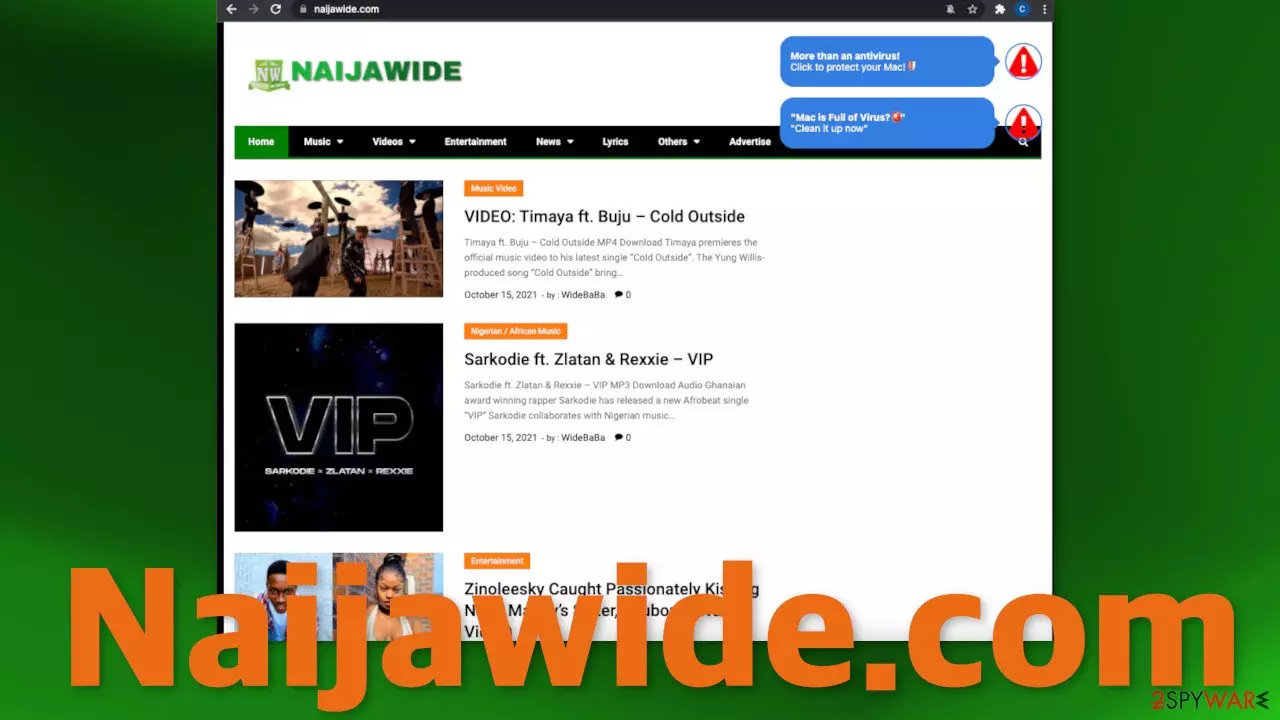
Naijawide.com – “The Nigerian Entertainment Hub”, uses various phishing techniques in order to get people to click on as many ads as possible. It is clear that this website was created just for this purpose as the creators advertise their advertising to get promoters to buy even more ad spots. The worrying thing is that they do not care about user privacy or security as many of the ads embedded in the page lead to dangerous sites that use deceptive tactics to get people to buy “miracle creams” or download antivirus software that could be malware.[1]
Users can easily infect themselves while using the website or get scammed. Besides that, the page also redirects[2] to other domains that ask for the notifications to be allowed, so it is a never-ending rabbit hole. If you see ads from this website, that means you have been tricked into subscribing to push notifications, or adware is operating on your system in the background.
There are many websites on the Internet that operate the same way. We always recommend our readers not to with websites of this kind as it can lead to serious problems. Users could provide their personal information to shady individuals and suffer from monetary losses, or even identity theft.
| NAME | Naijawide.com |
| TYPE | Push notification spam; adware |
| SYMPTOMS | Intrusive pop-up ads appear on the screen; a decrease in browsing speed |
| DISTRIBUTION | Deceptive ads, shady websites, freeware installations |
| DANGERS | Links inserted in the pop-ups can contain links leading to questionable websites where users are at risk of providing their personal information or downloading potentially unwanted programs and malware |
| ELIMINATION | Remove push notifications manually via browser settings, or deploy anti-malware software for adware elimination |
| FURTHER STEPS | A maintenance tool FortectIntego should be used to perform a system scan and fix any remaining damage |
Social engineering methods that Naijawide.com has implemented
As soon as you open this website, you are met with a browser prompt saying that the page wants to “Show notifications”. In the right corner of the screen, you can see two pop-ups with warning signs saying that your computer is infected and you have to click on them to get protection.
If you click on the “Allow” button, you will get redirected to another page that asks you to do it again. After that, you will most likely start getting spammed with shady advertisements, the same as you can see on the site itself. The warning pop-ups warning users about an infection, on the other hand, redirect users through forflygonom.com to a page that promotes antivirus software.
Another thing users can encounter on the page are fake “Download” and “Play” buttons. These are hidden ads, and will not provide you with a file to download or play. When you click on any of them, you will also get redirected to a shady page. As you can already tell, the page is full of traps, that could catch not very tech-savvy people.

This is all done in order to get as many clicks as possible because they generate revenue for the page owners. You can clearly see that this website is using PPC advertising irresponsibly, putting their readers at risk.
Block push notifications
If you see pop-ups appearing in the corner of your screen, that means you clicked the “Allow” button. The push notification removal process is not complicated. All you have to do is go to your browser settings and block them. We have provided step-by-step instructions below for the most popular browsers:
Google Chrome (desktop):
- Open Google Chrome browser and go to Menu > Settings.
- Scroll down and click on Advanced.
- Locate the Privacy and security section and pick Site Settings > Notifications.

- Look at the Allow section and look for a suspicious URL.
- Click the three vertical dots next to it and pick Block. This should remove unwanted notifications from Google Chrome.



Google Chrome (Android):
- Open Google Chrome and tap on Settings (three vertical dots).
- Select Notifications.
- Scroll down to Sites section.
- Locate the unwanted URL and toggle the button to the left (Off setting).


Mozilla Firefox:
- Open Mozilla Firefox and go to Menu > Options.
- Click on Privacy & Security section.
- Under Permissions, you should be able to see Notifications. Click Settings button next to it.

- In the Settings – Notification Permissions window, click on the drop-down menu by the URL in question.
- Select Block and then click on Save Changes. This should remove unwanted notifications from Mozilla Firefox.



Safari:
- Click on Safari > Preferences…
- Go to Websites tab and, under General, select Notifications.
- Select the web address in question, click the drop-down menu and select Deny.


MS Edge:
- Open Microsoft Edge, and click the Settings and more button (three horizontal dots) at the top-right of the window.
- Select Settings and then go to Advanced.
- Under Website permissions, pick Manage permissions and select the URL in question.
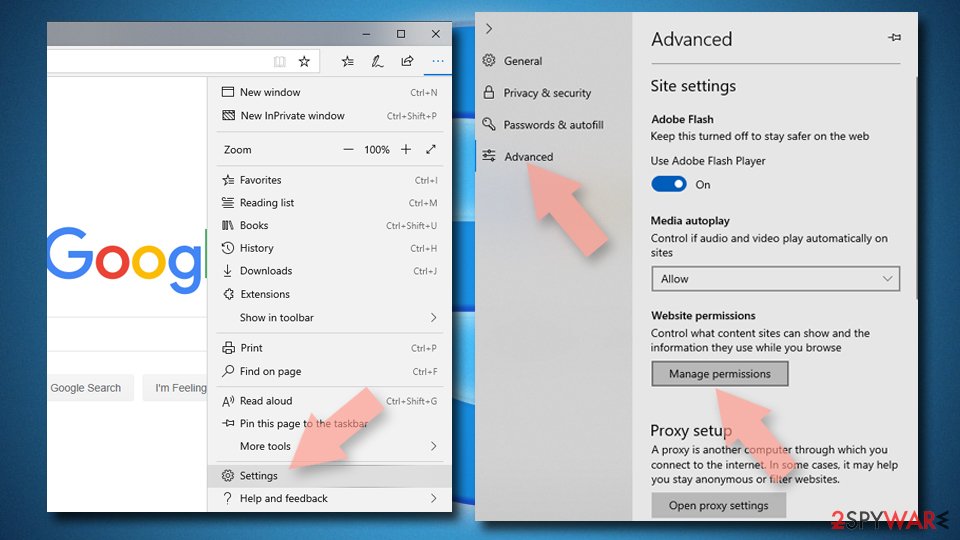
- Toggle the switch to the left to turn notifications off on Microsoft Edge.



MS Edge (Chromium):
- Open Microsoft Edge, and go to Settings.
- Select Site permissions.
- Go to Notifications on the right.
- Under Allow, you will find the unwanted entry.
- Click on More actions and select Block.


Internet Explorer:
- Open Internet Explorer, and click on the Gear icon at the top-right on the window.
- Select Internet options and go to Privacy tab.
- In the Pop-up Blocker section, click on Settings.
- Locate web address in question under Allowed sites and pick Remove.


If you have noticed that your device is slower, after removal, you might want to clear your browser's cookies and cache. This will clean up all the junk collected from browsing and eliminate information that websites have collected about you. To make this even easier, a maintenance tool is perfect for this task – FortectIntego. It can also fix system errors and damaged files after more serious infections.
Scareware is used to spread PUPs and malware
If you did not find the website in the list or blocking the notifications did not work, you might have installed a PUP[3] at some point. These programs are often disguised as useful tools for users like antivirus software or else. The truth is, these programs are rarely functional. Instead, their main purpose is to perform various processes in the background. In this case – generate advertisements in your machine.
Freeware installations are the most common cause for this. Sometimes even other additional programs can be included in the installers that users do not notice. It is important not to rush through the installation process and choose the “Advanced” or “Custom” installation methods and unchecking the boxes next to files you do not need. Try to use official sources for downloading apps to avoid this in the future.
Use professional security tools like SpyHunterCombo Cleaner and MalwarebytesMalwarebytes to scan your system because it can be difficult to determine which program is responsible for annoying behavior if you do not have experience. These programs will take care of threats automatically and prevent such infections in the future. If you still want to proceed with the manual removal, you can look for the instructions below for Windows and Mac operating systems:
Instructions for Windows 10/8 machines:
- Enter Control Panel into Windows search box and hit Enter or click on the search result.
- Under Programs, select Uninstall a program.

- From the list, find the entry of the suspicious program.
- Right-click on the application and select Uninstall.
- If User Account Control shows up, click Yes.
- Wait till uninstallation process is complete and click OK.



If you are Windows 7/XP user, proceed with the following instructions:
- Click on Windows Start > Control Panel located on the right pane (if you are Windows XP user, click on Add/Remove Programs).
- In Control Panel, select Programs > Uninstall a program.

- Pick the unwanted application by clicking on it once.
- At the top, click Uninstall/Change.
- In the confirmation prompt, pick Yes.
- Click OK once the removal process is finished.

For macOS users:
- From the menu bar, select Go > Applications.
- In the Applications folder, look for all related entries.
- Click on the app and drag it to Trash (or right-click and pick Move to Trash)


To fully remove an unwanted app, you need to access Application Support, LaunchAgents, and LaunchDaemons folders and delete relevant files:
- Select Go > Go to Folder.
- Enter /Library/Application Support and click Go or press Enter.
- In the Application Support folder, look for any dubious entries and then delete them.
- Now enter /Library/LaunchAgents and /Library/LaunchDaemons folders the same way and terminate all the related .plist files.


Did this guide help?
Be the first to comment