

Izationsuchasr.xyz is flagged by Google Chrome as a dangerous site
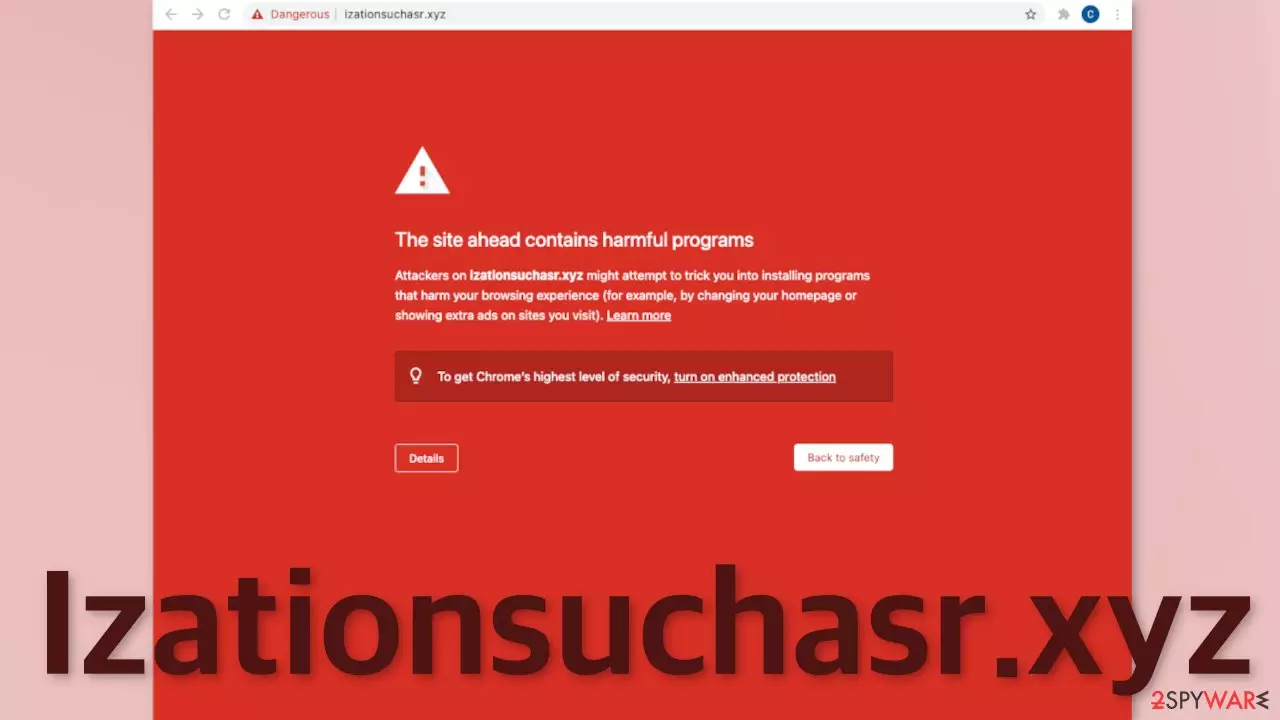
Izationsuchasr.xyz depends on you clicking the “Allow” button to make money. The site is marked by Google Chrome as dangerous and a warning is shown saying “The site ahead contains harmful programs”. When you visited this site it might not have been marked yet, so do not be hard on yourself. This is what the warning says about the website:
Attackers on izationsuchasr.xyz might attempt to trick you into installing programs that harm your browsing experience (for example, by changing your homepage or showing extra ads on sites you visit).
If you see such a warning, you should never proceed anyways because you can put your security at risk. If you go to this page anyways, you are bombarded with fake claims and promises. “Get The Latest Sports Updates From Around The World.” is what you would see. This message is fake because you will not get anything valuable if you click the “Allow” button. Instead, you will start receiving pop-up ads that may lead to other dangerous websites.
| NAME | Izationsuchasr.xyz |
| TYPE | Push notification spam; adware |
| SYMPTOMS | Pop-up ads start appearing in the corner of the screen, sometimes even when the browser is closed |
| DISTRIBUTION | Shady websites, deceptive ads, sneaky redirects, bundled software |
| DANGERS | Links embedded in the push notification prompts can lead to dangerous websites that want to obtain users personal information or trick them into downloading PUPs and malware |
| ELIMINATION | Users can block push notifications in the browser settings at any time; deploying anti-malware software is recommended to scan the machine for PUPs |
| FURTHER STEPS | Use FortectIntego after the removal is complete to fix any remaining errors and optimize the machine |
Generally, the push notification function is used to provide users with some kind of value, like informing them about the latest news, updates, special offers, etc. This is not what happens when you give the site permission to send them. The website does not provide any original content and there is nothing else to explore besides the front page.
The pop-up ads are intrusive and appear in different time intervals that depend on what settings the page owner has configured. They can lead to other shady pages because the authors of the site do not care about user safety or privacy, so they do not filter them.

Dangers associated with shady websites
Users rarely stumble upon sites like this one on their own, in the search results. Usually, they are promoted on various pages that engage in illegal activities. For example, that could be an illegal streaming platform.[1] These kinds of websites are unregulated, so no one can ensure their safety. They are often full of deceptive ads and sneaky redirects, like fake “Download” and “Play” buttons.
Almost any website you visit uses cookies to track your browsing activity, like your IP address, links you click on, and what you purchase. If this information is obtained by the wrong individuals, it can lead to many problems. The good news is, that cookies are stored on the client's device, so you can delete them anytime.
A maintenance tool like FortectIntego is perfect for this task. It makes the whole process easier and quicker if you use more than one browser. It can automatically clear cookies and cache without leaving any traces. Besides that, it can fix even more serious PC problems, like system errors, registry issues, even BSoDs.
Start the removal
Push notifications are based on a subscription model, so you can only start receiving them if you agree to. That is why only manual removal is possible – you need to disable the notifications via browser settings. Follow the guide below if you do not know how to do it:
Google Chrome (desktop):
- Open Google Chrome browser and go to Menu > Settings.
- Scroll down and click on Advanced.
- Locate the Privacy and security section and pick Site Settings > Notifications.

- Look at the Allow section and look for a suspicious URL.
- Click the three vertical dots next to it and pick Block. This should remove unwanted notifications from Google Chrome.



Google Chrome (Android):
- Open Google Chrome and tap on Settings (three vertical dots).
- Select Notifications.
- Scroll down to Sites section.
- Locate the unwanted URL and toggle the button to the left (Off setting).


Mozilla Firefox:
- Open Mozilla Firefox and go to Menu > Options.
- Click on Privacy & Security section.
- Under Permissions, you should be able to see Notifications. Click Settings button next to it.

- In the Settings – Notification Permissions window, click on the drop-down menu by the URL in question.
- Select Block and then click on Save Changes. This should remove unwanted notifications from Mozilla Firefox.



Safari:
- Click on Safari > Preferences…
- Go to Websites tab and, under General, select Notifications.
- Select the web address in question, click the drop-down menu and select Deny.


MS Edge:
- Open Microsoft Edge, and click the Settings and more button (three horizontal dots) at the top-right of the window.
- Select Settings and then go to Advanced.
- Under Website permissions, pick Manage permissions and select the URL in question.
- Toggle the switch to the left to turn notifications off on Microsoft Edge.


MS Edge (Chromium):
- Open Microsoft Edge, and go to Settings.
- Select Site permissions.
- Go to Notifications on the right.
- Under Allow, you will find the unwanted entry.
- Click on More actions and select Block.


Internet Explorer:
- Open Internet Explorer, and click on the Gear icon at the top-right on the window.
- Select Internet options and go to Privacy tab.
- In the Pop-up Blocker section, click on Settings.
- Locate web address in question under Allowed sites and pick Remove.


Push notification spam can be a sign of a more serious problem
In some instances, users get redirected to pages like this by their browser itself and not because they clicked on a random link. That is a sign of an adware[2] infection. If you experience an increased amount of commercial content like banners, surveys, giveaways, and constant redirects to questionable pages, you might have it. It would be best if you just used professional security software to scan your machine. We always suggest our readers use anti-malware tools like SpyHunterCombo Cleaner or MalwarebytesMalwarebytes to scan their PCs.
Adware performs tasks in the background without the users' knowledge. Because there is no way of knowing which specific app is causing this annoying behavior, manual removal can be difficult. These tools can detect suspicious processes that are active in the background and eliminate them completely with all the related files.
Users install PUPs (potentially unwanted programs)[3] together with freeware from unofficial sites. Follow these steps during the installation process to avoid it in the future:
- Always choose “Custom” or “Advanced” installation methods
- Read the Terms of Use and Privacy Policy
- Look at the file list and uncheck the boxes next to the names that seem to be unrelated
Manual guides on PUP removal for Windows and Mac machines:
Windows 10/8:
- Enter Control Panel into Windows search box and hit Enter or click on the search result.
- Under Programs, select Uninstall a program.

- From the list, find the entry of the suspicious program.
- Right-click on the application and select Uninstall.
- If User Account Control shows up, click Yes.
- Wait till uninstallation process is complete and click OK.



Windows 7/XP:
- Click on Windows Start > Control Panel located on the right pane (if you are Windows XP user, click on Add/Remove Programs).
- In Control Panel, select Programs > Uninstall a program.

- Pick the unwanted application by clicking on it once.
- At the top, click Uninstall/Change.
- In the confirmation prompt, pick Yes.
- Click OK once the removal process is finished.

Mac:
- From the menu bar, select Go > Applications.
- In the Applications folder, look for all related entries.
- Click on the app and drag it to Trash (or right-click and pick Move to Trash)


To fully remove an unwanted app, you need to access Application Support, LaunchAgents, and LaunchDaemons folders and delete relevant files:
- Select Go > Go to Folder.
- Enter /Library/Application Support and click Go or press Enter.
- In the Application Support folder, look for any dubious entries and then delete them.
- Now enter /Library/LaunchAgents and /Library/LaunchDaemons folders the same way and terminate all the related .plist files.


Did this guide help?
Be the first to comment