

Herdthan.com ads can deliver links to malicious websites
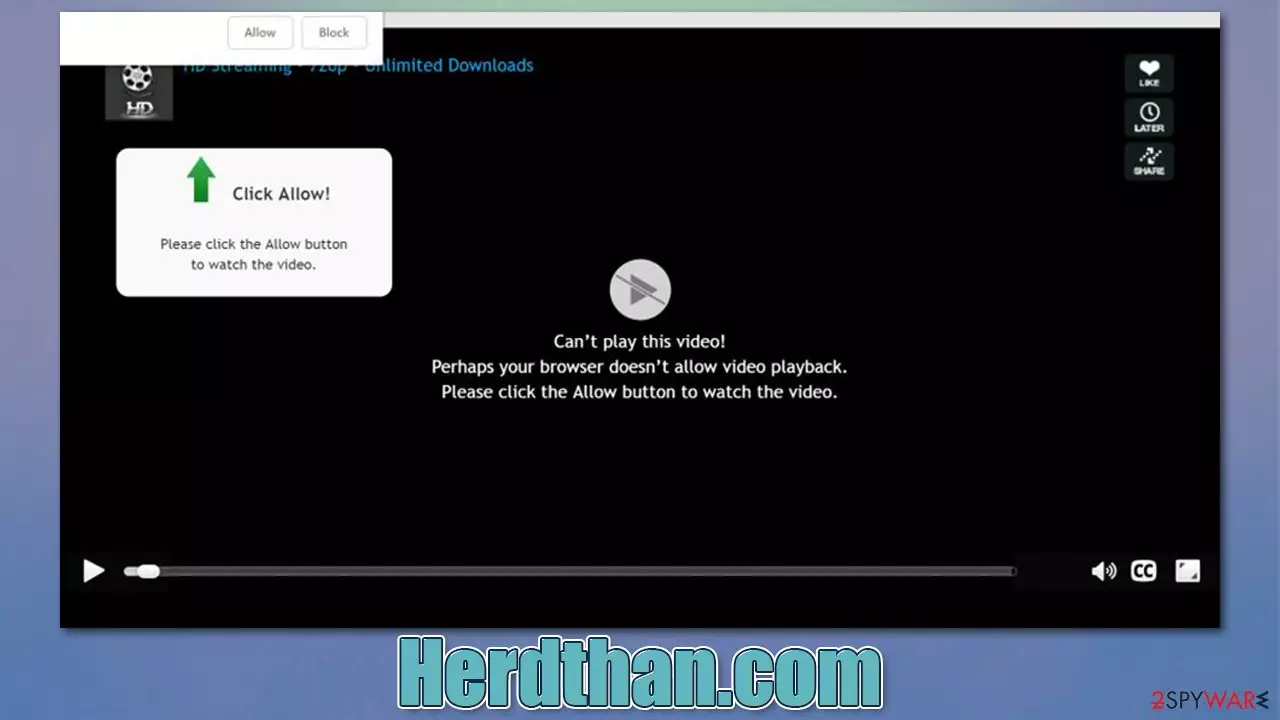
There are millions of websites on the world wide web, with thousands of them being shut down and new ones created every day. Herdthan.com is one of the sites that was created for one and only reason – to scam users into subscribing to notifications, regardless if they use Google Chrome, Mozilla Firefox, MS Edge, or another browser. The scheme commonly abuses the element of surprise after users are redirected from some other place, e.g., after clicking on a malicious link somewhere else or after being rerouted automatically due to adware[1] infection.
As soon as people end up on the site one way or another, they are presented with two elements – a pop-up that asks whether or not notifications should be enabled and also a background message which actively tries to convince users that they should. Perhaps, the word “convince” is not actually accurate because “trick” or “scam” is more appropriate for this situation. With the help of misleading statements and a bit of social engineering, crooks manage to succeed in making users click that “Allow” button within the notification prompt.
After doing so, users don't really see any difference in their browsing, and neither do they encounter any issues. However, after some period of time, they start noticing that Herdthan.com push notifications are creeping in. It does not even matter which website is being visited or even if a video is being streamed – the pop-ups are intrusive and show up on top of everything that is open at the time. Indeed, such behavior is rather intrusive and annoying.
The worst part of this scam is that the notifications from the site commonly include further misleading statements about, for example, computer health and display links to insecure or even malicious websites. If clicked, these links might result in people getting infected with dangerous malware or disclosing their financial or other information to cybercriminals.
If you are affected by this problem, do not fret – we are here to help you. You will find all the required information to remove the intrusive pop-ups from your device in an effective way and check your system for infections accordingly.
| Name | Herdthan.com |
|---|---|
| Type | Push notifications, ads, pop-ups, scam |
| Distribution | Pop-ups start showing at some point after the “Allow” button is pressed within the notification prompt |
| Symptoms | Pop-ups are shown on a desktop at random times on top of all the other apps |
| Risks | Users might suffer from monetary losses, install malware or potentially unwanted programs on their systems, or disclose their sensitive data to cybercrooks |
| Removal | Notifications can be disabled via the browser settings; in case you experience more ads and redirects to suspicious sites, you should also get rid of adware – use antivirus software for a quick elimination |
| Additional steps | It is important to clean your browsers after removing potentially unwanted programs from your system – use FortectIntego to do it quickly |
At 2spyware, we are trying our best to provide the most relevant and accurate information about scams, viruses, and other malicious deeds that cybercriminals come up with. If you ever have problems with cyber infections, we hope you can check our website in the future as well.
How scammers convince users to allow notifications
Push notifications is a feature that was first implemented on modern browsers for desktops in 2015 – much later than it was for mobile devices from Apple and Android.[2] Even though several years have passed by now, there are still many misconceptions surrounding it, and some users don't understand how they work or how to handle/remove them.
This misunderstanding commonly comes from the fact that most people simply do not interact with push notification prompts on websites, with almost 50% actively denying the request immediately – as was discovered by Mozilla in 2019.[3]
However, everything changes when users are not provided accurate information about a certain feature. We have previously explained many times about software bundling, for example – a technique that hides option components within software installers without adequately disclosing it. While this distribution method is not inherently malicious, it can be abused in ways that would make people install software they otherwise wouldn't. This is why some people might not even be aware that their systems are infected with adware.

In order for the Herdthan.com scam to be successful, its authors use all sorts of misleading statements. Here are a few examples you might come across:
- “Click Allow to watch the video.” Usually, this message is accompanied by a picture or a GIF that shows a seemingly loading video. The picture also impersonates the UI of YouTube or a similar popular video streaming site.
- “Press “Allow” to verify, that you are not a robot” is one of the most common fake alerts users might come across. Crooks are trying to make visitors believe that pressing the “Allow” button is merely a verification process that is so prevalent among many legitimate websites (similar to captcha).
- “If you are 18+ tap allow.” This message implies that there is adult content to be viewed if the demands are fulfilled.
Evidently, the push notification prompt is being presented as something else – and this is the main reason why people get confused. In reality, as soon as they do as crooks say, they allow the site to deliver any type of information directly to their screens. Thus, if you deal with a similar scam in the future (for example, Current-captcha.top or Processing-center-wn1.click), do not even bother clicking “Block” within the prompt and simply leave the page immediately.
Perform an easy Herdthan.com pop-up removal
Many people who start seeing suspicious pop-ups immediately believe that they have a virus installed on their systems. While scanning the device with reputable anti-malware such as SpyHunterCombo Cleaner or MalwarebytesMalwarebytes is beneficial and, in fact, recommended, it won't remove the push notifications.
Antivirus is simply not designed to change settings within your browser, so you'd have to do that yourself. In order to do that, you need to access the settings section of your browser – follow the instructions for your preferred web tool below.
Google Chrome (desktop):
- Open Google Chrome browser and go to Menu > Settings.
- Scroll down and click on Advanced.
- Locate Privacy and security section and pick Site Settings > Notifications.
- Look at the Allow section and look for a suspicious URL.
- Click the three vertical dots next to it and pick Block. This should remove unwanted notifications from Google Chrome.


Google Chrome (Android):
- Open Google Chrome and tap on Settings (three vertical dots).
- Select Notifications.
- Scroll down to the Sites section.
- Locate the unwanted URL and toggle the button to the left (Off setting).


Mozilla Firefox:
- Open Mozilla Firefox and go to Menu > Options.
- Click on Privacy & Security section.
- Under Permissions, you should be able to see Notifications. Click the Settings button next to it.
- In the Settings – Notification Permissions window, click on the drop-down menu by the URL in question.
- Select Block and then click on Save Changes. This should remove unwanted notifications from Mozilla Firefox.


MS Edge (Chromium):
- Open Microsoft Edge, and go to Settings.
- Select Site permissions.
- Go to Notifications on the right.
- Under Allow, you will find the unwanted entry.
- Click on More actions and select Block.


Safari:
- Click on Safari > Preferences…
- Go to the Websites tab and, under General, select Notifications.
- Select the web address in question, click the drop-down menu and select Deny.


Don't forget to check your system for adware
As we already mentioned, redirects to Herdthan.com or similar malicious websites are likely to be caused by an accidental or deliberate click on a link on some other page. This behavior is increased on websites of dubious origin (e.g., torrents and software crack distribution), so it is advisable to stay away from such places in the first place. However, avoiding all redirects to suspicious sites is almost impossible, although legitimate ad-blockers and security tools that warn about phishing or scam sites can be a great help for that.
There is another reason for unexpected browser redirects, and that is adware. These potentially unwanted programs are commonly bundled with other software users download from third-party websites or after being tricked by a fake advertisement. This is one of the main reasons why people are not even aware that they have adware installed on their systems.
In order to check for it, you should perform a full system scan with powerful security software, such as SpyHunterCombo Cleaner or MalwarebytesMalwarebytes. Security apps could also check your device for other malicious programs and remove them at once. Likewise, you should get rid of browser caches to prevent third parties from tracking you or having your cookies sessions hijacked by cybercriminals. Employ FortectIntego for a quicker solution, or use the instructions below if you want to do it manually.
Remove from Microsoft Edge
Delete unwanted extensions from MS Edge:
- Select Menu (three horizontal dots at the top-right of the browser window) and pick Extensions.
- From the list, pick the extension and click on the Gear icon.
- Click Remove.


Clear cookies and other browser data:
- Click on the Menu (three horizontal dots at the top-right of the browser window) and select Settings > Privacy, search, and services..
- Under Clear browsing data, pick Choose what to clear.
- Select Cookies and other site data and Cached images and files. (apart from passwords, although you might want to include Media licenses as well, if applicable) and click on Clear.


Restore new tab and homepage settings:
- Click the menu icon and choose Settings.
- Then find On startup section.
- Click Remove next to any suspicious startup page.
Reset MS Edge if the above steps did not work:
- Press on Ctrl + Shift + Esc to open Task Manager.
- Click on More details arrow at the bottom of the window.
- Select Details tab.
- Now scroll down and locate every entry with Microsoft Edge name in it. Right-click on each of them and select End Task to stop MS Edge from running.


Instructions for Chromium-based Edge
Delete extensions from MS Edge (Chromium):
- Open Edge and click select Settings > Extensions.
- Delete unwanted extensions by clicking Remove.


Clear cache and site data:
- Click on Menu and go to Settings.
- Select Privacy, search and services.
- Under Clear browsing data, pick Choose what to clear.
- Under Time range, pick All time.
- Select Clear now.


Reset Chromium-based MS Edge:
- Click on Menu and select Settings.
- On the left side, pick Reset settings.
- Select Restore settings to their default values.
- Confirm with Reset.
- This will disable extensions and reset startup pages but will not delete bookmarks, saved passwords, or browsing history.


Remove from Mozilla Firefox (FF)
Remove dangerous extensions:
- Open Mozilla Firefox browser and click on the Menu (three horizontal lines at the top-right of the window).
- Select Add-ons.
- In here, select the unwanted extension and click Remove.


Reset the homepage:
- Click three horizontal lines at the top right corner to open the menu.
- Choose Settings.
- Under Home, set your preferred homepage and new tab settings.
Clear cookies and site data:
- Click Menu and pick Settings.
- Go to Privacy & Security section.
- Scroll down to locate Cookies and Site Data.
- Click on Clear Data...
- Select Cookies and Site Data and Temporary cached files and pages, then click Clear.


Reset Mozilla Firefox
If clearing the browser as explained above did not help, reset Mozilla Firefox:
- Open Mozilla Firefox browser and click the Menu.
- Go to Help and then choose Troubleshooting Information.

- Under Give Firefox a tune up section, click on Refresh Firefox...
- Once the pop-up shows up, confirm the action by pressing on Refresh Firefox.



Remove from Google Chrome
Delete malicious extensions from Google Chrome:
- Open Google Chrome, click on the Menu (three vertical dots at the top-right corner) and select More tools > Extensions.
- In the newly opened window, you will see all the installed extensions. Uninstall all suspicious extensions related to the unwanted program by clicking Remove.


Clear cache and web data from Chrome:
- Click on Menu and pick Settings.
- Under Privacy and security, select Clear browsing data.
- Select Browsing history, Cookies and other site data, as well as Cached images and files.
- Click Clear data.


Change your homepage:
- Click menu and choose Settings.
- Look for a suspicious site in the On startup section.
- Click on Open a specific or set of pages and click on three dots to find the Remove option.
Reset Google Chrome:
If the previous methods did not help you, reset Google Chrome to eliminate all the unwanted components:
- Click on Menu and select Settings.
- In the Settings, scroll down and click Advanced.
- Scroll down and locate Reset and clean up section.
- Now click Restore settings to their original defaults.
- Confirm with Reset settings.


Delete from Safari
Remove dangerous extensions:
- Open Safari, click Safari in the menu at the top-left of the screen, and select Preferences.
- Go to the Extensions tab, look for any suspicious entries, and click Uninstall to remove them.


Clear history and website data:
- Click Safari in the menu and pick Clear History.
- Set Clear to all history and confirm with Clear History.


Reset Safari:
- Click Safari in the menu and select Preferences > Advanced.
- Enable Show Develop menu in menu bar.
- From the menu bar, click Develop and select Empty Caches.


Did this guide help?
Be the first to comment