

Search-Mode endangers the privacy of users by performing unwanted changes to their browsers
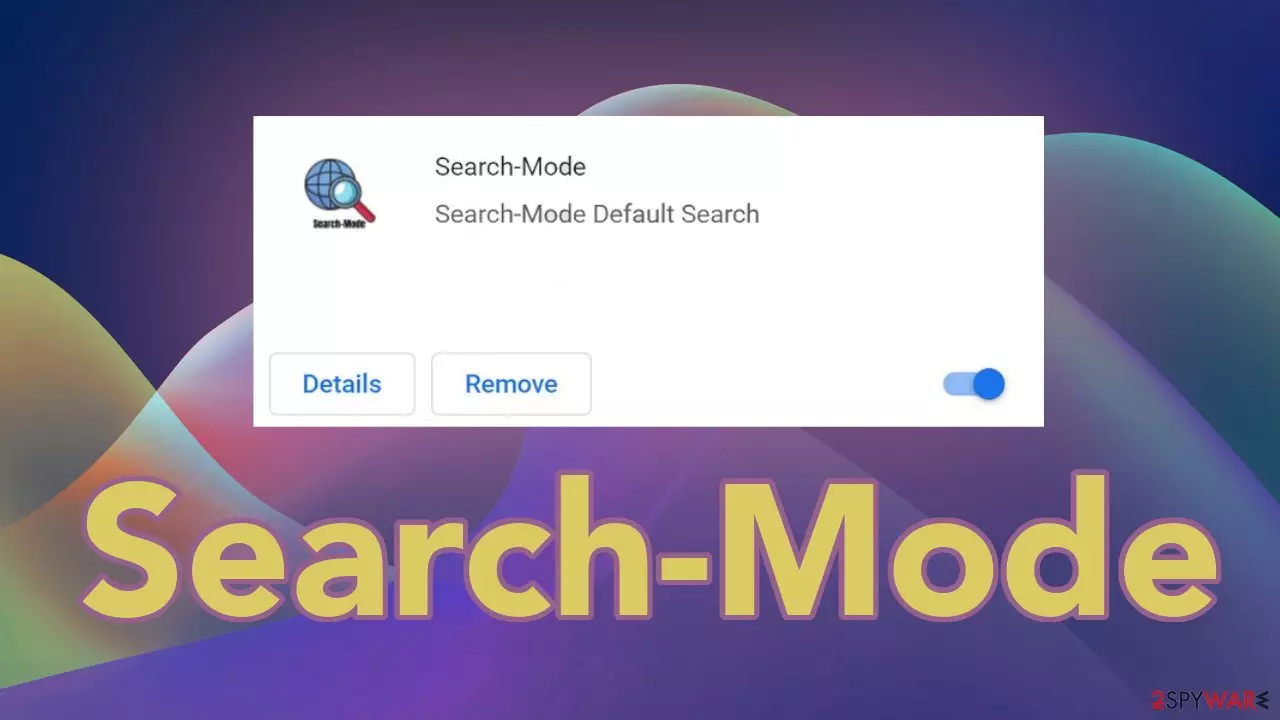
Search-Mode is a potentially unwanted program[1] that changes the key settings in browsers like the homepage, new tab address, and search engine. For this reason, it is classified as a browser hijacker. This application can also fill the browser with advertisements that can lead to shady pages. The search results become untrustworthy and might lead to misinformation.
Hijackers can affect all browsers that have the ability to add extensions. Generally, plugins are used to enhance the user experience by providing additional functions. Add-ons that block ads, dangerous pages, find the best coupon codes that give the biggest discounts while shopping online are especially popular.
These days, you can find an extension for almost anything you can imagine, so of course, a spike in popularity of these apps was not overlooked by fraudsters that want to exploit users for their own gain. Browser hijacker developers generate revenue from redirects, ad clicks or views, and data gathering.
| NAME | Search-Mode |
| TYPE | Browser hijacker; potentially unwanted program |
| SYMPTOMS | The main browser settings are changed, like the homepage, new tab address, and search engine, once the extension is added |
| DISTRIBUTION | Shady websites, deceptive ads, freeware installations |
| DANGERS | Search results can lead to misinformation; injected commercial content may disrupt the user experience and lead to dangerous pages |
| ELIMINATION | Remove extensions by going to the browser settings; performing a scan with anti-malware tools is recommended |
| FURTHER STEPS | Use a maintenance tool like FortectIntego to fix any remaining damage |
The rise of potentially unwanted programs
PUPs have gained a huge boost with the increasing popularity of smartphones and tablets. Users have made a habit out of downloading apps freely from app stores. Many do not think much about it and test multiple apps by installing them on the system. Few think about the consequences or take their time to read what invisible tasks they will perform.
There are many applications that use advertising to fund their development and make it worthwhile. But in the past years, this turned into the sale of users' personal details and browsing histories to big marketing firms as fodder for targeted advertising.
Personal information harvesting by Search-Mode is achieved in a couple of different ways:
- By installing a browser extension or program on your computer
- By changing the default search engine to Search-Mode Search or Yahoo
- By changing the homepage to searchmode.xyz
By initiating these changes, the app forces people to use only selected channels to access all their browsing activities. Sometimes users are tricked into wanting to install free apps by false advertising. Well-known company names are often used to make programs seem trustworthy. Some even have descriptions that blatantly lie about the functions that they provide.

Generally, user data is gathered with the help of cookies[2] or other tracking technologies. Only a small percentage of people know that it is recommended to clear them from time to time, or they are simply too lazy to do so. That is why FortectIntego was developed. It is a handy repair tool that can optimize the machine and even fix corrupted files, registry issues, and system errors which is helpful, especially after virus infections.
Remove the extension
You can remove plugins by going to your browser settings. Step-by-step instructions for Chrome, MS Edge, Firefox, Safari, and Internet Explorer are available below:
Google Chrome
- Open Google Chrome, click on the Menu (three vertical dots at the top-right corner) and select More tools > Extensions.
- In the newly opened window, you will see all the installed extensions. Uninstall all the suspicious plugins that might be related to the unwanted program by clicking Remove.


MS Edge:
- Select Menu (three horizontal dots at the top-right of the browser window) and pick Extensions.
- From the list, pick the extension and click on the Gear icon.
- Click on Uninstall at the bottom.


MS Edge (Chromium)
- Open Edge and click select Settings > Extensions.
- Delete unwanted extensions by clicking Remove.


Mozilla Firefox
- Open Mozilla Firefox browser and click on the Menu (three horizontal lines at the top-right of the window).
- Select Add-ons.
- In here, select the unwanted plugin and click Remove.


Safari
- Click Safari > Preferences…
- In the new window, pick Extensions.
- Select the unwanted extension and select Uninstall.


Internet Explorer:
- Open Internet Explorer, click on the Gear icon (IE menu) on the top-right corner of the browser
- Pick Manage Add-ons.
- You will see a Manage Add-ons window. Here, look for suspicious plugins. Click on these entries and select Disable.


Remove applications that monetize your activity
Removing only the extension is not always effective. You might still experience the same symptoms. This is because you might have installed a PUA and not only a browser extension. In that case, the program will keep messing up your browser until you entirely remove it from your system. You can follow the guide for Windows and Mac machines:
Windows 10/8:
- Enter Control Panel into Windows search box and hit Enter or click on the search result.
- Under Programs, select Uninstall a program.

- From the list, find the entry of the suspicious program.
- Right-click on the application and select Uninstall.
- If User Account Control shows up, click Yes.
- Wait till the uninstallation process is complete and click OK.



Windows 7/XP:
- Click on Windows Start > Control Panel located on the right pane (if you are a Windows XP user, click on Add/Remove Programs).
- In Control Panel, select Programs > Uninstall a program.

- Pick the unwanted application by clicking on it once.
- At the top, click Uninstall/Change.
- In the confirmation prompt, pick Yes.
- Click OK once the removal process is finished.

Mac:
- From the menu bar, select Go > Applications.
- In the Applications folder, look for all related entries.
- Click on the app and drag it to Trash (or right-click and pick Move to Trash)


To fully remove an unwanted app, you need to access Application Support, LaunchAgents, and LaunchDaemons folders and delete relevant files:
- Select Go > Go to Folder.
- Enter /Library/Application Support and click Go or press Enter.
- In the Application Support folder, look for any dubious entries and then delete them.
- Now enter /Library/LaunchAgents and /Library/LaunchDaemons folders the same way and terminate all the related .plist files.


Manual removal of a PUA can sometimes be tricky because the program can be disguised as a handy tool and have a completely different name. These are often installed from freeware[3] distribution sites as bundled software,[4] so often users do not even know about the existence of such a program.
Freeware page owners need to make money, so they include additional programs in the installers without disclosing that on the site, hoping that most people will not notice them. Unfortunately, that is exactly what happens most of the time as people find the installation process boring and rush through it.
If you want to avoid that happening in the future, follow these simple steps
- Always choose the “Custom” or “Advanced” installation methods
- Read the Privacy Policy and Terms of Use. Although that is a lengthy process, it can help identify if the software you are installing is safe and what permissions it asks for.
- Check the file list and untick the boxes next to programs that you do not want to get
We recommend using professional security tools like SpyHunterCombo Cleaner or MalwarebytesMalwarebytes to eliminate any PUAs that could be hiding in your system. Security software can scan your machine and detect suspicious processes working in the background of your PC. It can prevent the installations of such programs in the future by warning you about it as well.
Did this guide help?
Be the first to comment