

Bruperchrophone.com uses social engineering to trick people into allowing pop-up ads
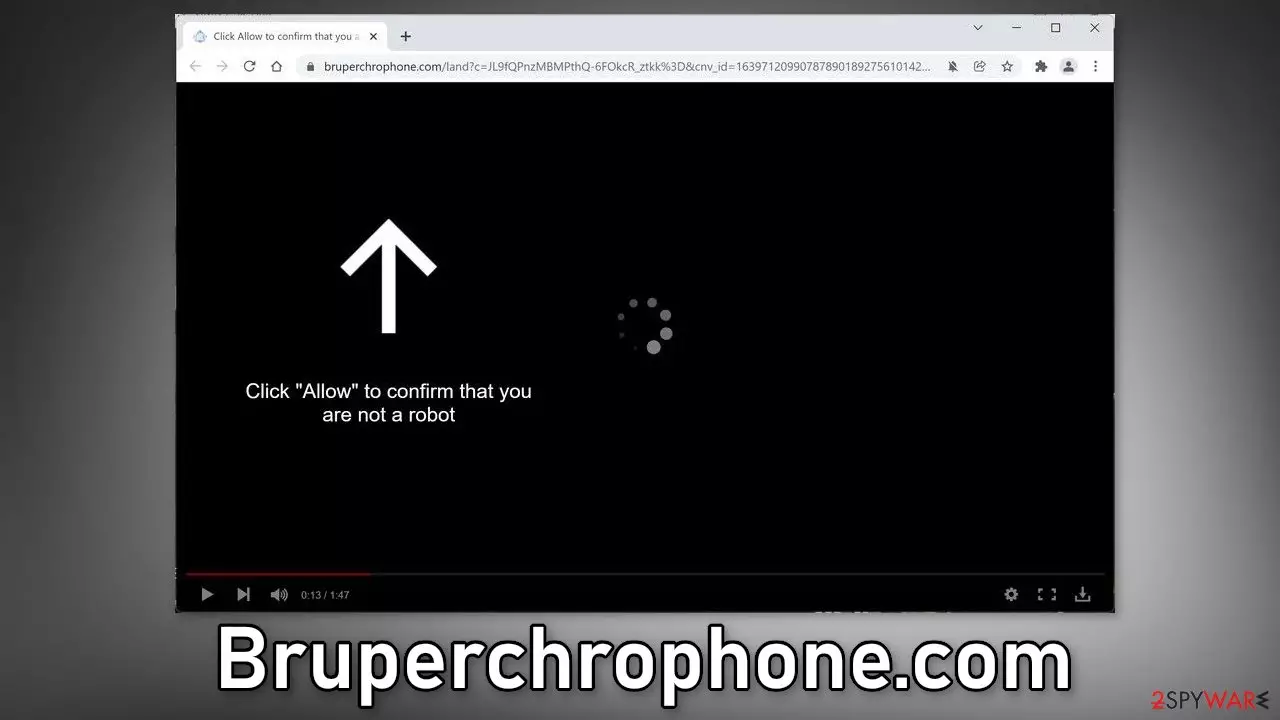
Bruperchrophone.com is a deceptive website that tries to trick users into subscribing to push notifications.[1] It uses social engineering techniques to make people click the “Allow” button. The site is made to look like it has a video to play but users supposedly cannot see it unless they click the button. However, the page asks to click it for a different reason. It makes people think that they have to confirm that they are not robots.
Once users press the button, nothing happens because, in reality, the site does not have any content to explore or media to watch. Instead, they start getting spammed with annoying pop-up ads that can lead to dangerous pages. They might stumble upon sites that try to lure out their personal information or fool them into installing PUPs (potentially unwanted programs),[2] and malware.
The developers of the website generate revenue every time users click on links embedded in the pop-ups through pay-per-click advertising. Users might see ads that contain sensational images or messages and tempt them to click. They might also see offers for free software, browser plugins, or fake antivirus warnings, giveaways, and surveys. The reason behind this is that such sites usually use unsafe advertising networks that do not care about user privacy or security.
| NAME | Bruperchrophone.com |
| TYPE | Push notification spam; adware |
| SYMPTOMS | Annoying pop-up ads start appearing in the corner of the screen once the user presses “Allow” |
| DISTRIBUTION | Shady websites, deceptive ads, freeware installations |
| DANGERS | Links in the pop-ups can lead users to dangerous websites where they can suffer from monetary losses and identity theft if they provide their personal information |
| ELIMINATION | Go to the browser settings and disable push notifications from the website |
| FURTHER STEPS | Use FortectIntego to clear your browsers and optimize the machine |
Distribution techniques
It is unusual for people to find sites like Bruperchrophone.com, Allcoolnewz.com, Proasdf.com, and Wholecoolposts.com in their search results. Most often they are hidden on other shady websites using deceptive ads and sneaky redirects. Video-themed sites are often placed on illegal streaming platforms because they are unregulated.
People might see fake “Download” and “Play” buttons thinking that they will be able to watch the movie or TV show they selected when in reality it is just an ad disguised as a button. Once they click they get redirected to sites like these and unsuspectedly, turn on the push notifications.
Another reason users might be seeing this page is that they have adware[3] hiding in their system. It is a type of software that performs unwanted tasks without the users' knowledge. It can generate commercial content on the machine redirect users to these pages and collect revenue for it.
All the causes for the appearance of this page lead to the carelessness of users. Many people believe that they care a lot about their privacy and security but few take measures to preserve it. People use torrent sites, peer-to-peer file-sharing platforms and shady websites not thinking about the potential consequences.

Stop pop-up ads from appearing
To block site permissions, you have to do it manually via browser settings. After removal is complete, we recommend using FortectIntego repair tool to care for your browsers. Almost every website you visit uses cookies to track your browsing activity, like the pages you visit, links you click on, and purchases you make. They create your profile and later sell it to advertising networks or other third parties that use it to target you with more advertisements. The removal guide for the most popular browsers is below:
Google Chrome (desktop):
- Open Google Chrome browser and go to Menu > Settings.
- Scroll down and click on Advanced.
- Locate the Privacy and security section and pick Site Settings > Notifications.

- Look at the Allow section and look for a suspicious URL.
- Click the three vertical dots next to it and pick Block. This should remove unwanted notifications from Google Chrome.



Google Chrome (Android):
- Open Google Chrome and tap on Settings (three vertical dots).
- Select Notifications.
- Scroll down to Sites section.
- Locate the unwanted URL and toggle the button to the left (Off setting).


Mozilla Firefox:
- Open Mozilla Firefox and go to Menu > Options.
- Click on Privacy & Security section.
- Under Permissions, you should be able to see Notifications. Click Settings button next to it.

- In the Settings – Notification Permissions window, click on the drop-down menu by the URL in question.
- Select Block and then click on Save Changes. This should remove unwanted notifications from Mozilla Firefox.



Safari:
- Click on Safari > Preferences…
- Go to Websites tab and, under General, select Notifications.
- Select the web address in question, click the drop-down menu and select Deny.


MS Edge:
- Open Microsoft Edge, and click the Settings and more button (three horizontal dots) at the top-right of the window.
- Select Settings and then go to Advanced.
- Under Website permissions, pick Manage permissions and select the URL in question.
- Toggle the switch to the left to turn notifications off on Microsoft Edge.


MS Edge (Chromium):
- Open Microsoft Edge, and go to Settings.
- Select Site permissions.
- Go to Notifications on the right.
- Under Allow, you will find the unwanted entry.
- Click on More actions and select Block.


Internet Explorer:
- Open Internet Explorer, and click on the Gear icon at the top-right on the window.
- Select Internet options and go to Privacy tab.
- In the Pop-up Blocker section, click on Settings.
- Locate web address in question under Allowed sites and pick Remove.


Adware can cause redirects to shady websites
If you performed the removal shown above but still experience symptoms like an increased amount of commercial content, banners, surveys, pop-ups, and redirects, you may have adware operating in your system. Most of the time, these kinds of applications get installed together with freeware, so we always suggest using only official sources to get your software.
You can also be more present during the installation process. Always choose the “Custom” or “Advanced” method. Even though it can be a lengthy process, read the Privacy Policy and Terms of Use to find out how your data will be used. The most important part is to check the file list. If you see any additional programs, make sure to untick the boxes next to their names.
To remove adware, the best option is to use professional security tools like SpyHunterCombo Cleaner or MalwarebytesMalwarebytes to scan your system. PUAs can perform various processes in the background without your knowledge. What is more, they can be disguised as handy tools, so they can be difficult to identify. The program could have any name and icon. If you know for sure which program is at fault, you can follow the instructions posted below for Windows and Mac systems:
Windows 10/8:
- Enter Control Panel into Windows search box and hit Enter or click on the search result.
- Under Programs, select Uninstall a program.

- From the list, find the entry of the suspicious program.
- Right-click on the application and select Uninstall.
- If User Account Control shows up, click Yes.
- Wait till uninstallation process is complete and click OK.

Windows 7/XP:
- Click on Windows Start > Control Panel located on the right pane (if you are Windows XP user, click on Add/Remove Programs).
- In Control Panel, select Programs > Uninstall a program.

- Pick the unwanted application by clicking on it once.
- At the top, click Uninstall/Change.
- In the confirmation prompt, pick Yes.
- Click OK once the removal process is finished.

Mac:
- From the menu bar, select Go > Applications.
- In the Applications folder, look for all related entries.
- Click on the app and drag it to Trash (or right-click and pick Move to Trash)


Did this guide help?
Be the first to comment