

CommonLocator is the potentially unwanted program and an intrusive mac virus that affects the performance of the machine
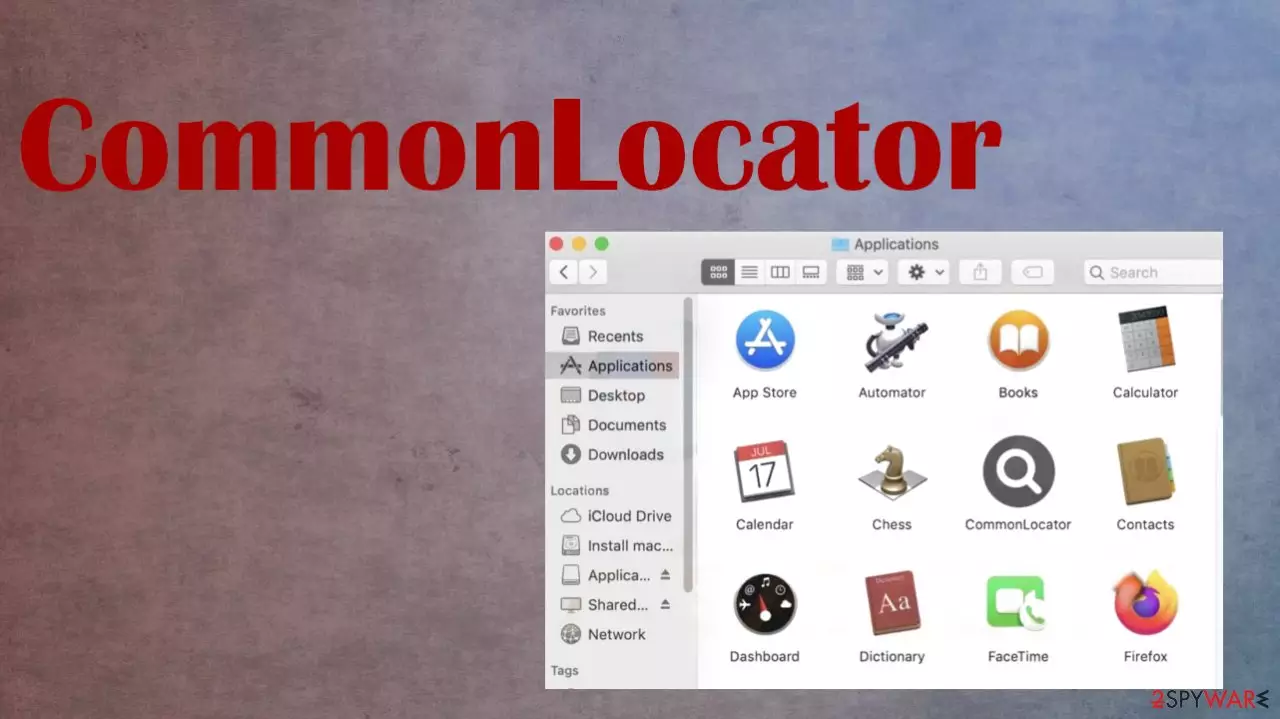
CommonLocator mac virus is the application that delivers various advertisements and is controlled by the PUA that runs on the machine. The ad-supported application generates ads and triggers redirects to scam pages, phishing sites, and promotional material online. The program exposes users to download sites, free promotional pages, and fake pages where other advertisers rely on their pop-ups and redirects.
These pages often can trigger additional unwanted app installation, and services can be designed to install those programs automatically. CommonLocator mac virus affects the performance and speed with continuous banners, coupons, pop-ups, and redirects. This is a useless application, so you should stop it.
Users might believe that macOS and iOS are the systems that never get malicious programs or files, but this is not a real fact.[1] The infection creators manage to develop the particular apps and threats that spread and affect the machine quickly.
| Name | CommonLocator |
|---|---|
| Type | Mac virus, adware |
| Category | Potentially unwanted program |
| Issues | The machine becomes slow and performs poorly, ads appear out of nowhere, redirects fill up the screen |
| Distribution | Freeware installations, false software installers, update promotions, bundling |
| Damage | Browser habit information gets tracked, collected, and recorded, so privacy issues can stem from there |
| Removal | Anti-malware tools are needed here because the system should be cleared fully to stop the PUP |
| Repair | Apps like FortectIntego can help with virus damage and issues related to file damage and corruption |
You can find the CommonLocator mac virus installed after the freeware installation, and this is a common way to spread these adware-type intruders. When it comes to mac malware the spreading methods include false Adobe Flash update messages and promotional ads that trigger the direct PUP install.
More about the mac adware
This infection is the page supported by advertisers and third-party content creators. The potentially unwanted application can generate ads, banners, coupons, pop-ups, and trigger redirect to related sites and services, platforms depending on online traffic reroutes and commercial content exposure.
CommonLocator mac adware is the threat that people still don't believe exists because there are a lot of believers in the fact mac devices cannot get malware. The Adload family this threat belongs to proves different. There are multiple programs that can be installed on the machine when an app like this is present on the device.
Applications reside on the machine and can alter the settings or preferences of the browser or the system. An app like this can change the default search engine settings and new tab preferences. The main goal of these applications is to generate views on related sites and make money like this.

Removing the infection
Experts[2] always note about these PUPs can trigger issues with performance and speed. CommonLocator mac virus is the one that appears out of nowhere, and issues keep users from accessing wanted content. Adware is controlling various processes on the machine, so there are particular files that need to be removed.
This is where you need to get a program like a security program or a security tool like SpyHunterCombo Cleaner, MalwarebytesMalwarebytes, so the PUP is removed fully and those annoying ads stop coming to your screen. The full system scan on mac devices, too, can find all PUPs and files causing issues with the machine. This includes the CommonLocator mac virus.[3]
You might want to do that manually, or when the tool is not detecting the particular program, the removal of the PUP can get difficult. However, there are ways to locate malicious pieces and get rid of the application or even web browser-based intruders like extensions, and plugins. You can follow the browser guide below or use the following steps and terminate the intrusive adware – CommonLocator.

Removing the PUP manually
Remove items from Applications folder:
- From the menu bar, select Go > Applications.
- In the Applications folder, look for all related entries.
- Click on the app and drag it to Trash (or right-click and pick Move to Trash)


To fully remove an unwanted app, you need to access Application Support, LaunchAgents, and LaunchDaemons folders and delete relevant files:
- Select Go > Go to Folder.
- Enter /Library/Application Support and click Go or press Enter.
- In the Application Support folder, look for any dubious entries and then delete them.
- Now enter /Library/LaunchAgents and /Library/LaunchDaemons folders the same way and terminate all the related .plist files.


Ads by CommonLocator are caused by web browsing tools, but there are issues with the machine that cannot be easily fixed. This is the reason why you should rely on automatic tools and run system scans, so the system can be properly checked and potential threats removed from the network.
Tracking procedures that the related advertisers can initiate can lead to issues with gathered data and problems with privacy, and identity. There might be consequences because these intruders can expose people to direct malicious pages and not only affect the machine with the behavior related to the PUP but cause issues with those third-party programs and platforms.
However, the CommonLocator mac virus and its creators are not responsible for the issues that occur due to the redirects and additionally installed applications or browser-based pieces. Make sure to avoid freeware installations from unreliable sources in the future, so these infiltrations do not repeat.
Remove from Mozilla Firefox (FF)
Remove dangerous extensions:
- Open Mozilla Firefox browser and click on the Menu (three horizontal lines at the top-right of the window).
- Select Add-ons.
- In here, select the unwanted extension and click Remove.


Reset the homepage:
- Click three horizontal lines at the top right corner to open the menu.
- Choose Settings.
- Under Home, set your preferred homepage and new tab settings.
Clear cookies and site data:
- Click Menu and pick Settings.
- Go to Privacy & Security section.
- Scroll down to locate Cookies and Site Data.
- Click on Clear Data...
- Select Cookies and Site Data and Temporary cached files and pages, then click Clear.


Reset Mozilla Firefox
If clearing the browser as explained above did not help, reset Mozilla Firefox:
- Open Mozilla Firefox browser and click the Menu.
- Go to Help and then choose Troubleshooting Information.

- Under Give Firefox a tune up section, click on Refresh Firefox...
- Once the pop-up shows up, confirm the action by pressing on Refresh Firefox.



Remove from Google Chrome
Delete malicious extensions from Google Chrome:
- Open Google Chrome, click on the Menu (three vertical dots at the top-right corner) and select More tools > Extensions.
- In the newly opened window, you will see all the installed extensions. Uninstall all suspicious extensions related to the unwanted program by clicking Remove.


Clear cache and web data from Chrome:
- Click on Menu and pick Settings.
- Under Privacy and security, select Clear browsing data.
- Select Browsing history, Cookies and other site data, as well as Cached images and files.
- Click Clear data.


Change your homepage:
- Click menu and choose Settings.
- Look for a suspicious site in the On startup section.
- Click on Open a specific or set of pages and click on three dots to find the Remove option.
Reset Google Chrome:
If the previous methods did not help you, reset Google Chrome to eliminate all the unwanted components:
- Click on Menu and select Settings.
- In the Settings, scroll down and click Advanced.
- Scroll down and locate Reset and clean up section.
- Now click Restore settings to their original defaults.
- Confirm with Reset settings.


Delete from Safari
Remove dangerous extensions:
- Open Safari, click Safari in the menu at the top-left of the screen, and select Preferences.
- Go to the Extensions tab, look for any suspicious entries, and click Uninstall to remove them.


Clear history and website data:
- Click Safari in the menu and pick Clear History.
- Set Clear to all history and confirm with Clear History.


Reset Safari:
- Click Safari in the menu and select Preferences > Advanced.
- Enable Show Develop menu in menu bar.
- From the menu bar, click Develop and select Empty Caches.


Did this guide help?
Be the first to comment