

UST29 ransomware authors encrypt users' files in order to make them pay a ransom

UST29 is a ransomware-type computer virus that was first spotted in the wild in mid-April 2022. It belongs to a prominent and expansive malware family known as Dharma – it has been active for many years, and by now, hundreds of versions have been released by cybercriminals behind it.
Upon entry, the UST29 virus inserts malicious files and reconfigures the Windows system to allow the data encryption process to occur. With the help of a powerful encryption algorithm, it then locks all the personal files located on the device. During this process, all pictures, documents, databases, and other files are appended with the following extension:
- .id-ID.[ust29@aol.com].ust29
The second “ID” represents a modifier that is assigned to each of the victims individually – it is also used to recognize each of the victims by the attackers. Data marked by this extension is stripped of the original file icons and can no longer be modified or even accessed by users.
The ransom note titled FILES ENCRYPTED.txt is dropped on the desktop and other locations of the computer immediately after. A pop-up window from the file Info.hta also shows up, which describes in detail what users need to do in order to recover their files. As usual, they ask to write an email to negotiate a price of UST29 ransomware decryptor, to be paid in Bitcoin.[1]
Do not pay the cybercriminals or you may end up losing money together with your files. Instead, we recommend following the guide we provide below to attempt alternative file recovery methods after the removal of ransomware.
| Name | UST29 ransomware |
|---|---|
| Type | Ransomware, file locking virus |
| malwre family | Dharma |
| File extension | .id-ID.[ust29@aol.com].ust29 (“ID” is replaced by a unique user ID which varies from victim to victim) |
| Ransom note | Info.hta, FILES ENCRYPTED.txt |
| Contact | ust29@aol.com or ust29@nerdmail.co |
| File Recovery | If no backups are available, recovering data is almost impossible. However, we suggest you try the alternative methods that could help you in some cases – we provide them below |
| Malware removal | Perform a full system scan with powerful security software, such as SpyHunterCombo Cleaner |
| System fix | Malware can seriously tamper with Windows systems, causing errors, crashes, lag, and other stability issues after it is terminated. To remediate the OS and avoid its reinstallation, we recommend scanning it with the FortectIntego repair tool |
How UST29 ransomware spreads
Ransomware is as successful as its methods of distribution, so it is not surprising that cybercriminals choose several methods for malware delivery. In the case of Dharma, crooks behind it employ the following:
- Spam emails. A malicious MS Office document, usually trapped with a malicious macro, is attached to a phishing or spoofing email. If opened, the payload is immediately downloaded and executed on the target machine.
- Software cracks are one of the most popular tools for ransomware delivery. Users typically access risky websites that host torrents and cracks willingly and download the tool intentionally, completely ignoring all the warnings from security software. Once the file is launched, data encryption is imminent.
- Weakly protected RDP (Remote Desktop Protocol)[2] connections are mostly used to attack businesses and organizations. Cybercriminals scan the internet for weak connections and brute-force the entry, allowing them to deploy malicious payloads manually.
The most important thing when trying to protect yourself against ransomware and other malware attacks is a reliable anti-malware tool. We recommend employing SpyHunterCombo Cleaner or MalwarebytesMalwarebytes for this job. You mustn't ignore warnings coming from these tools under various circumstances and keep the database updated to the latest version.
The demands and why you shouldn't pay
Dharma ransomware attacks small businesses, although its primary focus remains on regular computer users. In the latter case, the ransom demands are likely to be lower, although it is not worth expecting that it would be cheap. Regardless of your financial status, you should avoid contacting crooks, as you may lose your money along with your files.

As soon as malware completes its job, it delivers two ransom notes. The small text-based message reads as follows:
all your data has been locked us
You want to return?
write email ust29@aol.com or ust29@nerdmail.co
The pop-up window Info.hta is immediately opened automatically and provides the following information:
YOUR FILES ARE ENCRYPTED
Don't worry,you can return all your files!
If you want to restore them, follow this link:email ust29@aol.com YOUR ID –
If you have not been answered via the link within 12 hours, write to us by e-mail:ust29@nerdmail.co
Attention!
Do not rename encrypted files.
Do not try to decrypt your data using third party software, it may cause permanent data loss.
Decryption of your files with the help of third parties may cause increased price (they add their fee to our) or you can become a victim of a scam.
It is ironic how cybercriminals are talking about scams, knowing that they are committing a crime themselves. Remember, these people are not your friends and should never be trusted.
Malware removal
Your first task is to ensure that malware is terminated from all the affected machines. If you do not have your device connected to a network, then it's only your own computer you need to take care of.
Your first step is to disconnect the affected machine from the network and/or the internet. All you have to do is unplug the internet cable or disconnect the WiFi on a personal device. If the whole network is affected, you can proceed with the following steps:
- Type in Control Panel in Windows search and press Enter
- Go to Network and Internet
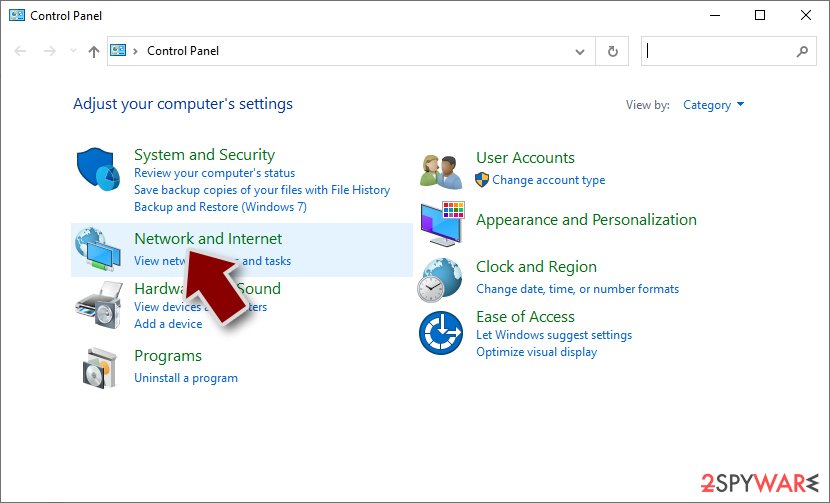
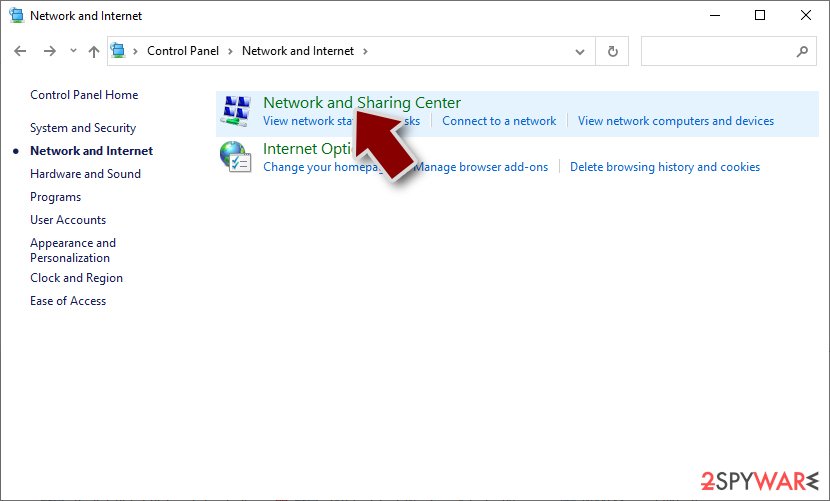
- Click Network and Sharing Center
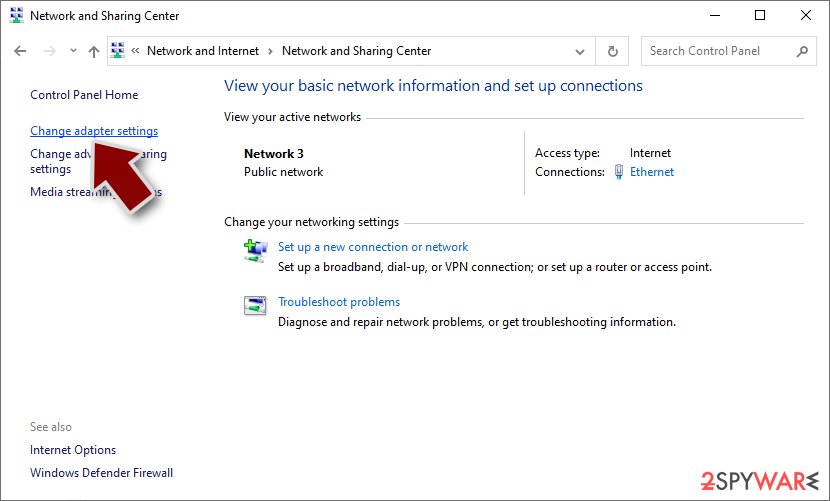
- On the left, pick Change adapter settings
- Right-click on your connection (for example, Ethernet), and select Disable
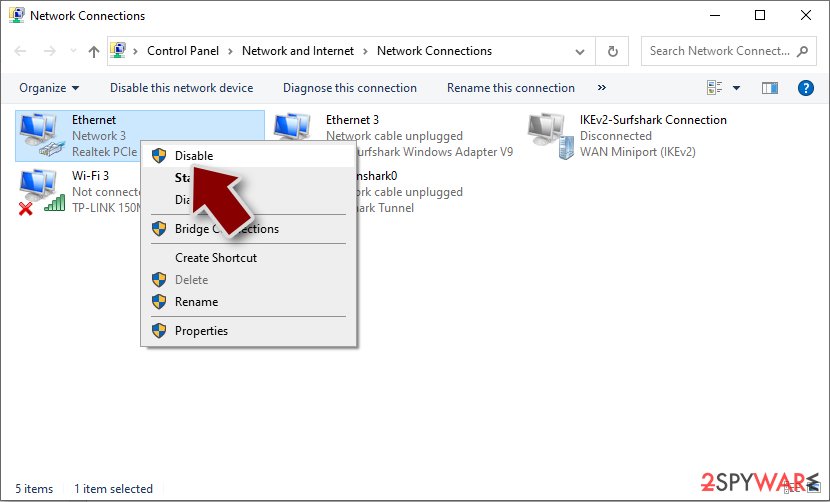
- Confirm with Yes.


Once the infected PC is isolated, you should scan it with SpyHunterCombo Cleaner or another powerful security software. In some rare cases, this might not be possible due to the persistence mechanisms employed by the UST29 virus. If that's the case, check the bottom of the article to find how to enter Safe Mode and delete the infection from there, temporarily disabling malware.
System fix
After malware infection, Windows is no longer the same, as some system files might get damaged or even destroyed. This can result in system instability – crashes, failure to launch programs, BSODs,[3] and many other issues. If you are suffering from these problems after eliminating the infection, use recovery software as explained below.
- Download FortectIntego
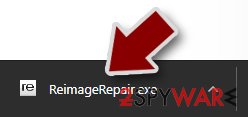
- Click on the ReimageRepair.exe
- If User Account Control (UAC) shows up, select Yes
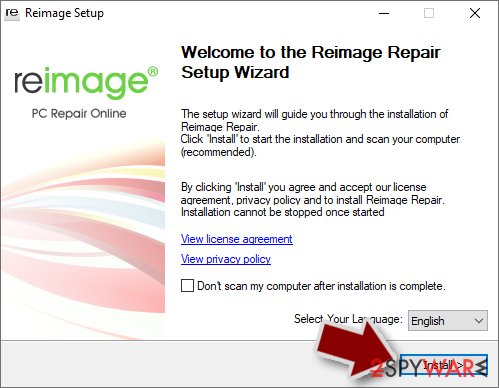
- Press Install and wait till the program finishes the installation process
- The analysis of your machine will begin immediately
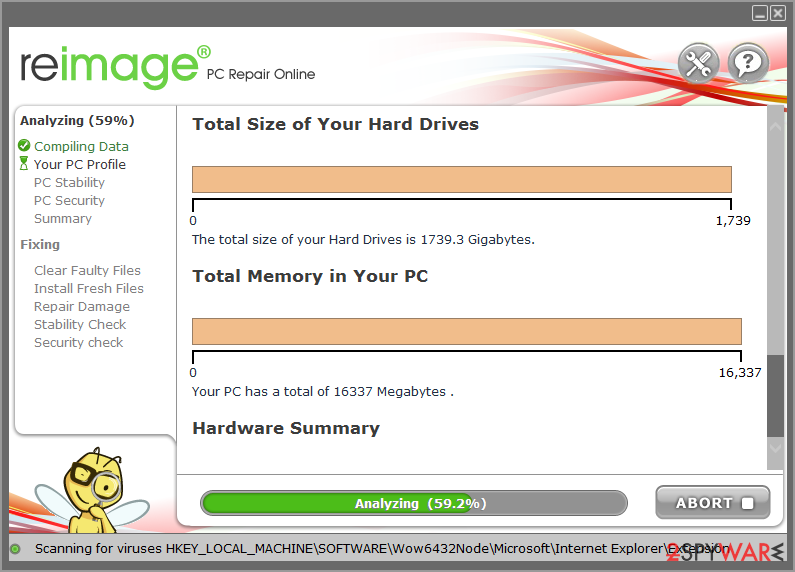
- Once complete, check the results – they will be listed in the Summary
- You can now click on each of the issues and fix them manually
- If you see many problems that you find difficult to fix, we recommend you purchase the license and fix them automatically.



Data recovery
Before you proceed with file recovery, we recommend you back up all the encrypted data on a separate medium, such as a USB flash drive. Tampering with encrypted files might permanently damage them, so saving copies can be a real relief.
Once you have backups ready, you should then attempt to recover your data. It is important to note that antivirus would not restore your files back to normal – it simply deletes the infection and all its malicious files so that the unwanted activity can no longer continue. Your best bet is trying data recovery software:
- Download Data Recovery Pro.
- Double-click the installer to launch it.

- Follow on-screen instructions to install the software.
- As soon as you press Finish, you can use the app.
- Select Everything or pick individual folders where you want the files to be recovered from.
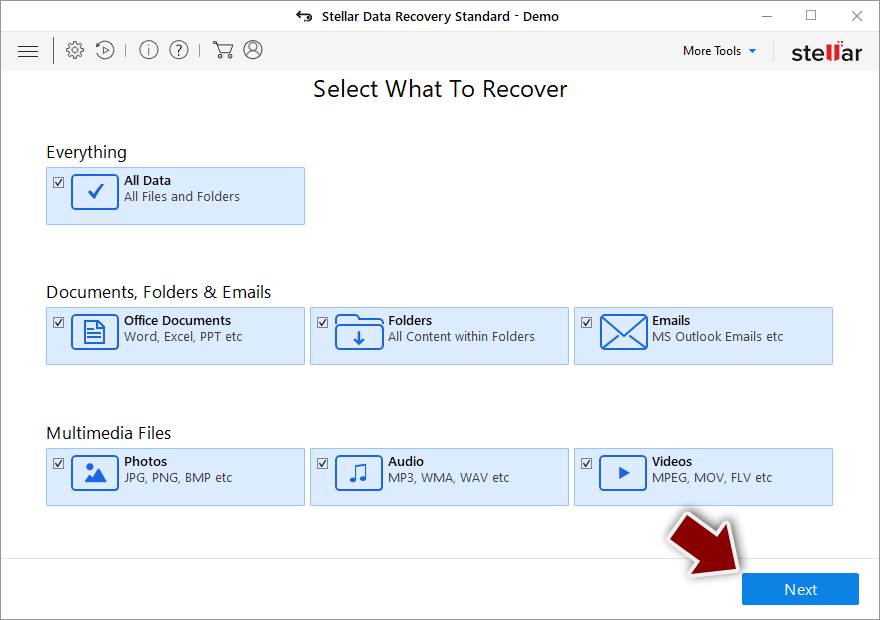
- Press Next.
- At the bottom, enable Deep scan and pick which Disks you want to be scanned.

- Press Scan and wait till it is complete.
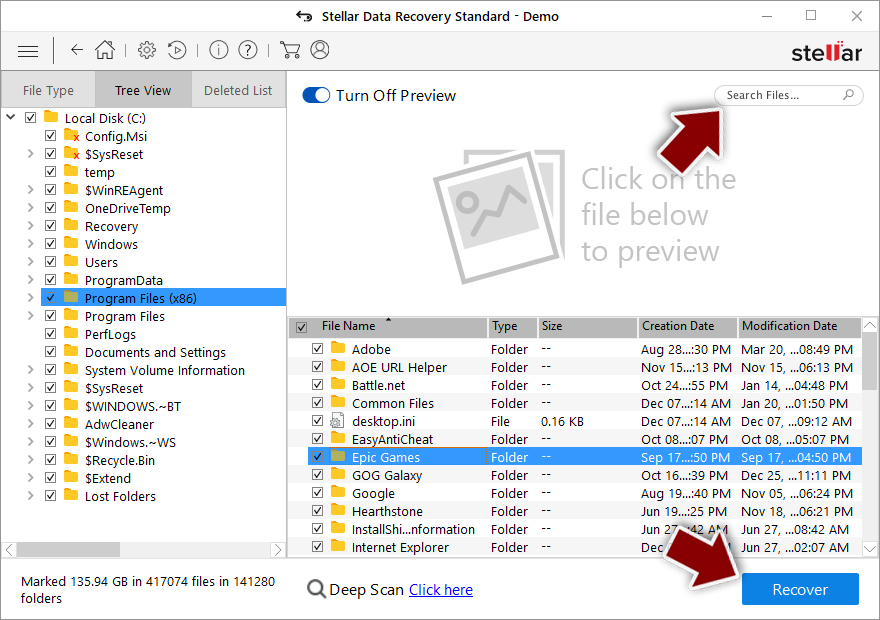
- You can now pick which folders/files to recover – don't forget you also have the option to search by the file name!
- Press Recover to retrieve your files.


Your other option is to wait for a working decryptor that could be successfully created by security experts. Ransomware's encryption code is usually extremely secure, so breaking it is rather difficult. In some cases, law authorities might gain access to the hackers' servers, which helps security researchers to create a working decryptor, allowing all the victims to recover their files for free.
Currently, there is no working decryption tool for .UST29 files available, although we recommend tracking the following links for the future reference:
- No More Ransom Project
- Free Ransomware Decryptors by Kaspersky
- Free Ransomware Decryption Tools from Emsisoft
- Avast decryptors

Did this guide help?
Be the first to comment