

Defender-scan.xyz is a malicious website that tries to trick users to download
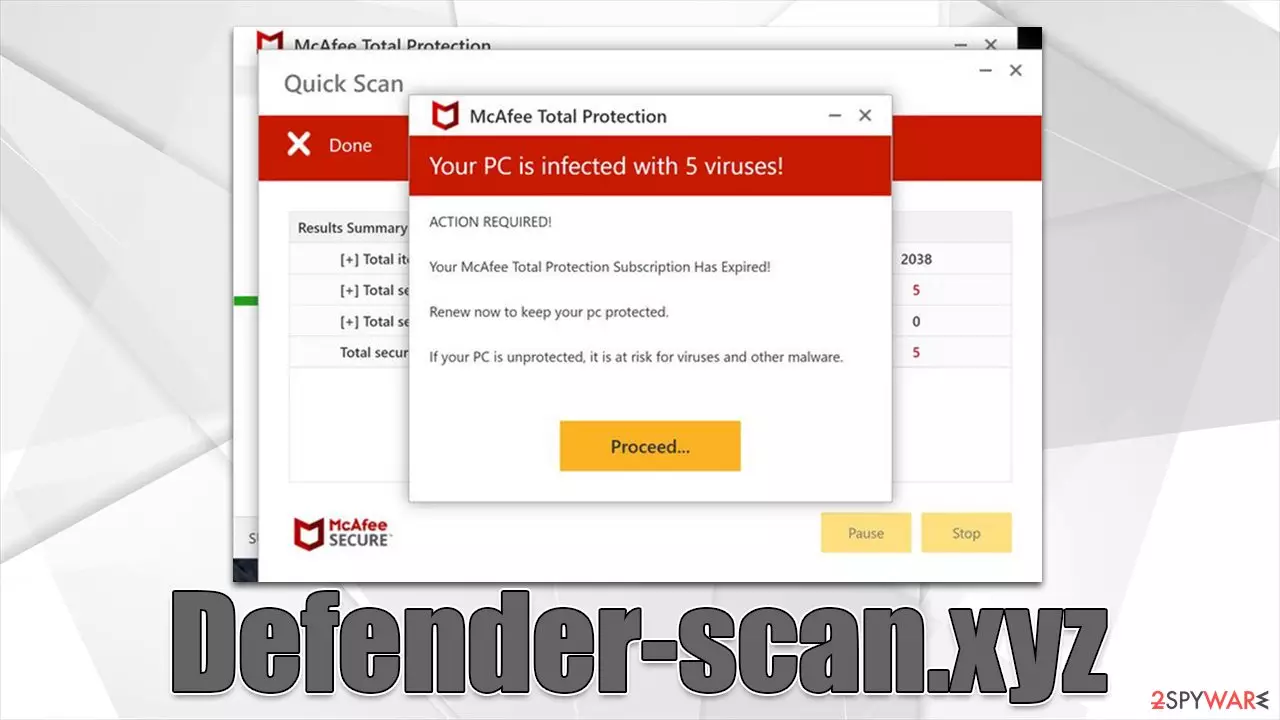
Defender-scan.xyz is just one of the thousands of websites that have recently been imitating McAfee or Norton antivirus scans. Visitors are told that viruses have been found on their devices and that security software needs to be installed in order to remediate the situation. In reality, these security companies have nothing to do with the promoted message, and it is entirely fake – produced by malicious actors who want to profit from the pay-per-install scheme.
In fact, there is no guarantee that the software downloaded from Defender-scan.xyz is even legitimate. It might be fake, which would result in your system compromise due to potentially unwanted program or malware installation. Under no circumstances install the promoted applications via this scam site.
It is also worth mentioning that redirects to Defender-scan.xyz and similar phishing websites could indicate the presence of adware[1] or even malware on your system. This also comes along with increased ad activity, which can be spotted as pop-ups, banners, flashing windows, auto-play videos, etc. Thus, we recommend checking the device for infections regardless of whether you installed the fake security software or not.
| Name | Defender-scan.xyz |
|---|---|
| Type | Scam, phishing, adware, redirect virus |
| Goal | Make people provide personal information, subscribe to useless services, download malicious software or subscribe to push notifications |
| Distribution | Redirects from other malicious websites, adware |
| Risks | Those who have malicious software installed on their systems are more likely to encounter dangerous websites, resulting in financial losses, malware infections |
| Removal | Do not interact with links or other content of a scam site. Instead, check your system with SpyHunterCombo Cleaner security software |
| Other tips | After you eliminate all unwanted/malicious software from your system, make sure you clean your web browsers and repair system files. You can do that automatically with FortectIntego or refer to our manual guide |
Scam message example
Users mostly enter a malicious website after they click a booby-trapped link. Torrents, X-rated, illegal video streaming, and similar high-risk websites are among the most common reasons for redirects to potentially dangerous places. Since the circumstances users get to Defender-scan.xyz are rather unexpected, many users might be caught off guard, and that's precisely what scammers are counting on.
Right after entering the page, users would be presented with what looks like a virus scan being performed by McAfee security software. It would soon claim that the system was infected with five viruses and needs to be cleaned immediately. It is also implied that the security software license has expired and needs to be renewed in order to proceed.
After clicking the “Renew Licence,” users are then rerouted to a website where they are asked to purchase security software. Please disregard these requests, as they might link you to malware download links. If you have installed unknown software, make sure you follow the instructions below to remove it effectively.

Remove potentially unwanted programs
Keep in mind that the Defender-scan.xyz virus scan results are always fake – whatever is displayed is fabricated (even the names of malware are not genuine). Even when disregarding these fake results, it would be a good idea to check the system for infections, as there could be adware or malware involved.
You can check your system manually, as we explain below, although we strongly recommend also scanning the device with SpyHunterCombo Cleaner, MalwarebytesMalwarebytes, or another powerful anti-malware software.
We recommend first checking the “Extensions” section of your browser and removing all the apps if you aren't completely sure which one is causing trouble. Then you should find and remove unwanted programs installed on the system level:
Windows
- Enter Control Panel into the Windows search box and hit Enter or click on the search result.
- Under Programs, select Uninstall a program.

- From the list, find the entry of the suspicious program.
- Right-click on the application and select Uninstall.
- If User Account Control shows up, click Yes.
- Wait till uninstallation process is complete and click OK.



Mac
While moving apps into Trash is how you delete most normal applications, adware tends to create additional files for persistence. Thus, you should look for .plist and other files that could be related to the virus. If you are not sure, skip this step entirely.
- From the menu bar, select Go > Applications.
- In the Applications folder, look for all related entries.
- Click on the app and drag it to Trash (or right-click and pick Move to Trash)


To fully remove an unwanted app, you need to access Application Support, LaunchAgents, and LaunchDaemons folders and delete relevant files:
- Select Go > Go to Folder.
- Enter /Library/Application Support and click Go or press Enter.
- In the Application Support folder, look for any dubious entries and then delete them.
- Now enter /Library/LaunchAgents and /Library/LaunchDaemons folders the same way and terminate all the related .plist files.
Stop data tracking
Cleaning your browsers is especially important after potentially unwanted/malicious software removal. When you visit websites and enter your passwords or other login details, these preferences are saved in the form of cookies. These tiny files may remain on your local machine until they are removed, all while being used to track information about you.
Passwords and other personal details are encrypted and can not be identified via cookies. However, a dangerous cyberattack known as cookie hijacking might allow cybercriminals to enter your accounts without trouble. Cleaning web browser caches[2] regularly can reduce this probability. We recommend employing FortectIntego repair and maintenance utility instead if you would rather avoid doing this manually.
Google Chrome
- Click the Menu and pick Settings.
- Under Privacy and security, select Clear browsing data.
- Select Browsing history, Cookies and other site data, as well as Cached images and files.
- Click Clear data.


Mozilla Firefox
- Click Menu and pick Options.
- Go to Privacy & Security section.
- Scroll down to locate Cookies and Site Data.
- Click on Clear Data…
- Select Cookies and Site Data, as well as Cached Web Content and press Clear.


MS Edge (Chromium)
- Click on Menu and go to Settings.
- Select Privacy and services.
- Under Clear browsing data, pick Choose what to clear.
- Under Time range, pick All time.
- Select Clear now.


Safari
- Click Safari > Clear History…
- From the drop-down menu under Clear, pick all history.
- Confirm with Clear History.


Remove push notifications
Phishing[3] websites like Defender-scan.xyz often ask visitors to enable push notifications right after they enter the page. It is yet another way for them to benefit from advertisements, as those who agree would later be exposed to frequent pop-ups shown directly on desktops.
The contents of these push notifications would almost always be misleading or malicious, where users would be told that their systems are infected or that they have won an expensive gift. Please do not interact with these messages, as you may end up installing malware on your system, disclosing your personal data to cybercriminals, or spending money on useless services. In order to remove these pop-ups, follow the steps below.
Did this guide help?
Be the first to comment