

Gzgzqc ransomware was flagged by 49 security vendors and 1 sandbox as malicious

Gzgzqc ransomware is one of the most recent strains that belongs to Snatch ransomware family. It uses complicated encryption algorithms to lock people's files, like photos, videos, and documents. Ransomware can target home users as well as businesses. Such infections can have devastating consequences.
During the encryption process, the ransomware appends every file with an extension .gzgzqc. For example, if the file name is picture.jpg, it is renamed to picture.jpg.gzgzqc. Data encryption is the main indication of the attack, although, within corporate environments, intrusion can often be spotted early.
Shortly after the encryption process is done, cybercriminals generate a ransom note named HOW TO RESTORE YOUR FILES.TXT on the device. This file includes a message from the malware developers along with the instructions on how people can get their data back.
| NAME | Gzgzqc |
| TYPE | Ransomware, cryptovirus, data locking malware |
| MALWARE FAMILY | Snatch |
| FILE EXTENSION | .gzgzqc |
| RANSOM NOTE | HOW TO RESTORE YOUR FILES.TXT |
| FILE RECOVERY | If no backups are available, recovering data is almost impossible. We list alternative methods that could help you in some cases below |
| REMOVAL | Scan your machine with anti-malware software to eliminate the malicious files. This will not recover your data. |
| SYSTEM FIX | To remediate your operating system and take care of errors, crashes scan it with the FortectIntego maintenance tool |
The ransom note

Dear Management!
We inform you that your network has undergone a penetration test, during which we encrypted your files and downloaded more than 55 GB of your and your customers data, including:
Accounting
Marketing data
Confidentional documents
Copy of some mailboxes
Databases backupsWe understand that if this information gets to your clients or to media directly, it will cause reputational and financial damage to your business, which we wouldn't want, therefore, for our part, we guarantee that information about what happened will not get into the media (but we cannot guarantee this if you decide to turn to third-party companies for help or ignore this message).
Important! Do not try to decrypt the files yourself or using third-party utilities.
The only program that can decrypt them is our decryptor, which you can request from the contacts below.
Any other program will only damage files in such a way that it will be impossible to restore them.You can get all the necessary evidence, discuss with us possible solutions to this problem and request a decryptor by using the contacts below. Please be advised that if we don't receive a response from you within 3 days, we reserve the right to publish files to the public.
Contact me:
RichardSHibbs@seznam.cz or RichardSHibbs@protonmail.comAdditional ways to communicate in tox chat
hxxps://tox.chat/
contact our tox id:
5BF6FF6E9633FDCF1441BF271CBE5DAE1B6B027FA5B85A6EE5704E8B7FEC8E50A323CD66F7D2
The note is directed towards a company but that does not mean that private individuals cannot be affected by Gzgzqc ransomware as well. Threat actors try to intimidate victims by threatening to release the stolen information to the public if not paid. The ransom amount is not specified in the message so perhaps it is a topic of negotiation.
We strongly recommend not to contact the crooks because they cannot be trusted. Many previous ransomware attack victims have come forward and told their stories. Most of them never heard back after paying the money. Fraudsters choose cryptocurrency[1] as a form of payment because it is anonymous.
Once you send a cryptocurrency transaction it is irreversible and you cannot get a refund. It is not worth it to take this risk because you may not only lose your data but your hard-earned money as well. In this guide, you will find a third-party recovery solution that helps some people restore encrypted files.
Remove Gzgzqc ransomware from your PC
The most important thing is – do not try to retrieve files first, as it might result in permanent data loss. The first step has to be the elimination of malware to stop it from encrypting your files again. To remove the Gzgzqc virus, you should use an anti-malware tool to scan your system, such as SpyHunterCombo Cleaner or MalwarebytesMalwarebytes. This security software should find all the malicious files and entries and remove them automatically for you.
Once malware is deleted, you can proceed with the data recovery methods we provide below. If malware is not letting you use antivirus in normal mode, access Safe Mode and perform a full system scan from there:
Windows 7 / Vista / XP
- Click Start > Shutdown > Restart > OK.
- When your computer becomes active, start pressing F8 button (if that does not work, try F2, F12, Del, etc. – it all depends on your motherboard model) multiple times until you see the Advanced Boot Options window.
- Select Safe Mode with Networking from the list.


Windows 10 / Windows 8
- Right-click on Start button and select Settings.
- Scroll down to pick Update & Security.
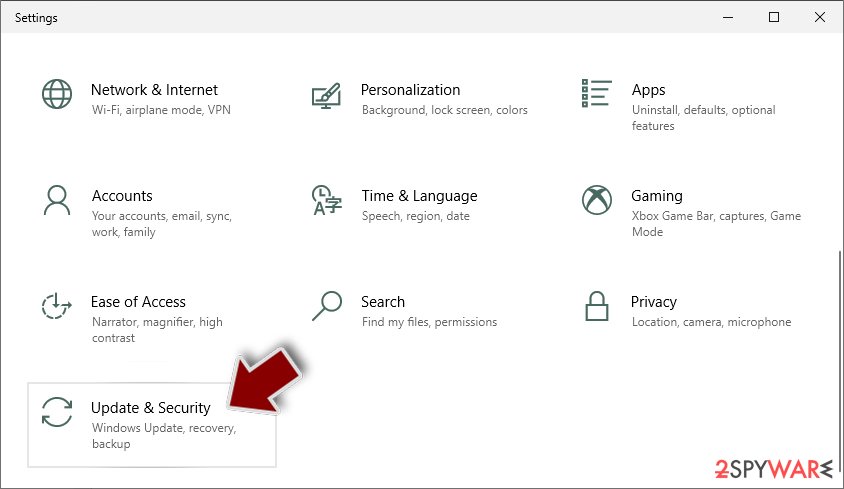
- On the left side of the window, pick Recovery.
- Now scroll down to find Advanced Startup section.
- Click Restart now.
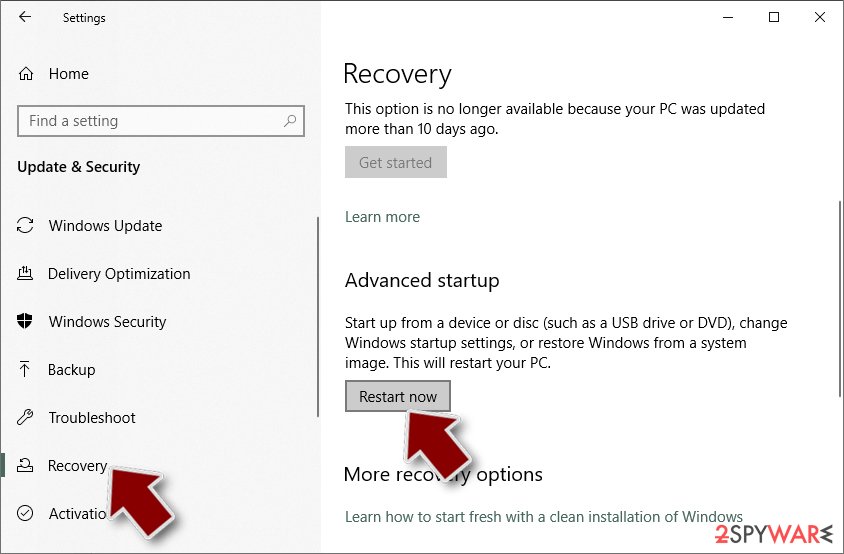
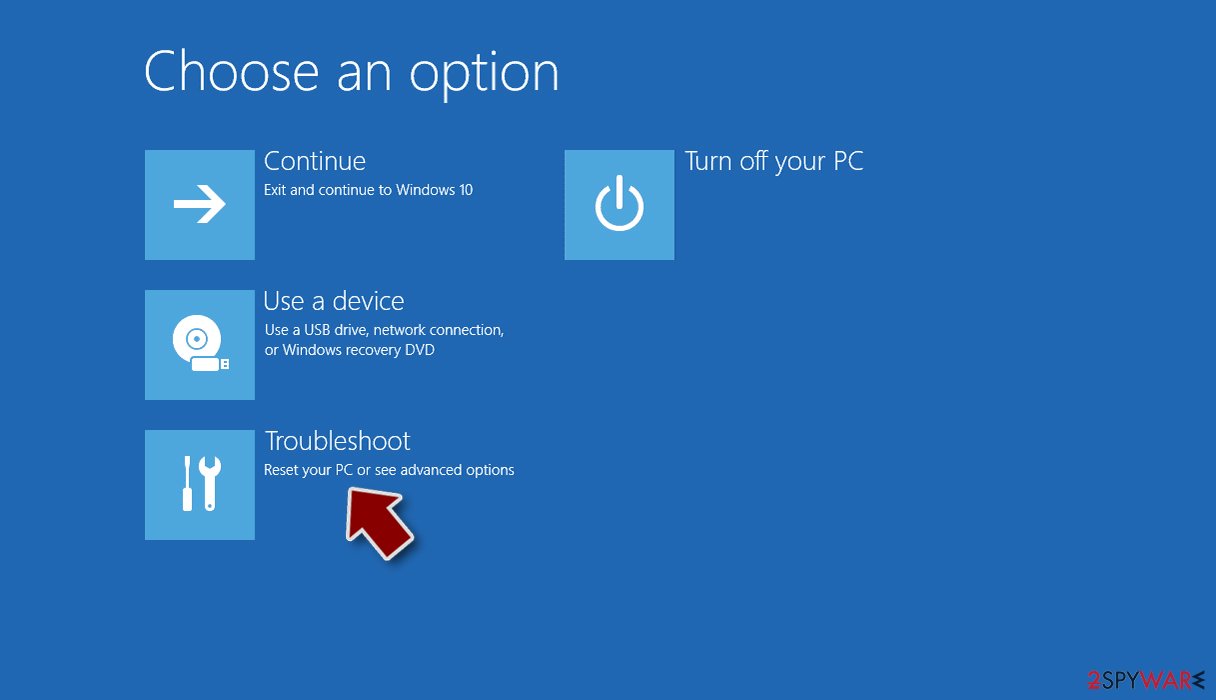
- Select Troubleshoot.
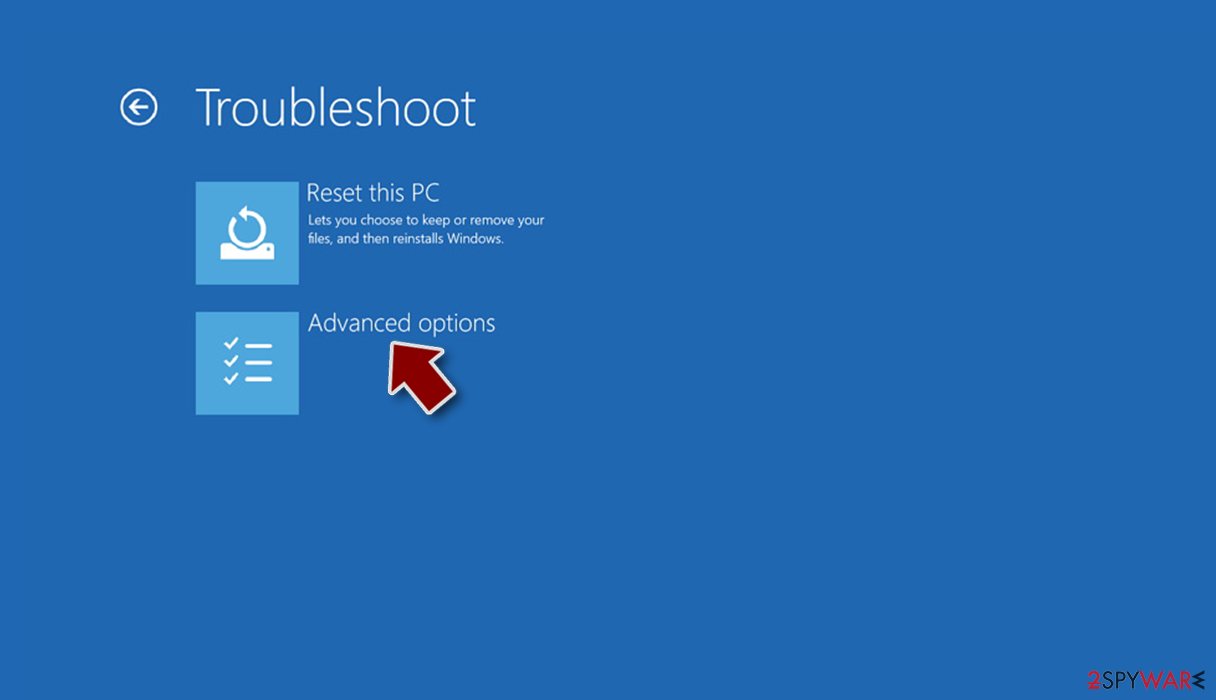
- Go to Advanced options.
- Select Startup Settings.
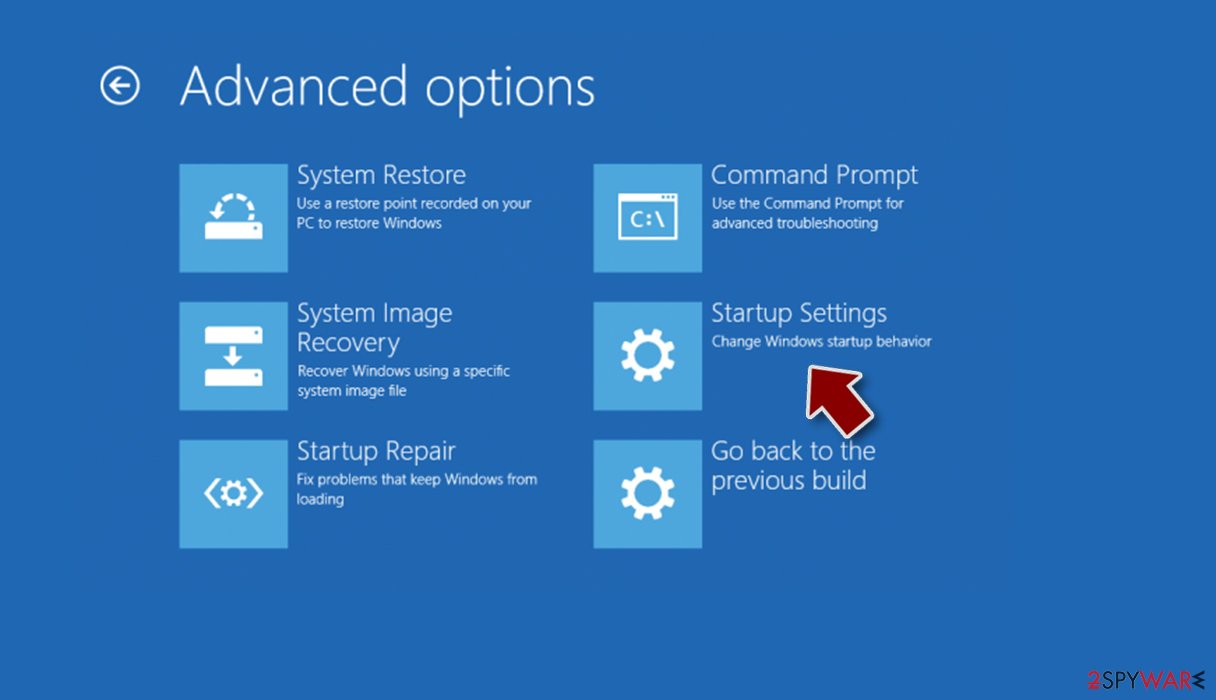
- Click Restart.
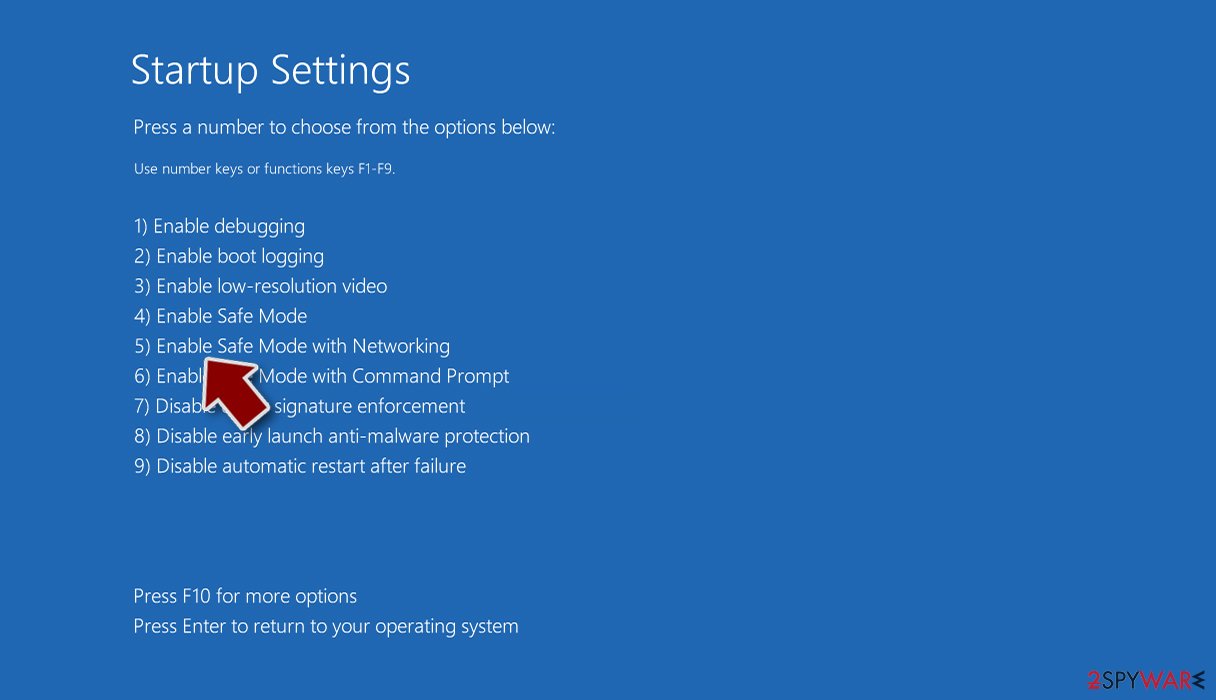
- Press 5 or click 5) Enable Safe Mode with Networking.


Data recovery
Many users do not back up their data properly, which is devastating because they might completely lose access to their files. Paying cybercriminals in cryptocurrencies is very risky as often, even after payment, victims do not receive decryption keys.[2] Paying them money also supports their activities further and leads to more victims.
You can try to get back your data with data recovery software. The recovery of the files is not guaranteed as there are thousands of ransomware strains. We suggest trying regardless of which ransomware attacked your computer. Before you begin, there are a couple of important things to note:
- Since the encrypted data on your computer might permanently be damaged by security or data recovery software, you should first make backups of it – use a USB flash drive or another storage.
- Only attempt to recover your files using this method after you perform a scan with anti-malware software.
Install data recovery software
- Download Data Recovery Pro.
- Double-click the installer to launch it.

- Follow on-screen instructions to install the software.
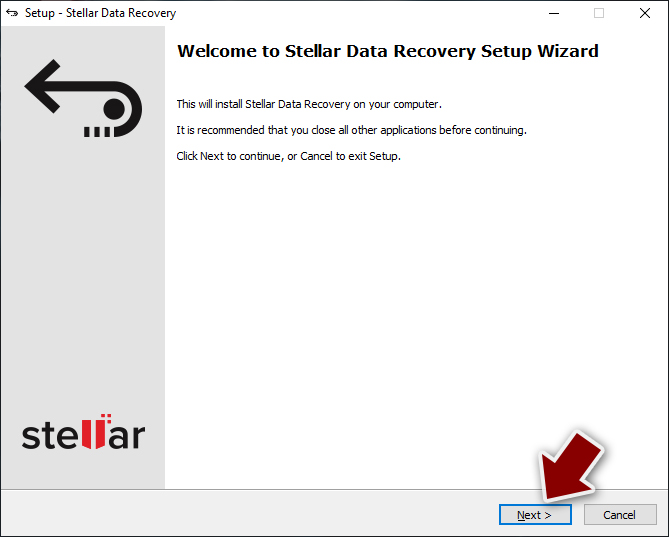
- As soon as you press Finish, you can use the app.
- Select Everything or pick individual folders where you want the files to be recovered from.
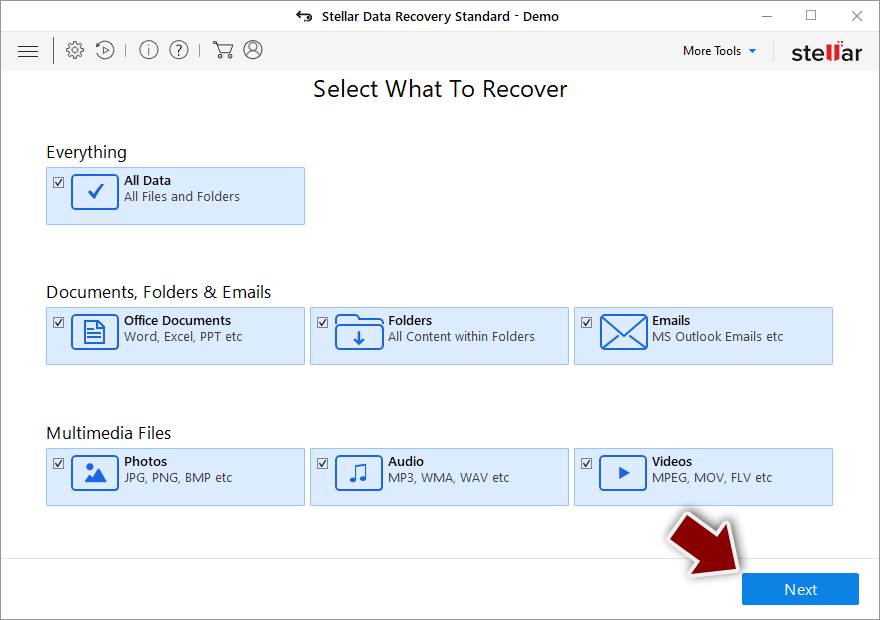
- Press Next.
- At the bottom, enable Deep scan and pick which Disks you want to be scanned.

- Press Scan and wait till it is complete.
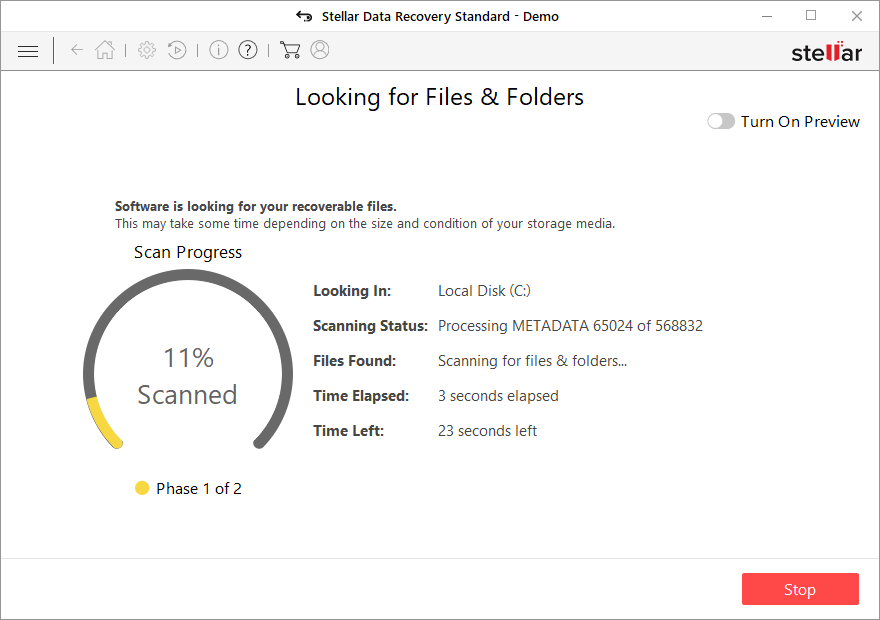
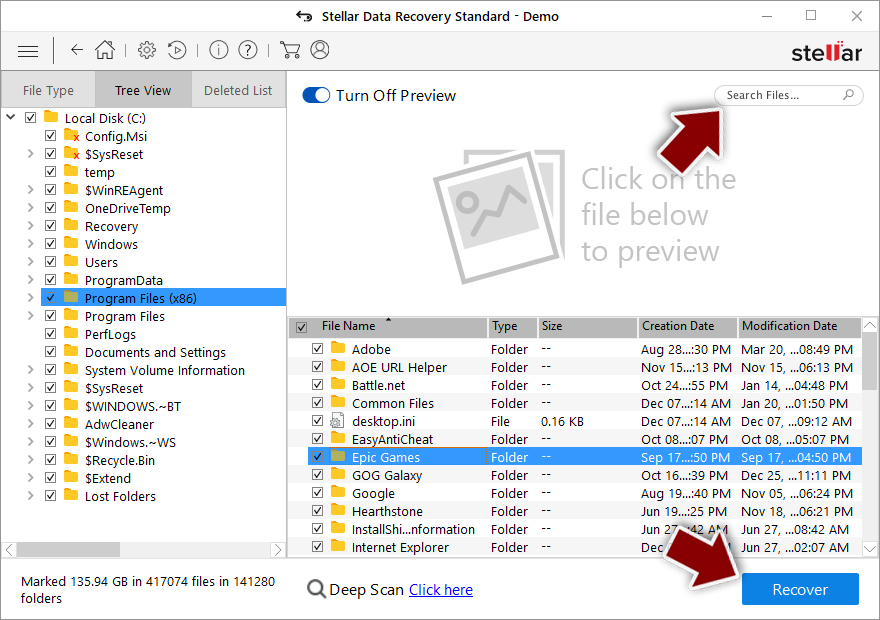
- You can now pick which folders/files to recover – don't forget you also have the option to search by the file name!
- Press Recover to retrieve your files.


Fix your operating system
After a malware infection, users might experience performance, stability, and usability issues, to the point where a full Windows reinstall is required. These types of infections can alter the Windows registry database, damage vital bootup and other sections, delete or corrupt DLL files, etc. Once a system file is damaged by malware, antivirus software is not going to help you.
This problem requires a different tool – FortectIntego. It can fix damage caused by the infection like Blue Screen errors, freezes, registry errors, damaged DLLs, etc. By using this maintenance tool, you could avoid Windows reinstallation. To begin the process:
- Download the application by clicking on the link above
- Click on the ReimageRepair.exe

- If User Account Control (UAC) shows up, select Yes
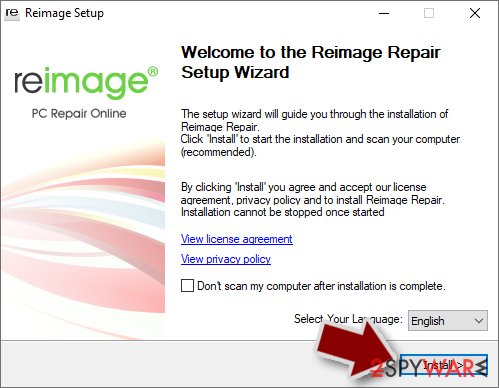
- Press Install and wait till the program finishes the installation process
- The analysis of your machine will begin immediately
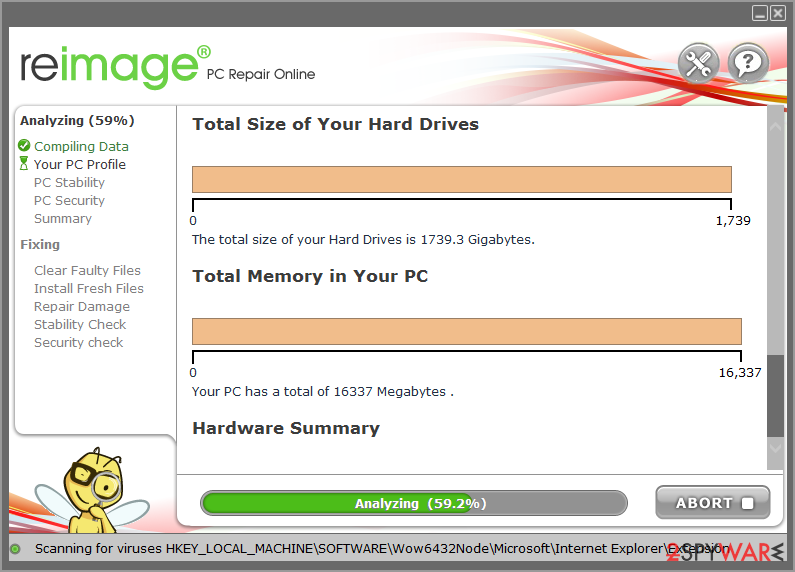
- Once complete, check the results – they will be listed in the Summary
- You can now click on each of the issues and fix them manually
- If you see many problems that you find difficult to fix, we recommend you purchase the license and fix them automatically.



How to prevent ransomware infections?
To protect yourself from malware infection, you should always be careful when opening emails from unknown senders. Do not download attached files that you were not expecting especially if it is an MS Office file. The most important part is checking the sender, their email address, searching the text for grammar and spelling mistakes. If the message comes from an unidentifiable sender or includes many mistakes, you should delete it without opening it. Also, scan all received attachments with reliable anti-malware software.
Additionally, ransomware infections can get delivered via peer-to-peer file-sharing networks.[3] That includes “free” or “cracked” software. Also, malware can use the disguise of a fake software update.[4] Get all the upgrades only from official websites, never from a window that popped up or a random website that appeared suddenly.
Below, you will find additional information on how you can back up your files so you would not lose them if this happens again and organizations you can report to about the attacks.
Did this guide help?
Be the first to comment