

Titancrypt ransomware locks all files and demands a ransom of 20 PLN

Titancrypt is a ransomware-type virus that you might get infected by accident. However, its presence would immediately be apparent, as all personal files would acquire a .titancrypt extension, which would make them lose original icons, and victims would no longer be able to open or modify them. The encryption process is performed with a strong encryption algorithm, although not all file types might be encrypted in this case, which is good news for victims.
Soon after the encryption process is completed, Titancrypt ransomware delivers two ransom notes – a pop-up window titled “lol” and a text file ___RECOVER__FILES__.titancrypt.txt. Within these files, hackers explain that users have to pay 20 PLN by using the PaySafeCard method and then contact them via Discord (titanware#1405).
We do not recommend paying and instead rely on alternative methods for data recovery – we provide them all below. Before using them, malware removal should be performed, so we will explain step-by-step how to do just that.
| Name | Titancrypt virus |
|---|---|
| Type | Ransomware, file-locking malware, cryptovirus |
| File extension | All the encrypted files acquire the .titancrypt extension |
| Ransom note | ___RECOVER__FILES__.titancrypt.txt and a pop-up window titled “lol” |
| Contact | titanware#1405 on Discord |
| Ransom size | 20 PLN to be paid via Paysafecard |
| Data Recovery | If no backups are available, recovering data is almost impossible. We recommend you try alternative methods, which we list below |
| Malware removal | Manual virus removal is not recommended, as it might be difficult for regular users. Instead, SpyHunterCombo Cleaner or other anti-malware tools should be used |
| System fix | Malware can seriously tamper with Windows systems, causing errors, crashes, lag, and other stability issues after it is terminated. To remediate the system and avoid its complete corruption, we recommend scanning it with the FortectIntego repair tool |
Ransom note analysis
Titancrypt delivers ransom notes right upon finishing the file encryption process, as typical of any ransomware virus. While most cybercriminals choose to just deliver a TXT file that can be opened with a simple text editor, a pop-up message is delivered as well in this case. Usually, this is done to ensure that victims see the message, as it serves as the main communication means between the two parties.
The message is rather brief and states the demands of the perpetrator. Both messages are almost identical; for example, this is the message found within the ___RECOVER__FILES__.titancrypt.txt file:
All of your files have been encrypted.
To unlock them, please send 20PLN PaySafeCard on discord: titanware#1405
Thank you and have a nice day!
There are a few unusual things about this ransom note – mainly the method of payment and the currency used. Typically, ransomware authors ask victims to transfer bitcoin cryptocurrency to remain anonymous. PaySafeCard is another anonymous method to receive illegally acquired funds without being exposed to authorities.
PLN is a Polish currency known as Zloty, 20 of which translates to around 4.50USD. This points at the culprits being Polish, although there is no proof of that. Even if the ransom seems small, we do not recommend paying, as you may lose your money along with your files and passively support cybercriminals in the process.

How did you get infected?
In order to infect victims, ransomware has to find an entry point in some way. Usually, this is done with the help of a malicious file that executes certain commands and downloads the malicious payload via the internet. The same can happen when a malicious link is clicked.
It goes without saying that there are many ways how users could get to those malicious links or files, for example, spam emails, cracks and repacked installers, software vulnerabilities, drive-by downloads,[1] fake updates, and others. Some form of phishing and social engineering is always used to make people download and install malware on their devices without them realizing what has happened.
Detection names
Malware-dropping files can come in various formats, not just EXE. However, it is always important to make sure that files that are meant to be of a video or other common format are not executable files. Once launched, they can initiate the download process of malware, which would consequently infect the system and encrypt all files, appending the .titancrypt file extension.
Luckily, the malicious files can almost always be stopped with the help of powerful security tools, such as SpyHunterCombo Cleaner or MalwarebytesMalwarebytes. In the sample analysis by Virus Total, the malicious file releasing the ransomware was indicated as WindowsFormsApp1.exe, which is detected under the following names:[2]
- Trojan.EncoderNET.31373
- Ransom:MSIL/Cryptolocker.EW!MTB
- A Variant Of MSIL/Filecoder.AEN
- Gen:Heur.Ransom.REntS.Gen.1
- Win32:Trojan-gen, etc.
In order to avoid the infection, make sure you never ignore warnings from your security software – don't misleadingly assume that a cracked software installer or an email attachment is secure and that anti-malware is simply flagging a false positive[3] because it is unlikely to be the case.
Removal steps
If the affected device is connected to the internet or/and network, we strongly recommend removing it from such connections. Malware authors can use these to download and install updated versions of the virus, push other payloads, and give commands.
In order to disable the connection, you could simply remove the Ethernet cable from your machine or disconnect the WiFi via the taskbar. If you are connected to a network, you should proceed with the following steps:
- Type in Control Panel in Windows search and press Enter
- Go to Network and Internet
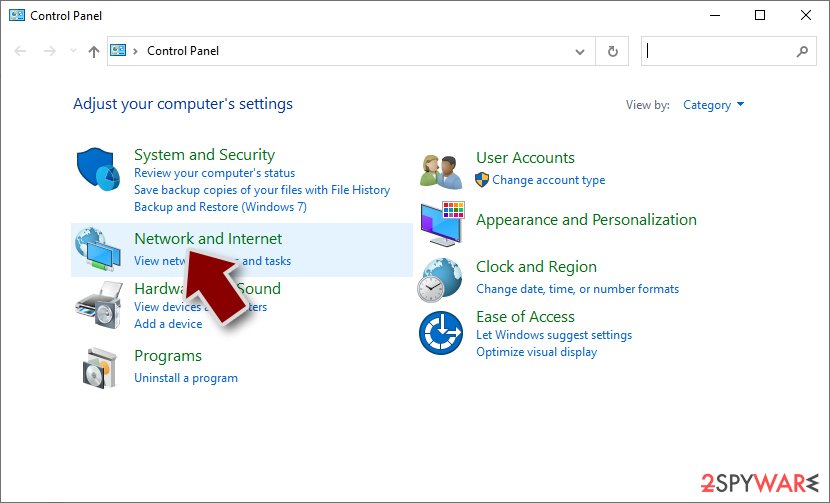
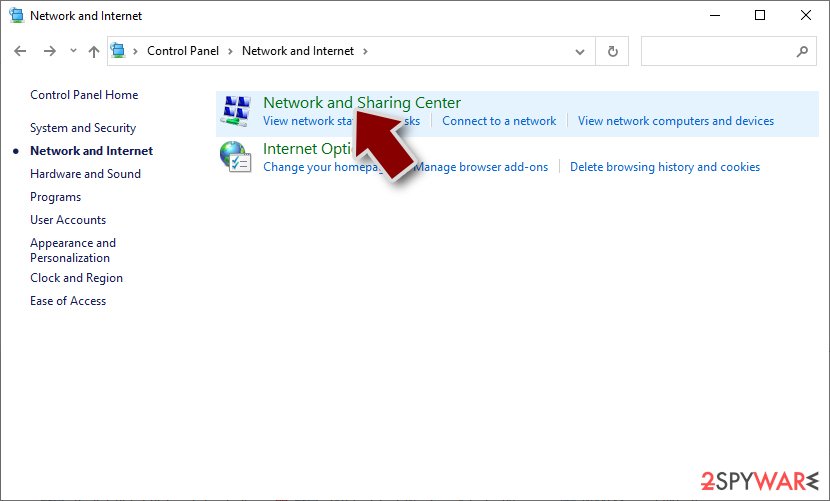
- Click Network and Sharing Center
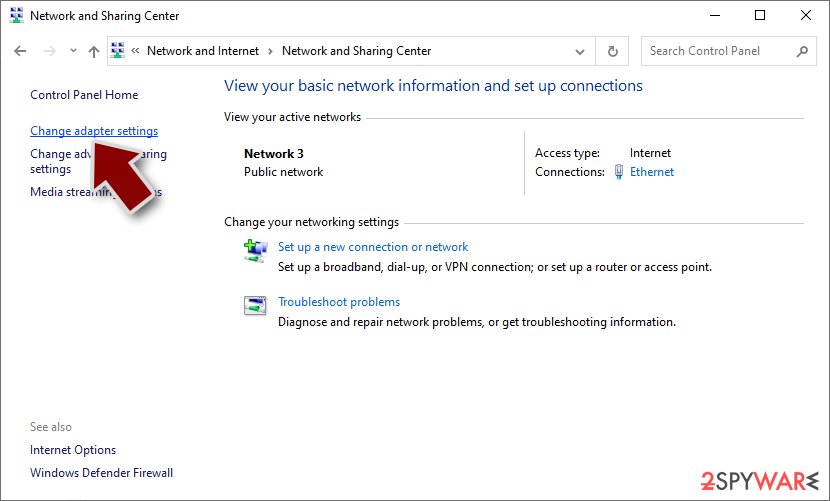
- On the left, pick Change adapter settings
- Right-click on your connection (for example, Ethernet), and select Disable
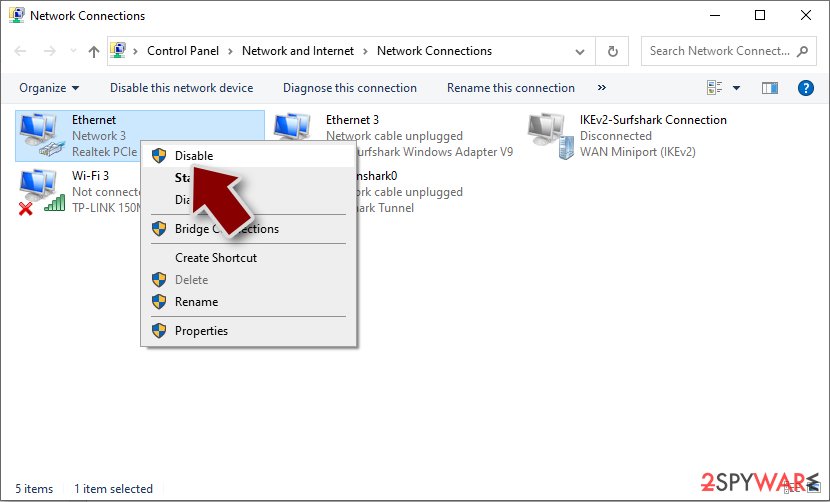
- Confirm with Yes.


Your next step is to remove malware from the system. It is true that most ransomware destroys itself after the encryption job is finished, although this might not always be the case. If the malware is still running on the system, it may continue encrypting newly-implemented files.
Therefore, regardless of how ransomware behaves post-encryption, it is always mandatory to scan the device with SpyHunterCombo Cleaner, MalwarebytesMalwarebytes, or another powerful anti-malware. A full scan would ensure that the malicious files and settings are removed, along with any secondary infections that could be present on the system.
Fix your system
Once malware is deleted, some system files may remain damaged, as security software is not capable of repairing them. As a result, ransomware or other malware victims start suffering from computer crashes, errors, slowdowns, and other issues. Instead of reinstalling the operating system, you can instead employ a specialized software designed to deal with malware damage – it can also fix various unrelated issues that make computers behave problematically.
- Download FortectIntego
- Click on the ReimageRepair.exe

- If User Account Control (UAC) shows up, select Yes
- Press Install and wait till the program finishes the installation process
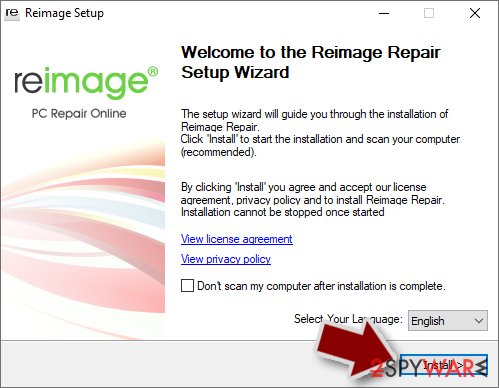
- The analysis of your machine will begin immediately
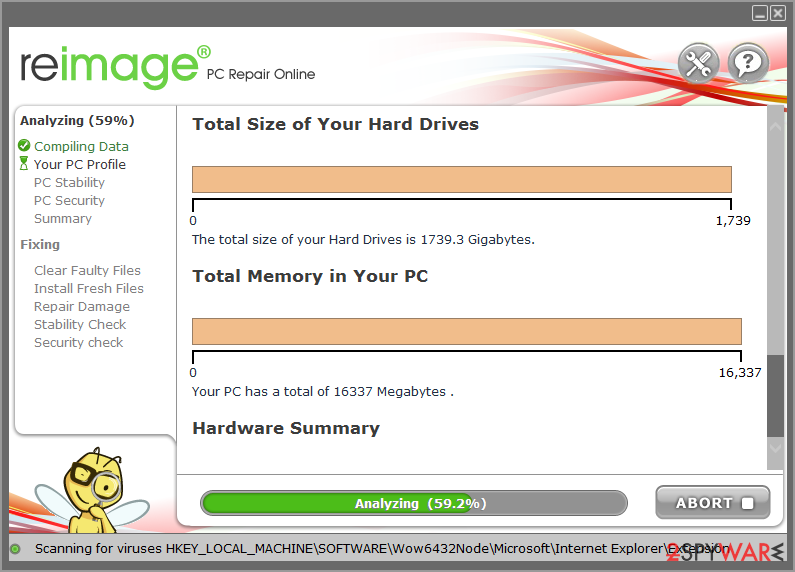
- Once complete, check the results – they will be listed in the Summary
- You can now click on each of the issues and fix them manually
- If you see many problems that you find difficult to fix, we recommend you purchase the license and fix them automatically.



How to recover Titancrypt ransomware files?
It goes without saying that the easiest way to recover from ransomware is having backups of files that were encrypted. In such a case, malware can inflict a minimal amount of damage. Unfortunately, most users never prepare proper data backups, which results in them losing their personal files forever.
Luckily, since this virus does not encrypt all files, some of them can already be secure. Those that are encrypted might also be saved in some cases, as long as ransomware failed to delete Shadow Copies from Windows. We recommend employing recovery software for this matter and see how many files can be restored:
Note: if you have no backups, you should always make a copy of already encrypted files before attempting to use recovery software.
- Download Data Recovery Pro.
- Double-click the installer to launch it.

- Follow on-screen instructions to install the software.
- As soon as you press Finish, you can use the app.
- Select Everything or pick individual folders where you want the files to be recovered from.
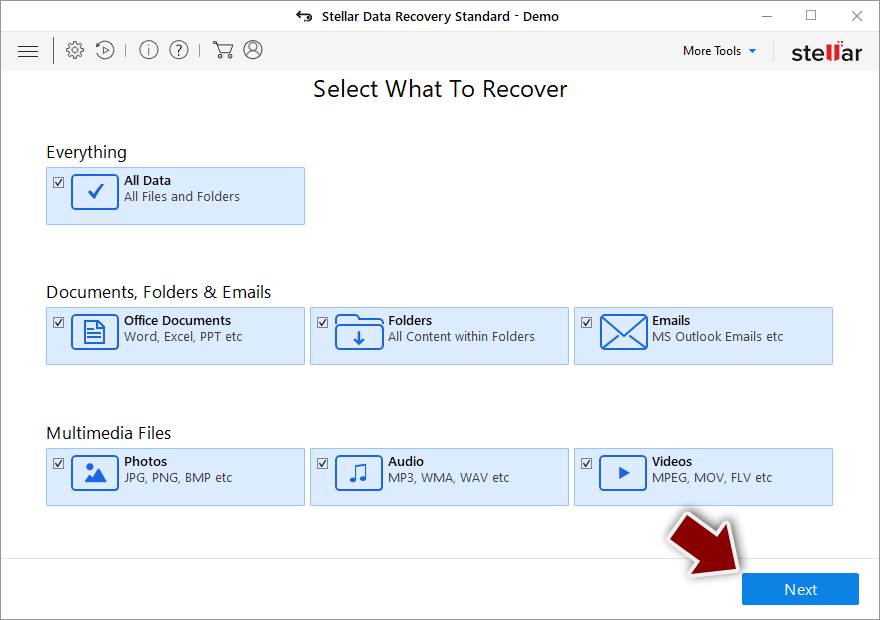
- Press Next.
- At the bottom, enable Deep scan and pick which Disks you want to be scanned.

- Press Scan and wait till it is complete.
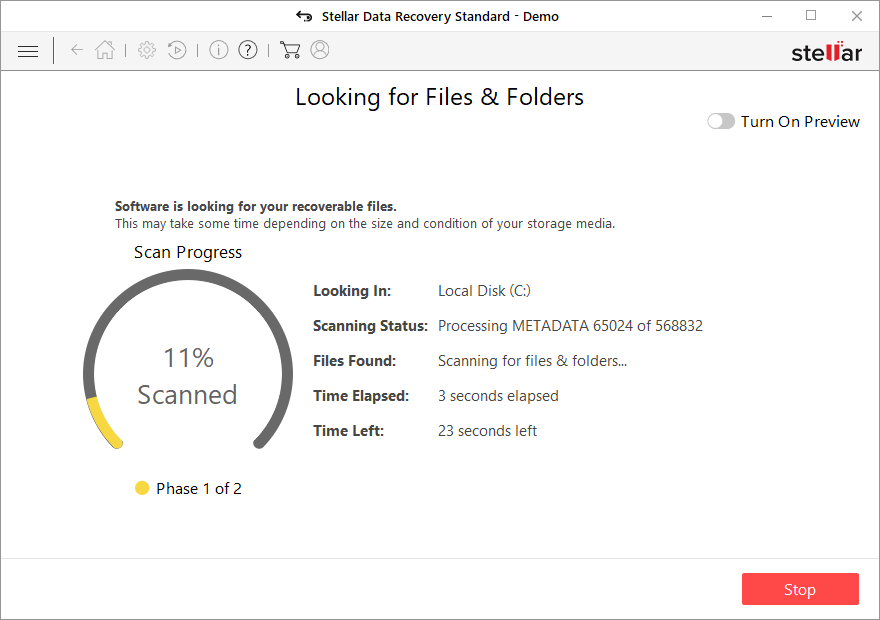
- You can now pick which folders/files to recover – don't forget you also have the option to search by the file name!
- Press Recover to retrieve your files.


Security experts might also create a working decryptor for a particular malware strain under certain circumstances. While there is none available for the Titancrypt virus, it might be available in the future. We provide the links that could help you find a decryptor later below:
- No More Ransom Project
- Free Ransomware Decryptors by Kaspersky
- Free Ransomware Decryption Tools from Emsisoft
- Avast decryptors

Did this guide help?
Be the first to comment