

Matamoe ransomware was created to blackmail victims into paying with Bitcoins to get back files

Ransomware attacks have been growing rapidly in the past years. Matamoe is the name of the data locking virus that has been recently discovered by malware researchers. It can cause a lot of damage to the victims as it starts using complicated encryption algorithms[1] to lock users' files when it infiltrates the operating system.
This includes personal data, such as photos, videos, and documents. It appends the files with the .matamoe extension. This makes the files impossible to open or even view in preview mode because the icons get changed to white pages. After the encryption process is done, a file named picture.jpg, changes to picture.jpg.matamoe. A read_THIS.txt ransom note is then generated on the machine, a message from the ransomware developers.
| NAME | Matamoe |
| TYPE | Ransomware, data locking virus, cryptovirus |
| FILE EXTENSION | .matamoe |
| RANSOM NOTE | read_THIS.txt |
| DISTRIBUTION | Infected email attachments, peer-to-peer file sharing platforms, torrents, malicious ads |
| FILE RECOVERY | It is almost impossible to recover the files if you do not have backups or the decryption keys were not leaked; in some cases, recovery is successful with third-party software |
| ELIMINATION | Scan your machine with anti-malware software to eliminate the virus safely; this will not recover the locked files |
| SYSTEM FIX | You can avoid windows reinstallation with FortectIntego maintenance tool, which can fix damaged files and system errors |
The ransom note
The full read_THIS.txt ransom message reads as follows:
Don't worry, be happy! you can return all your files! (yeah)
All your files like documents, photos, databases and other important are encrypted
What guarantees do we give to you?!
You can send 2 of your encrypted files and we decrypt it for free.
You must follow these steps To decrypt your files :
1) Write on our e-mail : basg@ik.me
2) Obtain Bitcoin (You have to pay for decryption in Bitcoins.
After payment we will send you the tool that will decrypt all your files.)
Cybercriminals inform victims that they have been infected by ransomware and that they need to purchase decryption software from them if users want to get their data back. Crooks provide their contact information, and they do not disclose how much the decryption key costs. This can mean that the ransom amount is negotiated directly with the perpetrators.

Ransomware developers also show their twisted sense of humor by changing the desktop wallpaper to a screenshot of a popular video game “Grand Theft Auto: San Andreas.” Many previous ransomware attack victims have come forward and said that they never heard back from the cybercriminals after payments were made so this is no laughing matter.
Once you send cryptocurrency to another address, you cannot get it back, and it is impossible to get a refund. By paying the cybercriminals, you risk getting scammed. In this guide, you will find a third-party solution that has helped some people to recover their files. Even though it is rare, it is worth giving a try.
Distribution methods
It is unknown what particular methods are used to spread Matamoe ransomware. However, there are some general ways that cybercriminals do it. Typically, the malicious code[2] gets introduced by an executable file (.exe) that may have been in a zip folder, embedded within a Microsoft Office document’s macros, or disguised as another attachment.
Many people like to install something known as “cracked” software[3] because they do not want to pay for software licenses. Paying for software can get costly, but pirated software distribution platforms are breeding grounds for PUPs (potentially unwanted programs)[4] and malware. They are unregulated and unsafe. Almost all downloads contain some kind of malicious file, so they should definitely not be trusted.
The most common distribution way is for hackers to use OS or software vulnerabilities. That is why it is vital to keep everything updated. Software developers often release security updates[5] for newly found vulnerabilities, so you can be exposed if you do not install them.
Use professional security tools to eliminate malicious files
The critical thing to do is disconnect the affected machine from the local network. For home users, disconnecting the ethernet cable should do the job. If this happened at your workplace, doing that might be complicated, so we have instructions for corporate environments at the bottom of this post.
If you try to recover your data first, it can result in permanent loss. It can also encrypt your files the second time. It will not stop until you remove the malicious files causing it first. You should not attempt removing the malicious program yourself unless you have experience.
Use anti-malware tools like SpyHunterCombo Cleaner or MalwarebytesMalwarebytes to scan your system. This security software should find all the related files and entries and remove them automatically for you. In some cases, malware is not letting you use antivirus in normal mode, so you need to access Safe Mode and perform a full system scan from there:
Windows 7 / Vista / XP
- Click Start > Shutdown > Restart > OK.
- When your computer becomes active, start pressing the F8 button (if that does not work, try F2, F12, Del, etc. – it all depends on your motherboard model) multiple times until you see the Advanced Boot Options window.
- Select Safe Mode with Networking from the list.
Windows 10 / Windows 8
- Right-click on the Start button and select Settings.
- Scroll down to pick Update & Security.
- On the left side of the window, pick Recovery.
- Now scroll down to find the Advanced Startup section.
- Click Restart now.
- Select Troubleshoot.
- Go to Advanced options.
- Select Startup Settings.
- Click Restart.
- Press 5 or click 5) Enable Safe Mode with Networking.
Fix system errors to prevent Windows reinstallation
Performance, stability, and usability issues, to the point where a complete Windows reinstall is required, are expected after malware infection. These types of infections can alter the Windows registry database, damage vital bootup and other sections, delete or corrupt DLL files, etc. Once a system file is damaged by malware, antivirus software is not able to repair it.
This is why FortectIntego was developed. It can fix a lot of the damage caused by an infection like this. Blue Screen errors, freezes, registry errors, damaged DLLs, etc., can make your computer completely unusable. By using this maintenance tool, you could avoid Windows reinstallation.
- Download the application by clicking on the link above
- Click on the ReimageRepair.exe
- If User Account Control (UAC) shows up, select Yes
- Press Install and wait till the program finishes the installation process
- The analysis of your machine will begin immediately
- Once complete, check the results – they will be listed in the Summary
- You can now click on each of the issues and fix them manually
- If you see many problems that you find difficult to fix, we recommend you purchase the license and fix them automatically.


File recovery options
Many people think that they can fix their files with anti-malware tools, but that is not what they are designed for. All the security tools can do is detect suspicious processes in your system and eliminate malicious files. The truth is, the files can be restored only with a decryption key or software that only the cybercriminals have.
If you did not back up your data previously, you possibly lost your files forever. You can try using data recovery software, but third-party programs cannot always decrypt the files. We suggest at least trying this method. Before proceeding, you have to copy the corrupted files and place them in a USB flash drive or another storage. And remember – only do this if you have already removed the Matamoe ransomware.
Before you begin, several pointers are essential while dealing with this situation:
- Since the encrypted data on your computer might permanently be damaged by security or data recovery software, you should first make backups of it – use a USB flash drive or another storage.
- Only attempt to recover your files using this method after you perform a scan with anti-malware software.
Install data recovery software
- Download Data Recovery Pro.
- Double-click the installer to launch it.
- Follow on-screen instructions to install the software.
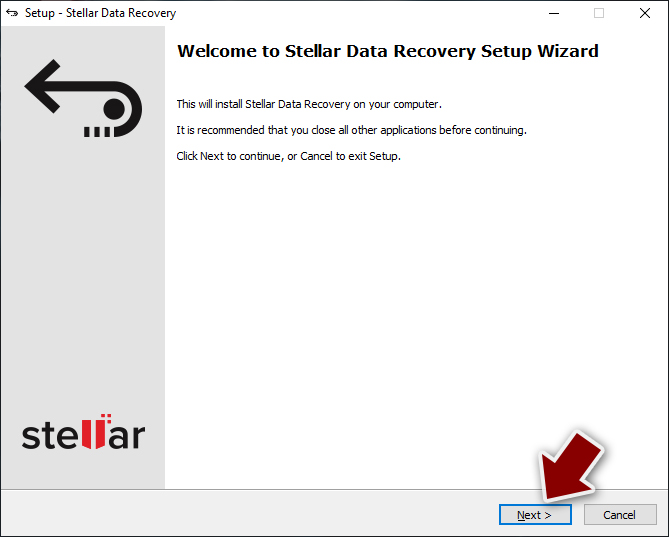
- As soon as you press Finish, you can use the app.
- Select Everything or pick individual folders where you want the files to be recovered from.
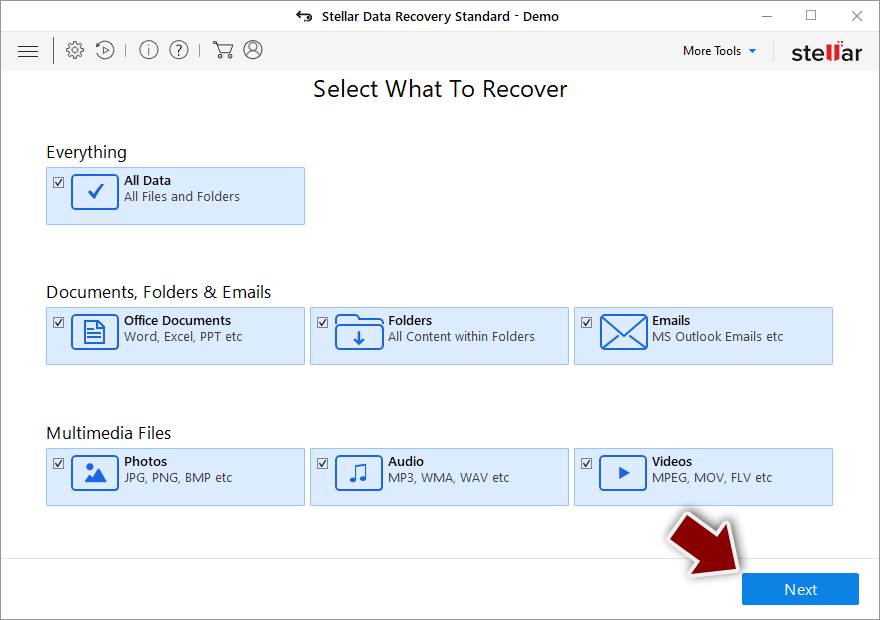
- Press Next.
- At the bottom, enable Deep scan and pick which Disks you want to be scanned.

- Press Scan and wait till it is complete.
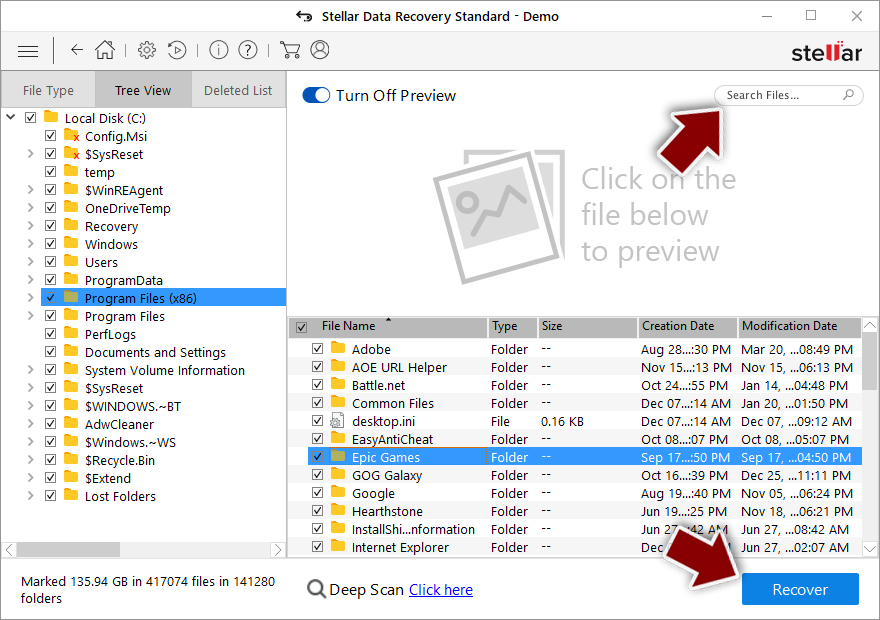
- You can now pick which folders/files to recover – don't forget you also have the option to search by the file name!
- Press Recover to retrieve your files.


Did this guide help?
Be the first to comment