

WheelInstant mac virus is the PUP affecting particular Apple devices
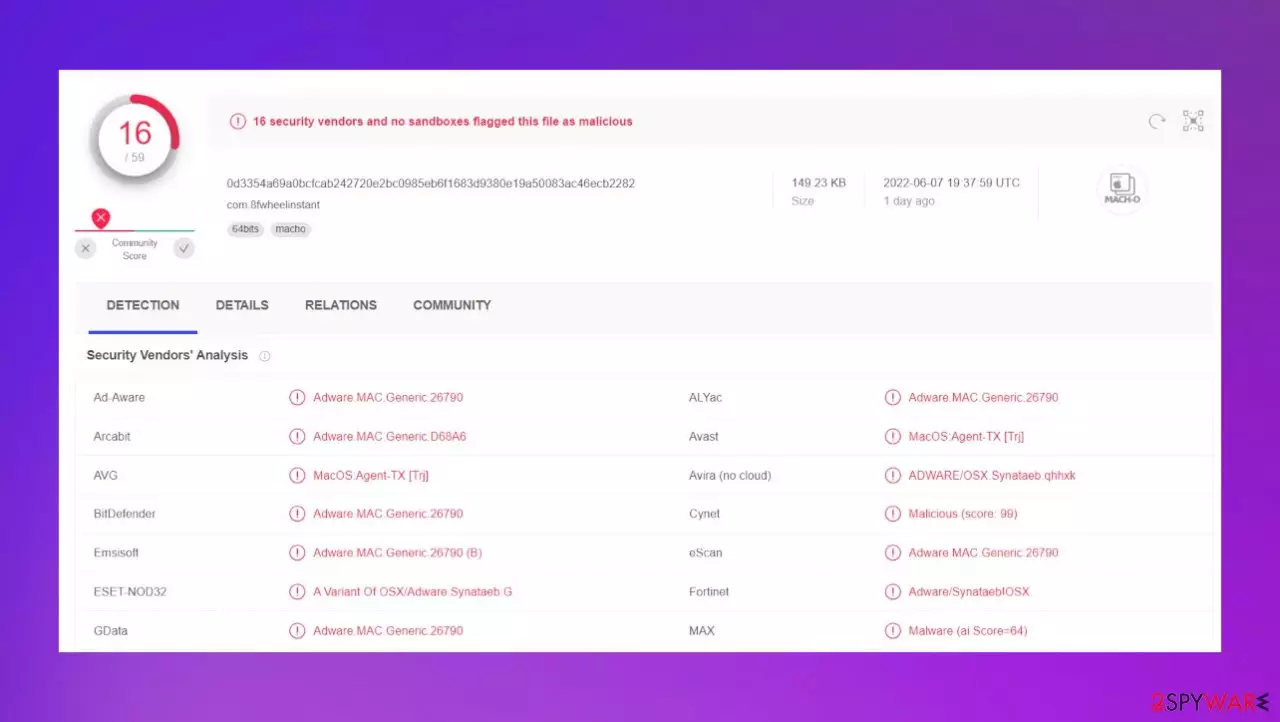
WheelInstant mac virus is the infection that destroys people's belief that mac malware is not existing and cannot affect their machine.[1] These are the threats that change various settings on browsers, alter preferences, install programs and cause other problems because the threat relies on ad-supported platforms that promote this and other pages with the same focus and goal.
The main purpose of these tools and unwanted applications like WheelInstant mac virus is to control online traffic and expose users to various commercial materials, so views and visits can be tracked, collected, and turned into revenue. These websites and applications are commonly bundled with other apps that you download from the internet, so the PUP is a silent threat that users often install themselves unknowingly.
| Name | WheelInstant |
|---|---|
| Type | Adware, redirect, mac virus |
| Category | Potentially unwanted program |
| Issues | The program triggers issues with the online traffic and constant redirects to commercial pages, this is affecting the speed and performance of the machine |
| Distribution | Freeware installations, deceptive pages, promotional ads, fake updates, and installation messages |
| Damage | The infection can be related to third-party advertisers and track data, users' habit information |
| Removal | Anti-malware tools can help with the infection and remove the PUP fully |
| Repair | Run FortectIntego to repair system data and get rid of the virus leftovers |
Real mac malware
WheelInstant mac adware is one of many versions in the Adload malware family. This is the infection that spreads particularly on macOS devices. It can be distributed around during freeware installations when people skip through steps and choose insecure sources for the programs.
These particular mac viruses can be distributed via fake Flash Player update downloads and promotional advertisements, so you should avoid any suspicious content like this. WheelInstant mac virus can be installed behind your back and cause all these issues with the performance.
Any legitimate products and software developers' messages that appear out of nowhere should indicate fake relations and shouldn't encourage you to allow these programs installed on the machine. This is one of the ways that these PUP developers can distribute their products without triggering AV detection alerts.
WheelInstant mac virus is not a malicious program that could be considered a cyber threat or a dangerous application because it cannot alter the machine permanently. However, there are issues that the PUP triggers and this is the reason you should remove the adware as soon as possible and once those pop-ups appear.
The application can act as the browser hijacker too, so those web browser preferences like homepage, new tab, and search engine get altered directly. So WheelInstant PUP runs in the background and causes various processes to control online traffic. Make sure to remove it because it is useless.

Eliminate the potentially unwanted applications
WheelInstant mac adware is the program that can stealthily infiltrate the machine and causes symptoms way after the initial infiltration process, so you should remove it as experts[2] always recommend. The best way to do so is to rely on tools that can detect[3] this infection and related files.
By running a proper anti-malware tool or security program that is compatible with the operating system, you can check for potentially dangerous programs and malicious files, and cyber threats that create issues with the machine. These applications like SpyHunterCombo Cleaner or MalwarebytesMalwarebytes should be able to find and terminate the WheelInstant mac virus.
You need a full system scan because these adware-type intruders can infect machines with other browser-based programs and those cause additional intrusive adverts that are capable of performing stealthy downloads and installations once you click on malicious pop-ups or banners.
So remove the infection properly and stop the WheelInstant adware behavior. You want to manually remove the intruder and search for any installed programs.
Remove items from Applications folder:
- From the menu bar, select Go > Applications.
- In the Applications folder, look for all related entries.
- Click on the app and drag it to Trash (or right-click and pick Move to Trash)


To fully remove an unwanted app, you need to access Application Support, LaunchAgents, and LaunchDaemons folders and delete relevant files:
- Select Go > Go to Folder.
- Enter /Library/Application Support and click Go or press Enter.
- In the Application Support folder, look for any dubious entries and then delete them.
- Now enter /Library/LaunchAgents and /Library/LaunchDaemons folders the same way and terminate all the related .plist files.


WheelInstant mac adware acts like any other browser-based program that relies on online traffic control because it is designed to make revenue for the sponsors and creator. These additional redirects, pop-ups, and notifications annoy people the most, but to stop them this adware need to be removed fully.
The affiliate program allows to spread these applications and make a profit when they cause intrusive ads and collects views and page visits. WheelInstant mac virus appears as the program placed in the Applications folder, but there are additional processes running in the background that can significantly affect the speed and security state.
Advertising-supported programs can also show various commercial materials that are involved in personal advertising campaigns. Try to avoid these pop-up ads, banners, links, reroutes, and other materials to keep the machine ruining smooth without causing additional issues.
Remove from Mozilla Firefox (FF)
Remove dangerous extensions:
- Open Mozilla Firefox browser and click on the Menu (three horizontal lines at the top-right of the window).
- Select Add-ons.
- In here, select the unwanted extension and click Remove.


Reset the homepage:
- Click three horizontal lines at the top right corner to open the menu.
- Choose Settings.
- Under Home, set your preferred homepage and new tab settings.
Clear cookies and site data:
- Click Menu and pick Settings.
- Go to Privacy & Security section.
- Scroll down to locate Cookies and Site Data.
- Click on Clear Data...
- Select Cookies and Site Data and Temporary cached files and pages, then click Clear.


Reset Mozilla Firefox
If clearing the browser as explained above did not help, reset Mozilla Firefox:
- Open Mozilla Firefox browser and click the Menu.
- Go to Help and then choose Troubleshooting Information.

- Under Give Firefox a tune up section, click on Refresh Firefox...
- Once the pop-up shows up, confirm the action by pressing on Refresh Firefox.



Remove from Google Chrome
Delete malicious extensions from Google Chrome:
- Open Google Chrome, click on the Menu (three vertical dots at the top-right corner) and select More tools > Extensions.
- In the newly opened window, you will see all the installed extensions. Uninstall all suspicious extensions related to the unwanted program by clicking Remove.


Clear cache and web data from Chrome:
- Click on Menu and pick Settings.
- Under Privacy and security, select Clear browsing data.
- Select Browsing history, Cookies and other site data, as well as Cached images and files.
- Click Clear data.


Change your homepage:
- Click menu and choose Settings.
- Look for a suspicious site in the On startup section.
- Click on Open a specific or set of pages and click on three dots to find the Remove option.
Reset Google Chrome:
If the previous methods did not help you, reset Google Chrome to eliminate all the unwanted components:
- Click on Menu and select Settings.
- In the Settings, scroll down and click Advanced.
- Scroll down and locate Reset and clean up section.
- Now click Restore settings to their original defaults.
- Confirm with Reset settings.


Delete from Safari
Remove dangerous extensions:
- Open Safari, click Safari in the menu at the top-left of the screen, and select Preferences.
- Go to the Extensions tab, look for any suspicious entries, and click Uninstall to remove them.


Clear history and website data:
- Click Safari in the menu and pick Clear History.
- Set Clear to all history and confirm with Clear History.


Reset Safari:
- Click Safari in the menu and select Preferences > Advanced.
- Enable Show Develop menu in menu bar.
- From the menu bar, click Develop and select Empty Caches.


Did this guide help?
Be the first to comment