

YoSearch Weather Tab is a potentially unwanted application that changes your settings to show you sponsored links in search results
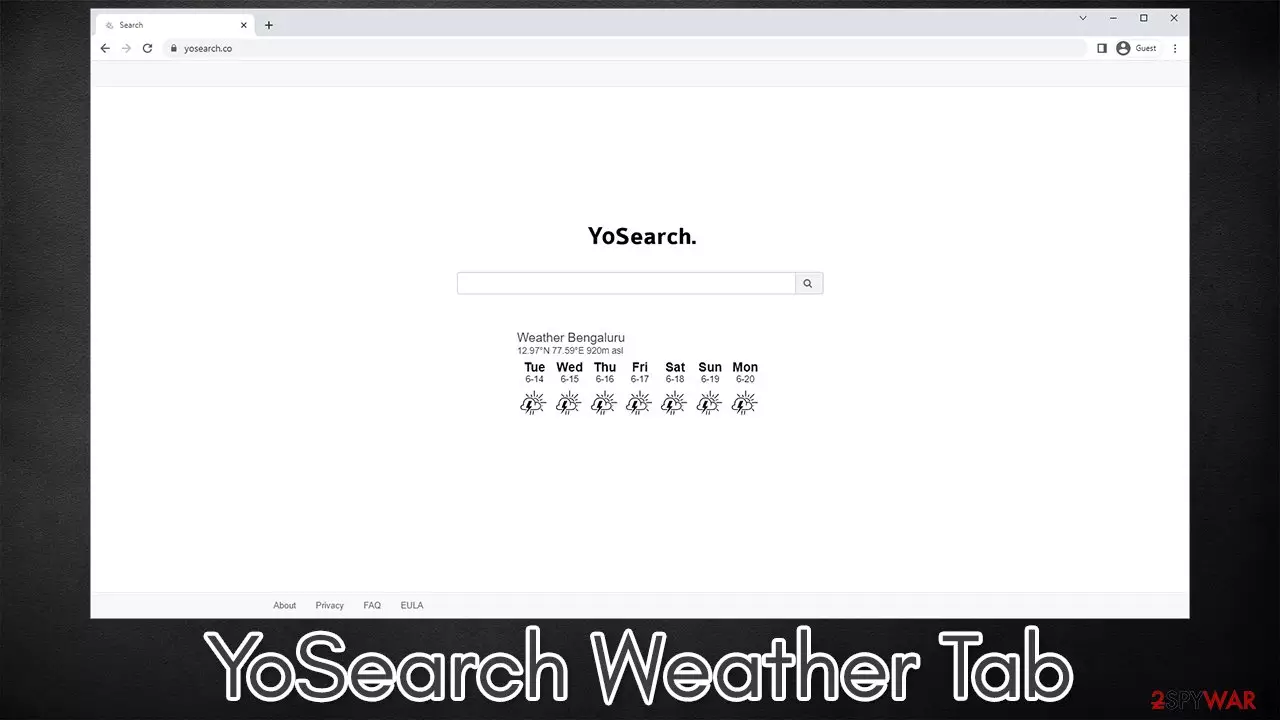
YoSearch Weather Tab is a typical browser-hijacking extension that takes over browser settings to profit from exposing users to ads. Just like any other application of this type, it is rarely installed intentionally by users – they usually find it running on their devices one day. This happens due to deceptive distribution techniques such as software bundling and fake updates/misleading ads.
Once installed, YoSearch Weather Tab sets the homepage and new tab address of the browser to yosearch.co immediately, which might initially seem like not a big deal. However, this is how browser hijacker is capable of reaching its goal – to monetize advertisements.
This change can result in the search queries being rerouted through suspicious URLs or searches being redirected to alternative providers. Also, ads may be inserted at the top of the results, promoting various potentially unwanted programs.[1] If you are tired of dealing with inaccurate search results and annoying ads, you should remove YoSearch Weather Tab.
| Name | YoSearch Weather Tab |
| Type | Browser hijacker, potentially unwanted browser extension |
| Distribution | Bundled software, third-party websites, fake ads |
| Symptoms | Installs new extension on the browser; sets homepage and new tab address to yosearch.co; redirects searches through an alternative provider; inserts ads and sponsored links at the top of the results |
| Risks | Data tracking from various third parties, exposure to malicious ads, redirects to malicious sites |
| Removal | You should access your browser's settings to remove the unwanted browser extension. Checking the system with SpyHunterCombo Cleaner can also ensure that there is no adware or malware running in the background |
| Other tips | After removing all potentially unwanted applications, we recommend you employ the FortectIntego utility to clean your web browsers and repair any damaged system files |
How users install PUPs by accident
Potentially unwanted programs are called so for a reason – they are usually not wanted. This mainly comes from the distribution methods used for their delivery, and while people think that automatic installation is possible, it is not the case. Even though people believe they never installed the app themselves, it is definitely the case, as PUPs don't spread by methods malware uses, e.g., software vulnerabilities or spam emails.
The most common browser hijacker, adware, and similar unwanted software installation method is software bundling,[2] which freeware distribution sites use. Whenever you visit third-party distribution software websites, you can safely assume that every installer would attempt to make you install additional applications.
To avoid this, you should be very careful when installing software from third-party sources: always read through the installation steps, pick Advanced/Custom settings instead of Recommended/Quick ones, read the fine print, remove the ticks from pre-ticked checkboxes, and, most importantly, never rush through the installation steps.

YoSearch Weather Tab removal
Browser hijackers are not generally considered to be malicious as Trojans, backdoors, ransomware,[3] or even adware. Despite this, these applications can have a great impact on the way users browse the web. Since the homepage and new tab address are altered, users are forced to browse using these new settings.
Results brought by these vary greatly: the alternative provider generates different links, while ads at the top bring no use for users apart from meddling with their browsing experience. Besides, PUPs are known for their data tracking capabilities.
In order to ensure comprehensive protection and remove any invisible malware running in the background, you should first perform a full system scan with SpyHunterCombo Cleaner, MalwarebytesMalwarebytes, or another reputable anti-malware.
Removing a browser extension shouldn't be a problem, as long as you have done it before. If you can't find it in the “Extensions” section, you should access browser settings and remove YoSearch Weather Tab from there.
Google Chrome
- Open Google Chrome, click on the Menu (three vertical dots at the top-right corner) and select More tools > Extensions.
- In the newly opened window, you will see all the installed extensions. Uninstall all the suspicious plugins that might be related to the unwanted program by clicking Remove.


Mozilla Firefox
- Open Mozilla Firefox browser and click on the Menu (three horizontal lines at the top-right of the window).
- Select Add-ons.
- In here, select unwanted plugin and click Remove.


MS Edge
- Open Edge and click select Settings > Extensions.
- Delete unwanted extensions by clicking Remove.


MS Edge (legacy)
- Select Menu (three horizontal dots at the top-right of the browser window) and pick Extensions.
- From the list, pick the extension and click on the Gear icon.
- Click on Uninstall at the bottom.


Safari
- Click Safari > Preferences…
- In the new window, pick Extensions.
- Select the unwanted extension and select Uninstall.


Protect your privacy by removing cached browser files
To stop potentially unwanted programs such as YoSearch Weather Tab and other third parties from tracking you online, you should clean your browser caches at least occasionally – it is especially advantageous after removing PUPs. You can proceed with the instructions below or use powerful optimization software FortectIntego, as it could automatically clean browser caches and also fix any damage that computer infections could have done.
Google Chrome
- Click on Menu and pick Settings.
- Under Privacy and security, select Clear browsing data.
- Select Browsing history, Cookies and other site data, as well as Cached images and files.
- Click Clear data.


Mozilla Firefox
- Click Menu and pick Options.
- Go to Privacy & Security section.
- Scroll down to locate Cookies and Site Data.
- Click on Clear Data…
- Select Cookies and Site Data, as well as Cached Web Content, and press Clear.


MS Edge (Chromium)
- Click on Menu and go to Settings.
- Select Privacy and services.
- Under Clear browsing data, pick Choose what to clear.
- Under Time range, pick All time.
- Select Clear now.


MS Edge (legacy)
- Click on the Menu (three horizontal dots at the top-right of the browser window) and select Privacy & security.
- Under Clear browsing data, pick Choose what to clear.
- Select everything (apart from passwords, although you might want to include Media licenses as well, if applicable) and click on Clear.


Safari
- Click Safari > Clear History…
- From the drop-down menu under Clear, pick all history.
- Confirm with Clear History.


Did this guide help?
Be the first to comment