

Lpnotworld.com ads can start disturbing your browsing sessions on a regular basis
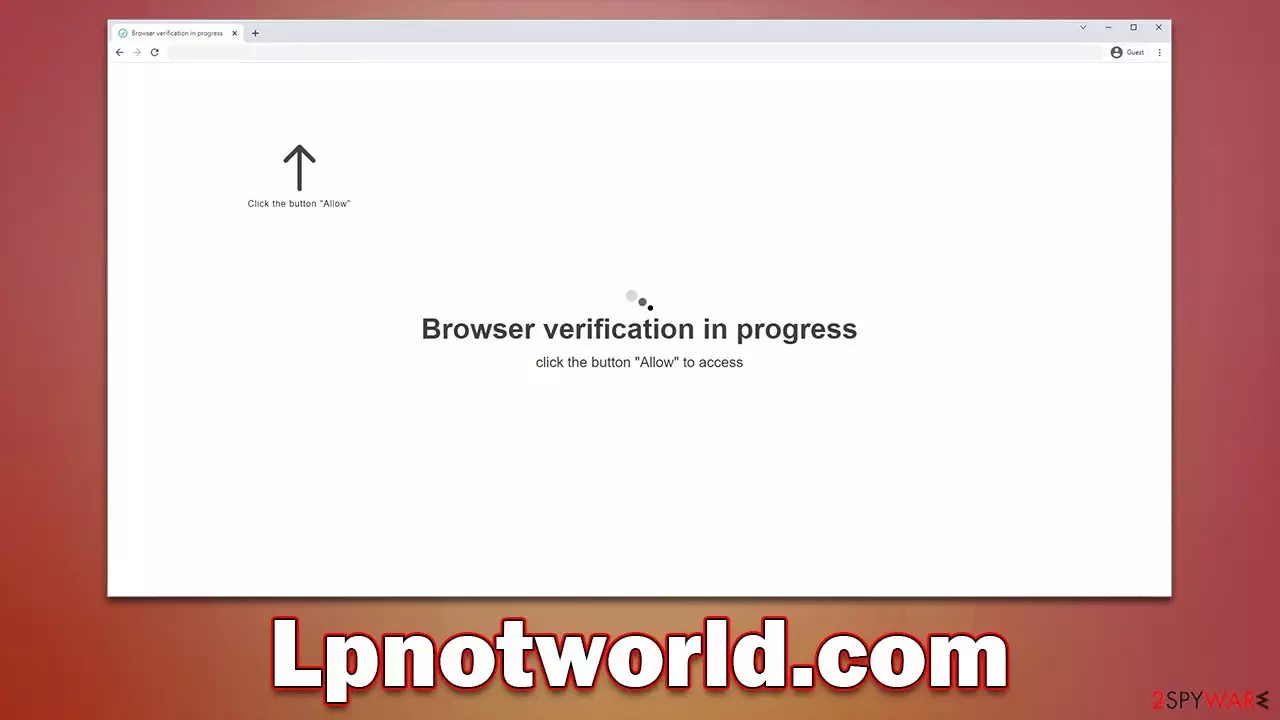
Lpnotworld.com is a malicious website you may encounter while browsing the internet on Google Chrome, Mozilla Firefox, MS Edge, or another web browser. The main goal of the individuals behind this scam is to trick people into subscribing to push notifications from the dubious website, which allows them to show intrusive ads directly on users' desktops.
The ads shown may be annoying and dangerous, as Lpnotworld.com and similar malicious websites are known to push various scams, including fake promotions/lottery winnings, false virus infection messages, get-rich-quick schemes, and much more. If you are suffering from this recurring problem, you can get rid of it easily, although we strongly recommend checking the device for adware infections as well. We provide all the necessary details for both procedures below.
| Name | Lpnotworld.com |
| Type | Push notifications, ads, scam, phishing |
| Distribution | The activity can only manifest when users click the “Allow” button within the notification prompt |
| Symptoms | Pop-ups show up regularly on the screen – these ads often include inappropriate, scam, phishing, or other similar content |
| Risks | The ads shown within push notifications might include misleading messages and links to malicious websites. If clicked, you might end up infecting your system with malware, disclosing your personal information, or losing money |
| Removal | Access browser settings to stop intrusive push notifications. After that, make sure that your system is not infected with adware or malware – scan it with SpyHunterCombo Cleaner |
| Other steps | Potentially unwanted programs often leave traces within web browsers – cookies, for example, are used for tracking. Remove them with FortectIntego or proceed with our manual guide |
How users get tricked
If users would see the full picture of the scam, they would never subscribe to Lpnotworld.com push notifications in the first place. However, some clever social engineering techniques,[1] lack of understanding of online scam peculiarities by users, and a bit of bad luck can easily result in unwanted push notifications. But how is the whole scheme operated, and how do users get tricked into this? We are here to answer these questions.
Most people encounter suspicious or even malicious websites at least once in their lives, as long as they are frequent internet users. Sometimes reputable websites could get hacked, or a malicious ad might be clicked. Nonetheless, the vast majority of these cases are connected to users visiting compromised websites in the first place – they are full of booby-trapped links and even malicious scripts.[2]
Once on the malicious page, people are presented with one of the messages, specially crafted by scammers. Initially, they might seem rather regular, as they are usually focused on a common request that users have already experienced before, such as confirming their age or that they aren't robots. Here are a few examples:
- Click Allow to confirm that you are not a robot
- Press “Allow” to watch the video
- Click “Allow” to win a prize and get it in our shop!
- Click Allow to start downloading
- If you are 18+, click Allow.
These messages are all fabricated and have nothing real about them. Crooks are trying to introduce familiar elements to users by showing a push notification prompt along with the reason why the “Allow” button should be pressed. Evidently, some users get tricked and do what they are told without giving it too much thought – and that's precisely when they allow unwanted activity to take place on their devices.

Always start with computer checks
Even though users get redirected to Lpnotworld.com and similar websites by accident whenever they visit high-risk websites, it is not always the case. Adware is the ad-supported software that frequently gets installed along with other freeware unintentionally or is being spread via misleading or malicious ads. This is why so many users aren't even aware that they have a potentially unwanted application installed on their systems.
Adware is unwanted software, which means its main goal is not to be useful for users but to focus on monetization via advertising. Unfortunately, ads and redirects that it causes might also be dangerous and result in users landing on Lpnotworld.com, Lpnottech.com, Cleancaptcha.top, Advtgroup.com, or similar malicious websites.
To check your device for adware easily, we recommend running a scan with SpyHunterCombo Cleaner, MalwarebytesMalwarebytes, or another powerful security software. You could also manually check for the installed extensions or programs, but that's not necessary when using anti-malware software instead. Also, running a scan with FortectIntego can ensure that all the virus leftovers are eliminated, and privacy is secured by the removal of cookies and other trackers.
Stop the intrusive Lpnotworld.com push notifications
It is important to note that the push notifications themselves would not be caused by a virus installed on the device. Instead, they are a part of the web browser (known as API)[3] but can only show up if users themselves allow it. Unfortunately, malicious websites tend to send malicious content, and it is important not to engage with it. Removing adware would not solve the push notification problem – you need to deny access manually to the site via the browser settings as we explain below.
Google Chrome
- Open the Google Chrome browser and go to Menu > Settings.
- Scroll down and click on Advanced.
- Locate the Privacy and security section and pick Site Settings > Notifications.
- Look at the Allow section and look for a suspicious URL.
- Click the three vertical dots next to it and pick Block. This should remove unwanted notifications from Google Chrome.


Google Chrome (Android)
- Open Google Chrome and tap on Settings (three vertical dots).
- Select Notifications.
- Scroll down to the Sites section.
- Locate the unwanted URL and toggle the button to the left (Off position).


Mozilla Firefox
- Open Mozilla Firefox and go to Menu > Options.
- Click on Privacy & Security section.
- Under Permissions, you should be able to see Notifications. Click the Settings button next to it.
- In the Settings – Notification Permissions window, click on the drop-down menu by the URL in question.
- Select Block and then click on Save Changes. This should remove unwanted notifications from Mozilla Firefox.


Safari
- Click on Safari > Preferences…
- Go to the Websites tab and, under General, select Notifications.
- Select the web address in question, click the drop-down menu and select Deny.


MS Edge
- Open Microsoft Edge, and click the Settings and more button (three horizontal dots) at the top-right of the window.
- Select Settings and then go to Advanced.
- Under Website permissions, pick Manage permissions and select the URL in question.
- Toggle the switch to the left to turn notifications off on Microsoft Edge.


MS Edge (Chromium)
- Open Microsoft Edge, and go to Settings.
- Select Site permissions.
- Go to Notifications on the right.
- Under Allow, you will find the unwanted entry.
- Click on More actions and select Block.


Internet Explorer
- Open Internet Explorer, and click on the Gear icon at the window's top-right.
- Select Internet options and go to the Privacy tab.
- In the Pop-up Blocker section, click on Settings.

- Locate the web address in question under Allowed sites and pick Remove.

Did this guide help?
Be the first to comment