

AnalyzerSystem is a malicious Mac application that is extremely sneaky and evasive
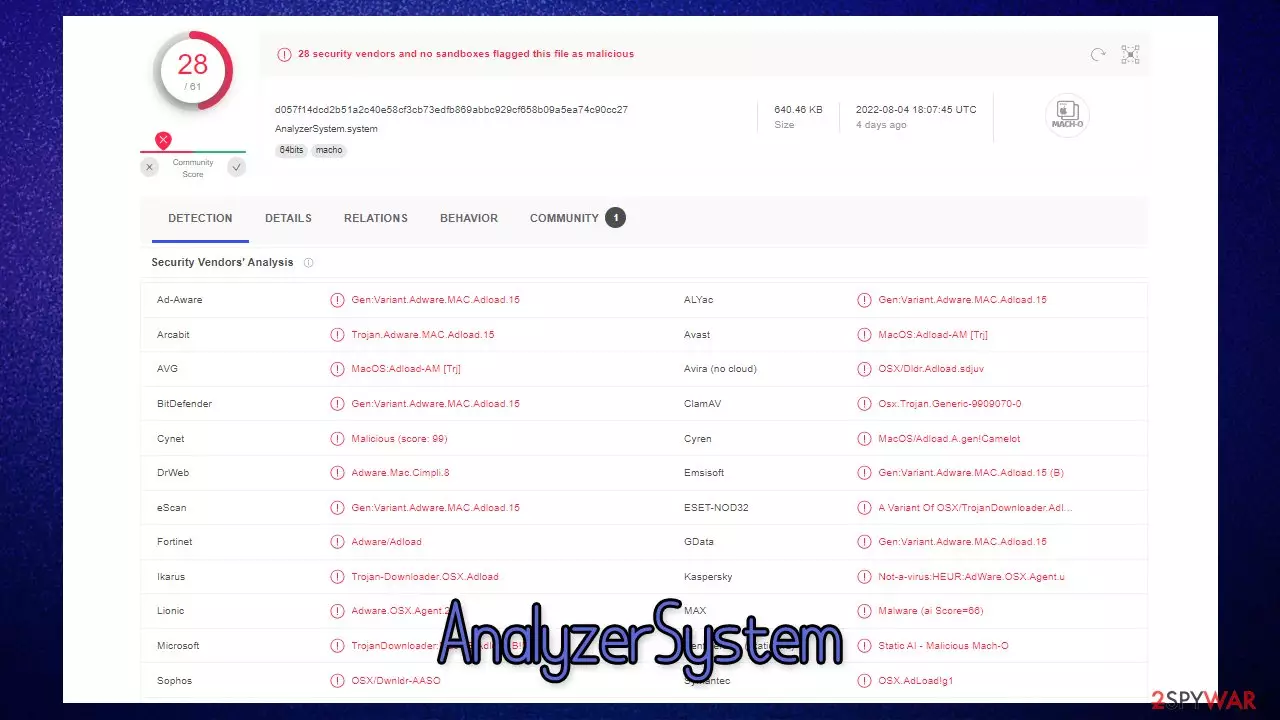
AnalyzerSystem is a Mac virus that spreads via fake Flash Player updates or might be installed by users themselves when they attempt to use pirated software installers. Once on the system, the malware immediately makes changes to it and drops multiple components to perform its intended operations.
Possibly the most distinctive sign of compromise is the browser extension attached to Safari, MS Edge, Google Chrome, or another web browser. It uses a magnifying glass icon which is rather distinctive. The main goal of the app is to deliver as many advertisements as possible, and for that, the AnalyzerSystem virus changes the homepage address and alters the search provider something else, for example, Safe Finder.
As a result, users are forced to see advertisements and sponsored links whenever they decide to use their browsers, and the overall number of ads increases. Likewise, the affected users are more likely to encounter phishing content online, which could result in further malware infections. We recommend not providing any personal information via the browser at this time, as the AnalyzerSystem extension can collect passwords, banking details, and more.
| Name | AnalyzerSystem |
| Type | Mac virus, adware, browser hijacker |
| Malware family | Adload |
| Distribution | Third-party websites distributing pirated software, software bundles, fake Flash Player updates |
| Symptoms | A new extension is installed on the browser, along with an application of the same name; search and browsing settings altered to an alternative search provider; new profiles and login items set up on the account; intrusive ads and redirects |
| Removal | You can remove Mac malware with the help of powerful security tools, such as SpyHunterCombo Cleaner. If you want to attempt to get rid of the infection yourself, check the manual instructions below |
| Security tips | After you get rid of the infection, we recommend you also scan your device with FortectIntego to clean your browsers and junk that the infection might have left |
How Adload spreads
Most users simply find the AnalyzerSystem on their devices with a great deal of surprise, as they don't remember installing anything like it. This is not uncommon as the versions of the virus spread using deceptive distribution techniques, including software bundles on high-risk websites and fake messages and advertisements.
First of all, we recommend you stay away from websites that offer pirated software, as they are extremely insecure. The security practices are simply not there, and some of these sites are purposely created by crooks to spread malware. This means that seemingly free application installers might be disguised as malware.
When installing such software, users need to enter their Apple ID into a prompt, which allows the virus to be installed without problems. Therefore, we recommend not giving authorization to applications coming from unofficial sources.
Another way to get infected with the AnalyzerSystem virus is by installing it as a fake Flash Player update. These misleading prompts can be found on numerous malicious websites, which users visit accidentally while browsing the web. Using an effective ad-blocker can help greatly in these situations, although refraining from visiting high-risk websites reduces the probability greatly.

It is worth noting that Flash Player was discontinued by Adobe a few years ago, so every time you see a request to update it, know that it is fake and that what you are actually seeing is a scam you should not interact with.
How to remove the virus effectively
As mentioned, the malware uses various tricks to enter users' machines – mainly by pretending to be something else. By entering their credentials during this process, users allow the threat to spread and begin malicious operations immediately. During this time, malware completely avoids the detection of Mac's defenses (Xprotect and Gatekeeper)[1] and makes use of the built-in Apple Script to establish itself on the system.
As a result, the virus becomes more resistant to removal. In order to delete AnalyzerSystem from your system, you have to remove all of its components accordingly. While we give all the information needed for this process, we recommend you opt for automatic removal with SpyHunterCombo Cleaner or MalwarebytesMalwarebytes, which would guarantee that the machine is clear of all the infections at once.
If you decide to go for manual elimination steps, find all the required information below. Note that you should clean your browsers regardless of which removal method you choose.
1. Remove the main app and its components
- Open the Applications folder.
- Select Utilities.
- Double-click Activity Monitor.
- Here, look for suspicious processes and use the Force Quit command to shut them down.
- Go back to the Applications folder.
- Find the malicious entry and place it in Trash.
Login items ensure that the app starts as soon as the computer boots, and Profiles are used to manage various account settings. Get rid of malware-related components:
- Go to Preferences and pick Accounts.
- Click Login items and delete everything suspicious.
- Next, pick System Preferences > Users & Groups.
- Find Profiles and remove unwanted profiles from the list.
Your next task is finding Plist files that hold various configuration data of the virus. You can do that as follows:
- Select Go > Go to Folder.
- Enter /Library/Application Support and click Go or press Enter
- Remove the following entries:
/Library/Application Support/.[random]/Services/com.AnalyzerSystem.service.app
/Library/Application Support/.[random]/System/com.AnalyzerSystem.system - Now enter /Library/LaunchAgents and remove the following:
/Library/LaunchAgents/com.AnalyzerSystem.service.plist - Finally, go to /Library/LaunchDaemons and eliminate the following:
/Library/LaunchDaemons/com.AnalyzerSystem.system.plist

2. Don't forget your browsers
The browser component removal is particularly important, as it may continue to track data or reinfect the system altogether. Thus, you should check the details below to get rid of the add-on and clear the cached files to avoid further data tracking.
Safari
- Click Safari > Preferences…
- In the new window, pick Extensions.
- Select the unwanted extension and select Uninstall.


Google Chrome
- Open Google Chrome, click on the Menu (three vertical dots at the top-right corner) and select More tools > Extensions.
- In the newly opened window, you will see all the installed extensions. Uninstall all the suspicious plugins that might be related to the unwanted program by clicking Remove.


Make sure leftover browser components are removed as well. Otherwise, the data tracking might continue or ads may return. You can also use FortectIntego for this job, which can clean your device from various junk files, as well as cookies[2] and other trackers.
Safari
- Click Safari > Clear History…
- From the drop-down menu under Clear, pick all history.
- Confirm with Clear History.


Google Chrome
- Click on Menu and pick Settings.
- Under Privacy and security, select Clear browsing data.
- Select Browsing history, Cookies and other site data, as well as Cached images and files.
- Click Clear data.


It might not be possible to remove the extension from the browser, as it might be grayed out. Such persistence mechanisms[3] can be bypassed by resetting the browsers altogether. Please follow the instructions below:
Safari
- Click Safari > Preferences…
- Go to Advanced tab.
- Tick the Show Develop menu in menu bar.
- From the menu bar, click Develop, and then select Empty Caches.


Google Chrome
- Click on Menu and select Settings.
- In the Settings, scroll down and click Advanced.
- Scroll down and locate Reset and clean up section.
- Now click Restore settings to their original defaults.
- Confirm with Reset settings.


Did this guide help?
Be the first to comment