

Rar1 ransomware is yet another malware sample that may cost you your files

Rar1 ransomware is a type of Windows malware that uses a sophisticated encryption algorithm to lock all personal files on the system, including documents, pictures, videos, databases, and other important data. During this process, each of these files' names are scrambled and replaced with a random set of alphanumeric characters and a .rar1 extension appended at the very end. This prevents victims from modifying or even opening their files.
In order to recover access to their data, users are told in a ransom note READ_TO_DECRYPT.txt that they need to pay 2 XMR cryptocurrency into a specified wallet address and then contact crooks with their personal ID via the a94673838@proton.me email address. We do not recommend communicating with the attackers, as you may end up losing your money along with your files, as cybercriminals can never be trusted.
| Name | Rar1 virus |
|---|---|
| Type | Ransomware, file-locking virus |
| File extension | .rar1 |
| Ransom note | READ_TO_DECRYPT.txt |
| Contact | a94673838@proton.me |
| File Recovery | The only secure way to restore files is by using data backups. If such is not available or were encrypted as well, options for recovery are minimal – we provide all possible solutions below |
| Malware removal | Disconnect the computer from the network and internet and then perform a full system scan with SpyHunterCombo Cleaner security software |
| System fix | Once installed on the system, malware might seriously damage some system files, resulting in crashes, errors, and other stability issues. You can employ FortectIntego PC repair to fix any of such damage automatically by replacing system corruption |
Attackers ask to pay in XMR
Ransom notes represent the cybercriminals behind ransomware – it provides all the demands and contact details. Some crooks engage in lengthy ransom notes, which include a lot of detail and would answer any questions victims may have. The Rar1 virus gang is quite the opposite in this regard and provides a brief description of what needs to be done by users in order to recover their files:
Your files have been encrypted
Send 2 XMR to the following wallet 46aUsHcCS9XUu8c3wuyXbvg6qrcuveGcAWWJLd14NnCZPo 2uQqg8FddhJZjUhs1d1WHBhdcqWvEAedQir3axX4wJ5h8uuuT
And after pay contact a94673838@proton.me
Get the password to decrypt the file
Your machine code is :
While most ransom payments are made in Bitcoin,[1] crooks behind Rar1 ransomware chose another cryptocurrency – XMR, otherwise known as Monero. This digital currency is also relatively popular when it comes to mining it, although ransomware authors rarely employ it. Nonetheless, the ransom size of 2 XMR translates to approximately $340US at the time of the writing.

Regardless of whether or not this sum might seem large for you, paying the attackers is a bad idea. Not only might they fail to provide a working decrytpion tool, but payments also fuel ransomware authors to continue their malicious operations. Instead, we recommend you check out alternative ways of restoring ransomware-affected files below.
The correct way of dealing with a ransomware attack
Most people who get infected with ransomware have never experienced something like it before, hence they are often very lost. It is important to take the correct steps when dealing with ransomware, though, as it may impact the chances of restoring data to its working condition. Your first task is to remove malware, backup encrypted files, and only then attempt recovery.
1. Disconnect your system from the network
Ransomware can communicate with a remote C&C server[2] controlled by the cybercriminals via the internet or network the affected machine is connected to. Therefore, you should take your time to first remove these connections:
- Type in Control Panel in Windows search and press Enter
- Go to Network and Internet
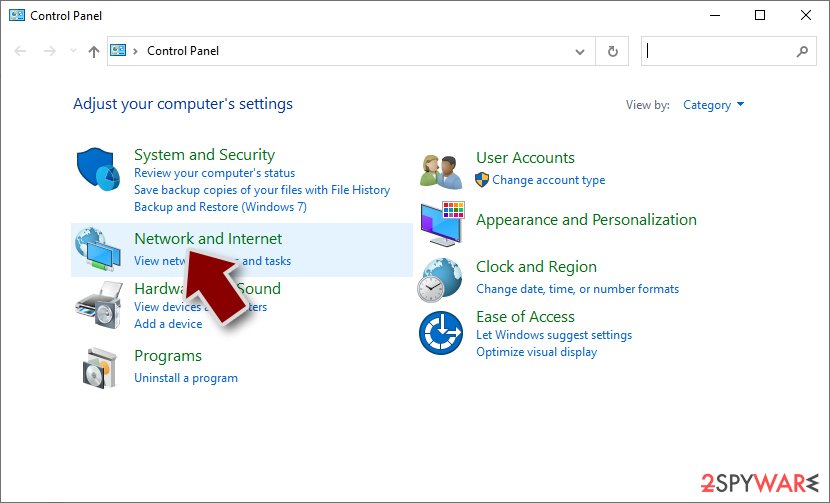
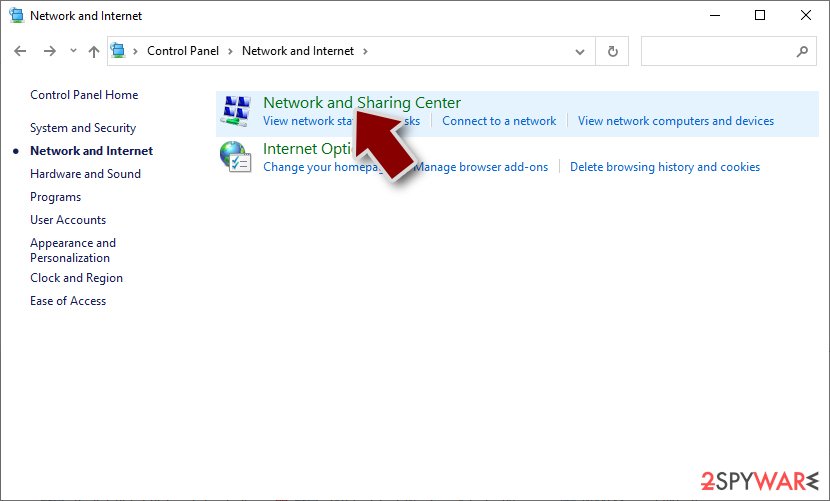
- Click Network and Sharing Center
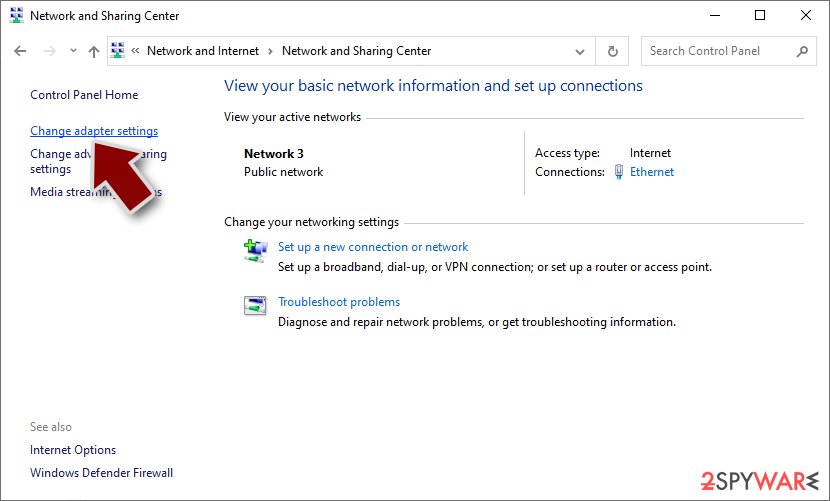
- On the left, pick Change adapter settings
- Right-click on your connection (for example, Ethernet), and select Disable
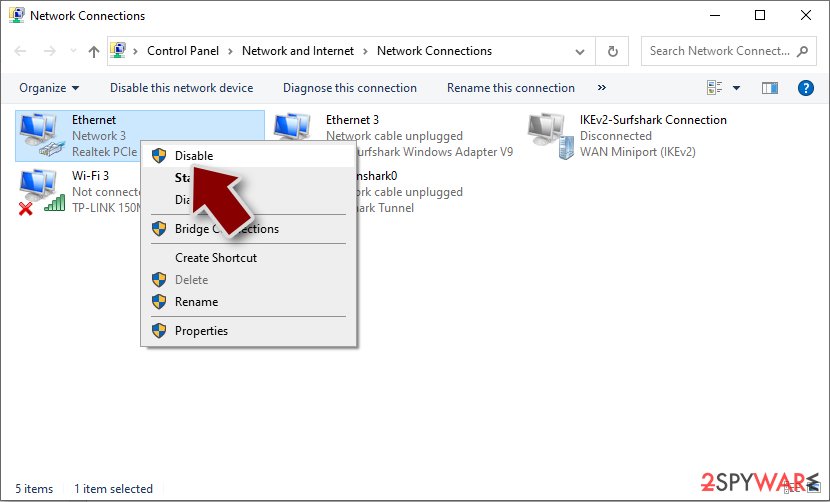
- Confirm with Yes.


2. Scan with security software
Only after the malware's connection is severed should you proceed with Rar1 ransomware removal – you should perform it with sophisticated security software such as SpyHunterCombo Cleaner or MalwarebytesMalwarebytes, as manual removal is out of the question. In some cases, ransomware may start interfering with this process, so you should access Safe Mode and perform a full system scan from there. If you need help accessing this mode, please follow these steps:
Windows 7 / Vista / XP
- Click Start > Shutdown > Restart > OK.
- When your computer becomes active, start pressing the F8 button (if that does not work, try F2, F12, Del, etc. – it all depends on your motherboard model) multiple times until you see the Advanced Boot Options window.
- Select Safe Mode with Networking from the list.


Windows 10 / Windows 8
- Right-click on the Start button and select Settings.
- Scroll down to pick Update & Security.
- On the left side of the window, pick Recovery.
- Now scroll down to find the Advanced Startup section.
- Click Restart now.
- Select Troubleshoot.
- Go to Advanced options.
- Select Startup Settings.
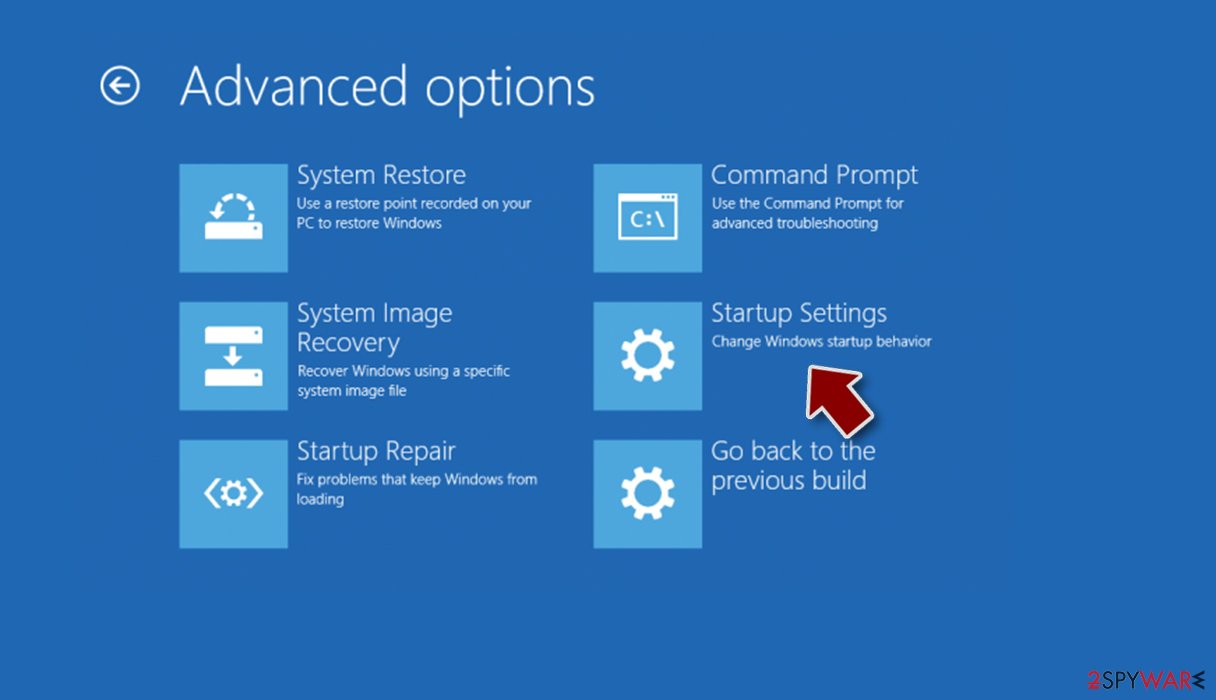
- Click Restart.
- Press 5 or click 5) Enable Safe Mode with Networking.

3. Recover your files
While some users believe that their files would be automatically restored after malware elimination is performed, it is not the case at all. Ransomware performs an encryption process independently, which means that after the job is done, the removal of infection will not revert the files back to normal.
The situation becomes really tough: the encryption locks files with a complex alphanumeric string that simply can't be guessed. The only ones with access to the key are the attackers. However, due to the reasons mentioned before, we recommend trying alternative methods instead, starting with data recovery software:
- Download Data Recovery Pro.
- Double-click the installer to launch it.

- Follow on-screen instructions to install the software.
- As soon as you press Finish, you can use the app.
- Select Everything or pick individual folders which you want the files to be recovered from.
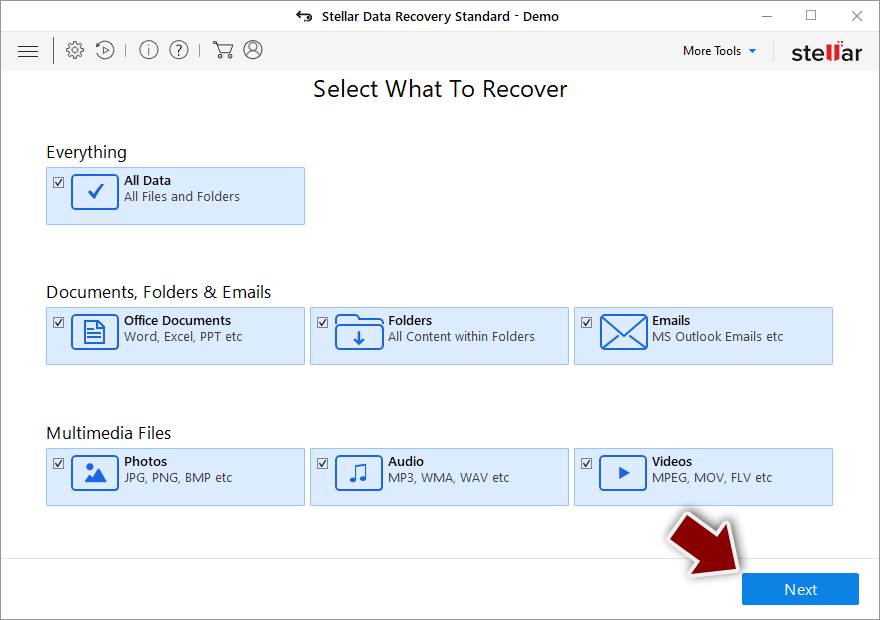
- Press Next.
- At the bottom, enable Deep scan and pick which Disks you want to be scanned.

- Press Scan and wait till it is complete.
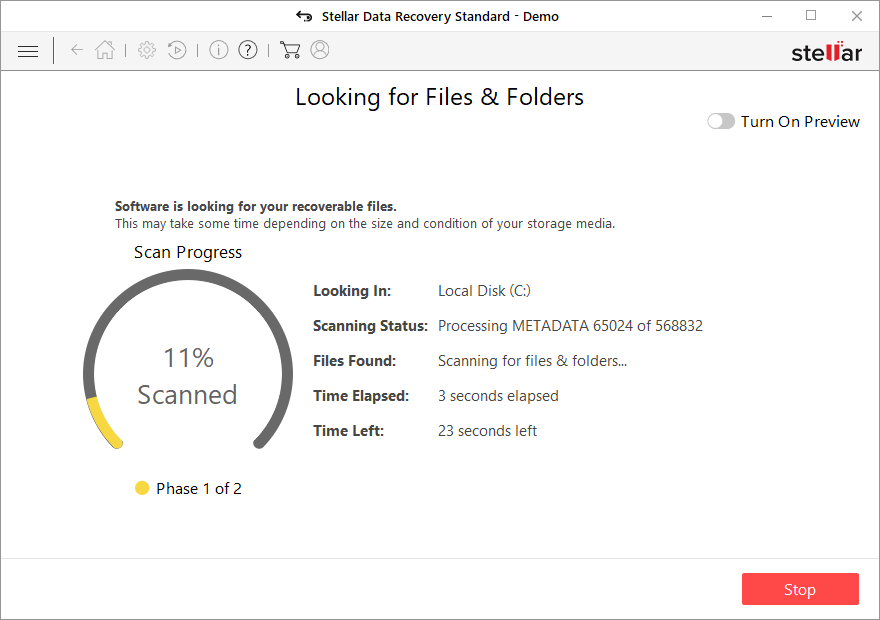
- You can now pick which folders/files to recover – don't forget you also have the option to search by the file name!
- Press Recover to retrieve your files.


Decryption tools might also be created for certain ransomware strains thanks to the efforts of security researchers. In some cases, law authorities seize the servers of malicious actors,[3] which allows the keys to be released by the public – reputable security vendors usually do this. Here are a few links you might find helpful:
- No More Ransom Project
- Free Ransomware Decryptors by Kaspersky
- Free Ransomware Decryption Tools from Emsisoft
- Avast decryptors

4. Repair system damage
After malware infection, Windows is no longer the same, as some system files might get damaged or even destroyed. This can result in system instability – crashes, failure to launch programs, BSODs, etc. If you suffer from these problems after eliminating the infection, use data recovery software as explained below.
- Download FortectIntego
- Click on the ReimageRepair.exe
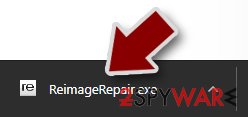
- If User Account Control (UAC) shows up, select Yes
- Press Install and wait till the program finishes the installation process
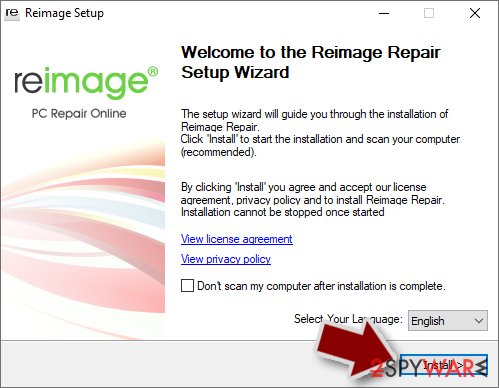
- The analysis of your machine will begin immediately
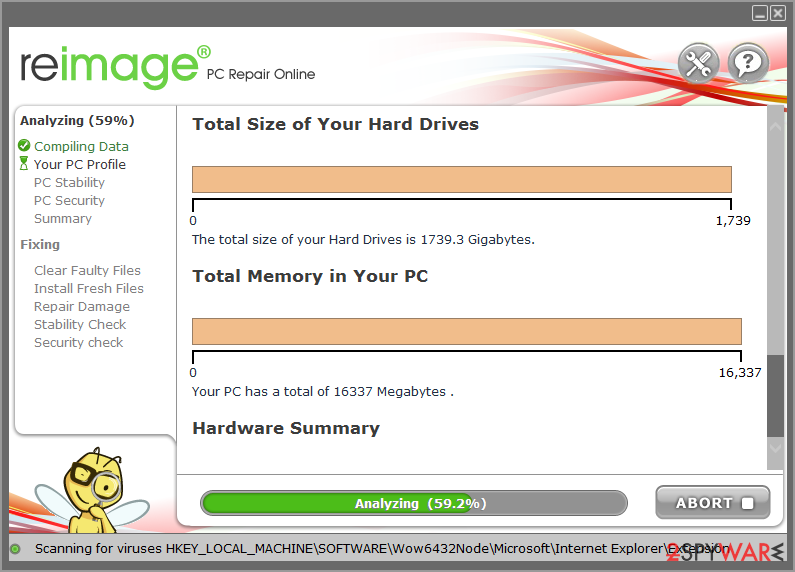
- Once complete, check the results – they will be listed in the Summary
- You can now click on each of the issues and fix them manually
- If you see many problems that you find difficult to fix, we recommend you purchase the license and fix them automatically.



By employing this tool, you would not have to worry about future computer issues, as most of them could be fixed quickly by performing a full system scan at any time. Most importantly, you could avoid the tedious process of Windows reinstallation if things go very wrong for one reason or another.
5. Report to authorities
Reporting the incident can be a great deal of help for the law enforcement agencies around the world to catch the culprits, which would ultimately result in the release of keys for victims. Likewise, this would stop the malicious activity of the perpetrators, preventing more people from becoming victims of ransomware. Thus, follow the links below to report the crime:
- USA – Internet Crime Complaint Center IC3
- United Kingdom – ActionFraud
- Canada – Canadian Anti-Fraud Centre
- Australia – ScamWatch
- New Zealand – ConsumerProtection
- Germany – Polizei
- France – Ministère de l'Intérieur

If your country is not listed above, you should contact the local police department or communications center.
Did this guide help?
Be the first to comment