

PremiumContinental mac virus is the adware affecting particular machines and causing issues with the web browsing experience
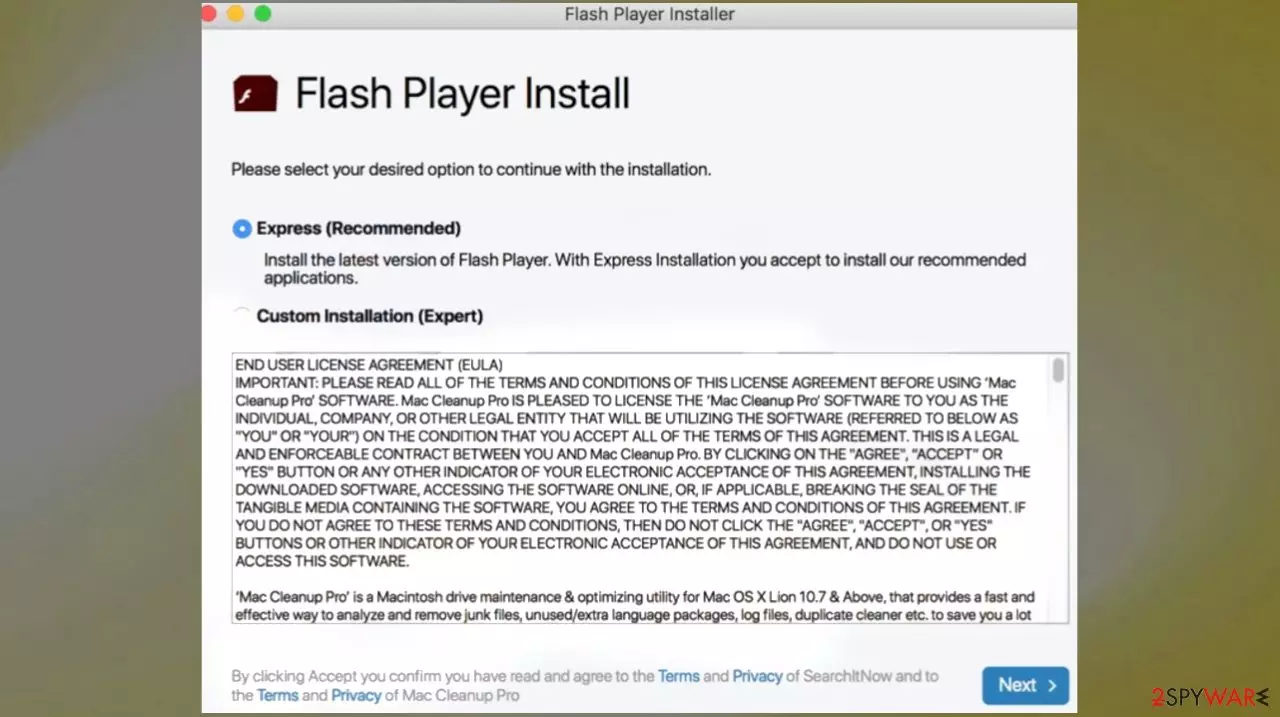
PremiumContinental mac adware is delivering various intrusive advertisements like surveys, pop-ups, coupons, and other commercial content to keep users exposed to sponsored materials online. This application is classified as a Potentially Unwanted Application (PUA)[1] due to its dubious proliferation methods. For example, it has been promoted via bogus Flash Player updates. Additionally, it contains browser hijacker functions that modify and promote fake search engines or useless programs.
PremiumContinental mac virus is an intrusive adware application that runs numerous annoying and harmful advertisements. In addition to displaying intrusive ads, this app also employs data tracking capabilities to monitor users' browsing habits that experts[2] always warn about.
The Mac virus in depth
The PremiumContinental app is a browser extension that can cause various issues with internet software. It commonly enters Mac computers without the full knowledge of the user. Developers usually propagate these PUPs using dishonest software bundles. It is hard to pinpoint the exact time where it is integrated, but normally, adware is packed into freeware like tools, utilities, media players, games, and internet speed boosters.[3]
| Name | PremiumContinental mac virus |
|---|---|
| Type | Adware, mac malware |
| Family | Adload |
| Issues | The application is showing deceptive pop-up ads, banners, and other content leading to advertising services and shady sites |
| Distribution | Freeware application installations, deceptive pages, torrent sites |
| Removal | Threats can be removed with anti-malware tools and security programs |
| Repair | The infection can be damaging, so the system should be checked with applications like FortectIntego |
When PremiumContinental is installed on a computer, it can start causing problems with internet browsers. It may display unwanted ads, redirect web traffic to malicious websites, or slow down the browser. In some cases, it may even be responsible for crashing the browser altogether.
If you suspect that the intrusive app is causing problems on your computer, it is best to remove it as soon as possible. this is not a program that could help with some valuable functions or features. PremiumContinental also spreads online via aggressive pop-up advertisements that mimic valid system warnings. This can be called scamming.[3]
On this scheme, the pop-up claims that Mac users need to download a software update to avoid problems while online. Instead of the software update, the adware will be installed on their browser. Due to the tactics used to force entry onto Mac computers, security professionals have categorized suspicious software as dangerous.

Removing the application
PremiumContinental may also install itself onto a computer without the user’s knowledge or consent. Once installed, it may change the settings of the web browser and hijack searches, which can redirect users to malicious websites that host more malware or attempt to steal personal information.
It is important to note that PUP is not a virus, but it can be considered a nuisance due to its aggressive and intrusive behavior. If you think you may have PremiumContinental on your Mac, there are a few things you can do to remove it. First, try running a reputable antivirus program to scan your system and see if it detects the PUA.
If it does, follow the instructions to remove it from your computer. Tools like SpyHunterCombo Cleaner or MalwarebytesMalwarebytes and other anti-malware programs can help remove the PremiumContinental mac virus properly, but there are changes that the adware causes, so the machine should be cleaned properly, and that also can be done manually.
Remove items from Applications folder:
- From the menu bar, select Go > Applications.
- In the Applications folder, look for all related entries.
- Click on the app and drag it to Trash (or right-click and pick Move to Trash)


To fully remove an unwanted app, you need to access Application Support, LaunchAgents, and LaunchDaemons folders and delete relevant files:
- Select Go > Go to Folder.
- Enter /Library/Application Support and click Go or press Enter.
- In the Application Support folder, look for any dubious entries and then delete them.
- Now enter /Library/LaunchAgents and /Library/LaunchDaemons folders the same way and terminate all the related .plist files.


Tips for fighting the PUP
After PremiumContinental penetrates a Mac computer, it immediately targets internet browser programs, including Safari, Google Chrome, or Mozilla Firefox. It makes unsolicited changes to the homepage design and search engine. It hijacks online searches of Mac users, and instead of using a legitimate search engine like Google, an unknown provider will be used.
The infected internet software would also allow PremiumContinental to display several kinds of advertisements like pop-ups, redirects, push notifications, and banners. These are not the usual marketing object because web users may encounter too much volume of ads or get exposed to particular malicious pages online, and behavior like this can result in an interruption to browsing activities. Consequently, the user experience is significantly diminished.
These advertisements are usually displayed without the user's consent and can be very difficult to get rid of. In some cases, they can even result in the user's personal information being compromised. PremiumContinental's actions have put many people at risk and have caused a great deal of annoyance and inconvenience.
We urge everyone to be vigilant when using the internet and to make sure that their software is up-to-date and free from infection. It is important to note that PremiumContinental is not the only company that employs these tactics. Many other companies have been known to infect internet software in order to display advertisements.
This practice is unethical and should be stopped. We urge everyone to be aware of this issue and to take steps to protect themselves from being infected. Always go for official software developers and download pages to avoid issues with the freeware installation processes that result in infections. Advanced or Custom options during these processes also could help with the PUP infiltration avoidance.
Remove from Mozilla Firefox (FF)
Remove dangerous extensions:
- Open Mozilla Firefox browser and click on the Menu (three horizontal lines at the top-right of the window).
- Select Add-ons.
- In here, select the unwanted extension and click Remove.


Reset the homepage:
- Click three horizontal lines at the top right corner to open the menu.
- Choose Settings.
- Under Home, set your preferred homepage and new tab settings.
Clear cookies and site data:
- Click Menu and pick Settings.
- Go to Privacy & Security section.
- Scroll down to locate Cookies and Site Data.
- Click on Clear Data...
- Select Cookies and Site Data and Temporary cached files and pages, then click Clear.


Reset Mozilla Firefox
If clearing the browser as explained above did not help, reset Mozilla Firefox:
- Open Mozilla Firefox browser and click the Menu.
- Go to Help and then choose Troubleshooting Information.

- Under Give Firefox a tune up section, click on Refresh Firefox...
- Once the pop-up shows up, confirm the action by pressing on Refresh Firefox.



Remove from Google Chrome
Delete malicious extensions from Google Chrome:
- Open Google Chrome, click on the Menu (three vertical dots at the top-right corner) and select More tools > Extensions.
- In the newly opened window, you will see all the installed extensions. Uninstall all suspicious extensions related to the unwanted program by clicking Remove.


Clear cache and web data from Chrome:
- Click on Menu and pick Settings.
- Under Privacy and security, select Clear browsing data.
- Select Browsing history, Cookies and other site data, as well as Cached images and files.
- Click Clear data.


Change your homepage:
- Click menu and choose Settings.
- Look for a suspicious site in the On startup section.
- Click on Open a specific or set of pages and click on three dots to find the Remove option.
Reset Google Chrome:
If the previous methods did not help you, reset Google Chrome to eliminate all the unwanted components:
- Click on Menu and select Settings.
- In the Settings, scroll down and click Advanced.
- Scroll down and locate Reset and clean up section.
- Now click Restore settings to their original defaults.
- Confirm with Reset settings.


Delete from Safari
Remove dangerous extensions:
- Open Safari, click Safari in the menu at the top-left of the screen, and select Preferences.
- Go to the Extensions tab, look for any suspicious entries, and click Uninstall to remove them.


Clear history and website data:
- Click Safari in the menu and pick Clear History.
- Set Clear to all history and confirm with Clear History.


Reset Safari:
- Click Safari in the menu and select Preferences > Advanced.
- Enable Show Develop menu in menu bar.
- From the menu bar, click Develop and select Empty Caches.


Did this guide help?
Be the first to comment