

Maincaptcha.top adware is the controlling various processes on the machine to keep exposing users to ads

Maincaptcha.top ads and notifications appear when the machine is affected by the intrusive, potentially unwanted program. Adware is the intruder that causes deceptive content to trick people into agreeing to receive other notifications and redirects. These redirects and other pages appearing on the screen can cause the appearance of other programs that get injected into the machine.
These scam pages can encourage people to interact with other online material, so Maincaptcha.top ads and notifications can cause major issues if the PUP is not removed in time. The adware runs in the background, so it should be removed properly as soon as those notifications appear.
The adware program is related to many similar sites that redirect to torrent pages, pirating platforms, illegal movie streaming services, and other sites that use advertising networks. The infection causes problems with the speed of the internet and the general performance of the machine.
Adware in details
| Name | Maincaptcha.top ads |
|---|---|
| Type | Adware, push notifications virus |
| Category | Potentially unwanted program |
| Serving IP | 5.8.67.176 |
| Distribution | Deceptive sites, other programs, freeware installation services |
| Issues | Program cause pop-up ads, notifications, other intrusive behavior |
| Removal | Remove the threat with antivirus tools |
| Repair | Running FortectIntego can help improve the performance if the PC |
Maincaptcha.top instructs visitors to click the “Allow” button to prove that they are not robots. It requests visitors to complete a CAPTCHA. Clicking the “Allow” button while on the site grants this page permission to show notifications. This is a fraudulent way to get access to your computer and should not be trusted.
It is highly recommended that you do not allow these rogue pages to deliver notifications, as they are often associated with technical support scams, phishing pages,[1] and other shady apps. In some cases, the site may also display deceptive content in an attempt to trick visitors into downloading malware.[2]
Additionally, Maincaptcha.top ads may redirect users to other deceptive pages. These pages can show errors, security alerts, other security warnings, and Amazon scams or fake messages related to other retailers and companies. This type of scammer tricks visitors into providing sensitive information, paying fees for shipping, and other things not related to your behavior.
How to deal with the PUP?
If you have already allowed Maincaptcha.top to deliver notifications, you should consider revoking this permission. To do so, you will need to access the settings for your web browser and manage notifications. Once you have located the appropriate settings, simply disable or block notifications from the shady page.
Maincaptcha.top is a site that uses fake messages to trick you into subscribing to its spam push notifications. If you subscribe to the additional notifications, you will start receiving spam pop-ups directly on your desktop or phone, even if the browser is closed.
Push notifications and desktop advertisements can appear due to the changes done in settings on the machine. These ads can be for adult sites, online web games, fake software updates, and unwanted programs. the content that Maincaptcha.top ads show can lead to other infections too.
This is why you need to remove the adware properly from the machine and clear the system from any threats and silent intruders. Anti-malware tools can help remove the program and other files related to the intrusive program and other malicious applications. Run SpyHunterCombo Cleaner or MalwarebytesMalwarebytes and terminate Maincaptcha.top adware.

Remove sites from allowing notifications
Experts[3] notes that these infections like Maincaptcha.top ads can alter settings and preferences on the browser and the system directly, so the threat should be terminated properly. You can achieve that by stopping notifications directly on the browser and blocking rogue pages frow accessing your screen.
Remove unwanted notifications from Google Chrome (desktop):
- Open Google Chrome browser and go to Menu > Settings.
- Scroll down and click on Advanced.
- Locate Privacy and security section and pick Site Settings > Notifications.

- Look at the Allow section and look for a suspicious URL.
- Click the three vertical dots next to it and pick Block. This should remove unwanted notifications from Google Chrome.



Remove unwanted notifications from Google Chrome (Android):
- Open Google Chrome and tap on Settings (three vertical dots).
- Select Notifications.
- Scroll down to the Sites section.
- Locate the unwanted URL and toggle the button to the left (Off setting).


Remove unwanted notifications from Mozilla Firefox:
- Open Mozilla Firefox and go to Menu > Options.
- Click on Privacy & Security section.
- Under Permissions, you should be able to see Notifications. Click the Settings button next to it.

- In the Settings – Notification Permissions window, click on the drop-down menu by the URL in question.
- Select Block and then click on Save Changes. This should remove unwanted notifications from Mozilla Firefox.



Remove unwanted notifications from Safari:
- Click on Safari > Preferences…
- Go to the Websites tab and, under General, select Notifications.
- Select the web address in question, click the drop-down menu and select Deny.


Remove unwanted notifications from MS Edge:
- Open Microsoft Edge, and click the Settings and more button (three horizontal dots) at the top-right of the window.
- Select Settings and then go to Advanced.
- Under Website permissions, pick Manage permissions and select the URL in question.
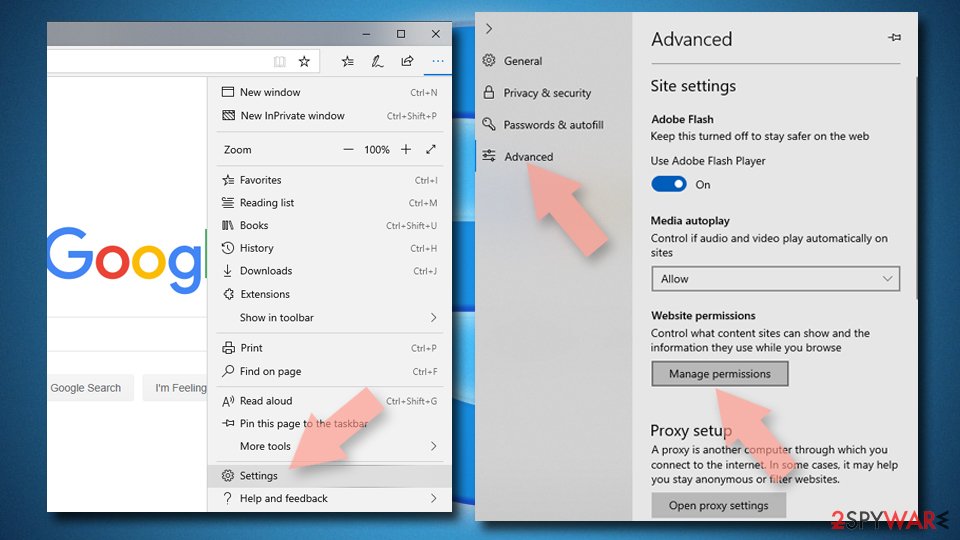
- Toggle the switch to the left to turn notifications off on Microsoft Edge.



Remove unwanted notifications from MS Edge (Chromium):
- Open Microsoft Edge, and go to Settings.
- Select Site permissions.
- Go to Notifications on the right.
- Under Allow, you will find the unwanted entry.
- Click on More actions and select Block.


Remove unwanted notifications from Internet Explorer:
- Open Internet Explorer, and click on the Gear icon at the top-right of the window.
- Select Internet options and go to the Privacy tab.
- In the Pop-up Blocker section, click on Settings.
- Locate web address in question under Allowed sites and pick Remove.


Uninstall from Windows
Uninstall from Windows 10/8:
- Type Control Panel into the Windows search box and open the result.
- Under Programs, select Uninstall a program.


Uninstall from Windows 7/XP:
- Click on Windows Start > Control Panel (Windows XP users should click on Add/Remove Programs).
- In Control Panel, select Programs > Uninstall a program.


Remove the unwanted program:
- In the Programs and Features window, look for any recently installed suspicious entries, select them, and click Uninstall.
- If User Account Control appears, click Yes to confirm, then complete the removal.


Delete from macOS
Remove the unwanted application:
- From the menu bar, select Go > Applications.
- In the Applications folder, look for any suspicious entries, then drag them to Trash (or right-click and pick Move to Trash).


Delete leftover files and folders:
- Select Go > Go to Folder.
- Enter /Library/Application Support and remove any suspicious folders related to the unwanted program.
- Repeat the same check in the /Library/LaunchAgents and /Library/LaunchDaemons folders, deleting any suspicious entries.

- Finally, empty the Trash to permanently remove the leftovers.

Remove from Microsoft Edge
Delete unwanted extensions from MS Edge:
- Select Menu (three horizontal dots at the top-right of the browser window) and pick Extensions.
- From the list, pick the extension and click on the Gear icon.
- Click Remove.


Clear cookies and other browser data:
- Click on the Menu (three horizontal dots at the top-right of the browser window) and select Settings > Privacy, search, and services..
- Under Clear browsing data, pick Choose what to clear.
- Select Cookies and other site data and Cached images and files. (apart from passwords, although you might want to include Media licenses as well, if applicable) and click on Clear.


Restore new tab and homepage settings:
- Click the menu icon and choose Settings.
- Then find On startup section.
- Click Remove next to any suspicious startup page.
Reset MS Edge if the above steps did not work:
- Press on Ctrl + Shift + Esc to open Task Manager.
- Click on More details arrow at the bottom of the window.
- Select Details tab.
- Now scroll down and locate every entry with Microsoft Edge name in it. Right-click on each of them and select End Task to stop MS Edge from running.


Instructions for Chromium-based Edge
Delete extensions from MS Edge (Chromium):
- Open Edge and click select Settings > Extensions.
- Delete unwanted extensions by clicking Remove.


Clear cache and site data:
- Click on Menu and go to Settings.
- Select Privacy, search and services.
- Under Clear browsing data, pick Choose what to clear.
- Under Time range, pick All time.
- Select Clear now.


Reset Chromium-based MS Edge:
- Click on Menu and select Settings.
- On the left side, pick Reset settings.
- Select Restore settings to their default values.
- Confirm with Reset.
- This will disable extensions and reset startup pages but will not delete bookmarks, saved passwords, or browsing history.


Remove from Mozilla Firefox (FF)
Remove dangerous extensions:
- Open Mozilla Firefox browser and click on the Menu (three horizontal lines at the top-right of the window).
- Select Add-ons.
- In here, select the unwanted extension and click Remove.


Reset the homepage:
- Click three horizontal lines at the top right corner to open the menu.
- Choose Settings.
- Under Home, set your preferred homepage and new tab settings.
Clear cookies and site data:
- Click Menu and pick Settings.
- Go to Privacy & Security section.
- Scroll down to locate Cookies and Site Data.
- Click on Clear Data...
- Select Cookies and Site Data and Temporary cached files and pages, then click Clear.


Reset Mozilla Firefox
If clearing the browser as explained above did not help, reset Mozilla Firefox:
- Open Mozilla Firefox browser and click the Menu.
- Go to Help and then choose Troubleshooting Information.

- Under Give Firefox a tune up section, click on Refresh Firefox...
- Once the pop-up shows up, confirm the action by pressing on Refresh Firefox.



Remove from Google Chrome
Delete malicious extensions from Google Chrome:
- Open Google Chrome, click on the Menu (three vertical dots at the top-right corner) and select More tools > Extensions.
- In the newly opened window, you will see all the installed extensions. Uninstall all suspicious extensions related to the unwanted program by clicking Remove.


Clear cache and web data from Chrome:
- Click on Menu and pick Settings.
- Under Privacy and security, select Clear browsing data.
- Select Browsing history, Cookies and other site data, as well as Cached images and files.
- Click Clear data.


Change your homepage:
- Click menu and choose Settings.
- Look for a suspicious site in the On startup section.
- Click on Open a specific or set of pages and click on three dots to find the Remove option.
Reset Google Chrome:
If the previous methods did not help you, reset Google Chrome to eliminate all the unwanted components:
- Click on Menu and select Settings.
- In the Settings, scroll down and click Advanced.
- Scroll down and locate Reset and clean up section.
- Now click Restore settings to their original defaults.
- Confirm with Reset settings.


Delete from Safari
Remove dangerous extensions:
- Open Safari, click Safari in the menu at the top-left of the screen, and select Preferences.
- Go to the Extensions tab, look for any suspicious entries, and click Uninstall to remove them.


Clear history and website data:
- Click Safari in the menu and pick Clear History.
- Set Clear to all history and confirm with Clear History.


Reset Safari:
- Click Safari in the menu and select Preferences > Advanced.
- Enable Show Develop menu in menu bar.
- From the menu bar, click Develop and select Empty Caches.


Did this guide help?
Be the first to comment