

Flying Dutchman ransomware can lock users' data using encryption algorithms

Flying Dutchman is a newly discovered variant that belongs to the Xorist ransomware family. It uses complicated encryption[1] algorithms to lock users' personal files, like photos, videos, documents, and databases. Malware developers then demand payment if victims want to get their files back.
When the malicious program infiltrates the system, it starts appending the affected files with extensions consisting of random characters. Encrypted files are impossible to open. The icons are also changed to white pages so thumbnails become unavailable.
| NAME | Flying Dutchman |
| TYPE | Ransomware, data locking virus, crypto virus |
| MALWARE FAMILY | Xorist ransomware |
| FILE EXTENSION | Random characters |
| RANSOM NOTE | Desktop wallpaper; РАСШИФРОВАТЬ ФАЙЛЫ.txt or ДЕШИФРАТОР.txt |
| DISTRIBUTION | Infected email attachments, peer-to-peer file-sharing platforms, torrents, malicious ads |
| DANGERS | It is next to impossible to recover the files if you do not have backups or the decryption keys were not leaked; in some cases, recovery is successful with third-party software |
| ELIMINATION | Scan your machine with anti-malware software to eliminate the virus safely; this will not recover the locked files |
| SYSTEM FIX | You can avoid windows reinstallation with FortectIntego maintenance tool, which can fix damaged files and system errors |
The ransom note
When the Flying Dutchman ransomware finishes the encryption process, a ransom note is generated on the machine with the name of РАСШИФРОВАТЬ ФАЙЛЫ.txt or ДЕШИФРАТОР.txt. The file-locking malware changes the desktop wallpaper which also acts as a ransom note. The full message reads as follows:
ПЯТНАДЦАТЬ ЧЕЛОВЕК НА СУНДУК МЕРТВЕЦА!
Хай ! Пиплы ! Комон на борт нашего “Летучего голландца”.
Ваш компьютер взят на абордаж
командой Cомалийских пиратов
Ваши файлы зашифрованы нашим
морским криптографом Базоном Хикса
Если вы, мудрый и не скряга ,
не шизанутый депутат из фракции ЛДПР,то,
мы готовы обменять вашу драгоценную инфу, на жалкие
бумажки именуемые бабками.
Поверьте, бабло зло – отдайте его нам.
Алчных и неадекватных типов за борт.
Весёлым и находчивым скидки.
У вас три дня до отплытия корабля.
Для переговоров собираемся в кают компании, sos на мыло
Номер компании –
somalia@2trom.com
somaliajaz@aol.com
The note is written in Russian which could indicate the cybercriminals' location. They are addressing victims as Somali pirates. They give three days for victims to contact them. Otherwise, the decryption key will be destroyed. The ransom amount is not specified in the note and threat actors urge people to contact them to negotiate.
However, we strongly recommend not contacting cybercriminals as they cannot be trusted. Many previous ransomware victims never received the promised decryption tools after sending the payment. Besides, they will want to get paid in cryptocurrencies,[2] which provides them anonymity.
Even though it is nearly impossible to decrypt files without the threat actors' help, we discourage you from paying them. If you have backups, you should access those first. There is also a third-party recovery solution that helps in some cases. You will find instructions on how to use it below.

Distribution methods
Cybercriminals use various techniques to spread their malicious programs. Most of the time, people get infected while installing software “cracks”[3] from Torrent websites or peer-to-peer file-sharing platforms. These websites are unregulated so it is impossible to know if the files you download are safe.
It is also possible to get infected with ransomware through email. Cybercriminals use social engineering to create letters that usually look like urgent messages from well-known companies to appear legitimate and trustworthy. They include malicious links or infected attachments. That is why it is recommended to only open email attachments if they are from senders you know.
Threat actors may also use software vulnerabilities to infiltrate the system. It is extremely important to keep your operating system and software updated. Software developers regularly release security patches which should be installed as soon as they come out.
Eliminate malicious files
The most critical thing you should do is disconnect the affected machine from the local network. For home users, disconnecting the ethernet cable should do the job. If this happened at your workplace, doing that might be complicated, so we have instructions for corporate environments at the bottom of this post.
If you try to recover your data first, it can result in permanent loss. It can also encrypt your files the second time. It will not stop until you remove the malicious files causing it first. You should not attempt removing the malicious program yourself unless you have experience.
Use anti-malware tools like SpyHunterCombo Cleaner or MalwarebytesMalwarebytes to scan your system. This security software should find all the related files and entries and remove them automatically for you. In some cases, malware is not letting you use antivirus in normal mode, so you need to access Safe Mode and perform a full system scan from there:
Windows 7 / Vista / XP
- Click Start > Shutdown > Restart > OK.
- When your computer becomes active, start pressing the F8 button (if that does not work, try F2, F12, Del, etc. – it all depends on your motherboard model) multiple times until you see the Advanced Boot Options window.
- Select Safe Mode with Networking from the list.
Windows 10 / Windows 8
- Right-click on the Start button and select Settings.
- Scroll down to pick Update & Security.
- On the left side of the window, pick Recovery.
- Now scroll down to find the Advanced Startup section.
- Click Restart now.
- Select Troubleshoot.
- Go to Advanced options.
- Select Startup Settings.
- Click Restart.
- Press 5 or click 5) Enable Safe Mode with Networking.
Fix system errors
Performance, stability, and usability issues, to the point where a complete Windows reinstall is required, are expected after a malware infection. These types of infections can alter the Windows registry database, damage vital bootup, and other sections, delete or corrupt DLL files, etc. Once a system file is damaged by malware, antivirus software is not able to repair it.
This is why FortectIntego was developed. It can fix a lot of the damage caused by an infection like this. Blue Screen errors, freezes, registry errors, damaged DLLs, etc., can make your computer completely unusable. By using this maintenance tool, you could avoid Windows reinstallation.
- Download the application by clicking on the link above
- Click on the ReimageRepair.exe
- If User Account Control (UAC) shows up, select Yes
- Press Install and wait till the program finishes the installation process
- The analysis of your machine will begin immediately
- Once complete, check the results – they will be listed in the Summary
- You can now click on each of the issues and fix them manually
- If you see many problems that you find difficult to fix, we recommend you purchase the license and fix them automatically.


File recovery solution
Many people think that they can fix their files with anti-malware tools, but that is not what they are designed for. All the security tools can do is detect suspicious processes in your system and eliminate malicious files. The truth is, the files can be restored only with a decryption key or software that only cybercriminals have.
If you did not back up your data previously, you possibly lost your files forever. You can try using data recovery software, but third-party programs cannot always decrypt the files. We suggest at least trying this method. Before proceeding, you have to copy the corrupted files and place them in a USB flash drive or another storage. And remember – only do this if you have already removed the Flying Dutchman ransomware.
Before you begin, several pointers are essential while dealing with this situation:
- Since the encrypted data on your computer might permanently be damaged by security or data recovery software, you should first make backups of it – use a USB flash drive or another storage.
- Only attempt to recover your files using this method after you perform a scan with anti-malware software.
Install data recovery software
- Download Data Recovery Pro.
- Double-click the installer to launch it.
- Follow on-screen instructions to install the software.
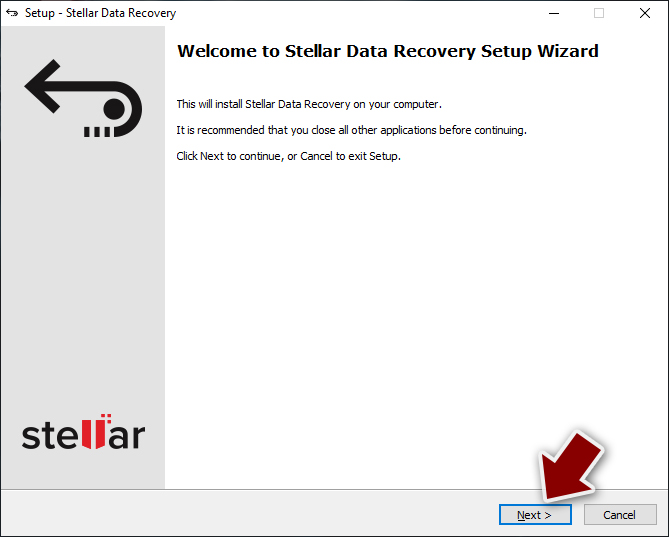
- As soon as you press Finish, you can use the app.
- Select Everything or pick individual folders where you want the files to be recovered from.
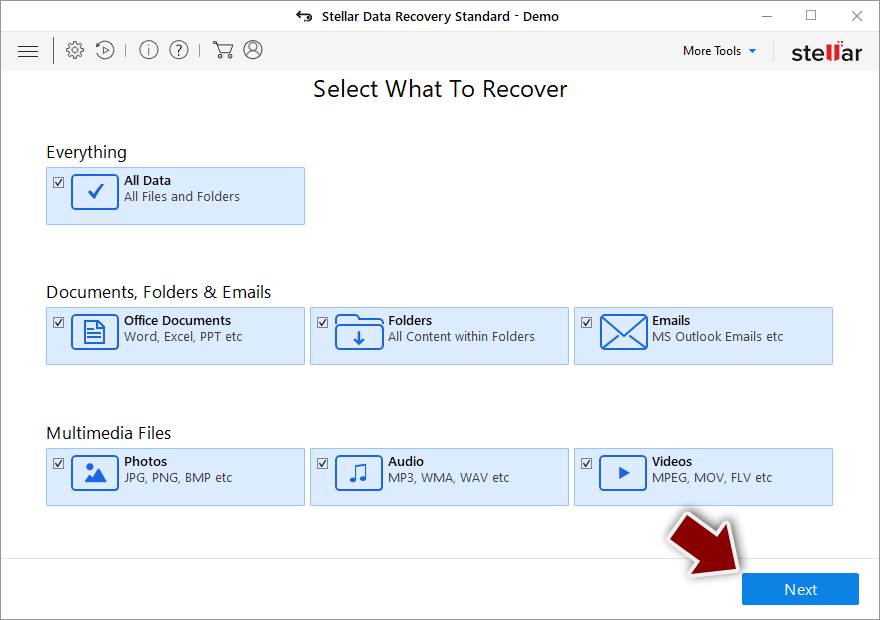
- Press Next.
- At the bottom, enable Deep scan and pick which Disks you want to be scanned.

- Press Scan and wait till it is complete.
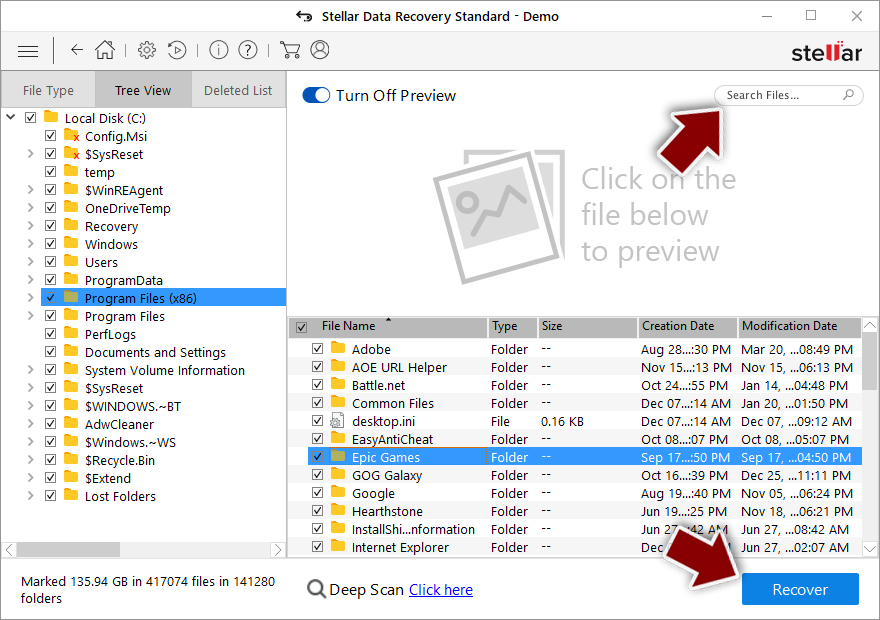
- You can now pick which folders/files to recover – don't forget you also have the option to search by the file name!
- Press Recover to retrieve your files.


Did this guide help?
Be the first to comment