

Lumino_Ransom ransomware is the particular virus that creates 400 empty files on the desktop besides encrypting existing files
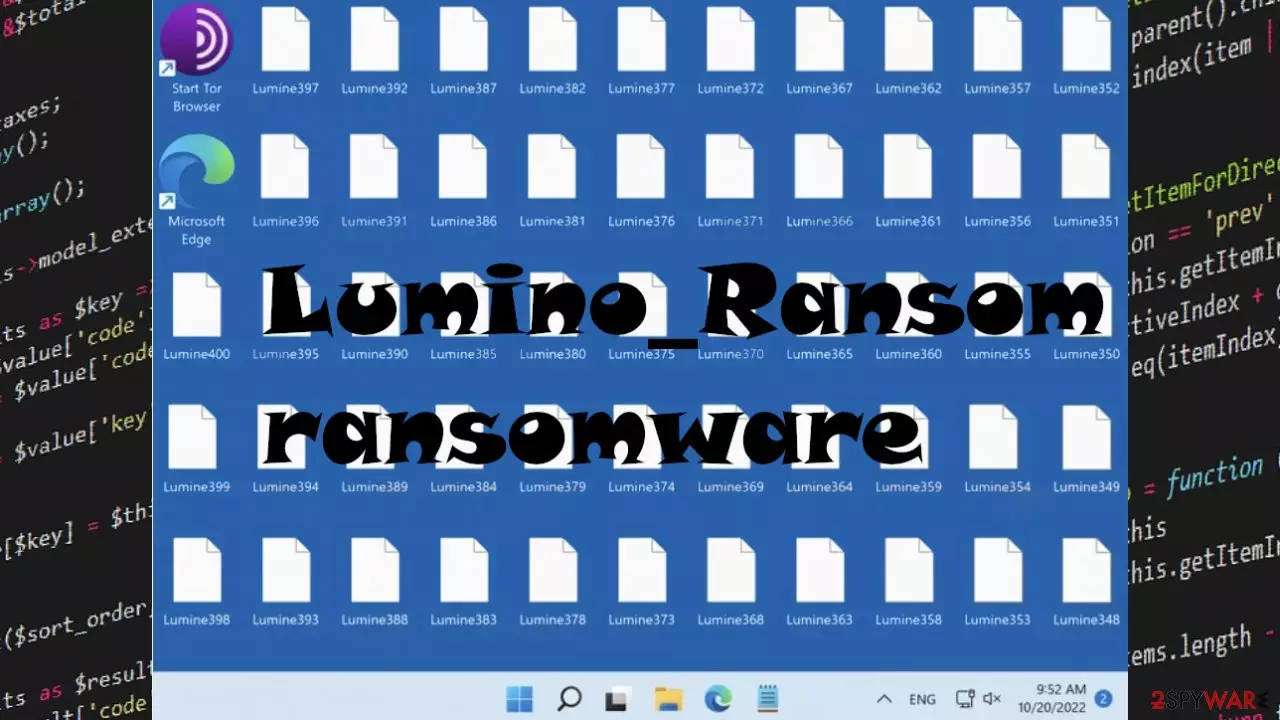
Lumino_Ransom ransomware is an encryption-based virus that affects machines significantly. It uses the process of altering files during the encoding process, so the user is more eager to follow later suggestions and even contact people behind the virus. That is, however, never recommended.
The infection creates four hundred empty files on the desktop, too, after the commonly used files get locked and marked using .lumino_locked extension. All the files created by the Lumino_Ransom ransomware on the machine are named Lumine1 and go to Lumine400. These files are not openable as well as not useful.
The same happens with the data that gets encrypted.[1] The ransom message appears on the screen after all these processes. The file contains a message from virus creators and is written in English and French languages. This should encourage people to contact creators since the file claims that free decryption is possible.
However, contacting the people that developed and released the infection cannot be positive or good for the machine. The decryption is promised by criminals if the victim sends the email with their ID to attackers, and the note claims that the message is only visible for 20 seconds.
| Name | Lumino_Ransom ransomware |
|---|---|
| Type | File-locker |
| Contact details | ware.ransom@yahoo.com |
| File marker | .lumino_locked |
| Distribution | Files can be spread with a virus payload and attached to spam emails. Malware can also be used as vectors |
| Elimination | Threat removal is best when proper AV tools get used |
| Repair | Run FortectIntego and make the system safe again |
What happens now?
There are no guarantees that the message to Lumino_Ransom ransomware virus creators can provide the proper solution for these locked files. These claims are scary, and generally, ransomware is designed to make money, so criminals spreading such threats should never be trusted.
Victims might never receive those tools that are necessary for file recovery. Malware can be released for testing purposes, so unfortunately, these file recovery options are even less possible. Experts[2] note that these infections should not get paid no matter how convincing the message from Lumino_Ransom ransomware creators may sound.
Paying nor contacting these people cannot guarantee that affected files will get recovered right away. The threat removal, however, can help avoid further damage to the machine. These threats can be perisstent and significantly damaging since the infiltration of the virus is silent.

Step 1. Remove the virus
Lumino_Ransom ransomware virus can be terminated, and anti-malware tools like SpyHunterCombo Cleaner or MalwarebytesMalwarebytes help you to achieve that. These threat removal applications are based on proper AV detection[3] engines, and programs can properly run the check on the system and indicate all threats that can affect the machine.
Your device should be cleaned, and the threat can be stopped from running actively on the device. This is not the same as decryption or file recovery procedures, so the removal is very crucial here. Run the AV tools and remove Lumino_Ransom ransomware as soon as those changes are made on the computer.
A full search of the system can indicate all the infections that affect the performance of the machine. An infection like this can rely on other malware, trojans, worms, and intruders that can possibly interfere with the persistence of this file locker. Anything detected should be removed, and people can choose what to do when the security tool lists all those possibly malicious pieces after a scan.
Lumino_Ransom ransomware is a dangerous threat even though it is new and released newly. Do not forget to double-check and remove all infections that security tools indicate as dangerous. The threat can alter various settings on the computer, so make sure to check all these things too.
Step 2. Recovering system files
Once a computer is infected with malware, its system is changed to operate differently. For example, an infection can alter the Windows registry database, damage vital bootup and other sections, delete or corrupt DLL files, etc. Once a system file is damaged by malware, antivirus software is not capable of doing anything about it, leaving it just the way it is. Consequently, users might experience performance, stability, and usability issues, to the point where a full Windows reinstall is required.
Therefore, we highly recommend using a one-of-a-kind, patented technology of FortectIntego repair. Not only can it fix virus damage after the infection, but it is also capable of removing malware that has already broken into the system thanks to several engines used by the program. Besides, the application is also capable of fixing various Windows-related issues that are not caused by malware infections, for example, Blue Screen errors, freezes, registry errors, damaged DLLs, etc.
- Download the application by clicking on the link above
- Click on the ReimageRepair.exe

- If User Account Control (UAC) shows up, select Yes
- Press Install and wait till the program finishes the installation process
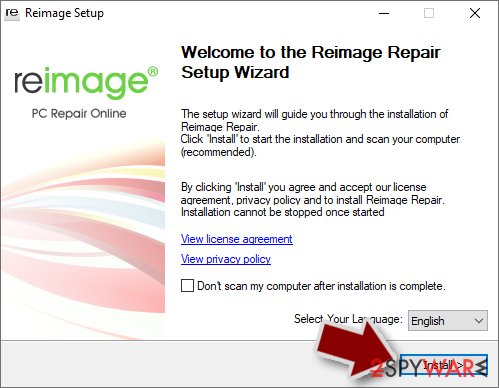
- The analysis of your machine will begin immediately
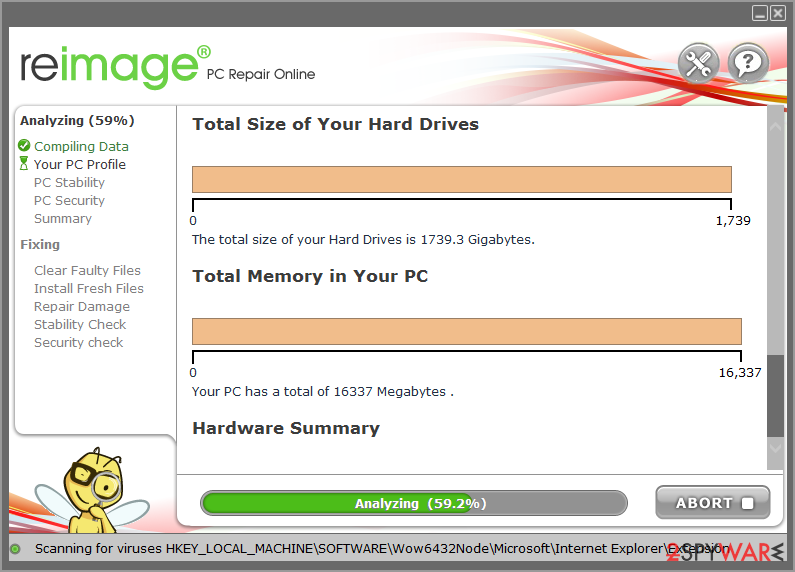
- Once complete, check the results – they will be listed in the Summary
- You can now click on each of the issues and fix them manually
- If you see many problems that you find difficult to fix, we recommend you purchase the license and fix them automatically.


Data restoring options
Lumino_Ransom ransomware is a virus that relies on scare tactics and locks files, demanding victims contact them for decryption solutions. The threat is damaging and can be extorting money from victims for the alleged decryption programs or tools designed to restore pieces encoded by the threat.
The threat is not decryptable because there are no official tools for the data encoded by this threat. However, there are various tools that could possibly help repair these files for you. Lumino_Ransom ransomware damages data, and alternate solutions can be used to replace damaged files with copies, for example.
Proper data backups could help the best here because replacing damaged data can work for all pieces and types of files. However, not many people make backups frequently. When people do not prepare proper data backups prior to being attacked by .lumino_locked ransomware, they might often lose access to their files permanently.
Paying criminals is also very risky, as they might not fulfill the promises and never send back the required decryption tool. While this might sound terrible, not all is lost – data recovery software might be able to help you in some situations (it highly depends on the encryption algorithm used, whether ransomware managed to complete the programmed tasks, etc.).
Therefore, we suggest trying regardless of which ransomware attacked your computer. Before you begin, several pointers are important while dealing with this situation:
- Since the encrypted data on your computer might permanently be damaged by security or data recovery software, you should first make backups of it – use a USB flash drive or another storage.
- Only attempt to recover your files using this method after you perform a scan with anti-malware software.
Install data recovery software
- Download Data Recovery Pro.
- Double-click the installer to launch it.

- Follow on-screen instructions to install the software.
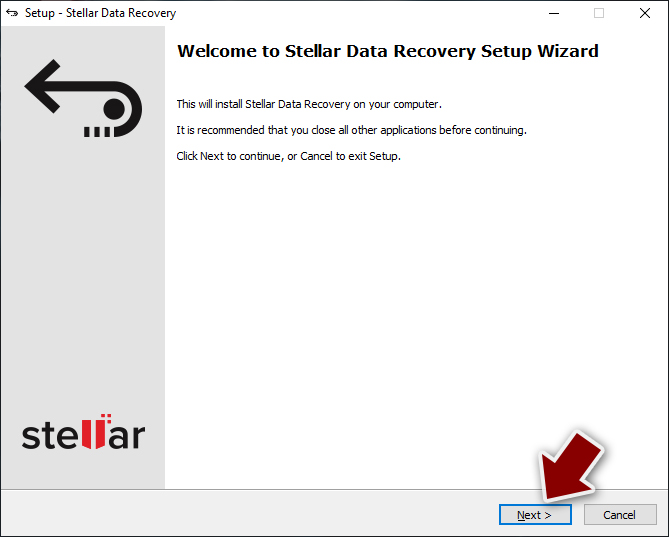
- As soon as you press Finish, you can use the app.
- Select Everything or pick individual folders where you want the files to be recovered from.
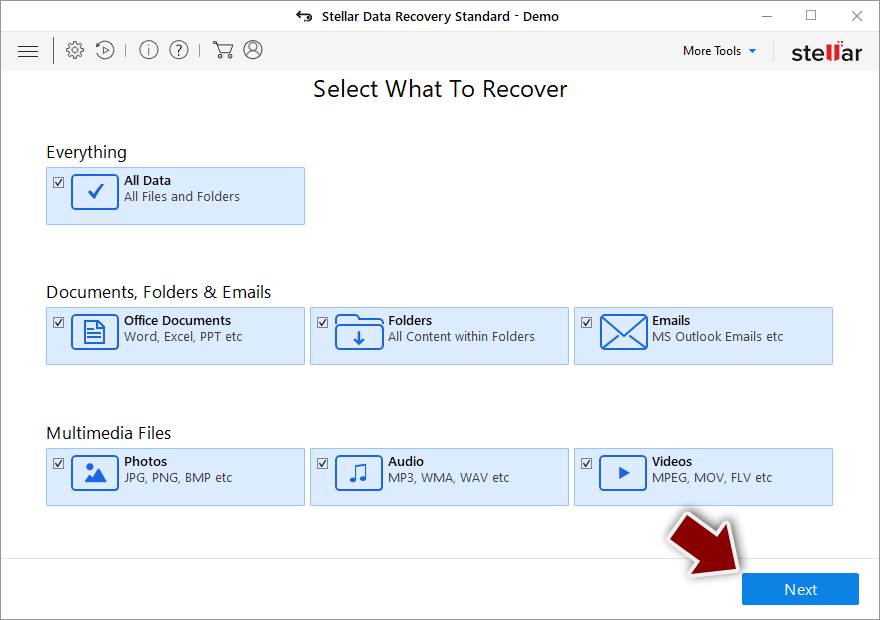
- Press Next.
- At the bottom, enable Deep scan and pick which Disks you want to be scanned.

- Press Scan and wait till it is complete.
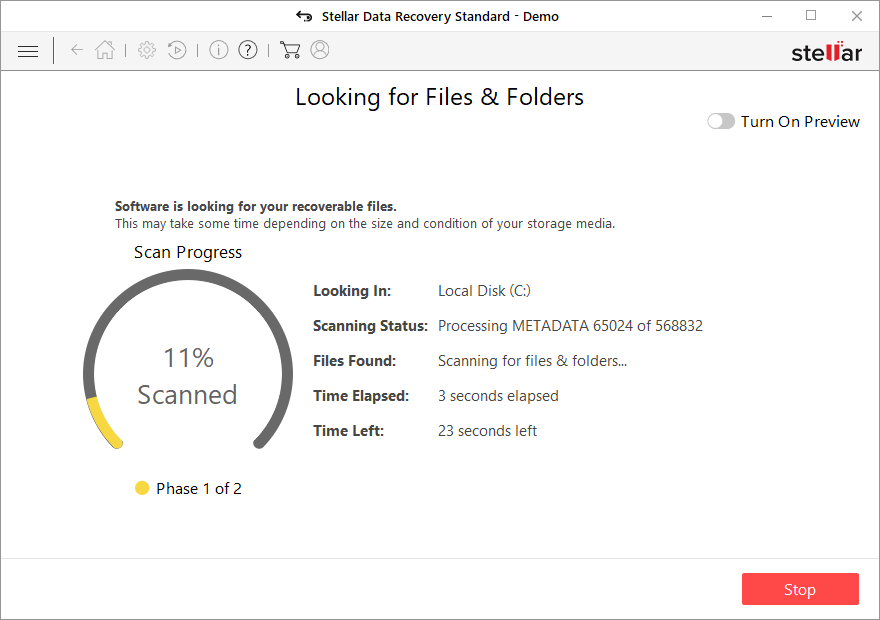
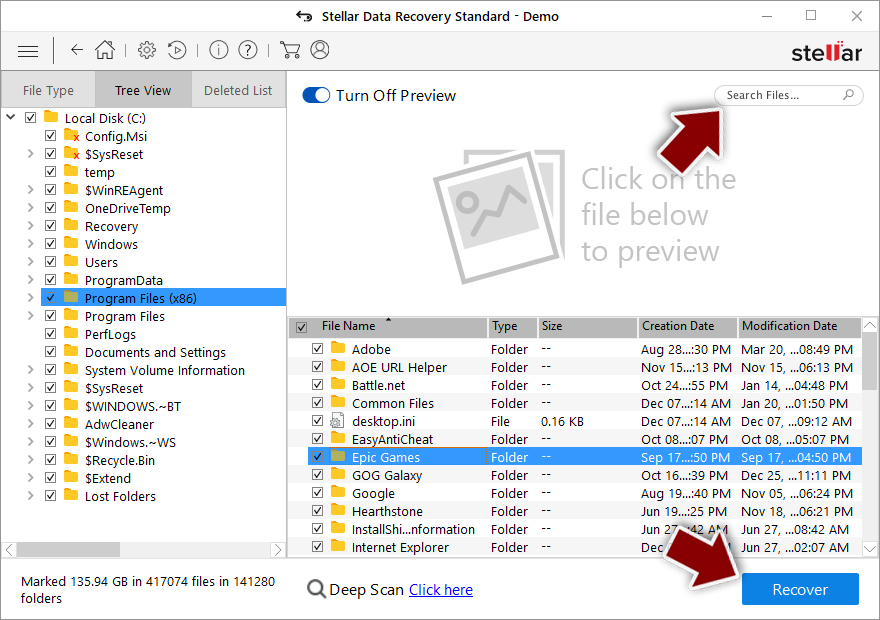
- You can now pick which folders/files to recover – don't forget you also have the option to search by the file name!
- Press Recover to retrieve your files.


Did this guide help?
Be the first to comment