

I cannot disable UniSales ads. Why do I see these advertisements daily?
UniSales virus is a legal, but highly annoying ad-supported[1] program that pretends to be a unique shopping assistant, while it actually aims to get some views for promotional content from its third-party sponsors. Computer users typically start looking for tutorials on how to stop UniSales ads immediately after installing this suspicious ad-serving program on the system. After analyzing this PC threat, we discovered that it arrives in a form of a misleading browser add-on[2] that can strongly affect your computer and disrupt your web browsing activities. It belongs to the category of adware[3] and potentially unwanted programs (PUPs) due to the fact that it tricks people into installing it without being noticed and then starts implementing various unwanted activities on target computer. We must clear one thing out – this program is not a virus, although users who encounter it tend to call it like that. So, you can be sure that it won’t harm your computer’s operating system. However, it may start showing misleading ‘Ads by UniSales’, ‘UniSales Deals’, ‘Brought by UniSales’ or similarly marked advertisements on each of your web browser, including Google Chrome, Mozilla Firefox, and Internet Explorer. If you have already noticed such and similar pop-up, pop-under, banner or in-text ads[4], you should not ignore them. 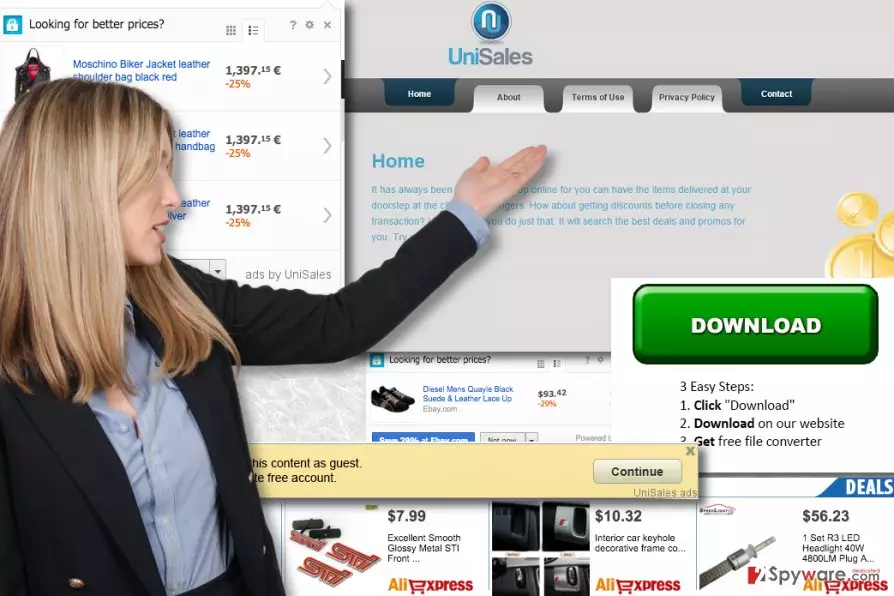
These ads may be used in order to make you visit sponsored websites or even install other potentially unwanted programs. That’s why every time by clicking on UniSales ads you may be rerouted to some dubious online shopping website, some questionable service offering page and so on. Do not surf on websites to which UniSales redirects you, because you can easily be tricked into installing unwanted programs, or may even get scammed[5] and convinced into buying something from them. By the way, UniSales virus is capable of tracking you and your web browsing habits. Beware that such activity only seems harmless. However, you can never be sure that cookies of this program won’t be used for collecting your personal information. To avoid issues that this adware can cause, we recommend you to eliminate it as soon as you start receiving its advertisements. The easiest way to get rid of it is to scan your PC with FortectIntego or another reputable anti-spyware.

How can this suspicious app hijack my PC?
UniSales, just like its copy SalePlus adware, can get inside your computer unnoticed and initiate various system modifications, drop its extension on each of your web browsers, install cookies and other tracking technologies to them, cause annoying redirects to suspicious websites and implement other activities behind your back. Its presence on your computer may increase system’s vulnerability, damage stability and may even result in virus or malware infiltration. In general, all programs that are labeled as adware and PUPs should not be trusted because they all act in the same way and seek to gain profit out of you. To prevent installation of such and similar programs, keep in mind that they may spread via email attachments, infected links, fake update alerts, and similar things. However, the most typical distribution method of PUPs is ‘bundling’, which is related to various freeware and shareware. Consequently, if you are about to install free software, keep in mind that you have to be very careful and check what additional components it is filled with. Uncheck all ticks that notify about installation of additional programs. For that, you have to select Advanced or Custom installation option and carefully read every check box. If you have already been tricked into installing UniSales virus, do not hesitate and get rid of it now.
How to stop UniSales ads from popping up?
If you’re looking for instructions on how to remove UniSales ads from Chrome, Firefox or any other web browser that is used to open these ads, we highly recommend you to take a look at UniSales removal tutorial provided below. The guide is filled with useful information and it can help you to uninstall UniSales virus faster. These ads can be stopped only if you remove the adware program that delivers them, so be patient and complete each step of this guide carefully. You do not want any of this program’s remains in your PC, so be attentive to details. If you are unsure whether you can handle this task on your own, ask someone to help you or use anti-spyware software.
Uninstall from Windows
Uninstall from Windows 10/8:
- Type Control Panel into the Windows search box and open the result.
- Under Programs, select Uninstall a program.


Uninstall from Windows 7/XP:
- Click on Windows Start > Control Panel (Windows XP users should click on Add/Remove Programs).
- In Control Panel, select Programs > Uninstall a program.


Remove the unwanted program:
- In the Programs and Features window, look for any recently installed suspicious entries, select them, and click Uninstall.
- If User Account Control appears, click Yes to confirm, then complete the removal.


Delete from macOS
Remove the unwanted application:
- From the menu bar, select Go > Applications.
- In the Applications folder, look for any suspicious entries, then drag them to Trash (or right-click and pick Move to Trash).


Delete leftover files and folders:
- Select Go > Go to Folder.
- Enter /Library/Application Support and remove any suspicious folders related to the unwanted program.
- Repeat the same check in the /Library/LaunchAgents and /Library/LaunchDaemons folders, deleting any suspicious entries.

- Finally, empty the Trash to permanently remove the leftovers.

Reset Internet Explorer
Remove dangerous add-ons:
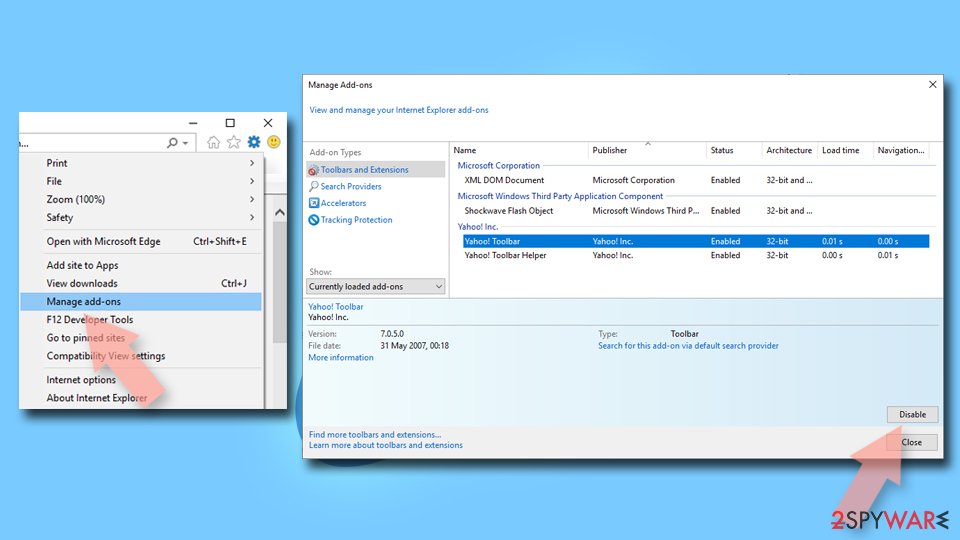
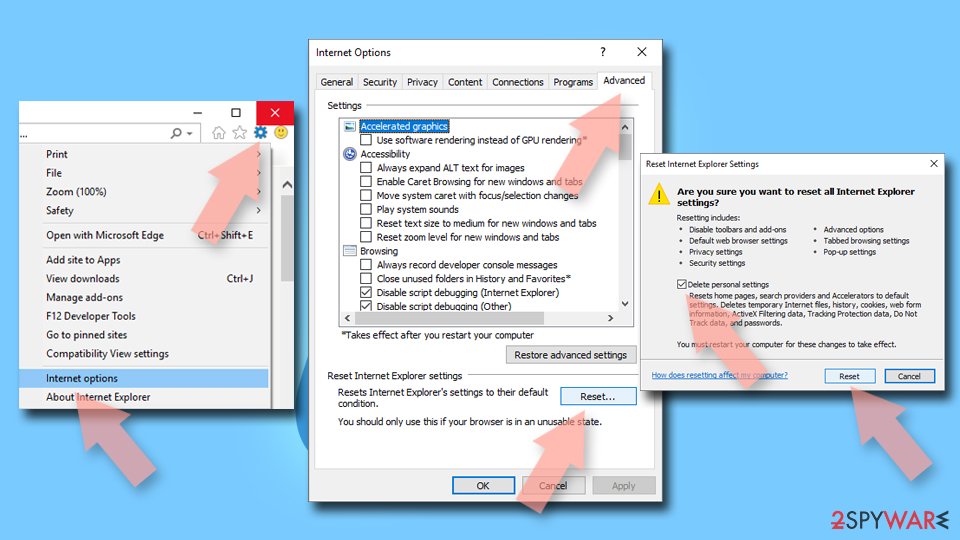
- Open Internet Explorer, click on the Gear icon (IE menu) on the top-right corner of the browser
- Pick Manage Add-ons.
- You will see a Manage Add-ons window. Here, look for suspicious plugins. Click on these entries and select Disable.

Change your homepage if it was altered:
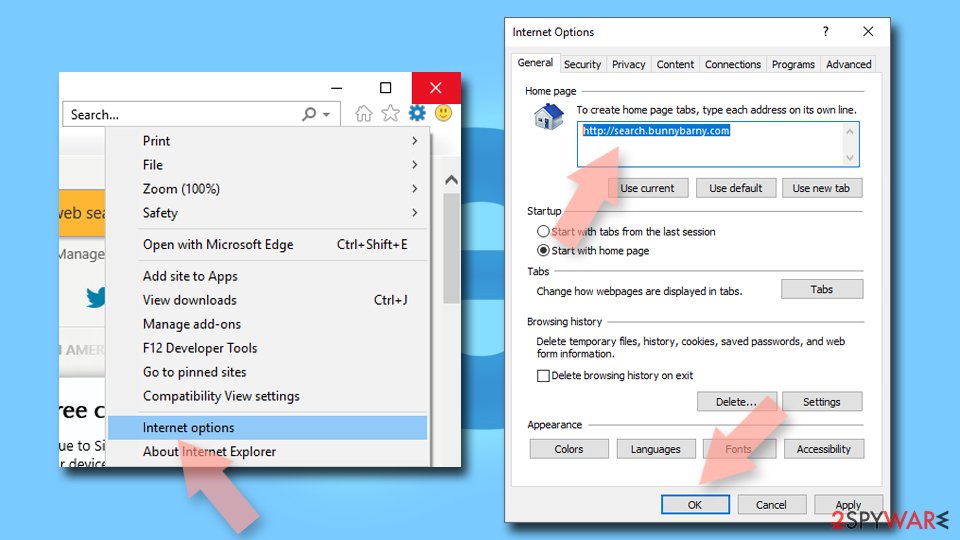
- Open IE and click on the Gear icon.
- Select Internet Options.
- In the General tab, delete the Home page address and replace it by your preferred one (for example, Google.com).
- Click Apply and then select OK.

Delete temporary files:
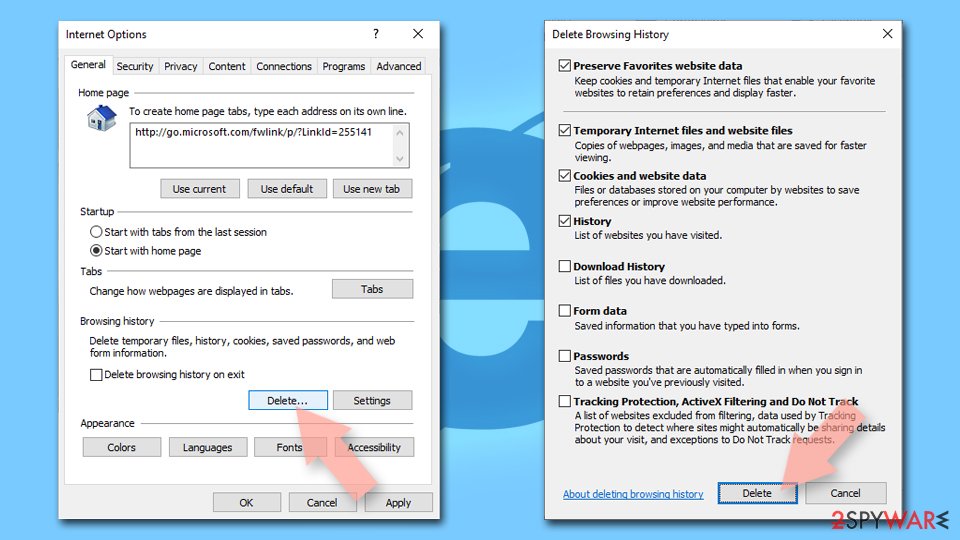
- Press on the Gear icon and select Internet Options.
- Under Browsing history, click Delete...
- Select relevant fields and press Delete.

Reset Internet Explorer:
- Click on Gear icon > Internet options and select Advanced tab.
- Select Reset.
- In the new window, check Delete personal settings and select Reset.

Remove from Microsoft Edge
Delete unwanted extensions from MS Edge:
- Select Menu (three horizontal dots at the top-right of the browser window) and pick Extensions.
- From the list, pick the extension and click on the Gear icon.
- Click Remove.


Clear cookies and other browser data:
- Click on the Menu (three horizontal dots at the top-right of the browser window) and select Settings > Privacy, search, and services..
- Under Clear browsing data, pick Choose what to clear.
- Select Cookies and other site data and Cached images and files. (apart from passwords, although you might want to include Media licenses as well, if applicable) and click on Clear.


Restore new tab and homepage settings:
- Click the menu icon and choose Settings.
- Then find On startup section.
- Click Remove next to any suspicious startup page.
Reset MS Edge if the above steps did not work:
- Press on Ctrl + Shift + Esc to open Task Manager.
- Click on More details arrow at the bottom of the window.
- Select Details tab.
- Now scroll down and locate every entry with Microsoft Edge name in it. Right-click on each of them and select End Task to stop MS Edge from running.


Instructions for Chromium-based Edge
Delete extensions from MS Edge (Chromium):
- Open Edge and click select Settings > Extensions.
- Delete unwanted extensions by clicking Remove.


Clear cache and site data:
- Click on Menu and go to Settings.
- Select Privacy, search and services.
- Under Clear browsing data, pick Choose what to clear.
- Under Time range, pick All time.
- Select Clear now.


Reset Chromium-based MS Edge:
- Click on Menu and select Settings.
- On the left side, pick Reset settings.
- Select Restore settings to their default values.
- Confirm with Reset.
- This will disable extensions and reset startup pages but will not delete bookmarks, saved passwords, or browsing history.


Remove from Mozilla Firefox (FF)
Remove dangerous extensions:
- Open Mozilla Firefox browser and click on the Menu (three horizontal lines at the top-right of the window).
- Select Add-ons.
- In here, select the unwanted extension and click Remove.


Reset the homepage:
- Click three horizontal lines at the top right corner to open the menu.
- Choose Settings.
- Under Home, set your preferred homepage and new tab settings.
Clear cookies and site data:
- Click Menu and pick Settings.
- Go to Privacy & Security section.
- Scroll down to locate Cookies and Site Data.
- Click on Clear Data...
- Select Cookies and Site Data and Temporary cached files and pages, then click Clear.


Reset Mozilla Firefox
If clearing the browser as explained above did not help, reset Mozilla Firefox:
- Open Mozilla Firefox browser and click the Menu.
- Go to Help and then choose Troubleshooting Information.

- Under Give Firefox a tune up section, click on Refresh Firefox...
- Once the pop-up shows up, confirm the action by pressing on Refresh Firefox.



Remove from Google Chrome
Delete malicious extensions from Google Chrome:
- Open Google Chrome, click on the Menu (three vertical dots at the top-right corner) and select More tools > Extensions.
- In the newly opened window, you will see all the installed extensions. Uninstall all suspicious extensions related to the unwanted program by clicking Remove.


Clear cache and web data from Chrome:
- Click on Menu and pick Settings.
- Under Privacy and security, select Clear browsing data.
- Select Browsing history, Cookies and other site data, as well as Cached images and files.
- Click Clear data.


Change your homepage:
- Click menu and choose Settings.
- Look for a suspicious site in the On startup section.
- Click on Open a specific or set of pages and click on three dots to find the Remove option.
Reset Google Chrome:
If the previous methods did not help you, reset Google Chrome to eliminate all the unwanted components:
- Click on Menu and select Settings.
- In the Settings, scroll down and click Advanced.
- Scroll down and locate Reset and clean up section.
- Now click Restore settings to their original defaults.
- Confirm with Reset settings.


Delete from Safari
Remove dangerous extensions:
- Open Safari, click Safari in the menu at the top-left of the screen, and select Preferences.
- Go to the Extensions tab, look for any suspicious entries, and click Uninstall to remove them.


Clear history and website data:
- Click Safari in the menu and pick Clear History.
- Set Clear to all history and confirm with Clear History.


Reset Safari:
- Click Safari in the menu and select Preferences > Advanced.
- Enable Show Develop menu in menu bar.
- From the menu bar, click Develop and select Empty Caches.


Did this guide help?
1 comment
A user
Sir, i tried to disable the UniSales Extension on Internet Explorer but the buton to delete it is grey colour and cant be deleted.