

Adware.Agent.BN – a parasite that will show enormous amounts of ads
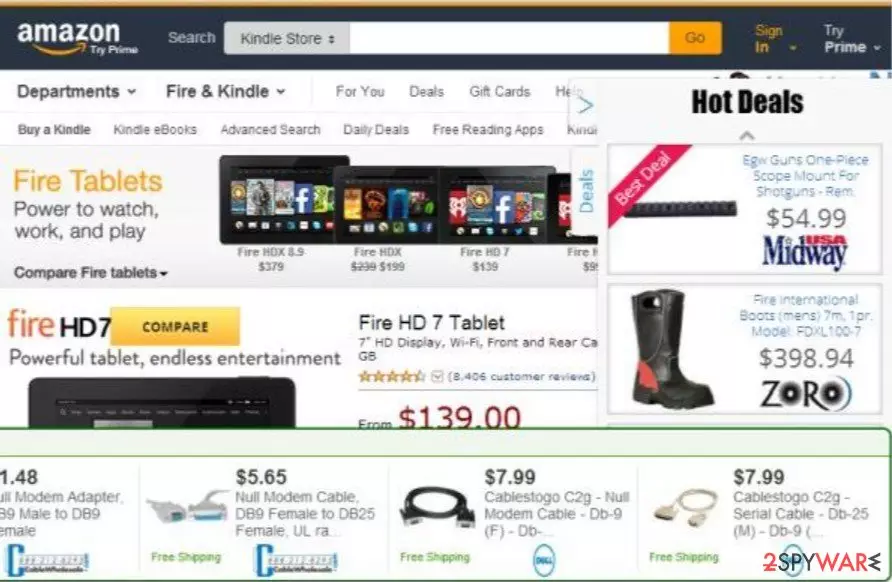
Agent.BN is a dangerous adware application that may infect your system via various trojans, software bundles, fake Flash Player updates, compromised websites, and other shady techniques. This parasite displays numerous commercial advertisements and serves as a medium to other potential threats that may infiltrate your system. If you encounter this potentially unwanted program on your computer, be sure to remove it at once.
| name | Adware.Agent.BN |
|---|---|
| Type | Adware, redirect virus, PUP |
| Symptoms | Browser is launched or new tabs open out of the blue with questionable portals, you see more than usual ads on frequently visited pages |
| Risks | Malware infections, PUP installation, financial losses, identity theft |
| Elimination | Reliable anti-malware software can remove this pesky computer infection within minutes |
| System fix | Scan your device with time-tested software such as the FortectIntego tool to resolve all system issues |
Apart from showing an abnormal amount of misleading ads, this Windows computer infection is also capable of causing sudden redirects where a new tab is opened with any of its affiliated sites. Those might include gambling, porn, tech support scams, malware, push notification viruses, etc, and have evil intentions.
If you think that your device is infected with Adware.Agent.BN virus, please scan it with trustworthy anti-malware software immediately. A proper AV tool will remove the threat and protect your computer from all kinds of cyber threats in the future. Then run a system tune-up to ensure a stable working environment.
Uninstall from Windows
Uninstall from Windows 10/8:
- Type Control Panel into the Windows search box and open the result.
- Under Programs, select Uninstall a program.


Uninstall from Windows 7/XP:
- Click on Windows Start > Control Panel (Windows XP users should click on Add/Remove Programs).
- In Control Panel, select Programs > Uninstall a program.


Remove the unwanted program:
- In the Programs and Features window, look for any recently installed suspicious entries, select them, and click Uninstall.
- If User Account Control appears, click Yes to confirm, then complete the removal.


Did this guide help?
Be the first to comment