

Assist Point – what kind of program is it and how does it work?
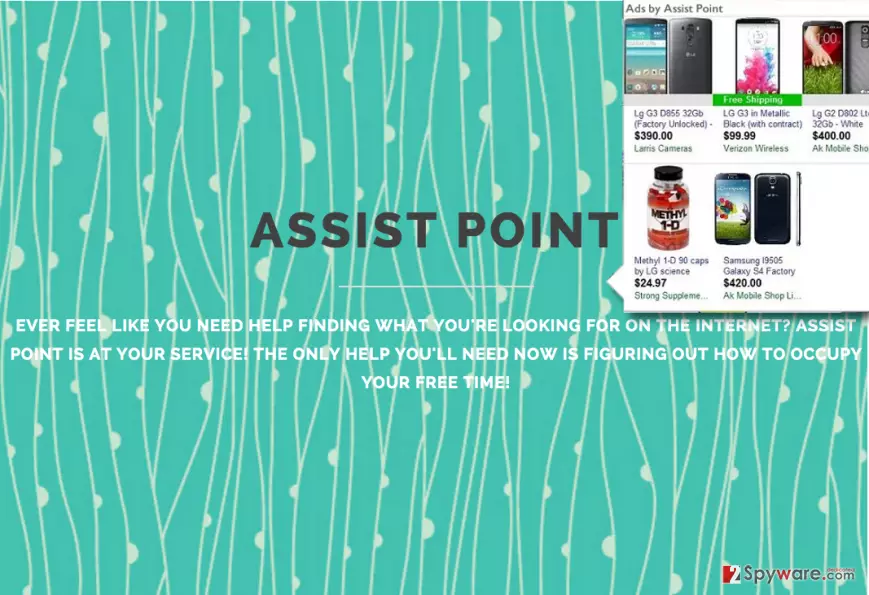
Assist Point is a suspicious program that may show commercial advertisements during your browsing sessions. That’s because it’s just another adware that is also identified as a potentially unwanted program (PUP). This application promises to enhance your web browsing experience, but, in contrast, may cause system slowdowns and disrupt your web browsing activities by causing a continuous flow of commercial advertisements. Assist Point ads may chase you whether you want to seem them or not. They may show up in your web browser (Google Chrome, Mozilla Firefox, Internet Explorer).
This program may be installed without your knowledge – that’s because this questionable adware is usually distributed bundled with other freeware and shareware. Once installed, it may show various pop-up, pop-under, banner, ads and in-text links that contain information about the recent deals, discounts, and similar things. However, if you are not willing to expose your computer to various cyber threats, we recommend you to avoid any ”Ads by Assist Point”. Be aware that they are mainly used for making you visit predetermined websites and this way increasing their rank. Therefore, you should keep in mind that some of the advertisements may be managed by suspicious third-parties that may seek to spread other potentially unwanted or suspicious programs. Unfortunately, not only Assist Point redirects pose harm to your security. This dubious adware may also install cookies in all the most popular web browsers and may try to investigate your browsing habits and preferences. For example, it may record the URLs of the websites that you visit, keywords that you enter to search boxes, and other similar information. Unfortunately, you can’t know what specific information may be collected and where it may further be used. We doubt that you wish such data leakage to unreliable sources. Thus, you should not ignore the presence of Assist Point adware on your computer. In order to remove it, try using FortectIntego anti-malware software.
Ways to distribute Assist Point:
Assist Point can be attained from its official website. However, as the majority of adware-type programs, Assist Point PUP may infiltrate computers via other freeware, such as download managers, PDF creators, media players and so on. It may be disclosed on the list of ”optional downloads”. Be aware that free programs may be filled with third-party apps, such as browser add-ons, plug-ins, toolbars, and extensions, which may spread in one pack. Fortunately, you don’t have to strive hard in order to decompose that pack. For that, you just have to remember several simple things:
- Find out if your selected freeware is reliable by reading EULA and Privacy Policy.
- Avoid Quick or Basic installation option.
- Always select Advanced or Custom installation option.
- Follow the entire installation step-by-step.
- Unmark ticks or check boxes that notify your consent to install optional downloads.
That is all what needs to be done in order to refuse the installation of unwanted software components. However, if this adware has already hijacked your computer, you should start looking for a method to eliminate it from your computer.
How to terminate this application and stop interferences caused by it?
This undesirable program should not be kept on your computer as it can only cause bad effects and it cannot provide any useful services. It can also slow down your computer and cause annoyance. Do you suspect that Assist Point virus hides in your PC? have you noticed random pop-up ads that look catchy but rarely redirect you to the websites related to the ad content? If yes, then we recommend you to run a full system scan with a reliable anti-spyware without a delay. However, if you are not willing to use additional software, you can follow this manual removal guide, which we have prepared.
Uninstall from Windows
Uninstall from Windows 10/8:
- Type Control Panel into the Windows search box and open the result.
- Under Programs, select Uninstall a program.


Uninstall from Windows 7/XP:
- Click on Windows Start > Control Panel (Windows XP users should click on Add/Remove Programs).
- In Control Panel, select Programs > Uninstall a program.


Remove the unwanted program:
- In the Programs and Features window, look for any recently installed suspicious entries, select them, and click Uninstall.
- If User Account Control appears, click Yes to confirm, then complete the removal.


Delete from macOS
Remove the unwanted application:
- From the menu bar, select Go > Applications.
- In the Applications folder, look for any suspicious entries, then drag them to Trash (or right-click and pick Move to Trash).


Delete leftover files and folders:
- Select Go > Go to Folder.
- Enter /Library/Application Support and remove any suspicious folders related to the unwanted program.
- Repeat the same check in the /Library/LaunchAgents and /Library/LaunchDaemons folders, deleting any suspicious entries.

- Finally, empty the Trash to permanently remove the leftovers.

Remove from Microsoft Edge
Delete unwanted extensions from MS Edge:
- Select Menu (three horizontal dots at the top-right of the browser window) and pick Extensions.
- From the list, pick the extension and click on the Gear icon.
- Click Remove.


Clear cookies and other browser data:
- Click on the Menu (three horizontal dots at the top-right of the browser window) and select Settings > Privacy, search, and services..
- Under Clear browsing data, pick Choose what to clear.
- Select Cookies and other site data and Cached images and files. (apart from passwords, although you might want to include Media licenses as well, if applicable) and click on Clear.


Restore new tab and homepage settings:
- Click the menu icon and choose Settings.
- Then find On startup section.
- Click Remove next to any suspicious startup page.
Reset MS Edge if the above steps did not work:
- Press on Ctrl + Shift + Esc to open Task Manager.
- Click on More details arrow at the bottom of the window.
- Select Details tab.
- Now scroll down and locate every entry with Microsoft Edge name in it. Right-click on each of them and select End Task to stop MS Edge from running.


Instructions for Chromium-based Edge
Delete extensions from MS Edge (Chromium):
- Open Edge and click select Settings > Extensions.
- Delete unwanted extensions by clicking Remove.


Clear cache and site data:
- Click on Menu and go to Settings.
- Select Privacy, search and services.
- Under Clear browsing data, pick Choose what to clear.
- Under Time range, pick All time.
- Select Clear now.


Reset Chromium-based MS Edge:
- Click on Menu and select Settings.
- On the left side, pick Reset settings.
- Select Restore settings to their default values.
- Confirm with Reset.
- This will disable extensions and reset startup pages but will not delete bookmarks, saved passwords, or browsing history.


Remove from Mozilla Firefox (FF)
Remove dangerous extensions:
- Open Mozilla Firefox browser and click on the Menu (three horizontal lines at the top-right of the window).
- Select Add-ons.
- In here, select the unwanted extension and click Remove.


Reset the homepage:
- Click three horizontal lines at the top right corner to open the menu.
- Choose Settings.
- Under Home, set your preferred homepage and new tab settings.
Clear cookies and site data:
- Click Menu and pick Settings.
- Go to Privacy & Security section.
- Scroll down to locate Cookies and Site Data.
- Click on Clear Data...
- Select Cookies and Site Data and Temporary cached files and pages, then click Clear.


Reset Mozilla Firefox
If clearing the browser as explained above did not help, reset Mozilla Firefox:
- Open Mozilla Firefox browser and click the Menu.
- Go to Help and then choose Troubleshooting Information.

- Under Give Firefox a tune up section, click on Refresh Firefox...
- Once the pop-up shows up, confirm the action by pressing on Refresh Firefox.



Remove from Google Chrome
Delete malicious extensions from Google Chrome:
- Open Google Chrome, click on the Menu (three vertical dots at the top-right corner) and select More tools > Extensions.
- In the newly opened window, you will see all the installed extensions. Uninstall all suspicious extensions related to the unwanted program by clicking Remove.


Clear cache and web data from Chrome:
- Click on Menu and pick Settings.
- Under Privacy and security, select Clear browsing data.
- Select Browsing history, Cookies and other site data, as well as Cached images and files.
- Click Clear data.


Change your homepage:
- Click menu and choose Settings.
- Look for a suspicious site in the On startup section.
- Click on Open a specific or set of pages and click on three dots to find the Remove option.
Reset Google Chrome:
If the previous methods did not help you, reset Google Chrome to eliminate all the unwanted components:
- Click on Menu and select Settings.
- In the Settings, scroll down and click Advanced.
- Scroll down and locate Reset and clean up section.
- Now click Restore settings to their original defaults.
- Confirm with Reset settings.


Delete from Safari
Remove dangerous extensions:
- Open Safari, click Safari in the menu at the top-left of the screen, and select Preferences.
- Go to the Extensions tab, look for any suspicious entries, and click Uninstall to remove them.


Clear history and website data:
- Click Safari in the menu and pick Clear History.
- Set Clear to all history and confirm with Clear History.


Reset Safari:
- Click Safari in the menu and select Preferences > Advanced.
- Enable Show Develop menu in menu bar.
- From the menu bar, click Develop and select Empty Caches.


Did this guide help?
4 comments
Maryah
I could not get these pop-ups out of my screen! I was completely distracted all the time I tried to do my work using the Internet. Im feeling so relieved that these ads are gone now. Thanks!
LorahKirsfield
I had exactly the same problem. These ads were showing up in a random order and i was confused because I had no idea what is wrong with my Internet browser. I have got Spyhunter and so far I am happy with the results :) it removed assist point and even more! I did not know that my browser was hijacked by some mindspark toolbar, and SpyHunter removed it as well. Well done :) I recommend it for everyone.
Nora
My anti-virus program could not catch this parasite! does anyone know why?
Ed1990
because its a spyware and anti-virus may not be able to detect it :) i think so