

Unexpected Captchaallow.site ads on the desktop? Find out what to do next
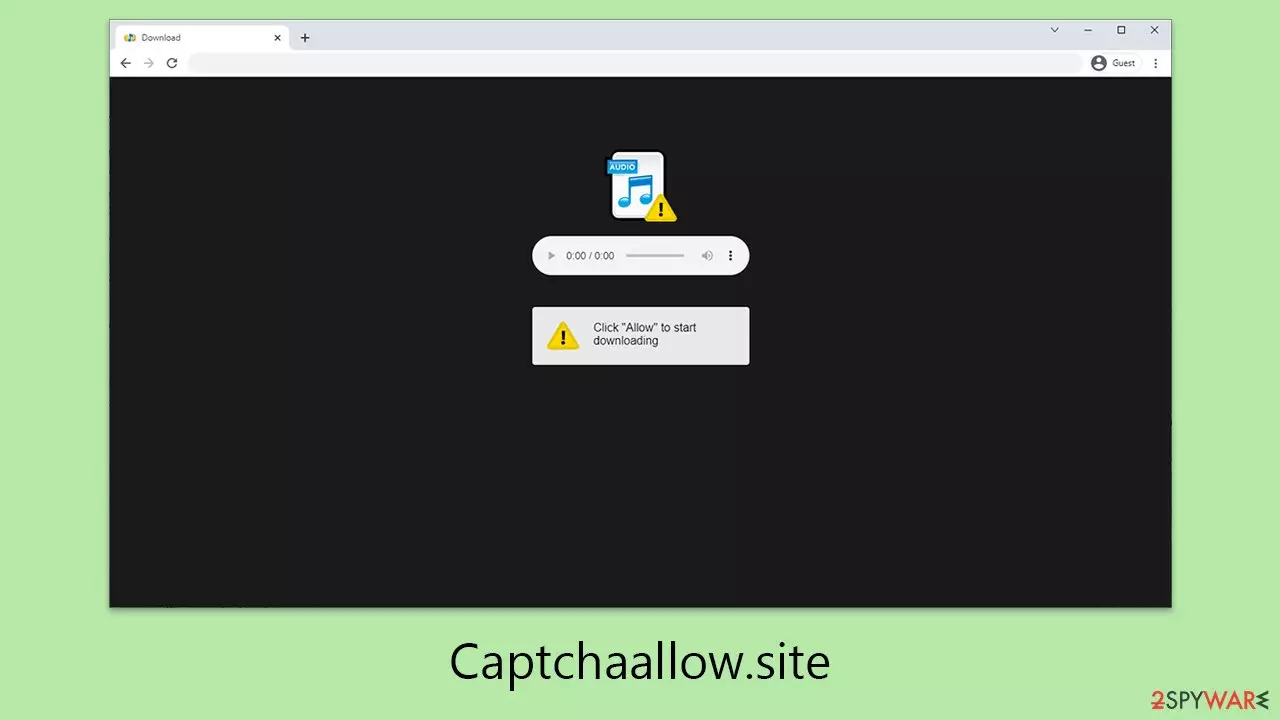
Captchaallow.site is well-known for displaying a variety of false messages intended to trick users into signing up for push notifications. By deceiving users into thinking they are executing a standard action frequently seen on many websites, this site's fraud cleverly leads them to click the “Allow” button when requested by a push message.
When visitors comply with this seemingly benign request, the Captchaallow.site begins to bombard their computer displays with constant advertisements. These advertisements are not only bothersome but also persistent, interfering with the users' current activities by displaying pop-ups that may cause full-screen modes to end whether watching videos or playing games. Moreover, the information presented in these advertisements is often deceptive, if not wholly fraudulent, and may drive consumers to infected websites.
Dealing with Captchaallow.site extends beyond the annoyance of persistent pop-up ads. This platform frequently diverts visitors to dubious sites that present false antivirus scanning outcomes. These counterfeit diagnostics are designed to alarm users, convincing them that their devices are infected with viruses and pushing them towards buying software to eliminate these non-existent threats.
In the following sections, we'll outline steps to identify these deceptive tactics and eliminate unwelcome push notifications. Moreover, we'll provide guidance on eradicating any potentially unwanted programs that may have been stealthily installed on your device.
| Name | Captchaallow.site |
| Type | Push notifications, ads, pop-ups, scam |
| Distribution | The only way the ads would start being shown is by users pressing the “Allow” button within the notification prompt |
| Symptoms | Push notifications show on the desktop at random time intervals. These pop-ups show fake notices and push scams. Links can also lead to malware-laden sites |
| Dangers | Links from the site might cause you to go to harmful websites, which may result in malware infections, financial losses, or personal data exposure. |
| Removal | Push notifications can be stopped by blocking the web address of the malicious website via browser settings. Checking the device with SpyHunterCombo Cleaner security software is also recommended |
| Other tips | After the removal of PUPs and malware, we recommend scanning the system with FortectIntego to clean browser caches and fix virus damage automatically |
Fake messages used by scammers
Notification scams, like those executed by Captchaallow.site, often catch users off-guard with seemingly benign requests. These scams are designed to look like standard internet prompts, leading many individuals to unwittingly become victims. It's only after engaging with these requests that the deceptive nature of the activity becomes apparent.
When visiting Captchaallow.site or similar misleading sites, users are presented with prompts that appear harmless at first glance. Examples of these deceptive alerts might include:
- Press “Allow” to confirm you're not a robot
- Click “Allow” to view the video
- Browser verification needed – press “Allow” to proceed
- Confirm you're 18+ by clicking “Allow”
- Click “Allow” for a chance to win a prize and claim it in our store!
These verification requests, often seen as routine measures on the web, lead many to respond without suspicion. Yet, in the context of Captchaallow.site, these prompts are traps. Responding by clicking “Allow” triggers push notifications from the scam site. It's important to recognize that such sites offer no real value; their main aim is to gather push notification subscribers to funnel them toward unsafe web destinations.
Following subscription, individuals are bombarded with incessant pop-up notifications on their desktops, regardless of their current activities. These intrusive pop-ups frequently contain questionable links and messages aimed at deceiving users. Among these are fake security warnings and misleading promotions for “free” software downloads.
Identifying these warning signs promptly is essential for avoiding the dangers posed by notification scams. Subsequent sections will provide advice on preventive strategies and steps to take for those who have already been ensnared by such deceptive tactics.

Remove Captchaallow.site ads
If you've accidentally activated push notifications from a dubious site, the predicament might not be as severe as it seems, as long as you refrain from interacting with any advertisements or links that are pushed to you. By disregarding these notifications, you can significantly reduce the risk of harm. For individuals unsure of how to turn off push notifications from a specific site, upcoming instructions will be customized for different web browsers to walk you through the essential actions needed to resolve this issue.
oogle Chrome
- Open the Google Chrome browser and go to Menu > Settings.
- Scroll down and click on Advanced.
- Locate the Privacy and security section and pick Site Settings > Notifications.
- Look at the Allow section and look for a suspicious URL.
- Click the three vertical dots next to it and pick Block. This should remove unwanted notifications from Google Chrome.


Google Chrome (Android)
- Open Google Chrome and tap on Settings (three vertical dots).
- Select Notifications.
- Scroll down to the Sites section.
- Locate the unwanted URL and toggle the button to the left (Off position).


Mozilla Firefox
- Open Mozilla Firefox and go to Menu > Options.
- Click on Privacy & Security section.
- Under Permissions, you should be able to see Notifications. Click the Settings button next to it.
- In the Settings – Notification Permissions window, click on the drop-down menu by the URL in question.
- Select Block and then click on Save Changes. This should remove unwanted notifications from Mozilla Firefox.


Safari
- Click on Safari > Preferences…
- Go to the Websites tab and, under General, select Notifications.
- Select the web address in question, click the drop-down menu and select Deny.


MS Edge
- Open Microsoft Edge, and go to Settings.
- Select Site permissions.
- Go to Notifications on the right.
- Under Allow, you will find the unwanted entry.
- Click on More actions and select Block.


Internet Explorer
- Open Internet Explorer, and click on the Gear icon at the top-right of the window.
- Select Internet options and go to the Privacy tab.
- In the Pop-up Blocker section, click on Settings.

- Locate the web address in question under Allowed sites and pick Remove.

Moreover, it's crucial for users to stay alert and conduct scans on their devices to detect any adware or unwanted software that might be stealthily running in the background unnoticed. Such harmful programs can be inadvertently downloaded during encounters with deceptive advertisements or while obtaining rebranded software from dubious sources. The covert nature of these scams often delays the realization that one's system has been compromised.
Before proceeding to eliminate the intrusive ads prompted by Captchaallow.site, it's recommended that victims perform comprehensive system scans using trusted security software, such as SpyHunterCombo Cleaner or MalwarebytesMalwarebytes. Such tools are instrumental in identifying and removing any lurking threats on your device.
It's also advisable to use utilities for clearing your browser's cache and cookies, for example, FortectIntego. This step is crucial for halting persistent data tracking and ensuring your online privacy remains intact. Adopting these measures contributes to a more secure browsing experience, effectively shielding you from future security risks. If you would rather do this manually, follow the instructions provided below.
Remove from Microsoft Edge
Delete unwanted extensions from MS Edge:
- Select Menu (three horizontal dots at the top-right of the browser window) and pick Extensions.
- From the list, pick the extension and click on the Gear icon.
- Click Remove.


Clear cookies and other browser data:
- Click on the Menu (three horizontal dots at the top-right of the browser window) and select Settings > Privacy, search, and services..
- Under Clear browsing data, pick Choose what to clear.
- Select Cookies and other site data and Cached images and files. (apart from passwords, although you might want to include Media licenses as well, if applicable) and click on Clear.


Restore new tab and homepage settings:
- Click the menu icon and choose Settings.
- Then find On startup section.
- Click Remove next to any suspicious startup page.
Reset MS Edge if the above steps did not work:
- Press on Ctrl + Shift + Esc to open Task Manager.
- Click on More details arrow at the bottom of the window.
- Select Details tab.
- Now scroll down and locate every entry with Microsoft Edge name in it. Right-click on each of them and select End Task to stop MS Edge from running.


Instructions for Chromium-based Edge
Delete extensions from MS Edge (Chromium):
- Open Edge and click select Settings > Extensions.
- Delete unwanted extensions by clicking Remove.


Clear cache and site data:
- Click on Menu and go to Settings.
- Select Privacy, search and services.
- Under Clear browsing data, pick Choose what to clear.
- Under Time range, pick All time.
- Select Clear now.


Reset Chromium-based MS Edge:
- Click on Menu and select Settings.
- On the left side, pick Reset settings.
- Select Restore settings to their default values.
- Confirm with Reset.
- This will disable extensions and reset startup pages but will not delete bookmarks, saved passwords, or browsing history.


Remove from Mozilla Firefox (FF)
Remove dangerous extensions:
- Open Mozilla Firefox browser and click on the Menu (three horizontal lines at the top-right of the window).
- Select Add-ons.
- In here, select the unwanted extension and click Remove.


Reset the homepage:
- Click three horizontal lines at the top right corner to open the menu.
- Choose Settings.
- Under Home, set your preferred homepage and new tab settings.
Clear cookies and site data:
- Click Menu and pick Settings.
- Go to Privacy & Security section.
- Scroll down to locate Cookies and Site Data.
- Click on Clear Data...
- Select Cookies and Site Data and Temporary cached files and pages, then click Clear.


Reset Mozilla Firefox
If clearing the browser as explained above did not help, reset Mozilla Firefox:
- Open Mozilla Firefox browser and click the Menu.
- Go to Help and then choose Troubleshooting Information.

- Under Give Firefox a tune up section, click on Refresh Firefox...
- Once the pop-up shows up, confirm the action by pressing on Refresh Firefox.



Remove from Google Chrome
Delete malicious extensions from Google Chrome:
- Open Google Chrome, click on the Menu (three vertical dots at the top-right corner) and select More tools > Extensions.
- In the newly opened window, you will see all the installed extensions. Uninstall all suspicious extensions related to the unwanted program by clicking Remove.


Clear cache and web data from Chrome:
- Click on Menu and pick Settings.
- Under Privacy and security, select Clear browsing data.
- Select Browsing history, Cookies and other site data, as well as Cached images and files.
- Click Clear data.


Change your homepage:
- Click menu and choose Settings.
- Look for a suspicious site in the On startup section.
- Click on Open a specific or set of pages and click on three dots to find the Remove option.
Reset Google Chrome:
If the previous methods did not help you, reset Google Chrome to eliminate all the unwanted components:
- Click on Menu and select Settings.
- In the Settings, scroll down and click Advanced.
- Scroll down and locate Reset and clean up section.
- Now click Restore settings to their original defaults.
- Confirm with Reset settings.


Delete from Safari
Remove dangerous extensions:
- Open Safari, click Safari in the menu at the top-left of the screen, and select Preferences.
- Go to the Extensions tab, look for any suspicious entries, and click Uninstall to remove them.


Clear history and website data:
- Click Safari in the menu and pick Clear History.
- Set Clear to all history and confirm with Clear History.


Reset Safari:
- Click Safari in the menu and select Preferences > Advanced.
- Enable Show Develop menu in menu bar.
- From the menu bar, click Develop and select Empty Caches.


Did this guide help?
Be the first to comment