

Crawler is a potentially unwanted program that can change your search engine and start various redirects
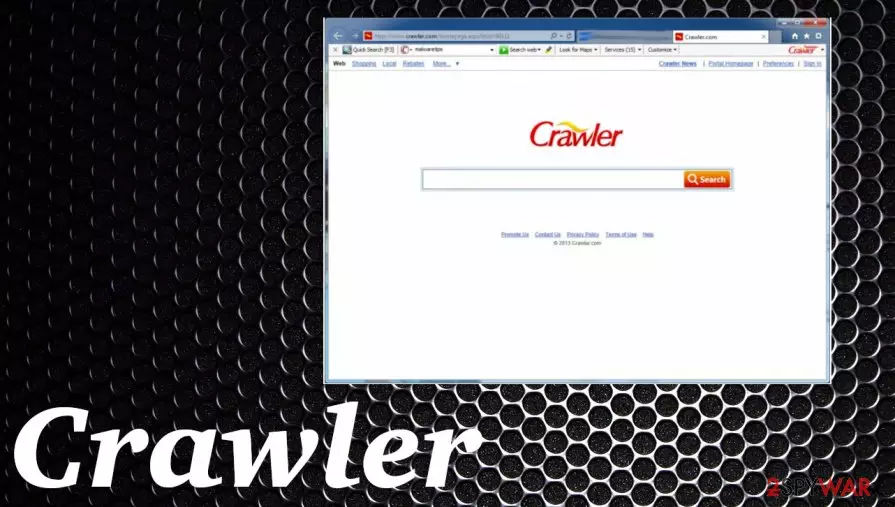
| Name | Crawler or Crawler.com |
|---|---|
| Type | Browser hijacker |
| Issues | The potentially unwanted program creates issues with the machine when speed and performance suffer due to continuous redirects to advertising services and sponsored pages. The exposure to such pages, third-party involvement means that your search-related data can get recorded and collected |
| Distribution | Freeware installations can lead to such PUP infiltration because software bundling is a widely used method. Also, promotional advertisements and similar content can trigger automatic downloads of PUPs |
| Elimination | You should rely on proper anti-malware tools and run a full system scan that helps to remove Crawler from the machine alongside either programs and applications that can create issues for you |
| Repair | Make sure to reset browsers to default and run FortectIntego to recover from any system damage |
Crawler is not a virus or malware. However, it can definitely be called a totally annoying program, a browser hijacker, and a potentially unwanted application. We say so because it may initiate lots of havoc on people's computers and seriously disrupt their browsing activity.
According to its victims and PC security experts,[2] this Crawler program may show up on the system without downloading it. After doing so, it may alert various system settings and then start initiating such irritating things as redirects to unknown websites, slowdowns, pop-up ads, and similarly annoying things.
Beware that this questionable search site may make you visit unknown and very suspicious websites when you open your browser and start searching the web. That's because it is actively used for affiliate marketing. Besides, it may also show you commercial advertisements and start collecting search terms or other information from your search queries. make sure to go straight for Crawler removal once such issues get noticed.

If you think that you shouldn't reveal your most visited websites, data that you enter on each of these sites, your PC's IP address, and similar details, you should remove the virus. If you have just found Crawler.com instead of your start page and default search engine, it means that it has infiltrated your machine.
In this case, you should check the system with updated anti-spyware and remove Crawler from the system. Otherwise, you should be prepared for unexpected redirects and similar issues. If there are some strange issues with your computer, try fixing them with FortectIntego that finds altered files and corrupted programs.
No matter that it can hardly infect your machine with malware, it may show you annoying banner ads, in-text advertisements, and similar notifications. In order to avoid these problems, we recommend you to check your computer with updated anti-spyware and remove Crawler.com.

Browser hijack has most likely appeared on your computer with recently installed free programs
Just like hundreds of other potentially unwanted programs, hijacker spreads in a bundle with freeware and shareware. If you want to avoid this virus, you have to pay more attention to the installation process of such applications and, typically, find the checkmark that agrees to download PUP.
In order to see it, you should opt for Custom or Advanced installation of the freeware. After doing so, you should carefully follow every installation step and get rid of pre-checked checkmarks. If it has already managed to infiltrate your operating system, you can expect that soon it will start browser hijacking and other activities.
As soon as you spot Crawler virus run a full scan of your computer and get rid of it
If you have already started to suffer from browser redirects to unknown websites or if you have noticed an increased amount of ads during your browsing, you should check your machine for PUPs and remove Crawler when it gets detected. There is a huge possibility that this browser hijacker has just infiltrated your computer in a bundle with freeware and shareware.
In this case, you shouldn't wait for redirects to unknown and very suspicious websites because they may lead you to the infiltration of other cyber threats. For eliminating this hijacker we highly recommend you select automatic Crawler removal methods that will help you make sure that all suspicious programs are gone.
Uninstall from Windows
Uninstall from Windows 10/8:
- Type Control Panel into the Windows search box and open the result.
- Under Programs, select Uninstall a program.


Uninstall from Windows 7/XP:
- Click on Windows Start > Control Panel (Windows XP users should click on Add/Remove Programs).
- In Control Panel, select Programs > Uninstall a program.


Remove the unwanted program:
- In the Programs and Features window, look for any recently installed suspicious entries, select them, and click Uninstall.
- If User Account Control appears, click Yes to confirm, then complete the removal.


Delete from macOS
Remove the unwanted application:
- From the menu bar, select Go > Applications.
- In the Applications folder, look for any suspicious entries, then drag them to Trash (or right-click and pick Move to Trash).


Delete leftover files and folders:
- Select Go > Go to Folder.
- Enter /Library/Application Support and remove any suspicious folders related to the unwanted program.
- Repeat the same check in the /Library/LaunchAgents and /Library/LaunchDaemons folders, deleting any suspicious entries.

- Finally, empty the Trash to permanently remove the leftovers.

Reset Internet Explorer
Remove dangerous add-ons:
- Open Internet Explorer, click on the Gear icon (IE menu) on the top-right corner of the browser
- Pick Manage Add-ons.
- You will see a Manage Add-ons window. Here, look for suspicious plugins. Click on these entries and select Disable.


Change your homepage if it was altered:
- Open IE and click on the Gear icon.
- Select Internet Options.
- In the General tab, delete the Home page address and replace it by your preferred one (for example, Google.com).
- Click Apply and then select OK.


Delete temporary files:
- Press on the Gear icon and select Internet Options.
- Under Browsing history, click Delete...
- Select relevant fields and press Delete.


Reset Internet Explorer:
- Click on Gear icon > Internet options and select Advanced tab.
- Select Reset.
- In the new window, check Delete personal settings and select Reset.


Remove from Microsoft Edge
Delete unwanted extensions from MS Edge:
- Select Menu (three horizontal dots at the top-right of the browser window) and pick Extensions.
- From the list, pick the extension and click on the Gear icon.
- Click Remove.


Clear cookies and other browser data:
- Click on the Menu (three horizontal dots at the top-right of the browser window) and select Settings > Privacy, search, and services..
- Under Clear browsing data, pick Choose what to clear.
- Select Cookies and other site data and Cached images and files. (apart from passwords, although you might want to include Media licenses as well, if applicable) and click on Clear.


Restore new tab and homepage settings:
- Click the menu icon and choose Settings.
- Then find On startup section.
- Click Remove next to any suspicious startup page.
Reset MS Edge if the above steps did not work:
- Press on Ctrl + Shift + Esc to open Task Manager.
- Click on More details arrow at the bottom of the window.
- Select Details tab.
- Now scroll down and locate every entry with Microsoft Edge name in it. Right-click on each of them and select End Task to stop MS Edge from running.


Instructions for Chromium-based Edge
Delete extensions from MS Edge (Chromium):
- Open Edge and click select Settings > Extensions.
- Delete unwanted extensions by clicking Remove.


Clear cache and site data:
- Click on Menu and go to Settings.
- Select Privacy, search and services.
- Under Clear browsing data, pick Choose what to clear.
- Under Time range, pick All time.
- Select Clear now.


Reset Chromium-based MS Edge:
- Click on Menu and select Settings.
- On the left side, pick Reset settings.
- Select Restore settings to their default values.
- Confirm with Reset.
- This will disable extensions and reset startup pages but will not delete bookmarks, saved passwords, or browsing history.


Remove from Mozilla Firefox (FF)
Remove dangerous extensions:
- Open Mozilla Firefox browser and click on the Menu (three horizontal lines at the top-right of the window).
- Select Add-ons.
- In here, select the unwanted extension and click Remove.


Reset the homepage:
- Click three horizontal lines at the top right corner to open the menu.
- Choose Settings.
- Under Home, set your preferred homepage and new tab settings.
Clear cookies and site data:
- Click Menu and pick Settings.
- Go to Privacy & Security section.
- Scroll down to locate Cookies and Site Data.
- Click on Clear Data...
- Select Cookies and Site Data and Temporary cached files and pages, then click Clear.


Reset Mozilla Firefox
If clearing the browser as explained above did not help, reset Mozilla Firefox:
- Open Mozilla Firefox browser and click the Menu.
- Go to Help and then choose Troubleshooting Information.

- Under Give Firefox a tune up section, click on Refresh Firefox...
- Once the pop-up shows up, confirm the action by pressing on Refresh Firefox.



Remove from Google Chrome
Delete malicious extensions from Google Chrome:
- Open Google Chrome, click on the Menu (three vertical dots at the top-right corner) and select More tools > Extensions.
- In the newly opened window, you will see all the installed extensions. Uninstall all suspicious extensions related to the unwanted program by clicking Remove.


Clear cache and web data from Chrome:
- Click on Menu and pick Settings.
- Under Privacy and security, select Clear browsing data.
- Select Browsing history, Cookies and other site data, as well as Cached images and files.
- Click Clear data.


Change your homepage:
- Click menu and choose Settings.
- Look for a suspicious site in the On startup section.
- Click on Open a specific or set of pages and click on three dots to find the Remove option.
Reset Google Chrome:
If the previous methods did not help you, reset Google Chrome to eliminate all the unwanted components:
- Click on Menu and select Settings.
- In the Settings, scroll down and click Advanced.
- Scroll down and locate Reset and clean up section.
- Now click Restore settings to their original defaults.
- Confirm with Reset settings.


Delete from Safari
Remove dangerous extensions:
- Open Safari, click Safari in the menu at the top-left of the screen, and select Preferences.
- Go to the Extensions tab, look for any suspicious entries, and click Uninstall to remove them.


Clear history and website data:
- Click Safari in the menu and pick Clear History.
- Set Clear to all history and confirm with Clear History.


Reset Safari:
- Click Safari in the menu and select Preferences > Advanced.
- Enable Show Develop menu in menu bar.
- From the menu bar, click Develop and select Empty Caches.


Did this guide help?
40 comments
Guest
how do i uninstall inbox.com and live fireplace screensaver.
Guest
I want to cancel crrawler toolbar now please
Guest
unistall the crwaler now
Guest
install the crawler now
Guest
I never asked to download crawler, now everytime I try to use my computer, some show stuff comes up...I want out now NOW NOW...you put in on ... no please take it off.
Guest
unistall the crwaler now
Guest
how do I uninstall crawler desktop
Guest
I was trying to play a game and crawler got hook up --I DON'T want this crawler. everytime I go on the internet this crap crawler pops up very annoying.
Guest
how do i get crawler of my pc it stinks
Guest
i dont want crawler remove from my computer. thank you
Guest
I do not want Crawler on my computer I want to uninstall and remove this from my computer.
Guest
i don't want crawler on my computer
Guest
How can I uninstall Crawler from my computer. I do not want this on my computer or as a default for my internet access. Please help get rid of you
Guest
Please uninstall crawler from my computer now, thank you.
Guest
please uninstall craler from my computer, im new at this,sorry i dont know how! thanks joann
Guest
i didnt ask for crawler it just appeared i want it gone
Guest
i'm having trouble uninstalling crawler from my computer please help
Guest
Do not want Crawler in my computer How do I take it out ?
Guest
i want google back, and crawler off my screen!
Guest
how do i delete this?
Guest
avg said they would get rid of crawler for me, but so far, nothing happened. please get rid of it. i've tried everything, but crawler does not want to leave me. HELP!!!!!
Guest
how do i delete crawler
LukeDimmy
These kind of post are always inspiring and I prefer to read quality content so I happy to find many good point here in the post, writing is simply great, thank you for the post!
Telemarketing Dialer
lukedimmy
crawler is a trojan who knows what it might let into your computer?
ive tried everything to get it off ive gone to contoll panel to uninstall it and it justs says im not allowed!
in the end i think i should take it back to the shop.
its not nice
Len
get crawler off my computer
shirley
please uninstall crawler now!!
Rick
Please remove Crawler off of my computer
Ken
I want to uninstall Webcrawler NOW !
bob richardso
what is a security code cant go online with crawler i do not know much about a cpmputer and am 86 years old please help
wingdinger
I want ti remove this program from my computer
Savannah
I uninstalled Crawler from Programs and Features "successfully" twice, it was under two different names: Crawler and another name that started with P (sorry I was so mad that I completly forgot to write it down). But unfortunately its still in the background and showing up everytime I open the web browser.
How did I get it? : I used a translator site althoughi didnt sign up for the service, just by browsing their site, the Crawler attached itself.
mooreadella@yahoo.com
i want to cancel crawler toolbar now please at mooreadella@yahoo.com im sorry the children playing with my computer
Enoch
I dont like crawler please remove
John Nickels
Uninstall Webcrawer NOW
manuel tellez
I WANT TO DELETE THE WEBCRAWLER WEB PAGE NOW
BIB
I LOVE THIS TOOLBAR IT HELP ME FIND STUFF
Dianne
I want to cancel Crawler toolbar immediately.
ama
please remove this crawler from my computer i did not ask for it .i dont want it, please help.
smiley11150924@yahoo.com
Please remove it is very annoying and I am constantly clicking to get the highlighted items to disable their pop ups remove now please.
maryhelp
help delete it?/