

The troublesome effects of Detailexplore.com
Detailexplore.com virus should not be mistaken for a reliable search engine. Though it looks like one, it fails to perform basic functionalities of a search engine. You might ask, “then what is this browsing tool for?” It is none other than a browser hijacker. In short, this PUP aims to hijack browsers and replace homepages and direct you to sponsored web pages. Such activity earns money for its developers. Likewise, it explains such high number of diverse browser hijackers roaming on the internet. While others aggressively promote their seemingly superior features, others, such as this one, are quite passive. Nevertheless, it does not mean that you should avoid this hijacker and delay detailexplore.com removal. FortectIntego quickens the elimination process. Even though it does not deliver any proper search results, it still might cause a series of annoying effects.
Surprisingly, there is a high number of similar browser hijacker like this one. The developers concentrate on elaborating the veneer of the hijacker without developing its structure and thus making it functional. The outlook appealing with all those links to arts, business, sports, games and other popular search topics. However, when you click on the link or enter any topic in the search box, it delivers the message that “your search for ‘xxx’ did not match any results.” However, there is a slight possibility of Detailexplore.com redirect. According to its privacy provisions, it contains links to third-party websites. The creators of this PUP disclaim any liability for the activities of third-parties. It becomes clear that the crooks aim for the high number of visits and clicks rather than keeping users. Moreover, there is another functionality of such browser hijacker.
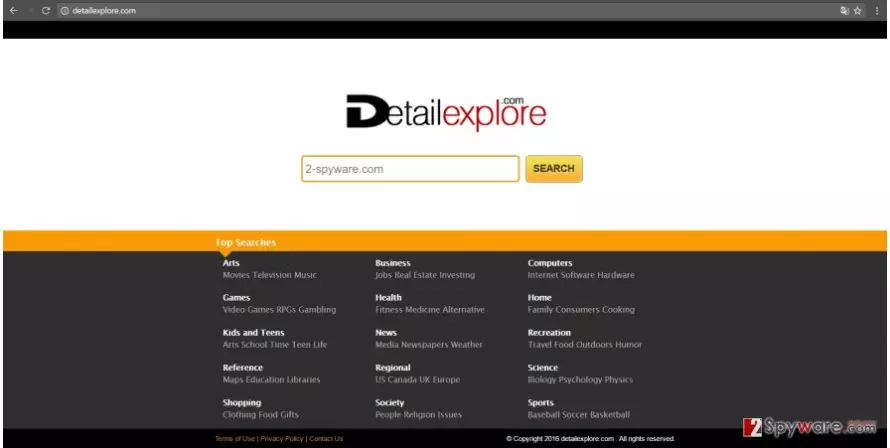
In the privacy policy, it says that the website collects non-personal information. Detail Explore might also keep a record of your full name and email address if you type it deliberately. Though the provisions state that such personal information is not intentionally collected, it is, in fact of high value for the crooks. The primary goal of this PUP is to collect as much information about users’ preferences and their operating systems. This data might be exploited for marketing purposes to generate more futile and but pay-per-view websites which, later on, earn income. However, such activity does not bring any benefit for users, since they only get bombarded with customized ads and commercial offers.
When did I install this PUP?
The distribution of similar browser hijackers was not so successful if not for the “bundling” strategy. The principle of this technique lies in attaching the unwanted tools to freeware. Due to users’ inattentiveness, the add-ons remain unnoticed, and they get installed with the primary application. Likewise, you enabled detailexplore.com hijack by leaving the attachment pre-marked. There is another way of installing new applications without getting entangled by the hijacker. Upon starting any installation wizard, choose “Custom” mode. After you spot optional program, check whether they are necessary. If they happen to be questionable search tools, untick them and proceed with the installation of the intended application.
Eliminating Detailexplore.com
Speaking of the fastest and most efficient way of removing Detailexplore.com virus, an anti-spyware application helps you get rid of all PUP components. It is highly practical in warding off more serious viruses. However, its effectiveness rests on the update status. The updated virus database might be the cause whether malware gets through the security shields. There is also manual detailexplore.com removal option. The instructions are provided below. You can remove Detailexplore.com successfully only by paying attention to every detail. Overlooking seemingly irrelevant peculiarity might result in a re-hijack. In addition, keep in mind that unwanted and sometimes even potentially fraudulent PUPs might travel along with legitimate applications.
Uninstall from Windows
Uninstall from Windows 10/8:
- Type Control Panel into the Windows search box and open the result.
- Under Programs, select Uninstall a program.


Uninstall from Windows 7/XP:
- Click on Windows Start > Control Panel (Windows XP users should click on Add/Remove Programs).
- In Control Panel, select Programs > Uninstall a program.


Remove the unwanted program:
- In the Programs and Features window, look for any recently installed suspicious entries, select them, and click Uninstall.
- If User Account Control appears, click Yes to confirm, then complete the removal.


Delete from macOS
Remove the unwanted application:
- From the menu bar, select Go > Applications.
- In the Applications folder, look for any suspicious entries, then drag them to Trash (or right-click and pick Move to Trash).


Delete leftover files and folders:
- Select Go > Go to Folder.
- Enter /Library/Application Support and remove any suspicious folders related to the unwanted program.
- Repeat the same check in the /Library/LaunchAgents and /Library/LaunchDaemons folders, deleting any suspicious entries.

- Finally, empty the Trash to permanently remove the leftovers.

Reset Internet Explorer
Remove dangerous add-ons:
- Open Internet Explorer, click on the Gear icon (IE menu) on the top-right corner of the browser
- Pick Manage Add-ons.
- You will see a Manage Add-ons window. Here, look for suspicious plugins. Click on these entries and select Disable.


Change your homepage if it was altered:
- Open IE and click on the Gear icon.
- Select Internet Options.
- In the General tab, delete the Home page address and replace it by your preferred one (for example, Google.com).
- Click Apply and then select OK.


Delete temporary files:
- Press on the Gear icon and select Internet Options.
- Under Browsing history, click Delete...
- Select relevant fields and press Delete.


Reset Internet Explorer:
- Click on Gear icon > Internet options and select Advanced tab.
- Select Reset.
- In the new window, check Delete personal settings and select Reset.


Remove from Microsoft Edge
Delete unwanted extensions from MS Edge:
- Select Menu (three horizontal dots at the top-right of the browser window) and pick Extensions.
- From the list, pick the extension and click on the Gear icon.
- Click Remove.


Clear cookies and other browser data:
- Click on the Menu (three horizontal dots at the top-right of the browser window) and select Settings > Privacy, search, and services..
- Under Clear browsing data, pick Choose what to clear.
- Select Cookies and other site data and Cached images and files. (apart from passwords, although you might want to include Media licenses as well, if applicable) and click on Clear.


Restore new tab and homepage settings:
- Click the menu icon and choose Settings.
- Then find On startup section.
- Click Remove next to any suspicious startup page.
Reset MS Edge if the above steps did not work:
- Press on Ctrl + Shift + Esc to open Task Manager.
- Click on More details arrow at the bottom of the window.
- Select Details tab.
- Now scroll down and locate every entry with Microsoft Edge name in it. Right-click on each of them and select End Task to stop MS Edge from running.


Instructions for Chromium-based Edge
Delete extensions from MS Edge (Chromium):
- Open Edge and click select Settings > Extensions.
- Delete unwanted extensions by clicking Remove.


Clear cache and site data:
- Click on Menu and go to Settings.
- Select Privacy, search and services.
- Under Clear browsing data, pick Choose what to clear.
- Under Time range, pick All time.
- Select Clear now.


Reset Chromium-based MS Edge:
- Click on Menu and select Settings.
- On the left side, pick Reset settings.
- Select Restore settings to their default values.
- Confirm with Reset.
- This will disable extensions and reset startup pages but will not delete bookmarks, saved passwords, or browsing history.


Remove from Mozilla Firefox (FF)
Remove dangerous extensions:
- Open Mozilla Firefox browser and click on the Menu (three horizontal lines at the top-right of the window).
- Select Add-ons.
- In here, select the unwanted extension and click Remove.


Reset the homepage:
- Click three horizontal lines at the top right corner to open the menu.
- Choose Settings.
- Under Home, set your preferred homepage and new tab settings.
Clear cookies and site data:
- Click Menu and pick Settings.
- Go to Privacy & Security section.
- Scroll down to locate Cookies and Site Data.
- Click on Clear Data...
- Select Cookies and Site Data and Temporary cached files and pages, then click Clear.


Reset Mozilla Firefox
If clearing the browser as explained above did not help, reset Mozilla Firefox:
- Open Mozilla Firefox browser and click the Menu.
- Go to Help and then choose Troubleshooting Information.

- Under Give Firefox a tune up section, click on Refresh Firefox...
- Once the pop-up shows up, confirm the action by pressing on Refresh Firefox.



Remove from Google Chrome
Delete malicious extensions from Google Chrome:
- Open Google Chrome, click on the Menu (three vertical dots at the top-right corner) and select More tools > Extensions.
- In the newly opened window, you will see all the installed extensions. Uninstall all suspicious extensions related to the unwanted program by clicking Remove.


Clear cache and web data from Chrome:
- Click on Menu and pick Settings.
- Under Privacy and security, select Clear browsing data.
- Select Browsing history, Cookies and other site data, as well as Cached images and files.
- Click Clear data.


Change your homepage:
- Click menu and choose Settings.
- Look for a suspicious site in the On startup section.
- Click on Open a specific or set of pages and click on three dots to find the Remove option.
Reset Google Chrome:
If the previous methods did not help you, reset Google Chrome to eliminate all the unwanted components:
- Click on Menu and select Settings.
- In the Settings, scroll down and click Advanced.
- Scroll down and locate Reset and clean up section.
- Now click Restore settings to their original defaults.
- Confirm with Reset settings.


Delete from Safari
Remove dangerous extensions:
- Open Safari, click Safari in the menu at the top-left of the screen, and select Preferences.
- Go to the Extensions tab, look for any suspicious entries, and click Uninstall to remove them.


Clear history and website data:
- Click Safari in the menu and pick Clear History.
- Set Clear to all history and confirm with Clear History.


Reset Safari:
- Click Safari in the menu and select Preferences > Advanced.
- Enable Show Develop menu in menu bar.
- From the menu bar, click Develop and select Empty Caches.


Did this guide help?
2 comments
TimDon
Crooks ran out of imagination already...
FreddieJonkins
Is it somehow related to the adware?