
Dom ransomware: what it is and how to remove it
Dom ransomware is a dangerous file-locking virus that can encrypt users' personal files, like photos, videos, and documents. It appends the affected files with the .dom extension, unique ID, and the cybercriminals' email.
Facts checked October 7, 2026. Removal steps tested on Windows 11 (26H2) and checked against Microsoft's and the browser makers' current documentation. Sections marked as our earlier report are the original text: they describe the threat as it was then and have not been reviewed since. The 2026 status, the removal steps and the questions are current.
Automatic
Get a free scan and check if your PC is infected.
Fortect finds malware, unwanted programs and the Windows damage they leave behind, and repairs it in one pass.
A free scan checks for the encryptor still on the PC; it does not decrypt .dom files.
Do it yourself · free Remove Dom ransomware yourself 6 steps, about 18 minutes, no software needed.
Start the steps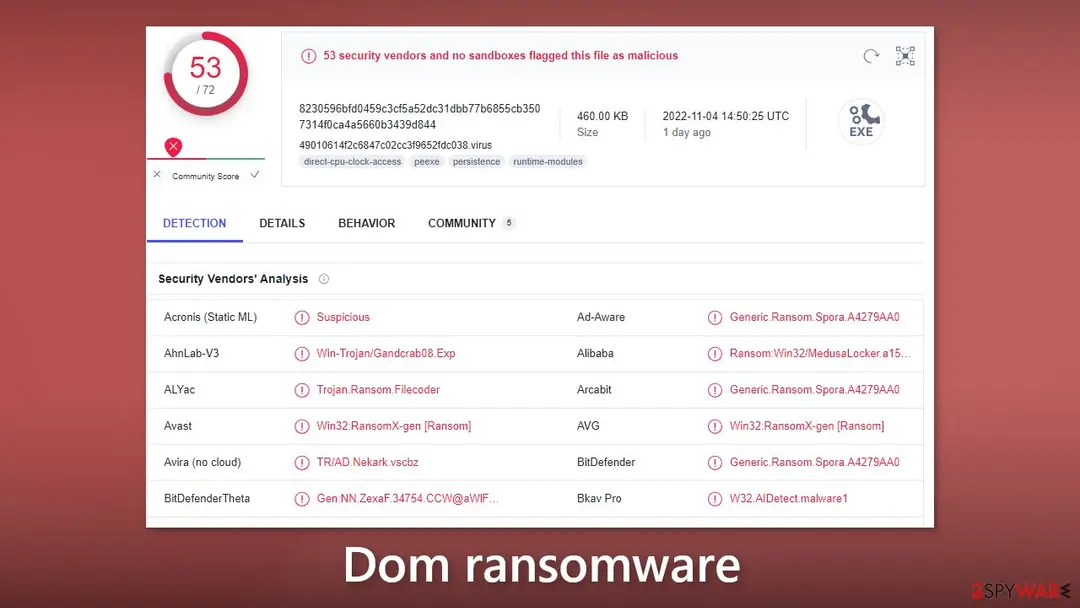
Dom ransomware: summary
| Distribution | Infected email attachments, peer-to-peer file-sharing platforms, torrents, software vulnerabilities |
|---|---|
| NAME | Dom |
| TYPE | Ransomware, data locking virus, crypto virus |
| FILE EXTENSION | .dom; unique ID and the cyber criminals' email |
| RANSOM NOTE | ENCRYPTED.txt; the text is quoted in full below |
| FILE RECOVERY | It is almost impossible to recover the files if you do not have backups or the decryption keys were not leaked; in some cases, recovery is successful with third-party software |
| Removal | Scan the PC with security software to find and remove the malware and anything installed with it. Fortect scans Windows for malware and repairs the system files and settings it damaged. Remove it nowTo use the full-featured product, you have to purchase a license for Fortect. The scan is free. |
Show 14 more facts
| Detection names | No Microsoft detection name is known |
|---|---|
| Contact | dekrypt666@onionmail.org |
| Encrypted file extension | .dom |
| Decryptor | No free decryptor is known for this variant; check No More Ransom (nomoreransom.org) for updates |
| Damage | Not recorded in the old report |
| Name | Dom |
| Type | File-encrypting ransomware |
| Symptoms | Files renamed with a new extension and a ransom note left in folders |
| Evidence | 4 write-ups by security sites; no sample analysed yet |
| Encrypted files | .dom |
| Ransom note | the ransom note |
| Free decryptor | No free decryptor is known (checked 7 October 2026) |
| First seen | 7 November 2022 |
| Facts checked | 7 October 2026 |
- File extension:
.dom - Note file:
the ransom note
From our report of Nov 2022 · not reviewed since
More from our earlier report on Dom
- Scan your machine with anti-malware software to eliminate the virus safely; this will not recover the locked files
- You can avoid Windows reinstallation with maintenance tool, which can fix damaged files and system errors
How Dom ransomware behaves
From our report of Nov 2022 · not reviewed since
Dom ransomware can use encryption algorithms to lock users' personal files
Dom ransomware is a dangerous file-locking virus that can encrypt users' personal files, like photos, videos, and documents.
It appends the affected files with the .dom extension, unique ID, and the cybercriminals' email. If a file was previously named picture.jpg, after encryption, it would something look like this - picture.jpg. .[dekrypt666@onionmail.org].dom.
The icons are also changed to white pages so thumbnails become unavailable. It is recommended to eliminate the intruder as soon as possible so that the infection would not result in further system damage. Read our guide fully to learn how such malware is spread and how to remove it.
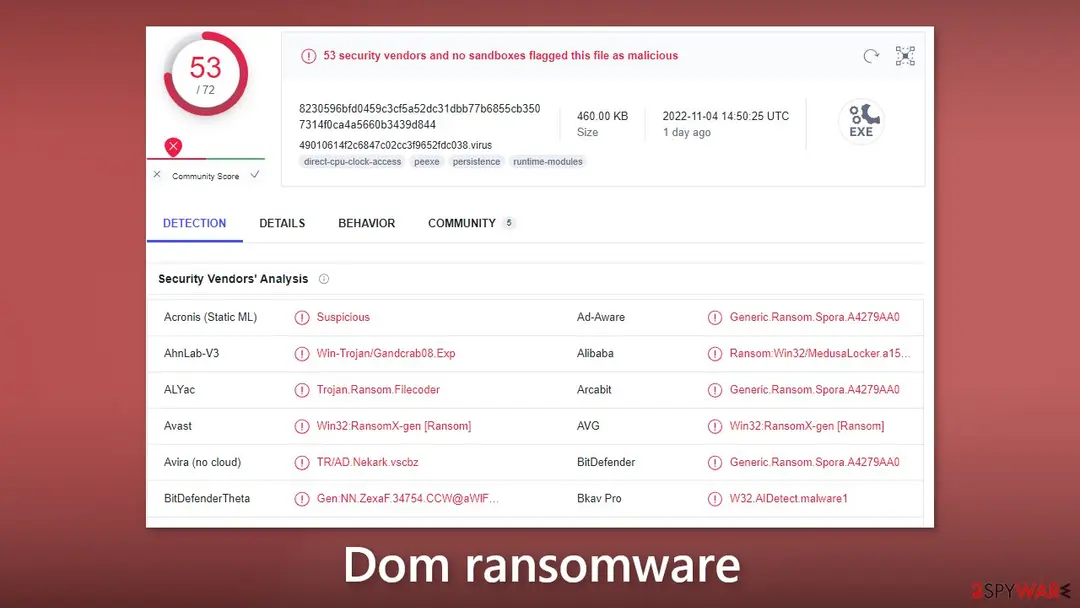
From our report of Nov 2022 · not reviewed since
The ransom note
Dom ransomware generates a ransom note ENCRYPTED.txt which reads as follows:
People are informed that their files have been encrypted, and the only way to decrypt them is to purchase a unique private key. The ransom amount is not specified in the note. Of course, ransomware developers always want to get paid in cryptocurrencies because it provides them anonymity.
However, we strongly advise against contacting cybercriminals because they cannot be trusted. Many previous ransomware attack victims say that they never received the promised decryption tools after paying. Although it is almost impossible to get the data back without the threat actors' help, in some cases, third-party recovery tools help. We have detailed instructions for it below.
From our report of Nov 2022 · not reviewed since
Distribution methods
People most often get infected with ransomware by installing "cracked" software from Torrent websites or peer-to-peer file-sharing platforms.
This activity is illegal so it is unregulated. It is impossible to know if the packages you are downloading are safe.
It is best to use official web stores and developer websites. Even though it may get costly, you should save in the long run by keeping your system running smoothly. For example, pages that engage in illegal activities might be full of deceptive ads and sneaky redirects. Some illegal streaming websites may even display fake "Download" and "Play" buttons.
The Dom ransomware note
!!! ALL YOUR FILES ARE ENCRYPTED !!!
All your files, documents, photos, databases and other important files are encrypted.
You are not able to decrypt it by yourself! The only method of recovering files is to purchase an unique private key.
Only we can give you this key and only we can recover your files.
Do you really want to restore your files?
You can write us to our mailboxes: dekrypt666@onionmail.org
(in subject line please write your MachineID: - and LaunchID: -)
Attention!
* Do not rename encrypted files.
* Do not try to decrypt your data using third party software, it may cause permanent data loss.
* Decryption of your files with the help of third parties may cause increased price (they add their fee to our) or you can become a victim of a scam.
How to remove Dom ransomware
Tools you'll need
All of these are free except where noted. Download them on a clean device if the infected PC is offline.
- A USB stick: to keep the ransom note, two or three encrypted files and screenshots off the infected PC.
- Microsoft Defender Offline: built into Windows 11 and Windows 10; scans before Windows starts, so running malware cannot hide.
- Microsoft Safety Scanner: a second, portable scanner with current signatures; each download works for 10 days.
- ID Ransomware: identifies the family from the note and one encrypted file and says whether a decryptor exists.
- No More Ransom: the free decryptors from police and security companies; check it again every few months.
- Fortect (optional): scans Windows for malware and repairs the system files and settings it damaged. The free scan is in the box above.
How to remove Dom and get your files back
Work in this order.
Disconnecting comes first, removal comes before any restore, and nothing here asks you to contact the attackers.
Step 1: Disconnect the PC and unplug backup drives
Unplug the network cable or turn off Wi-Fi, and disconnect USB drives, external disks and network shares, so Dom cannot reach more files. Pause OneDrive, Google Drive or Dropbox sync, because synced folders upload the encrypted copies over the good ones.
Leave the PC on but offline while you read the next steps, since a restart can let the ransomware run again. This applies to Windows 11 and Windows 10 alike.
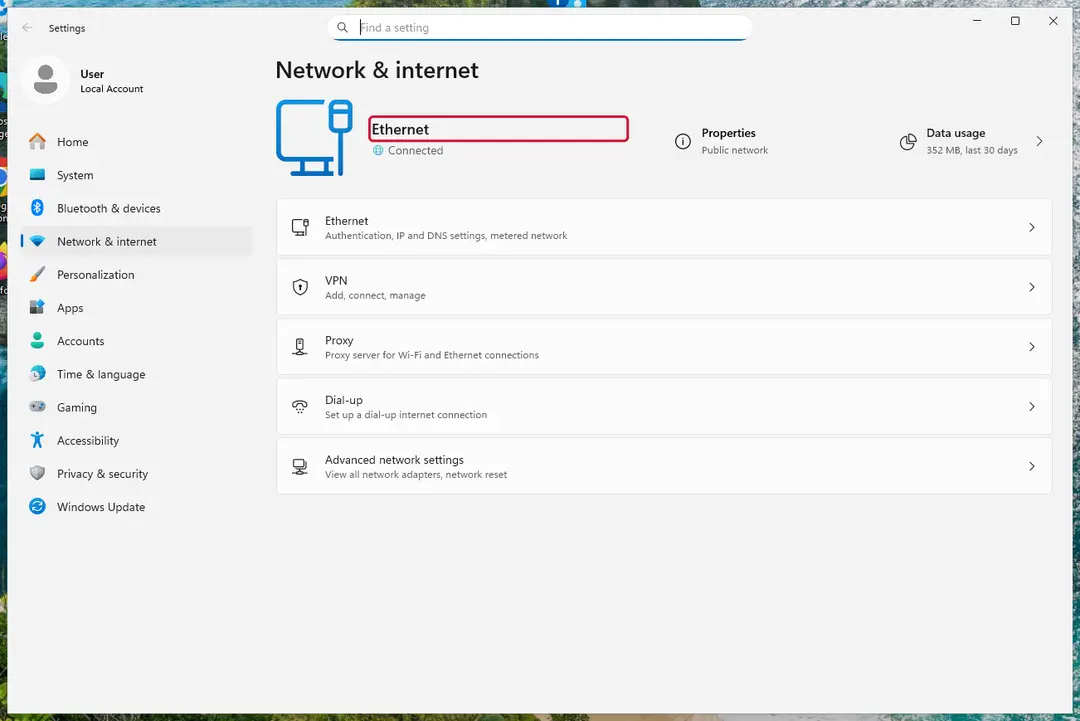
Windows 11: turn off Wi-Fi to take the PC offline. Full procedure with screenshots: Ransomware: first steps, finding a decryptor and recovering files
Step 2: Save the ransom note and confirm the family
Your files now end in
.domand the instructions are inthe ransom note. Save both to a USB stick, a copy of the note and two small encrypted files, before anything else.On another device, check them with ID Ransomware or Crypto Sheriff: the family name decides which decryptor, if any, can help. Keep the note's ID and contact line for your report.

Windows 11: the ransom note and encrypted files to copy for identification. Full procedure with screenshots: Ransomware: first steps, finding a decryptor and recovering files
Step 3: Check for a free decryptor
Our last check found that for Dom, no free decryptor is known (checked 7 October 2026). Look again yourself in the No More Ransom list and the free decryptor pages of Emsisoft, Avast and Kaspersky, which add new families every year.
A decryptor needs the ransomware gone first, or it encrypts the files again. Keep at least one copy of the encrypted files on an external drive, even if no tool works yet.
Full procedure with screenshots: Ransomware: first steps, finding a decryptor and recovering files
Step 4: Remove the ransomware before you restore or decrypt
Removing Dom does not bring the files back, but it has to come first. Start with Defender's Full scan, then the offline scan from the same Scan options page, which checks the disk before Windows loads.
If the scan cannot start, use Safe Mode with Networking. Delete the ransom notes only after you have saved a copy, because removal tools sometimes leave them behind on Windows 11 and Windows 10.
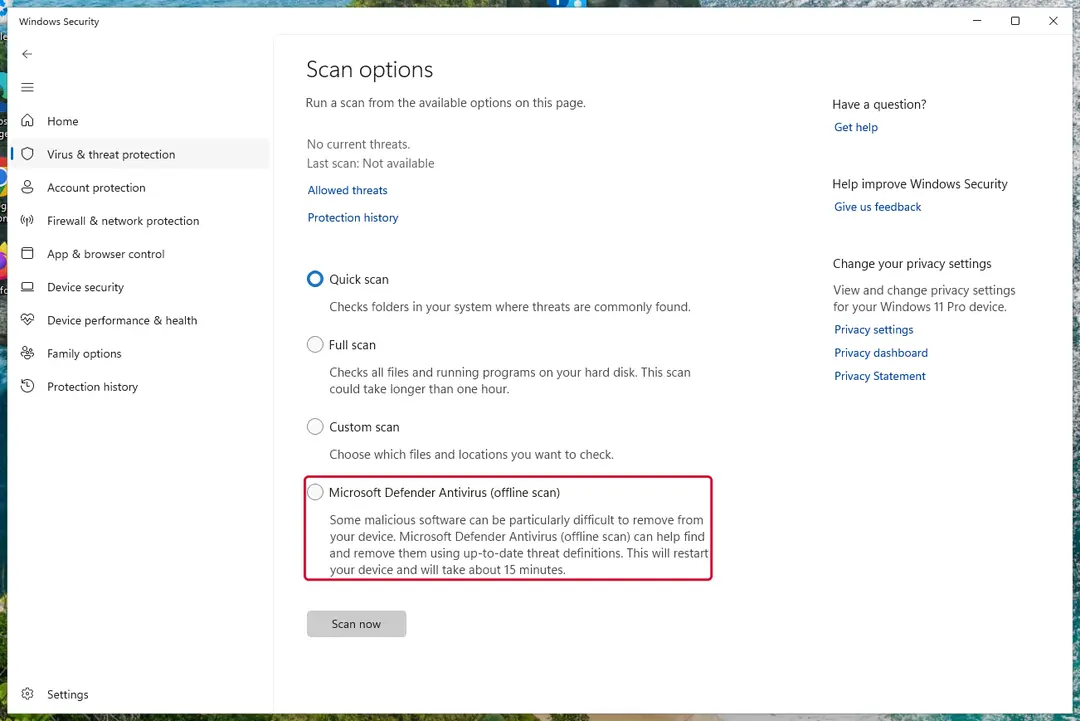
Windows 11: Windows Security > Virus & threat protection > Scan options. Full procedure with screenshots: Run a Microsoft Defender Offline scan
Step 5: Look for shadow copies of the files
Windows keeps shadow copies for restore points and backups, and some ransomware fails to delete them.
vssadmin list shadowsin an administrator Command Prompt tells you at once whether any exist.If they do, right-click the folder that held your files, open Properties > Previous Versions, select a version from before the attack, and click Open to check it before you Restore or copy the files out. Windows 11 and Windows 10 both have the tab.
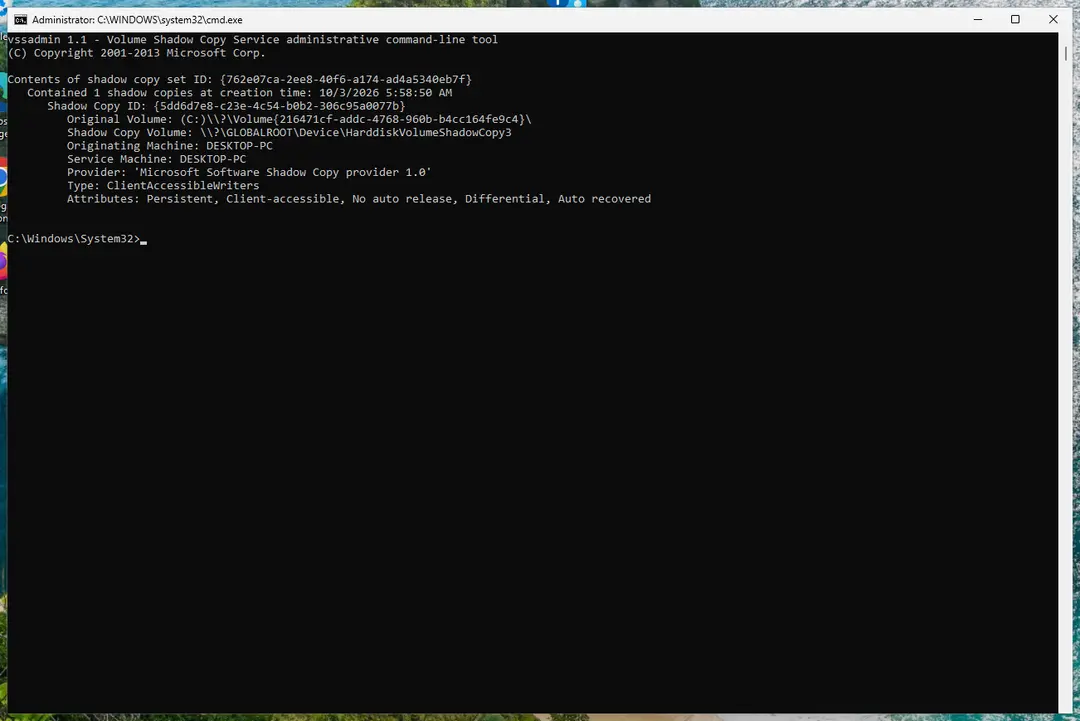
Windows 11: vssadmin list shadows shows whether shadow copies exist. Full procedure with screenshots: Ransomware: first steps, finding a decryptor and recovering files
Step 6: Restore the files from a backup or recover deleted originals
A backup made before the attack is the surest way back. Connect it only once the PC is clean, then restore from File History, Windows Backup, OneDrive's Restore your OneDrive or your own external copies.
Without a backup, try file recovery: the originals that Dom deleted may still be on the disk until something overwrites them. Install nothing new on the drive you want to recover from on the Windows 11 or Windows 10 PC.
Full procedure with screenshots: Recover deleted files (Recycle Bin, backups, OneDrive) On uGetFix
Instructions for each browser and system
The detailed steps for every browser and system this guide covers. Open the one you use.
Find a working decryptor for your files
File encryption is a process that is similar to applying a password to a particular file or folder. However, from a technical point of view, encryption is fundamentally different due to its complexity. By using encryption, threat actors use a unique set of alphanumeric characters as a password that can not easily be deciphered if the process is performed correctly.
There are several algorithms that can be used to lock data (whether for good or bad reasons); for example, AES uses the symmetric method of encryption, meaning that the key used to lock and unlock files is the same. Unfortunately, it is only accessible to the attackers who hold it on a remote server - they ask for a payment in exchange for it. This simple principle is what allows ransomware authors to prosper in this illegal business.
While many high-profile ransomware strains such as Djvu or Dharma use immaculate encryption methods, there are plenty of failures that can be observed within the code of some novice malware developers. For example, the keys could be stored locally, which would allow users to regain access to their files without paying. In some cases, ransomware does not even encrypt files due to bugs, although victims might believe the opposite due to the ransom note that shows up right after the infection and data encryption is completed.
Therefore, regardless of which crypto-malware affects your files, you should try to find the relevant decryptor if such exists. Security researchers are in a constant battle against cybercriminals. In some cases, they manage to create a working decryption tool that would allow victims to recover files for free.
Once you have identified which ransomware you are affected by, you should check the following links for a decryptor:
- No More Ransom Project
- Free Ransomware Decryptors by Kaspersky
- Free Ransomware Decryption Tools from Emsisoft
- Avast decryptors
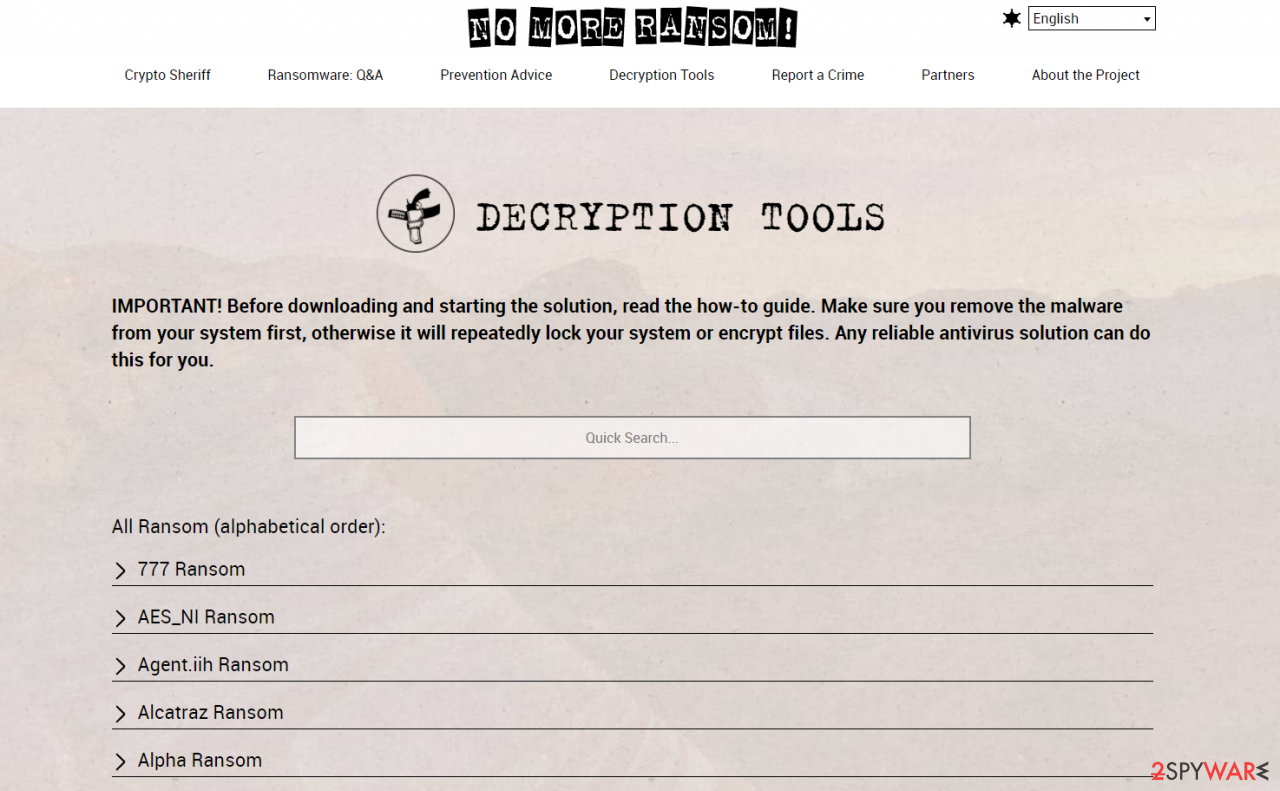
If you can't find a decryptor that works for you, you should try the alternative methods we list below. Additionally, it is worth mentioning that it sometimes takes years for a working decryption tool to be developed, so there are always hopes for the future.
Create data backups to avoid file loss in the future
Report the incident to your local authorities
Ransomware is a lucrative, highly illegal business, and authorities are actively targeting ransomware operators. The level of investigation and follow-up depends on the country, the scale of the incident, and whether the attack is linked to known ransomware groups. To increase the likelihood of identifying the culprits, the agencies need information. In many cases, reports are used primarily for intelligence gathering, trend analysis, and victim support rather than immediate identification of attackers.
Therefore, by reporting the crime, you could help stop the cybercriminal activities and catch the threat actors. Reporting does not guarantee investigation or recovery of data, but it contributes to broader efforts to track ransomware campaigns. Make sure you include all the possible details, including how did you notice the attack, when it happened, etc. Relevant details may also include affected systems, ransom demands, cryptocurrency wallet addresses, and any communication with the attackers. Additionally, providing documents such as ransom notes, encrypted files, or malware executables would be beneficial.
Law enforcement agencies typically deal with online fraud and cybercrime, although it depends on where you live. Here is the list of local authority groups that handle incidents like ransomware attacks, sorted by country:
- USA - Internet Crime Complaint Center IC3
- United Kingdom - ActionFraud
- Canada - Canadian Anti-Fraud Centre
- Australia - ScamWatch
- New Zealand - ConsumerProtection
- Germany - Polizei
- France - Ministère de l'Intérieur
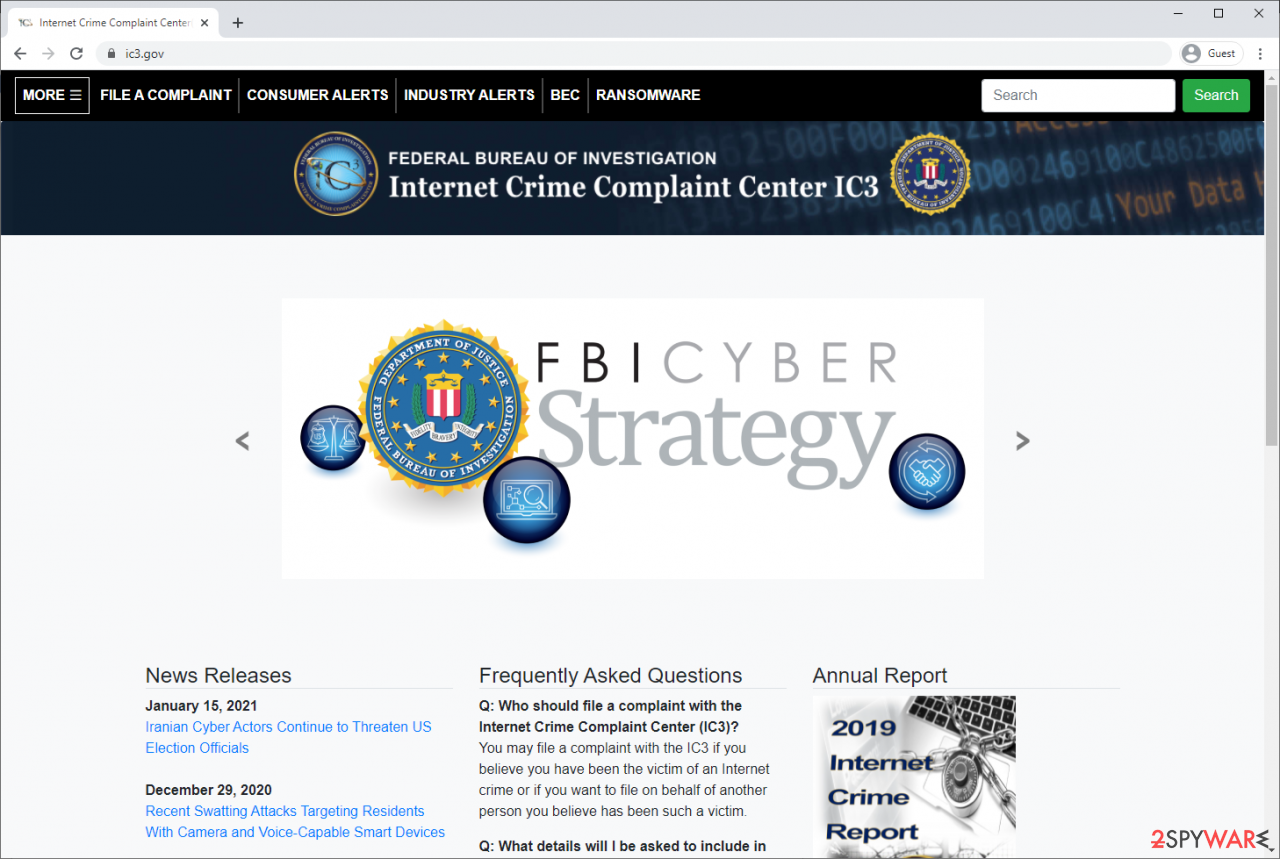
If your country is not listed above, you should contact the local police department or communications center.
Isolate the infected computer
Some ransomware strains aim to infect not only one computer but hijack the entire network. As soon as one of the machines is infected, malware can spread via the network and encrypt files everywhere else, including Network Attached Storage (NAS) devices. NAS devices are commonly compromised via reused administrator credentials and remote access services, and attackers may also delete existing snapshots. If your computer is connected to a network, it is important to isolate it to prevent re-infection after ransomware removal is complete.
In modern environments, ransomware often spreads using stolen credentials, remote management tools, VPN connections, and cloud synchronization services, not only through shared network drives.
The easiest way to disconnect a PC from everything is simply to plug out the ethernet cable. This does not disconnect wireless networks, VPN connections, or cloud services, which must also be disabled separately. However, in the corporate environment, this might be extremely difficult to do (also would take a long time). In many organizations, devices are centrally managed, and network isolation is typically performed by IT or security teams using endpoint security or device management tools. The method below will disconnect from all the networks, including local and the internet, isolating each of the machines involved.
On modern Windows systems, network connections can also be disabled through the Settings app or automatically isolated using endpoint detection and response (EDR) tools.
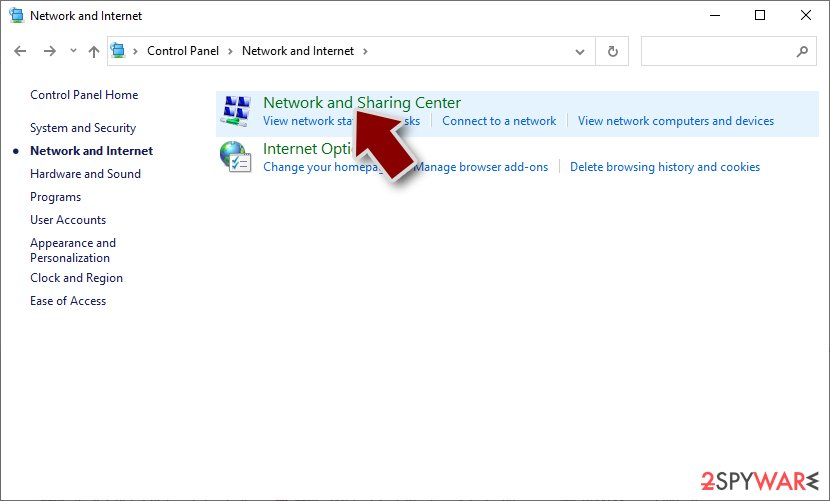
- Type in Control Panel in Windows search and press Enter
- Go to Network and Internet
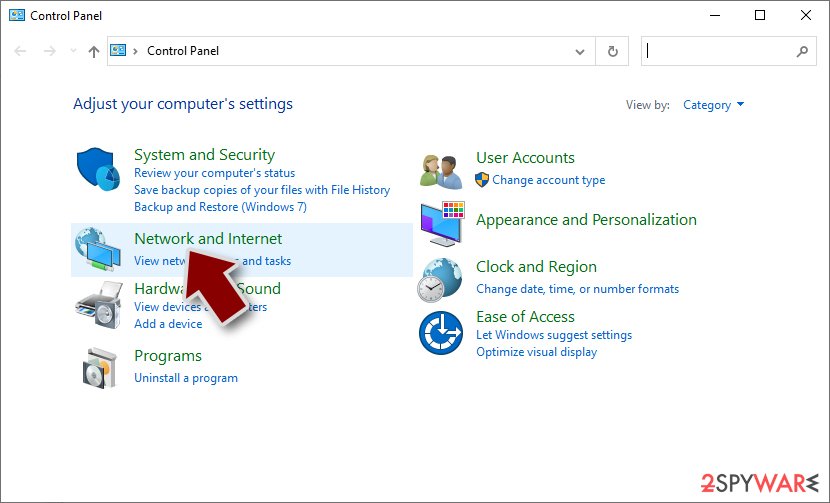
- Click Network and Sharing Center
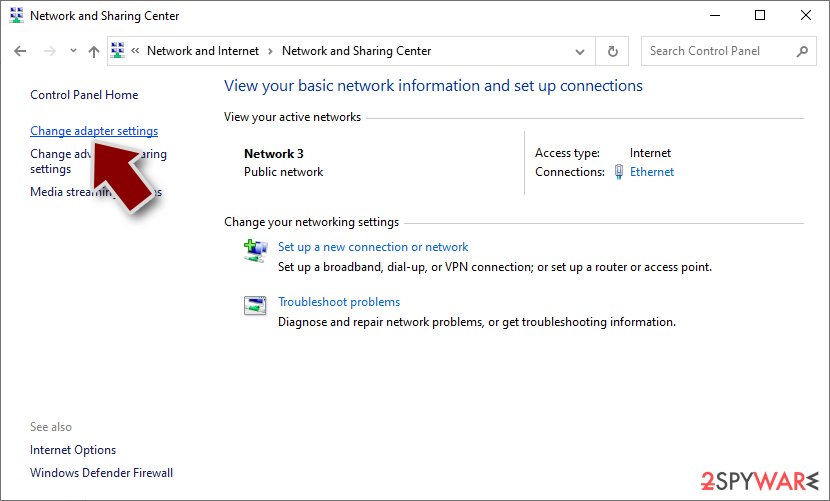
- On the left, pick Change adapter settings
- Right-click on your connection (for example, Ethernet), and select Disable
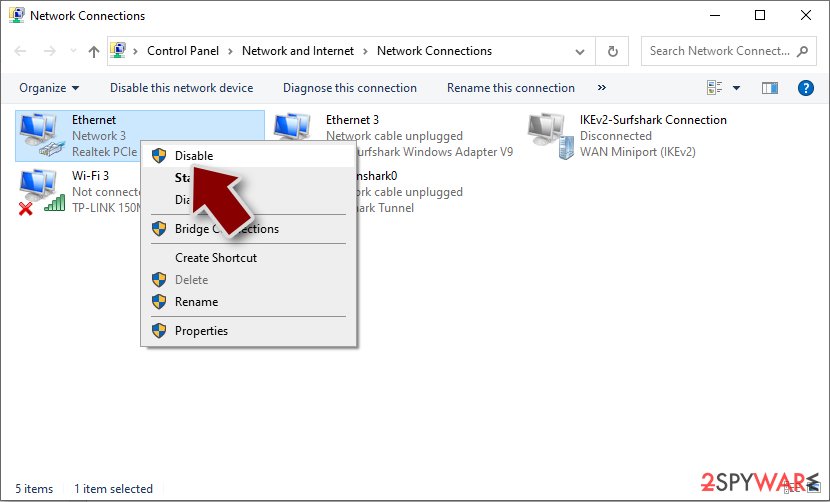
- Confirm with Yes.
If you are using some type of cloud storage you are connected to, you should disconnect from it immediately. It is also advisable to disconnect all the external devices, such as USB flash sticks, external HDDs, etc. Once the malware elimination process is finished, you can connect your computers to the network and internet, as explained above, but by pressing Enable instead. Before reconnecting, credentials should be reset, persistence mechanisms checked, and backups verified to ensure reinfection does not occur.
From our report of Nov 2022 · not reviewed since
Use professional security tools to eliminate ransomware
The critical thing to do is disconnect the affected machine from the local network.
For home users, disconnecting the ethernet cable should do the job. If this happened at your workplace, doing that might be complicated, so we have instructions for corporate environments at the bottom of this post.
If you try to recover your data first, it can result in permanent loss. It can also encrypt your files the second time. It will not stop until you remove the malicious files causing it first. You should not attempt removing the malicious program yourself unless you have experience.
This security software should find all the related files and entries and remove them automatically for you. In some cases, malware is not letting you use antivirus in normal mode, so you need to access Safe Mode and perform a full system scan from there:
Windows 7 / Vista / XP
Windows 10 / Windows 8
- Click Start > Shutdown > Restart > OK.
- When your computer becomes active, start pressing the F8 button (if that does not work, try F2, F12, Del, etc. - it all depends on your motherboard model) multiple times until you see the Advanced Boot Options window.
- Select Safe Mode with Networking from the list.
- Right-click on the Start button and select Settings.
- On the left side of the window, pick Recovery.
- Click Restart now.
- Select Troubleshoot.
- Go to Advanced options.
- Select Startup Settings.
- Click Restart.
- Press 5 or click 5) Enable Safe Mode with Networking.
From our report of Nov 2022 · not reviewed since
Fix system errors
Performance, stability, and usability issues, to the point where a complete Windows reinstall is required, are expected after a malware infection.
These types of infections can alter the Windows registry database, damage vital bootup, and other sections, delete or corrupt DLL files, etc. Once a system file is damaged by malware, antivirus software is not able to repair it.
This is why was developed. It can fix a lot of the damage caused by an infection like this. Blue Screen errors, freezes, registry errors, damaged DLLs, etc., can make your computer completely unusable. By using this maintenance tool, you could avoid Windows reinstallation.
- Download the application by clicking on the link above
- Click on the ReimageRepair.exe
- If User Account Control (UAC) shows up, select Yes
- Press Install and wait till the program finishes the installation process
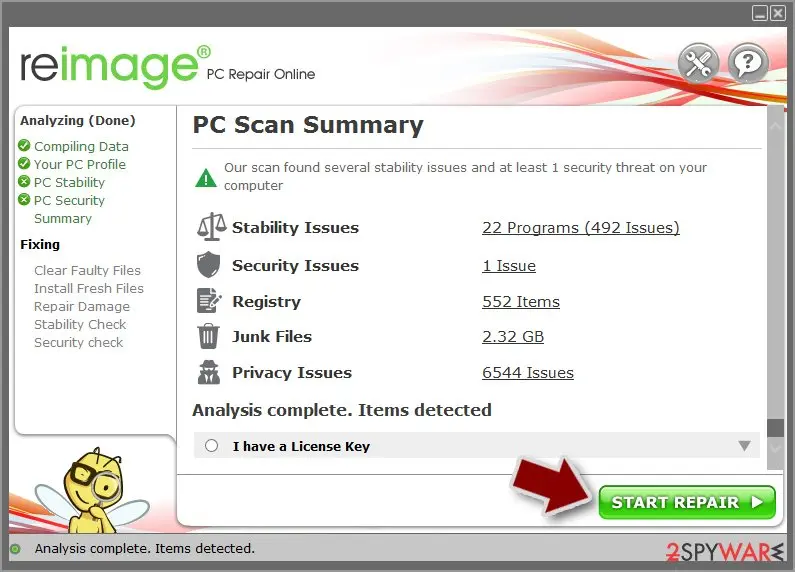
- The analysis of your machine will begin immediately
- Once complete, check the results - they will be listed in the Summary
- You can now click on each of the issues and fix them manually
From our report of Nov 2022 · not reviewed since
File recovery software
Many people think that they can fix their files with anti-malware tools, but that is not what they are designed for.
All the security tools can do is detect suspicious processes in your system and eliminate malicious files. The truth is, that the files can be restored only with a decryption key or software that only cybercriminals have.
If you did not back up your data previously, you possibly lost your files forever. You can try using data recovery software, but third-party programs cannot always decrypt the files. We suggest at least trying this method.
Before proceeding, you have to copy the corrupted files and place them in a USB flash drive or another storage. And remember - only do this if you have already removed the Dom ransomware.
Before you begin, several pointers are essential while dealing with this situation:
Install data recovery software
- Since the encrypted data on your computer might permanently be damaged by security or data recovery software, you should first make backups of it - use a USB flash drive or another storage.
- Only attempt to recover your files using this method after you perform a scan with anti-malware software.
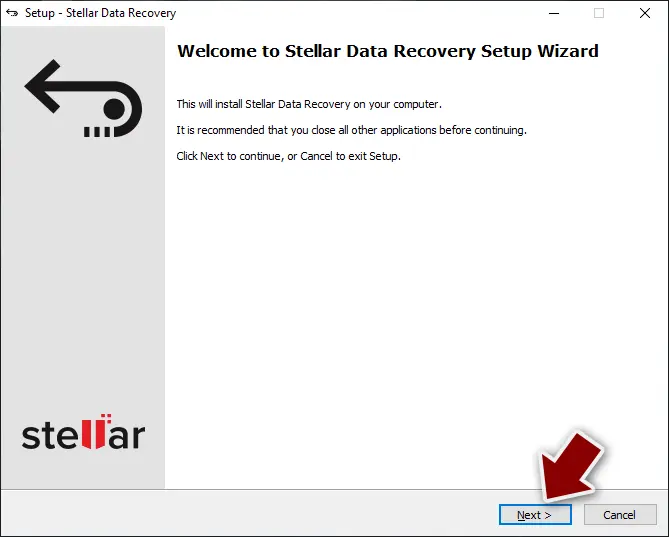
- Download .
- Double-click the installer to launch it.
- Follow on-screen instructions to install the software.
- As soon as you press Finish, you can use the app.
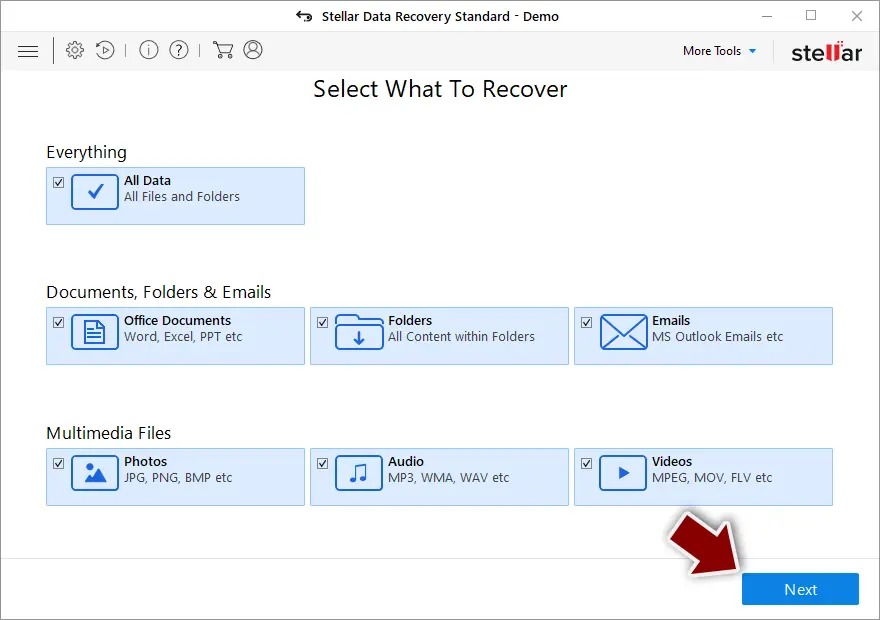
- Select Everything or pick individual folders where you want the files to be recovered from.
- Press Next.
- At the bottom, enable Deep scan and pick which Disks you want to be scanned.
- Press Scan and wait till it is complete.
- You can now pick which folders/files to recover - don't forget you also have the option to search by the file name!
- Press Recover to retrieve your files.
Report it and recover your files
Report it
Report the attack even if you do not expect the files back: insurers and banks ask for the report number, and police use the contacts in the note to link cases.
- United States
- FBI IC3 · FTC ReportFraud
- United Kingdom
- Report Fraud (formerly Action Fraud) · NCSC
- Australia
- ReportCyber (ASD)
- EU countries
- Europol: national reporting sites
Give the victim ID, the note and the date the files were encrypted. A business that holds personal data may also have to notify its data protection authority, in the EU within 72 hours.
Backups: the 3-2-1 rule
Keep three copies of files that matter, on two kinds of storage, with one copy offline or off-site.
A disk that stays plugged in is reached by malware like Dom together with the PC; one you connect only for the backup is not.
On Windows 11, File History keeps versions on an external drive, and OneDrive keeps earlier versions of synced files. Before restoring anything, make sure the PC no longer shows files that end in .dom and no longer open.
Setting it up step by step: 3-2-1 backups on Windows 11 and 10.
Protect your privacy - employ a VPN
There are several ways how to make your online time more private - you can access an incognito tab.
However, there is no secret that even in this mode, you are tracked for advertising purposes. There is a way to add an extra layer of protection and create a completely anonymous web browsing practice with the help of VPN. This software reroutes traffic through different servers, thus leaving your IP address and geolocation in disguise.
Besides, it is based on a strict no-log policy, meaning that no data will be recorded, leaked, and available for both first and third parties. The combination of a secure web browser and VPN will let you browse the Internet without a feeling of being spied or targeted by criminals.
No backups? No problem. Use a data recovery tool
If you wonder how data loss can occur, you should not look any further for answers - human errors, malware attacks, hardware failures, power cuts, natural disasters, or even simple negligence.
In some cases, lost files are extremely important, and many straight out panic when such an unfortunate course of events happen. Due to this, you should always ensure that you prepare proper data backups on a regular basis.
If you were caught by surprise and did not have any backups to restore your files from, not everything is lost. is one of the leading file recovery solutions you can find on the market - it is likely to restore even lost emails or data located on an external device.
Questions about Dom ransomware
How do I open .dom files?
You cannot open them by renaming or by choosing another program. The .dom ending shows that Dom encrypted the content, and only the matching key can reverse it. Renaming a file back to .docx or .jpg changes nothing except the icon, and it can confuse a future decryptor, so leave the names as they are.
To get the content back, use a backup, an unencrypted copy elsewhere, or a decryptor listed on No More Ransom if one exists for Dom. Store the encrypted files on an external disk until then.
Did Dom steal my files or passwords?
We do not know yet. Nothing published so far shows data theft by Dom, but the only confirmed sign is files that end in .dom and no longer open, which says nothing about what happened before. Many current ransomware attacks copy files or run a password stealer first, so it is wise to act as if they did.
From a clean device, change the passwords that were saved in the browsers on this PC, starting with e-mail and banking, sign out of all sessions and turn on two-step verification. Watch bank statements and account activity for the next few weeks.
Is there a free Dom decryptor?
We last checked on 7 October 2026, and for Dom no free decryptor is known. We check No More Ransom, which collects free tools from police and security companies, and the decryptor pages of the major antivirus vendors. A working decryptor exists only when the encryption has a flaw or the keys were leaked or seized.
Ignore sites and videos that offer a "Dom decryptor" for download or for a fee: these are usually scams or malware. Real decryptors are free and come from known security companies or law enforcement. Keep the encrypted files in case a tool appears later.
Should I pay the ransom?
We advise against it, and so do the FBI, Europol and national cyber agencies. Payment does not guarantee a working tool: some attackers never reply, some tools damage files, and some variants have no decryptor at all. Paying also funds further attacks and can make you a target again.
Before considering payment, try every recovery option in this guide and report the attack. Companies must involve their legal adviser and insurer, because payments to sanctioned groups can be illegal. If files are truly irreplaceable, store the encrypted copies and wait; decryptors sometimes appear later.
Can a data-recovery company decrypt my files for a fee?
Only if a decryptor already exists or the company pays the attackers for you. Some "ransomware recovery" services advertise that they can decrypt families with no known flaw; in practice they negotiate with the attackers and add their own fee. Others use the same free tools listed on No More Ransom.
Before you hire anyone, ask in writing how they will recover the files, whether they will contact the attackers and what happens if they fail. A legitimate service answers clearly. If a free decryptor exists for your family, you can run it yourself.
How did Dom get on my computer?
The way Dom spreads has not been documented yet, so look at your own recent activity. On home PCs, ransomware most often comes with cracked programs, game cheats, key generators and fake updates, or with an e-mail attachment that was opened. On business networks, attackers usually log in through Remote Desktop with a stolen or guessed password.
Think back to what was downloaded or installed in the days before files that end in .dom and no longer open, and check the Downloads folder and Installed apps sorted by date. Keep anything suspicious for your report, but do not run it again.
Is Dom the same as other ransomware with a similar name?
Not necessarily. Ransomware names come from the file extension, the note or a word in the code, so unrelated families often end up with similar names, and one family can appear under several names. The difference matters: a decryptor or advice for one family does not fit another and can damage files.
Compare the ending added to your files and the exact name of the note with the summary table at the top of this guide, then upload the note and one encrypted file to ID Ransomware from a clean device. If the result names another family, follow the guide for that family instead.
Can I just remove .dom from the file names?
You can try it on a copy, but for real ransomware it will not help. The .dom extension is only a label; the file content has been scrambled with a key the attackers hold.
If a renamed copy opens normally, the malware only renamed files, which happens with some fake ransomware, and you can rename the rest back. If it does not open, leave the files as they are. Renaming encrypted files can confuse a decryptor later, so always work on copies.
Can I delete the ransom note?
Yes, the note itself is harmless text and deleting it does not affect your files. Keep at least one copy first, outside the infected PC. the ransom note contains your personal ID and the attackers' contact details, which identification services use to tell which family encrypted your files, and which a decryptor may need later.
Police reports also ask for it. Once you have saved a copy, you can remove the notes from every folder after the ransomware program has been removed and your files are restored or backed up.
Will Fortect remove Dom?
Fortect scans Windows for malware and unwanted programs and repairs the system files and settings they change, and its free scan shows what it finds on your PC before you decide anything.
For Dom, follow the plan above as well: the browser steps take back permissions and settings that no scanner treats as a threat, and uninstalling the program that brought it removes the source.
Run Microsoft Defender's full scan and, if anything was found, its offline scan as a second opinion. If the symptoms are gone after the plan and both scans are clean, there is nothing more to do.
Sources
- Makeuseof: 5 Security Reasons Not to Download Cracked Software (read October 7, 2026)
- Wikipedia, the free encyclopedia: Key (cryptography) (read October 7, 2026)
- Howtogeek: Everything You Need To Know About the Blue Screen of Death (read October 7, 2026)
- CISA: StopRansomware (read October 7, 2026)
- No More Ransom (read October 7, 2026)