

What should you know before searching via Drivingtabsearch.com?
Drivingtabsearch.com from the Upside Innovations Inc. may seem like a fun change to your boring search engine, but before downloading it to your PC, you should know that this application is raising concern in the community tech security. The site itself looks vivid and inviting, but as soon as you install its plugin on your computer, you will definitely want to run away. What makes matters even worse is that this suspicious site may find its way to your browser without asking for a direct permission to install. You may be forced to use this site even if it completely fails to live up to your expectations. The truth is, this suspicious search site is a browser hijacker which sneaks into the users’ computers through software bundles and makes itself comfortable on your browser. The predetermined Drivingtabsearch website then starts opening as a homepage, default search engine and loads in a new tab or browser window. Since this virus works unauthorized on your computer from the very beginning, there is no good reason why you should not remove Drivingtabsearch.com from your device. Besides, the elimination can be quickly achieved with a tool such as FortectIntego, so it will take just a few minutes to clean up your PC.
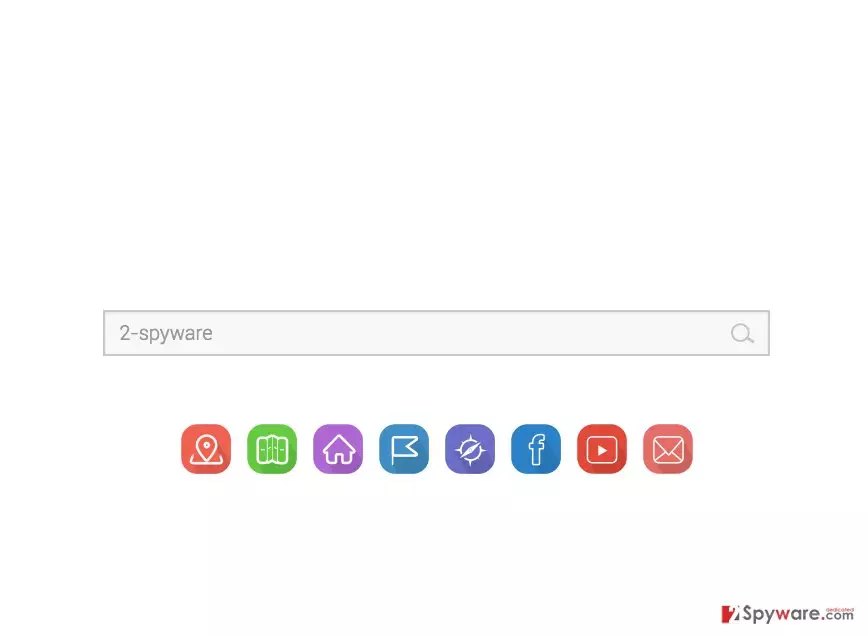
If you think that’s the worst that this virus can do, you are quite wrong. There are more concerning factors of this virus which you should know about. For instance, computer security experts have noticed that this engine is purely ad-based, and the search results it provides are modified to display the sponsored links and simply ignore the legitimate information. This makes the users waste their time digging to find the information they really need. On top of it all, it has also emerged that the links which pop up after hitting the search button often lead to insecure domains. It is not that this hijacker redirect its users to potentially dangerous domains on purpose. Its main purpose is to advertise the product, and that is exactly what it does, not paying much attention to the actual reliability of the promoted content. This only suggests that the consequences of even the most innocent hijack may be severe. That is why it is important to eliminate any software that might increase your computer’s vulnerability ASAP. Drivingtabsearch.com removal recommendations and elimination tutorial are presented at the end of this article.
Where is this suspicious search engine mostly encountered?
Users who get infected with potentially unwanted programs like Drivingtabsearch.com often blame it all on their outdated antivirus software or not powerful enough firewall. The thing is, browser hijackers cannot install on the computer without the user’s interaction. Unfortunately, it is a frequent misconception. For the virus to install and launch on the computer, the PC user has to approve the installation manually. But it does not mean that this should be a conscious decision. Potentially unwanted programs usually install together with other freeware applications, so the users often fail to detect the malicious optional installs. But they can easily be disclosed. There are two different installation modes that you can opt for in the software’s setup. Keep in mind that “Quick” or “Recommended” setting automatically install all the downloaded content. That is why it is more advisable to choose the second, “Advanced” option which allows you to deselect Drivingtabsearch.com or other programs you do not wish to install on your computer manually.
Removal solutions for the Drivingtabsearch.com virus:
In case you have never had troubles with browser hijacker before and doubt whether you should delete the program yourself or look for some automatic Drivingtabsearch.com removal options – do not worry. Both of these options are possible. Of course, you might need a little extra help with the manual virus removal. Luckily, you will find all the information you need in a step-by-step removal tutorial provided below. Carefully follow the instructions and remove Drivingtabsearch.com from your device without leaving a malicious file behind. Needless to say, automatic virus removal is a much easier option. Simply download and a professional anti-malware utility, update it to its latest version and allow it to fix your system.
Uninstall from Windows
Uninstall from Windows 10/8:
- Type Control Panel into the Windows search box and open the result.
- Under Programs, select Uninstall a program.


Uninstall from Windows 7/XP:
- Click on Windows Start > Control Panel (Windows XP users should click on Add/Remove Programs).
- In Control Panel, select Programs > Uninstall a program.


Remove the unwanted program:
- In the Programs and Features window, look for any recently installed suspicious entries, select them, and click Uninstall.
- If User Account Control appears, click Yes to confirm, then complete the removal.


Delete from macOS
Remove the unwanted application:
- From the menu bar, select Go > Applications.
- In the Applications folder, look for any suspicious entries, then drag them to Trash (or right-click and pick Move to Trash).


Delete leftover files and folders:
- Select Go > Go to Folder.
- Enter /Library/Application Support and remove any suspicious folders related to the unwanted program.
- Repeat the same check in the /Library/LaunchAgents and /Library/LaunchDaemons folders, deleting any suspicious entries.

- Finally, empty the Trash to permanently remove the leftovers.

Remove from Microsoft Edge
Delete unwanted extensions from MS Edge:
- Select Menu (three horizontal dots at the top-right of the browser window) and pick Extensions.
- From the list, pick the extension and click on the Gear icon.
- Click Remove.


Clear cookies and other browser data:
- Click on the Menu (three horizontal dots at the top-right of the browser window) and select Settings > Privacy, search, and services..
- Under Clear browsing data, pick Choose what to clear.
- Select Cookies and other site data and Cached images and files. (apart from passwords, although you might want to include Media licenses as well, if applicable) and click on Clear.


Restore new tab and homepage settings:
- Click the menu icon and choose Settings.
- Then find On startup section.
- Click Remove next to any suspicious startup page.
Reset MS Edge if the above steps did not work:
- Press on Ctrl + Shift + Esc to open Task Manager.
- Click on More details arrow at the bottom of the window.
- Select Details tab.
- Now scroll down and locate every entry with Microsoft Edge name in it. Right-click on each of them and select End Task to stop MS Edge from running.


Instructions for Chromium-based Edge
Delete extensions from MS Edge (Chromium):
- Open Edge and click select Settings > Extensions.
- Delete unwanted extensions by clicking Remove.


Clear cache and site data:
- Click on Menu and go to Settings.
- Select Privacy, search and services.
- Under Clear browsing data, pick Choose what to clear.
- Under Time range, pick All time.
- Select Clear now.


Reset Chromium-based MS Edge:
- Click on Menu and select Settings.
- On the left side, pick Reset settings.
- Select Restore settings to their default values.
- Confirm with Reset.
- This will disable extensions and reset startup pages but will not delete bookmarks, saved passwords, or browsing history.


Remove from Mozilla Firefox (FF)
Remove dangerous extensions:
- Open Mozilla Firefox browser and click on the Menu (three horizontal lines at the top-right of the window).
- Select Add-ons.
- In here, select the unwanted extension and click Remove.


Reset the homepage:
- Click three horizontal lines at the top right corner to open the menu.
- Choose Settings.
- Under Home, set your preferred homepage and new tab settings.
Clear cookies and site data:
- Click Menu and pick Settings.
- Go to Privacy & Security section.
- Scroll down to locate Cookies and Site Data.
- Click on Clear Data...
- Select Cookies and Site Data and Temporary cached files and pages, then click Clear.


Reset Mozilla Firefox
If clearing the browser as explained above did not help, reset Mozilla Firefox:
- Open Mozilla Firefox browser and click the Menu.
- Go to Help and then choose Troubleshooting Information.

- Under Give Firefox a tune up section, click on Refresh Firefox...
- Once the pop-up shows up, confirm the action by pressing on Refresh Firefox.



Remove from Google Chrome
Delete malicious extensions from Google Chrome:
- Open Google Chrome, click on the Menu (three vertical dots at the top-right corner) and select More tools > Extensions.
- In the newly opened window, you will see all the installed extensions. Uninstall all suspicious extensions related to the unwanted program by clicking Remove.


Clear cache and web data from Chrome:
- Click on Menu and pick Settings.
- Under Privacy and security, select Clear browsing data.
- Select Browsing history, Cookies and other site data, as well as Cached images and files.
- Click Clear data.


Change your homepage:
- Click menu and choose Settings.
- Look for a suspicious site in the On startup section.
- Click on Open a specific or set of pages and click on three dots to find the Remove option.
Reset Google Chrome:
If the previous methods did not help you, reset Google Chrome to eliminate all the unwanted components:
- Click on Menu and select Settings.
- In the Settings, scroll down and click Advanced.
- Scroll down and locate Reset and clean up section.
- Now click Restore settings to their original defaults.
- Confirm with Reset settings.


Delete from Safari
Remove dangerous extensions:
- Open Safari, click Safari in the menu at the top-left of the screen, and select Preferences.
- Go to the Extensions tab, look for any suspicious entries, and click Uninstall to remove them.


Clear history and website data:
- Click Safari in the menu and pick Clear History.
- Set Clear to all history and confirm with Clear History.


Reset Safari:
- Click Safari in the menu and select Preferences > Advanced.
- Enable Show Develop menu in menu bar.
- From the menu bar, click Develop and select Empty Caches.


Did this guide help?
2 comments
Barry Stinson
This clean and tidy look wont deceive me! You can tell its a virus from the very first search
thomas1221
Thanks! I did not think Id remove the virus so quick myself!