

Can I keep ForYourWeb.net on my computer?
ForYourWeb.net is a doubtful search provider that can easily take over a web browser. It is compatible with Google Chrome, Mozilla Firefox, Internet Explorer, and Safari browsers. Therefore, each of them can easily get affected. Our security experts revealed that the PUP primarily targets the users living in the US, UK, Canada, France, and Italy. However, it doesn’t mean that if you live in New Zealand or Singapore, this hijacker will escape you. For the sake of cautiousness, get acquainted with ForYourWeb.net removal methods. One of them is to install FortectIntego.
After this browser hijacker settles on the computer, it activates ForYourWeb.net redirect right away. It starts misleading you to some unknown websites crammed with diverse banners and pop-ups instead of the desired destination. Note that you should not treat these websites lightly, since they might harbor annoying malware. If it gets into the system, it might hinder daily PC processes, or in the worst case scenario, wreck the entire system. Since developers of this site collaborate closely with third parties, don’t expect that it will provide you with reliable search results. ForYourWeb.net virus forwards advertising domains to the initial positions instead of informational and legitimate web pages.
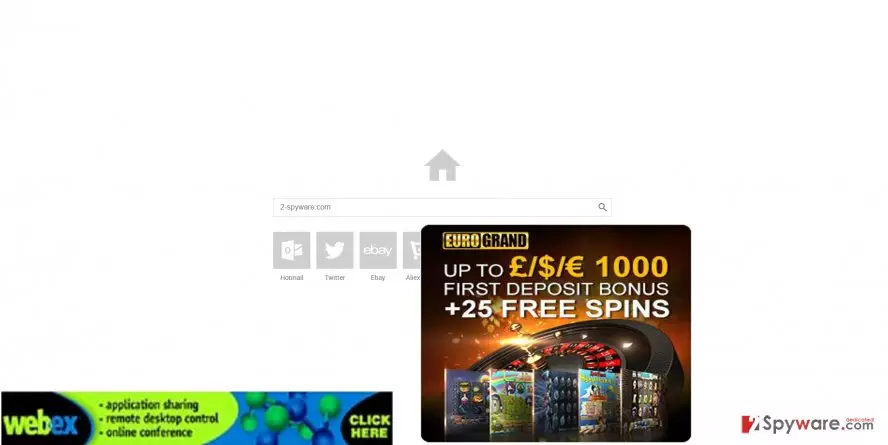
In addition, this PUP may violate your privacy because it tends to collect your non-personal information and might transfer it to its collaborates – advertising companies. They value such information because it enables them to generate relevant pay-per-click advertisements. After such analysis is conducted, you may start seeing more ads which match your own preferences. Thus, credulous users may click on them only to get bombarded with more persistent commercial offers. Lastly, you never know whether the data doesn’t fall into the hands of cyber criminals. Thus, the sooner you remove ForYourWeb.net the better.
How can ForYourWeb.net browser hijacker infiltrate my PC?
It’s important to highlight the fact that For Your Web virus is usually found bundled with other free programs. Consequently, you may get it installed with a download manager or media player and then get bewildered after finding the hijacker as your homepage, search engine, and a new tab window. Usually, the PUP disguises itself under “Basic” settings. When you recklessly finish the installation process, you are not aware that ForYourWeb.net hijack took place. While this method of spreading PUPs is legitimate, it is quite deceptive. With the help of this technique, scammers aim to infect as many devices as possible. Thus, you need to stay vigilant while installing any new program. If you are interested in preventing any PUP from taking control over the computer, take note of these tips. Select “Advanced” settings and, then, carefully watch out for any unnecessary applications.
How to remove ForYourWeb.net virus?
If you want to maintain secure browsing environment and fast-running PC, you should think about ForYourWeb.net removal. In fact, you should take care of it without wasting your time to prevent redirects to questionable websites and tracking. In order to do that, you can employ either an anti-spyware program, which is highly recommended, or use the manual elimination guidelines. Make sure you go through every step and do not miss any details. It is of utmost importance to remove ForYourWeb.net entirely. Thus, it is necessary to track down and eliminate all primary and secondary files. That is why we suggest using digital tool which detects such sort of malware easily and within a shorter period of time. You should keep both, malware removal tool and anti-virus program, updated to ensure the best protection of the system and proper PC functioning.
Uninstall from Windows
Uninstall from Windows 10/8:
- Type Control Panel into the Windows search box and open the result.
- Under Programs, select Uninstall a program.


Uninstall from Windows 7/XP:
- Click on Windows Start > Control Panel (Windows XP users should click on Add/Remove Programs).
- In Control Panel, select Programs > Uninstall a program.


Remove the unwanted program:
- In the Programs and Features window, look for any recently installed suspicious entries, select them, and click Uninstall.
- If User Account Control appears, click Yes to confirm, then complete the removal.


Delete from macOS
Remove the unwanted application:
- From the menu bar, select Go > Applications.
- In the Applications folder, look for any suspicious entries, then drag them to Trash (or right-click and pick Move to Trash).


Delete leftover files and folders:
- Select Go > Go to Folder.
- Enter /Library/Application Support and remove any suspicious folders related to the unwanted program.
- Repeat the same check in the /Library/LaunchAgents and /Library/LaunchDaemons folders, deleting any suspicious entries.

- Finally, empty the Trash to permanently remove the leftovers.

Reset Internet Explorer
Remove dangerous add-ons:
- Open Internet Explorer, click on the Gear icon (IE menu) on the top-right corner of the browser
- Pick Manage Add-ons.
- You will see a Manage Add-ons window. Here, look for suspicious plugins. Click on these entries and select Disable.


Change your homepage if it was altered:
- Open IE and click on the Gear icon.
- Select Internet Options.
- In the General tab, delete the Home page address and replace it by your preferred one (for example, Google.com).
- Click Apply and then select OK.


Delete temporary files:
- Press on the Gear icon and select Internet Options.
- Under Browsing history, click Delete...
- Select relevant fields and press Delete.


Reset Internet Explorer:
- Click on Gear icon > Internet options and select Advanced tab.
- Select Reset.
- In the new window, check Delete personal settings and select Reset.


Remove from Mozilla Firefox (FF)
Remove dangerous extensions:
- Open Mozilla Firefox browser and click on the Menu (three horizontal lines at the top-right of the window).
- Select Add-ons.
- In here, select the unwanted extension and click Remove.


Reset the homepage:
- Click three horizontal lines at the top right corner to open the menu.
- Choose Settings.
- Under Home, set your preferred homepage and new tab settings.
Clear cookies and site data:
- Click Menu and pick Settings.
- Go to Privacy & Security section.
- Scroll down to locate Cookies and Site Data.
- Click on Clear Data...
- Select Cookies and Site Data and Temporary cached files and pages, then click Clear.


Reset Mozilla Firefox
If clearing the browser as explained above did not help, reset Mozilla Firefox:
- Open Mozilla Firefox browser and click the Menu.
- Go to Help and then choose Troubleshooting Information.

- Under Give Firefox a tune up section, click on Refresh Firefox...
- Once the pop-up shows up, confirm the action by pressing on Refresh Firefox.



Remove from Google Chrome
Delete malicious extensions from Google Chrome:
- Open Google Chrome, click on the Menu (three vertical dots at the top-right corner) and select More tools > Extensions.
- In the newly opened window, you will see all the installed extensions. Uninstall all suspicious extensions related to the unwanted program by clicking Remove.


Clear cache and web data from Chrome:
- Click on Menu and pick Settings.
- Under Privacy and security, select Clear browsing data.
- Select Browsing history, Cookies and other site data, as well as Cached images and files.
- Click Clear data.


Change your homepage:
- Click menu and choose Settings.
- Look for a suspicious site in the On startup section.
- Click on Open a specific or set of pages and click on three dots to find the Remove option.
Reset Google Chrome:
If the previous methods did not help you, reset Google Chrome to eliminate all the unwanted components:
- Click on Menu and select Settings.
- In the Settings, scroll down and click Advanced.
- Scroll down and locate Reset and clean up section.
- Now click Restore settings to their original defaults.
- Confirm with Reset settings.


Delete from Safari
Remove dangerous extensions:
- Open Safari, click Safari in the menu at the top-left of the screen, and select Preferences.
- Go to the Extensions tab, look for any suspicious entries, and click Uninstall to remove them.


Clear history and website data:
- Click Safari in the menu and pick Clear History.
- Set Clear to all history and confirm with Clear History.


Reset Safari:
- Click Safari in the menu and select Preferences > Advanced.
- Enable Show Develop menu in menu bar.
- From the menu bar, click Develop and select Empty Caches.


Did this guide help?
3 comments
Polly
At least the title is not so random...
Amanda
I had this pest a while ago. I though the pop-ups would never stop!
Silver28
Just got rid of it - thanks to this website. I had no idea how to remove this browser hijacker.