

What should you know before using Gameo?
If you love to spend your free time playing online games, Gameo might have caught your eye. However, cyber security specialists do not recommend installing this application. This potentially unwanted program (PUP)[1] not only allows exploring adventurous games but also lets to discover tons of annoying advertisements. In most of the cases, people report about continuous pop-up ads saying “Join the fun now!”, “Win now!” and similar phrases. Just like with other ads, you should be careful with Gameo ads because they may be misleading and dangerous.[2] Typically, such pop-up messages are used for affiliate marketing,[3] promoting related parties and similar activities. However, some part of these ads may include “Free Download” button, which may lead you to the installation of other third-party programs. Bear in mind that promoted software might be malicious and cause damage to your computer. Thus, if you have just noticed “Join the fun now” and other annoying pop-up ads during your browsing, it means that you should check your PC for the potentially unwanted programs. Scan the system with FortectIntego and let it remove Gameo and other unknown applications.
Gameo app has another negative feature. It uses a questionable distribution method. The app spreads bundled with other free programs that users can download from the Internet. Thus, users might install it accidentally. Seeing this program and advertisements often make people believe that this program is a virus.[4] Though, the term Gameo virus is not a suitable name for it. This app might be only classified as a potentially unwanted program. Note that neither this website nor games and other programs that are related to this application are malicious and considered viruses. Nevertheless, you may find out that they are causing annoying activities during your browsing. After hijacking your computer, they may cause slow downs, redirects and other issues. Although it is not a malicious program that poses harm to computers, you should still perform Gameo removal. There’s no need to keep the annoying and useless application on your PC.

When might the hijack occur?
Gameo is a legitimate application that can be downloaded from various sites.[5] As we already mentioned, this game-related extension may also appear on your PC without downloading it because it is also promoted via other free games. This distribution method is called bundling. If you are installing a free game, you should check it and make sure that it is not filled with Gameo or other an extra attachment. For that, we recommend selecting Custom or Advanced installation option. If you would keep clicking “Next” button, you could overlook and install this program on it without even realizing that. After that, you may notice that you can’t avoid commercial pop-up ads and similar notifications because this program is compatible with each of web browsers. If you think that this app is already inside your PC system, don’t worry. You should just follow a guide below that explains the entire Gameo removal process.
How to eliminate so-called Gameo virus?
Gameo removal is not complicated. This and similar ad-supported programs are not labeled as malicious programs. However, if this app resides on your computer for a while, might have noticed and increased amount of online ads or even redirects to questionable websites. Indeed, these activities are annoying. However, one or another Gameo redirect may trick you into visiting suspicious websites that may try to pose harm to your computer. For this reason, you should not keep this program on the computer. Thus, you need to remove it. You can do that by uninstalling this tool manually from the Control Panel and uninstalling suspicious extensions from the web browsers. Don’t forget to check all browsers that are installed on your PC. However, in our opinion, you should remove Gameo with a help of professional anti-malware tools. System scan helps to eliminate not only this tool but other PUPs or suspicious components from the computer as well.
Uninstall from Windows
Uninstall from Windows 10/8:
- Type Control Panel into the Windows search box and open the result.
- Under Programs, select Uninstall a program.


Uninstall from Windows 7/XP:
- Click on Windows Start > Control Panel (Windows XP users should click on Add/Remove Programs).
- In Control Panel, select Programs > Uninstall a program.


Remove the unwanted program:
- In the Programs and Features window, look for any recently installed suspicious entries, select them, and click Uninstall.
- If User Account Control appears, click Yes to confirm, then complete the removal.


Delete from macOS
Remove the unwanted application:
- From the menu bar, select Go > Applications.
- In the Applications folder, look for any suspicious entries, then drag them to Trash (or right-click and pick Move to Trash).


Delete leftover files and folders:
- Select Go > Go to Folder.
- Enter /Library/Application Support and remove any suspicious folders related to the unwanted program.
- Repeat the same check in the /Library/LaunchAgents and /Library/LaunchDaemons folders, deleting any suspicious entries.

- Finally, empty the Trash to permanently remove the leftovers.

Reset Internet Explorer
Remove dangerous add-ons:
- Open Internet Explorer, click on the Gear icon (IE menu) on the top-right corner of the browser
- Pick Manage Add-ons.
- You will see a Manage Add-ons window. Here, look for suspicious plugins. Click on these entries and select Disable.
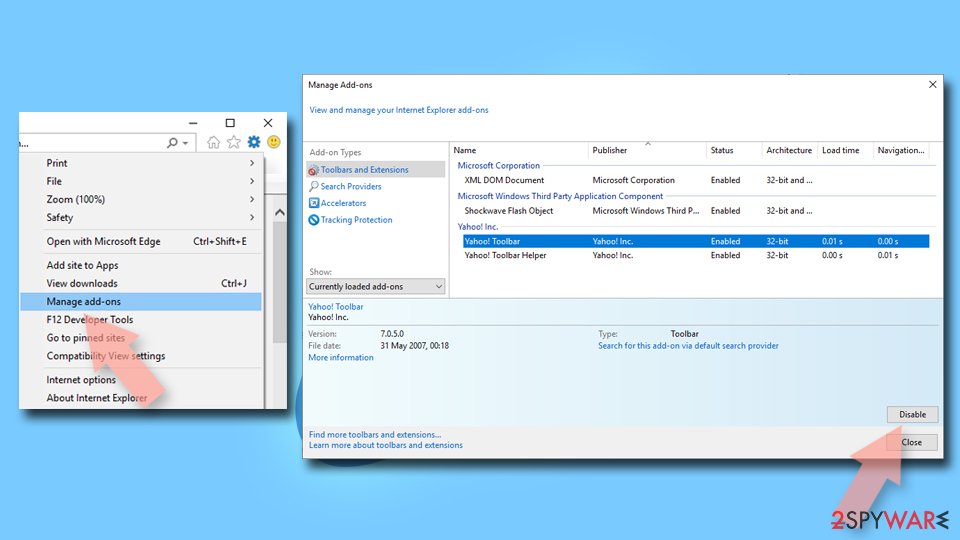

Change your homepage if it was altered:
- Open IE and click on the Gear icon.
- Select Internet Options.
- In the General tab, delete the Home page address and replace it by your preferred one (for example, Google.com).
- Click Apply and then select OK.
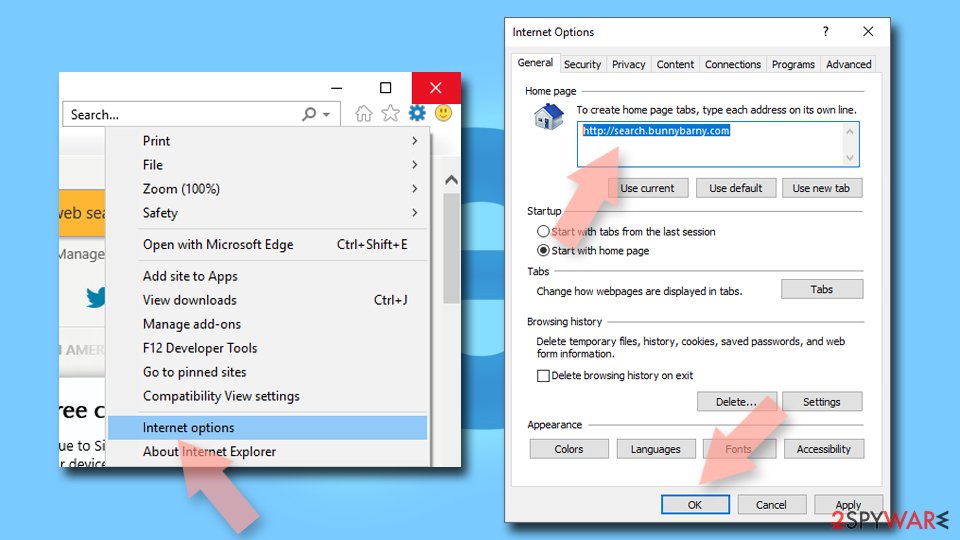

Delete temporary files:
- Press on the Gear icon and select Internet Options.
- Under Browsing history, click Delete...
- Select relevant fields and press Delete.
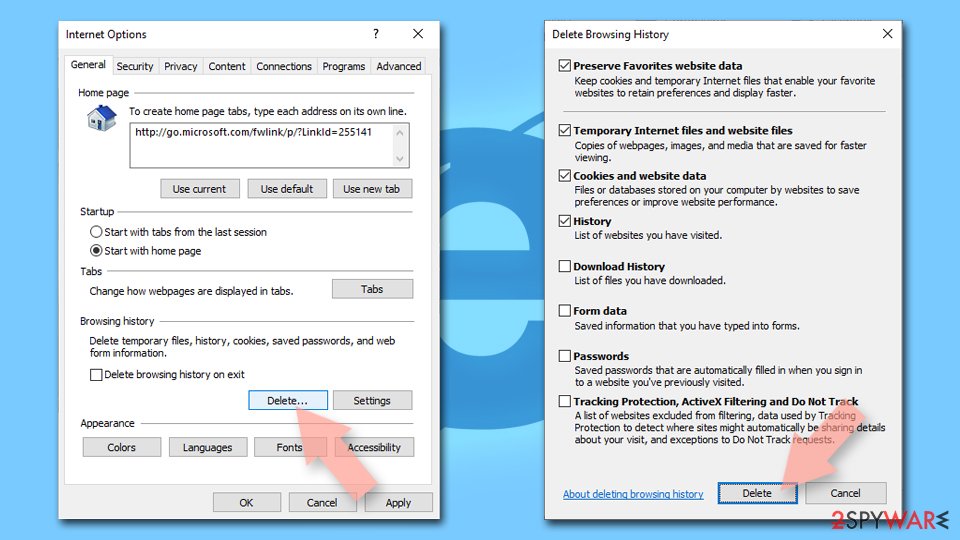

Reset Internet Explorer:
- Click on Gear icon > Internet options and select Advanced tab.
- Select Reset.
- In the new window, check Delete personal settings and select Reset.
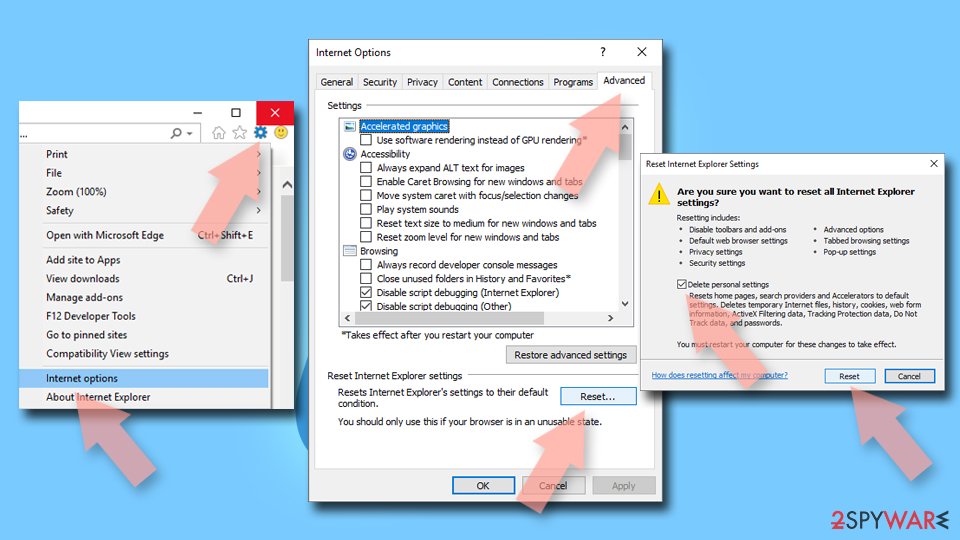

Remove from Microsoft Edge
Delete unwanted extensions from MS Edge:
- Select Menu (three horizontal dots at the top-right of the browser window) and pick Extensions.
- From the list, pick the extension and click on the Gear icon.
- Click Remove.


Clear cookies and other browser data:
- Click on the Menu (three horizontal dots at the top-right of the browser window) and select Settings > Privacy, search, and services..
- Under Clear browsing data, pick Choose what to clear.
- Select Cookies and other site data and Cached images and files. (apart from passwords, although you might want to include Media licenses as well, if applicable) and click on Clear.


Restore new tab and homepage settings:
- Click the menu icon and choose Settings.
- Then find On startup section.
- Click Remove next to any suspicious startup page.
Reset MS Edge if the above steps did not work:
- Press on Ctrl + Shift + Esc to open Task Manager.
- Click on More details arrow at the bottom of the window.
- Select Details tab.
- Now scroll down and locate every entry with Microsoft Edge name in it. Right-click on each of them and select End Task to stop MS Edge from running.


Instructions for Chromium-based Edge
Delete extensions from MS Edge (Chromium):
- Open Edge and click select Settings > Extensions.
- Delete unwanted extensions by clicking Remove.


Clear cache and site data:
- Click on Menu and go to Settings.
- Select Privacy, search and services.
- Under Clear browsing data, pick Choose what to clear.
- Under Time range, pick All time.
- Select Clear now.


Reset Chromium-based MS Edge:
- Click on Menu and select Settings.
- On the left side, pick Reset settings.
- Select Restore settings to their default values.
- Confirm with Reset.
- This will disable extensions and reset startup pages but will not delete bookmarks, saved passwords, or browsing history.


Remove from Mozilla Firefox (FF)
Remove dangerous extensions:
- Open Mozilla Firefox browser and click on the Menu (three horizontal lines at the top-right of the window).
- Select Add-ons.
- In here, select the unwanted extension and click Remove.


Reset the homepage:
- Click three horizontal lines at the top right corner to open the menu.
- Choose Settings.
- Under Home, set your preferred homepage and new tab settings.
Clear cookies and site data:
- Click Menu and pick Settings.
- Go to Privacy & Security section.
- Scroll down to locate Cookies and Site Data.
- Click on Clear Data...
- Select Cookies and Site Data and Temporary cached files and pages, then click Clear.


Reset Mozilla Firefox
If clearing the browser as explained above did not help, reset Mozilla Firefox:
- Open Mozilla Firefox browser and click the Menu.
- Go to Help and then choose Troubleshooting Information.

- Under Give Firefox a tune up section, click on Refresh Firefox...
- Once the pop-up shows up, confirm the action by pressing on Refresh Firefox.



Remove from Google Chrome
Delete malicious extensions from Google Chrome:
- Open Google Chrome, click on the Menu (three vertical dots at the top-right corner) and select More tools > Extensions.
- In the newly opened window, you will see all the installed extensions. Uninstall all suspicious extensions related to the unwanted program by clicking Remove.


Clear cache and web data from Chrome:
- Click on Menu and pick Settings.
- Under Privacy and security, select Clear browsing data.
- Select Browsing history, Cookies and other site data, as well as Cached images and files.
- Click Clear data.


Change your homepage:
- Click menu and choose Settings.
- Look for a suspicious site in the On startup section.
- Click on Open a specific or set of pages and click on three dots to find the Remove option.
Reset Google Chrome:
If the previous methods did not help you, reset Google Chrome to eliminate all the unwanted components:
- Click on Menu and select Settings.
- In the Settings, scroll down and click Advanced.
- Scroll down and locate Reset and clean up section.
- Now click Restore settings to their original defaults.
- Confirm with Reset settings.


Delete from Safari
Remove dangerous extensions:
- Open Safari, click Safari in the menu at the top-left of the screen, and select Preferences.
- Go to the Extensions tab, look for any suspicious entries, and click Uninstall to remove them.


Clear history and website data:
- Click Safari in the menu and pick Clear History.
- Set Clear to all history and confirm with Clear History.


Reset Safari:
- Click Safari in the menu and select Preferences > Advanced.
- Enable Show Develop menu in menu bar.
- From the menu bar, click Develop and select Empty Caches.


Did this guide help?
4 comments
jake
How did this get installed on Windows 8.1 with a non administrator account?
I thought you needed admin rights to install.
gabby
this helped out so much! but i do want to know, what are all the viruses that come with gameo? i installed it by mistake and it gave me 2 or 3 other viruses. one of them was a shield with a lightning bolt pretending to be a cleaner for my computer and one was a game installer or something... and i cant quite remember the others. does anyone know the names so i can delete those too?
Michael
THANK YOU SO MUCH i had the gameo virus and apparently A TON other threats to my computer but i downloaded spyHunter and it worked thank you so much
Lookas
I uninstalled le program but after doing so every once in a while a message would pop up saying it could not run a certain file. I forget the name but it had gameo at the beginning and it was located inside the roaming. After going into roaming and searching gameo, it turns out there were still multiple gameo related stuff in there. I deleted all of them and now it seems i got rid of it for good.( i run regular scans on my computer with malwarebytes and bitdefender and it never picked it up.)