

Is it worth installing Get Maps Fast by SaferBrowser?
Software, which informs you of traffic jams and suggests a faster route to reach your destination, is an invaluable tool for a modern driver. However, if you think that Get Maps Fast by SaferBrowser virus is the right program, you are mistaken. This application is classified as adware. Thus, even if it succeeds delivering the promoted qualities, it will also stuff your browser with sponsored commercial offers and banners. In addition, the PUP triggers Get Maps Fast by SaferBrowser redirect problem which might be highly annoying at times. This program should not reside on your PC. Thus, make a rush to remove Get Maps Fast by SaferBrowser virus.
This adware-type program is a property of the company which is infamous for creating numerous browser hijackers. They are all known under one title – Safer Browser. Thus, this program is also powered by this PUP. In fact, it is directly linked to search.searchgmf.com. It provides access to the domains delivering maps. In the top right corner, you may spot the sign of Get Maps Fast. Thus, it is likely, that once you install this program, the affiliated browser hijacker will “unexpectedly” replace your former search provider.
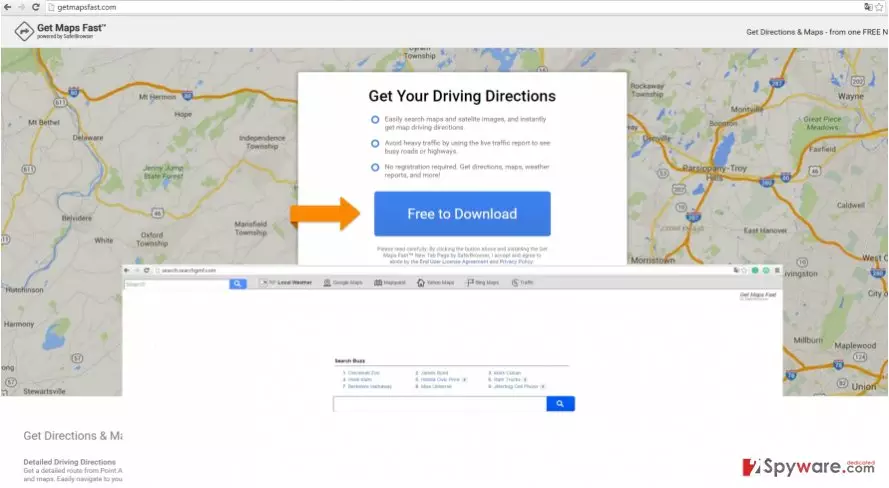
Furthermore, the longer you use this application, the more Get Maps Fast by Safer Browser ads will appear on the browser. They have hideous tendency to cover the online screen and slow down the overall browsing. Even if the program suggests you the shortest route to the destination, your browser will become sluggish. The ads and commercial offers might also direct you to the domains with potentially malicious content. Thus, it is likely, that your computer might be infected with one or two viruses. If your computer is linked to the system of your car, the consequences of such infection might be highly severe. The least of them is malfunctioning conditioner. Therefore, start Get Maps Fast by Safer Browser removal right away. FortectIntego will help you to quicken the process.
How did the adware get into my operating system?
Since it is linked with the mentioned browser hijacker, it is possible that if the latter PUP infected your operating system, it created a loophole for Get Maps Fast by Safer Browser hijack. Alternatively, you might have accidentally installed it along with the sponsored application or a free media player. Since you did not pay much attention to the installation wizard nor to the “Terms of Use”, the adware successfully invaded your computer. The next time you are going to install a new application select “Custom” settings. Afterward, watch for any suspicious pre-marked attachments. If you find any and consider the unnecessary, untick them carefully.
Get Maps Fast by Safer Browser removal guidelines
Luckily, removing the adware should not become a challenge. Any adware can be eliminated in two ways – automatically and manually. If you prefer doing the things in your own way, use the manual instructions. Remember that precision and attention are required if you want to remove Get Maps Fast by Safer Browser permanently. However, manual elimination always leaves a higher probability that a tiny detail might be overlooked. In that case, the adware might attempt to infect your computer again. That is why we suggest an easier and more trustworthy solution – automatic elimination of Get Maps Fast by SaferBrowser virus. The anti-spyware program will delete the adware within a few minutes.
Uninstall from Windows
Uninstall from Windows 10/8:
- Type Control Panel into the Windows search box and open the result.
- Under Programs, select Uninstall a program.


Uninstall from Windows 7/XP:
- Click on Windows Start > Control Panel (Windows XP users should click on Add/Remove Programs).
- In Control Panel, select Programs > Uninstall a program.


Remove the unwanted program:
- In the Programs and Features window, look for any recently installed suspicious entries, select them, and click Uninstall.
- If User Account Control appears, click Yes to confirm, then complete the removal.


Delete from macOS
Remove the unwanted application:
- From the menu bar, select Go > Applications.
- In the Applications folder, look for any suspicious entries, then drag them to Trash (or right-click and pick Move to Trash).


Delete leftover files and folders:
- Select Go > Go to Folder.
- Enter /Library/Application Support and remove any suspicious folders related to the unwanted program.
- Repeat the same check in the /Library/LaunchAgents and /Library/LaunchDaemons folders, deleting any suspicious entries.

- Finally, empty the Trash to permanently remove the leftovers.

Remove from Microsoft Edge
Delete unwanted extensions from MS Edge:
- Select Menu (three horizontal dots at the top-right of the browser window) and pick Extensions.
- From the list, pick the extension and click on the Gear icon.
- Click Remove.


Clear cookies and other browser data:
- Click on the Menu (three horizontal dots at the top-right of the browser window) and select Settings > Privacy, search, and services..
- Under Clear browsing data, pick Choose what to clear.
- Select Cookies and other site data and Cached images and files. (apart from passwords, although you might want to include Media licenses as well, if applicable) and click on Clear.


Restore new tab and homepage settings:
- Click the menu icon and choose Settings.
- Then find On startup section.
- Click Remove next to any suspicious startup page.
Reset MS Edge if the above steps did not work:
- Press on Ctrl + Shift + Esc to open Task Manager.
- Click on More details arrow at the bottom of the window.
- Select Details tab.
- Now scroll down and locate every entry with Microsoft Edge name in it. Right-click on each of them and select End Task to stop MS Edge from running.


Instructions for Chromium-based Edge
Delete extensions from MS Edge (Chromium):
- Open Edge and click select Settings > Extensions.
- Delete unwanted extensions by clicking Remove.


Clear cache and site data:
- Click on Menu and go to Settings.
- Select Privacy, search and services.
- Under Clear browsing data, pick Choose what to clear.
- Under Time range, pick All time.
- Select Clear now.


Reset Chromium-based MS Edge:
- Click on Menu and select Settings.
- On the left side, pick Reset settings.
- Select Restore settings to their default values.
- Confirm with Reset.
- This will disable extensions and reset startup pages but will not delete bookmarks, saved passwords, or browsing history.


Remove from Mozilla Firefox (FF)
Remove dangerous extensions:
- Open Mozilla Firefox browser and click on the Menu (three horizontal lines at the top-right of the window).
- Select Add-ons.
- In here, select the unwanted extension and click Remove.


Reset the homepage:
- Click three horizontal lines at the top right corner to open the menu.
- Choose Settings.
- Under Home, set your preferred homepage and new tab settings.
Clear cookies and site data:
- Click Menu and pick Settings.
- Go to Privacy & Security section.
- Scroll down to locate Cookies and Site Data.
- Click on Clear Data...
- Select Cookies and Site Data and Temporary cached files and pages, then click Clear.


Reset Mozilla Firefox
If clearing the browser as explained above did not help, reset Mozilla Firefox:
- Open Mozilla Firefox browser and click the Menu.
- Go to Help and then choose Troubleshooting Information.

- Under Give Firefox a tune up section, click on Refresh Firefox...
- Once the pop-up shows up, confirm the action by pressing on Refresh Firefox.



Remove from Google Chrome
Delete malicious extensions from Google Chrome:
- Open Google Chrome, click on the Menu (three vertical dots at the top-right corner) and select More tools > Extensions.
- In the newly opened window, you will see all the installed extensions. Uninstall all suspicious extensions related to the unwanted program by clicking Remove.


Clear cache and web data from Chrome:
- Click on Menu and pick Settings.
- Under Privacy and security, select Clear browsing data.
- Select Browsing history, Cookies and other site data, as well as Cached images and files.
- Click Clear data.


Change your homepage:
- Click menu and choose Settings.
- Look for a suspicious site in the On startup section.
- Click on Open a specific or set of pages and click on three dots to find the Remove option.
Reset Google Chrome:
If the previous methods did not help you, reset Google Chrome to eliminate all the unwanted components:
- Click on Menu and select Settings.
- In the Settings, scroll down and click Advanced.
- Scroll down and locate Reset and clean up section.
- Now click Restore settings to their original defaults.
- Confirm with Reset settings.


Delete from Safari
Remove dangerous extensions:
- Open Safari, click Safari in the menu at the top-left of the screen, and select Preferences.
- Go to the Extensions tab, look for any suspicious entries, and click Uninstall to remove them.


Clear history and website data:
- Click Safari in the menu and pick Clear History.
- Set Clear to all history and confirm with Clear History.


Reset Safari:
- Click Safari in the menu and select Preferences > Advanced.
- Enable Show Develop menu in menu bar.
- From the menu bar, click Develop and select Empty Caches.


Did this guide help?
2 comments
Kyle
This program would have been quite useful if it wasnt created by Safer Browser Ltd.
Joel12
After I downloaded the app, my search engine got replaced!