

GoPlay Search tempts users with links to gaming sites
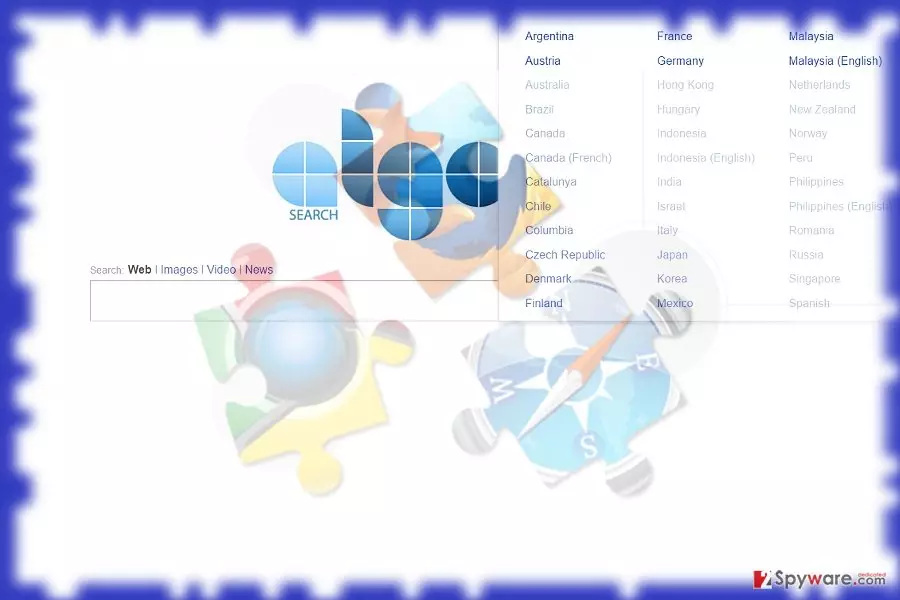
GoPlay Search virus operates as a search tool which is classified as a potentially unwanted applications category (PUP)[1]. It aims to attract users attention by delivering a search engine combined with quick-access links to gaming sites.
However, as many other applications, which have been criticizing for poor security and protection from virtual threats, this search tool sparks such assumptions as well.
Furthermore, if you add this extension, your default search engine is replaced into games.eanswers.com/?q=®ion=lt&lang=en&cid=. You might be redirected to games.eanswers.com as well.
Such behavior is common for dubious tools rather than professional search engines. It has been observed that the extension is affiliated to Search Algo branch of browser hijackers.
Thus, what we recommend is make a rush to remove GoPlay Search rather than keep it.
For that purpose, FortectIntego or MalwarebytesMalwarebytes might come in handy. If you are interested why this tool is classified as a hijacker, take a look at the following paragraphs.
Entertainment with troublesome side-effects
Observing the overall category of hijackers, this PUP does not stand out. They are multiple similar browser add-ons and search tools which offer links to popular mains including to gaming sites.
The reason behind such phenomenon is simple: the developers aim to boost the traffic of their site by attracting users’ attention with common tricks. It works mainly with junior netizens.
However, links to entertainment site may be only one pro in contrast to multiple cons. Gaming sites often happen to be a haven for malware or less elaborate shady content.[2] Frequently, visiting frequently such domains may have long-term effects on your browser.
GoPlay Search includes third-party links. Since their support is crucial for the existence of the add-on, users may soon get frustrated by excessive advertising. While adware was not originally malicious, now users may face a dilemma how to distinguish between ordinary advertising and malvertising.
Furthermore, the privacy policy of this search tool is no less questionable that the very search tool. If you take a glance at it, you will easily find the inconsistencies: in the first sections, the developers disclaim of collecting or sharing non-personal information with third parties.
However, in the below sections, the provisions mention that when users publish any information associated with the, it can be used by the site for its “own or third parties’ purposes.” Such ambiguity is not tolerable if you are looking for a professional and objective tool.
Lastly, it is likely that you may soon get bothered with GoPlay Search redirect issue. The website contains third-party links, so expect getting redirecting to a sponsored domain once in a while. This phenomenon might not be bothersome but increase the risk of encountering an infected. That is why GoPlay Search removal might be a wiser option.
Ways to spread the PUP
Since it cooperates with a variety of third parties, expect this add-on to spot in gaming or movie streaming websites. Alternatively, it many also spread as a browser add-on incorporated in Search Algo hijackers.
Alternatively, GoPlay Search hijack might have taken place if you dashed through the installation wizard of a newly installed application. Crooks often employ this trick as they are aware netizens’ inattentiveness.
In order not to escape the installation of a similar PUP in the future, make sure you choose “Custom” settings rather than “Basic.” Deselect irrelevant add-ons and only then proceed with the installation.
GoPlay Search elimination steps
If you are looking for a way how to get rid of this add-on quickly, you might benefit from automatic GoPlay Search removal option. For that, you will require an anti-malware tool. Make sure it is updated for it to eliminate all elements of the hijacker.
On the final note, you may benefit from our manual guidelines. If you carefully proceed to every step, you will be able to remove GoPlay Search virus successfully. It is likely that this hijacker may target more Greek users[3].
Uninstall from Windows
Uninstall from Windows 10/8:
- Type Control Panel into the Windows search box and open the result.
- Under Programs, select Uninstall a program.


Uninstall from Windows 7/XP:
- Click on Windows Start > Control Panel (Windows XP users should click on Add/Remove Programs).
- In Control Panel, select Programs > Uninstall a program.


Remove the unwanted program:
- In the Programs and Features window, look for any recently installed suspicious entries, select them, and click Uninstall.
- If User Account Control appears, click Yes to confirm, then complete the removal.


Delete from macOS
Remove the unwanted application:
- From the menu bar, select Go > Applications.
- In the Applications folder, look for any suspicious entries, then drag them to Trash (or right-click and pick Move to Trash).


Delete leftover files and folders:
- Select Go > Go to Folder.
- Enter /Library/Application Support and remove any suspicious folders related to the unwanted program.
- Repeat the same check in the /Library/LaunchAgents and /Library/LaunchDaemons folders, deleting any suspicious entries.

- Finally, empty the Trash to permanently remove the leftovers.

Reset Internet Explorer
Remove dangerous add-ons:
- Open Internet Explorer, click on the Gear icon (IE menu) on the top-right corner of the browser
- Pick Manage Add-ons.
- You will see a Manage Add-ons window. Here, look for suspicious plugins. Click on these entries and select Disable.


Change your homepage if it was altered:
- Open IE and click on the Gear icon.
- Select Internet Options.
- In the General tab, delete the Home page address and replace it by your preferred one (for example, Google.com).
- Click Apply and then select OK.


Delete temporary files:
- Press on the Gear icon and select Internet Options.
- Under Browsing history, click Delete...
- Select relevant fields and press Delete.


Reset Internet Explorer:
- Click on Gear icon > Internet options and select Advanced tab.
- Select Reset.
- In the new window, check Delete personal settings and select Reset.


Remove from Microsoft Edge
Delete unwanted extensions from MS Edge:
- Select Menu (three horizontal dots at the top-right of the browser window) and pick Extensions.
- From the list, pick the extension and click on the Gear icon.
- Click Remove.


Clear cookies and other browser data:
- Click on the Menu (three horizontal dots at the top-right of the browser window) and select Settings > Privacy, search, and services..
- Under Clear browsing data, pick Choose what to clear.
- Select Cookies and other site data and Cached images and files. (apart from passwords, although you might want to include Media licenses as well, if applicable) and click on Clear.


Restore new tab and homepage settings:
- Click the menu icon and choose Settings.
- Then find On startup section.
- Click Remove next to any suspicious startup page.
Reset MS Edge if the above steps did not work:
- Press on Ctrl + Shift + Esc to open Task Manager.
- Click on More details arrow at the bottom of the window.
- Select Details tab.
- Now scroll down and locate every entry with Microsoft Edge name in it. Right-click on each of them and select End Task to stop MS Edge from running.


Instructions for Chromium-based Edge
Delete extensions from MS Edge (Chromium):
- Open Edge and click select Settings > Extensions.
- Delete unwanted extensions by clicking Remove.


Clear cache and site data:
- Click on Menu and go to Settings.
- Select Privacy, search and services.
- Under Clear browsing data, pick Choose what to clear.
- Under Time range, pick All time.
- Select Clear now.


Reset Chromium-based MS Edge:
- Click on Menu and select Settings.
- On the left side, pick Reset settings.
- Select Restore settings to their default values.
- Confirm with Reset.
- This will disable extensions and reset startup pages but will not delete bookmarks, saved passwords, or browsing history.


Remove from Mozilla Firefox (FF)
Remove dangerous extensions:
- Open Mozilla Firefox browser and click on the Menu (three horizontal lines at the top-right of the window).
- Select Add-ons.
- In here, select the unwanted extension and click Remove.


Reset the homepage:
- Click three horizontal lines at the top right corner to open the menu.
- Choose Settings.
- Under Home, set your preferred homepage and new tab settings.
Clear cookies and site data:
- Click Menu and pick Settings.
- Go to Privacy & Security section.
- Scroll down to locate Cookies and Site Data.
- Click on Clear Data...
- Select Cookies and Site Data and Temporary cached files and pages, then click Clear.


Reset Mozilla Firefox
If clearing the browser as explained above did not help, reset Mozilla Firefox:
- Open Mozilla Firefox browser and click the Menu.
- Go to Help and then choose Troubleshooting Information.

- Under Give Firefox a tune up section, click on Refresh Firefox...
- Once the pop-up shows up, confirm the action by pressing on Refresh Firefox.



Remove from Google Chrome
Delete malicious extensions from Google Chrome:
- Open Google Chrome, click on the Menu (three vertical dots at the top-right corner) and select More tools > Extensions.
- In the newly opened window, you will see all the installed extensions. Uninstall all suspicious extensions related to the unwanted program by clicking Remove.


Clear cache and web data from Chrome:
- Click on Menu and pick Settings.
- Under Privacy and security, select Clear browsing data.
- Select Browsing history, Cookies and other site data, as well as Cached images and files.
- Click Clear data.


Change your homepage:
- Click menu and choose Settings.
- Look for a suspicious site in the On startup section.
- Click on Open a specific or set of pages and click on three dots to find the Remove option.
Reset Google Chrome:
If the previous methods did not help you, reset Google Chrome to eliminate all the unwanted components:
- Click on Menu and select Settings.
- In the Settings, scroll down and click Advanced.
- Scroll down and locate Reset and clean up section.
- Now click Restore settings to their original defaults.
- Confirm with Reset settings.


Delete from Safari
Remove dangerous extensions:
- Open Safari, click Safari in the menu at the top-left of the screen, and select Preferences.
- Go to the Extensions tab, look for any suspicious entries, and click Uninstall to remove them.


Clear history and website data:
- Click Safari in the menu and pick Clear History.
- Set Clear to all history and confirm with Clear History.


Reset Safari:
- Click Safari in the menu and select Preferences > Advanced.
- Enable Show Develop menu in menu bar.
- From the menu bar, click Develop and select Empty Caches.


Did this guide help?
Be the first to comment