

Hard Disk Failure: is it a scam?
We would like to attract your attention to another recent tech support scam – “Hard Disk Failure” virus. Despite its alarming behavior and outlook, you should not get terrified by this adware. Obviously, the only motive for creating such hoaxes is to lure out money from users. All similar scams often include a telephone number for contacting the supposed technician. However, the help of such person proves to be inefficient. In addition, it results in money and temper loss. Thus, you should remove Hard Disk Failure as soon as possible. Rest assured as its elimination is not so troublesome as the adware itself. Users, who do not regard this adware as potentially dangerous, should be aware of the fact that the longer the malware resides, the bigger the chances are that it may attract more damaging viruses into the system. For the safety of your operating system, make sure you opt for “Hard Disk Failure” removal.
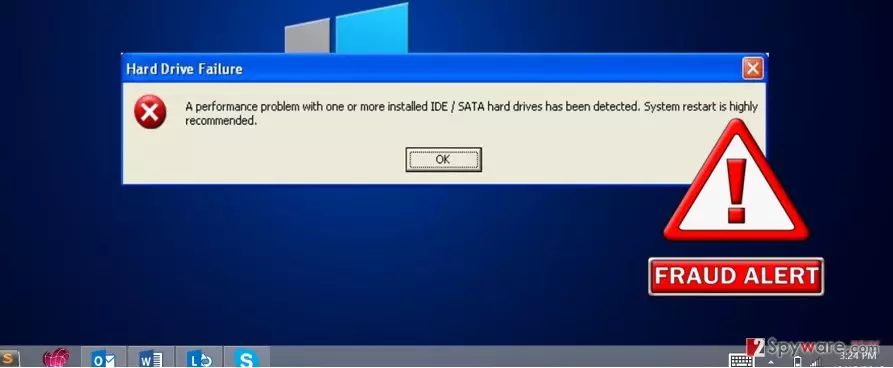
System errors, Windows activation codes and similar system errors prove to be sufficient stress-inflicting material. No one enjoys experiencing such issues which require special treatment. In such awareness, hackers manipulate users into acting according to their specific scenario. Though in some cases, Hard Disk Failure happens to be the real error caused by the operating system, there are many more fakes ones. You can easily tell which notification is the original note by keeping in mind one simple tip. All alerts contain an indicated phone number. Thus, when you call it, you might be bombarded with suggestions to purchase questionable PC optimizers and registry repair tools. Rarely, they happen to serve as effective programs. However, the problem is that they the installed application might cause more Hard Disk Failure ads and similar alerts. Thus, you might waste money on futile programs which fail to provide a wanted solution. Make sure you get rid of this malware immediately. FortectIntego will help you do that.
The transmission techniques of the malware
The question how this malware broke through the security is of interest as well. If you think that the adware possesses complex technical characteristics helping it to evade any detection, we would like to dispel such speculations. Hard Disk Failure hijack took place at the time of the installation of a new program. It is a common mistake to ignore the possibility that downloading programs from trusted websites exclude from possible cyber infections. Though Skype, Java or Adobe Flash Player happen to be legitimate tools, they often bear unwanted attachments. You can locate them if you opt for by selecting “Advanced” settings. After unmarking all unnecessary optional applications, initialize the installation guide.
Is there a way to remove this scam?
Luckily, the elimination of “Hard Disk Failure” virus does not cause any problems. You can choose either manual or automatic elimination. If you opt for the first one, exercise attention and cautiousness when completing each step. If you miss any essential detail, the probability to get infected by this malware remains. What is more, the virus might have spread its files across the registry, so locating them requires time and patience. If this method is not attractive, choose automatic Hard Disk Failure removal. The anti-spyware program will take care of the threat within a couple of minutes. It will remove Hard Disk Failure and all its related files without bigger efforts. Remember that the essential factor of the effectively functioning program is updating it frequently.
Uninstall from Windows
Uninstall from Windows 10/8:
- Type Control Panel into the Windows search box and open the result.
- Under Programs, select Uninstall a program.


Uninstall from Windows 7/XP:
- Click on Windows Start > Control Panel (Windows XP users should click on Add/Remove Programs).
- In Control Panel, select Programs > Uninstall a program.


Remove the unwanted program:
- In the Programs and Features window, look for any recently installed suspicious entries, select them, and click Uninstall.
- If User Account Control appears, click Yes to confirm, then complete the removal.


Delete from macOS
Remove the unwanted application:
- From the menu bar, select Go > Applications.
- In the Applications folder, look for any suspicious entries, then drag them to Trash (or right-click and pick Move to Trash).


Delete leftover files and folders:
- Select Go > Go to Folder.
- Enter /Library/Application Support and remove any suspicious folders related to the unwanted program.
- Repeat the same check in the /Library/LaunchAgents and /Library/LaunchDaemons folders, deleting any suspicious entries.

- Finally, empty the Trash to permanently remove the leftovers.

Remove from Microsoft Edge
Delete unwanted extensions from MS Edge:
- Select Menu (three horizontal dots at the top-right of the browser window) and pick Extensions.
- From the list, pick the extension and click on the Gear icon.
- Click Remove.


Clear cookies and other browser data:
- Click on the Menu (three horizontal dots at the top-right of the browser window) and select Settings > Privacy, search, and services..
- Under Clear browsing data, pick Choose what to clear.
- Select Cookies and other site data and Cached images and files. (apart from passwords, although you might want to include Media licenses as well, if applicable) and click on Clear.


Restore new tab and homepage settings:
- Click the menu icon and choose Settings.
- Then find On startup section.
- Click Remove next to any suspicious startup page.
Reset MS Edge if the above steps did not work:
- Press on Ctrl + Shift + Esc to open Task Manager.
- Click on More details arrow at the bottom of the window.
- Select Details tab.
- Now scroll down and locate every entry with Microsoft Edge name in it. Right-click on each of them and select End Task to stop MS Edge from running.


Instructions for Chromium-based Edge
Delete extensions from MS Edge (Chromium):
- Open Edge and click select Settings > Extensions.
- Delete unwanted extensions by clicking Remove.


Clear cache and site data:
- Click on Menu and go to Settings.
- Select Privacy, search and services.
- Under Clear browsing data, pick Choose what to clear.
- Under Time range, pick All time.
- Select Clear now.


Reset Chromium-based MS Edge:
- Click on Menu and select Settings.
- On the left side, pick Reset settings.
- Select Restore settings to their default values.
- Confirm with Reset.
- This will disable extensions and reset startup pages but will not delete bookmarks, saved passwords, or browsing history.


Remove from Mozilla Firefox (FF)
Remove dangerous extensions:
- Open Mozilla Firefox browser and click on the Menu (three horizontal lines at the top-right of the window).
- Select Add-ons.
- In here, select the unwanted extension and click Remove.


Reset the homepage:
- Click three horizontal lines at the top right corner to open the menu.
- Choose Settings.
- Under Home, set your preferred homepage and new tab settings.
Clear cookies and site data:
- Click Menu and pick Settings.
- Go to Privacy & Security section.
- Scroll down to locate Cookies and Site Data.
- Click on Clear Data...
- Select Cookies and Site Data and Temporary cached files and pages, then click Clear.


Reset Mozilla Firefox
If clearing the browser as explained above did not help, reset Mozilla Firefox:
- Open Mozilla Firefox browser and click the Menu.
- Go to Help and then choose Troubleshooting Information.

- Under Give Firefox a tune up section, click on Refresh Firefox...
- Once the pop-up shows up, confirm the action by pressing on Refresh Firefox.



Remove from Google Chrome
Delete malicious extensions from Google Chrome:
- Open Google Chrome, click on the Menu (three vertical dots at the top-right corner) and select More tools > Extensions.
- In the newly opened window, you will see all the installed extensions. Uninstall all suspicious extensions related to the unwanted program by clicking Remove.


Clear cache and web data from Chrome:
- Click on Menu and pick Settings.
- Under Privacy and security, select Clear browsing data.
- Select Browsing history, Cookies and other site data, as well as Cached images and files.
- Click Clear data.


Change your homepage:
- Click menu and choose Settings.
- Look for a suspicious site in the On startup section.
- Click on Open a specific or set of pages and click on three dots to find the Remove option.
Reset Google Chrome:
If the previous methods did not help you, reset Google Chrome to eliminate all the unwanted components:
- Click on Menu and select Settings.
- In the Settings, scroll down and click Advanced.
- Scroll down and locate Reset and clean up section.
- Now click Restore settings to their original defaults.
- Confirm with Reset settings.


Delete from Safari
Remove dangerous extensions:
- Open Safari, click Safari in the menu at the top-left of the screen, and select Preferences.
- Go to the Extensions tab, look for any suspicious entries, and click Uninstall to remove them.


Clear history and website data:
- Click Safari in the menu and pick Clear History.
- Set Clear to all history and confirm with Clear History.


Reset Safari:
- Click Safari in the menu and select Preferences > Advanced.
- Enable Show Develop menu in menu bar.
- From the menu bar, click Develop and select Empty Caches.


Did this guide help?
3 comments
Rick
I recently encountered “Warning: virus .vrbat deleted“. Called the number but they offered me to buy some fishy program so I realized that it was purely a scam.
Timothy
Cancelling this message did not work for me.
betty
Visiting IT websites proves to be an effective habit. You can find quite a lot of interesting pieces of information on cyber security.