

How should you treat home.convertpdfpronto.com?
Home.convertpdfpronto.com virus falls into the category of browser hijackers. Therefore, you need to reconsider the choice to use this search engine. On the other hand, if this browsing tool has appeared on your browser without your primary permission, do not delay home.convertpdfpronto.com removal. The longer you keep this search engine on the computer, the more ads are going to pile up on your screen. After a while, they might become quite bothersome as they interfere with your browsing and diminish the overall performance of the browser. What is more, users who are self-cautious about their activities online might get bewildered after finding out that the hijacker collects information about their browsing habits. Occasionally, various surveys might pop-up asking you to give feedback on certain products and services. In any case, we recommend you to remove home.convertpdfpronto.com right away with the assistance of FortectIntego.
As you might guess already, the primary goal of this hijacker is not to provide relevant search results, but to promote its secondary services. Thus, it advertises file converting functionality along with the surfing opportunity. Not to mention relevant search results, the hijacker fails to deliver any search targets at all. Despite what topic you are researching, a message appears declaring that this particular DNS location could not be found. Nonetheless, this phenomenon does not exclude you from home.convertpdfpronto.com redirect. While this PUP resides on the computer, it is still likely that you might be bothered by popping additional tabs which suggest playing poker or read the newest article about celebrity life subtleties. Thus, you should exit such web pages as they might disguise a series of complex viruses.
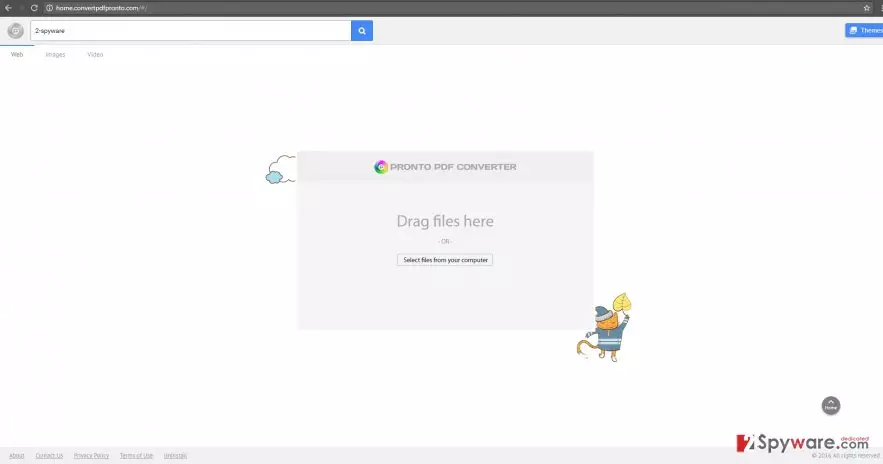
Speaking of its privacy policy, Home Convert Pdf Pronto indicates that it may gather both, personal and non-personal information. The former is provided willingly when users fill their surveys. Still, you should avoid disclosing much of your personal information as the owners of this PUP are likely to share it with sponsoring and partner companies. Such bargain results in filling your Inbox folder with diverse offers to purchase hardly practical tools and software. Though they will supposedly ask for you permission to transfer the data, we recommend using another search engine which does not tend to manipulate your personal details.
When did the hijacker invade my device?
Most likely, home.convertpdfpronto.com hijack occurred took place when you recklessly jumped through the installation stages. Due to this common flaw, the crooks use the opportunity to cling their unwanted products to freeware and shareware. This browser hijacker or any other PUP often disguises itself under “Basic” settings. By selecting the latter, the majority of users hurry to finish the guide without being aware that they let “unwanted guests” inside their system as well. Next time you are about to install a new application, choose “Custom” settings. Afterward, go carefully through the settings to unmark optional add-ons.
How can I eliminate the PUP?
There are easy solutions of removing home.convertpdfpronto.com virus. You can do it automatically with the help of an anti-spyware application. Once you download it, make sure you update it. Daily renewed program will be able to secure better protection of your operating system. Alternatively, it is possible to remove home.convertpdfpronto.com manually. Find the instructions displayed below. Remember that patience, attention and precision are required in order to ensure complete home.convertpdfpronto.com removal.
Uninstall from Windows
Uninstall from Windows 10/8:
- Type Control Panel into the Windows search box and open the result.
- Under Programs, select Uninstall a program.


Uninstall from Windows 7/XP:
- Click on Windows Start > Control Panel (Windows XP users should click on Add/Remove Programs).
- In Control Panel, select Programs > Uninstall a program.


Remove the unwanted program:
- In the Programs and Features window, look for any recently installed suspicious entries, select them, and click Uninstall.
- If User Account Control appears, click Yes to confirm, then complete the removal.


Delete from macOS
Remove the unwanted application:
- From the menu bar, select Go > Applications.
- In the Applications folder, look for any suspicious entries, then drag them to Trash (or right-click and pick Move to Trash).


Delete leftover files and folders:
- Select Go > Go to Folder.
- Enter /Library/Application Support and remove any suspicious folders related to the unwanted program.
- Repeat the same check in the /Library/LaunchAgents and /Library/LaunchDaemons folders, deleting any suspicious entries.

- Finally, empty the Trash to permanently remove the leftovers.

Remove from Microsoft Edge
Delete unwanted extensions from MS Edge:
- Select Menu (three horizontal dots at the top-right of the browser window) and pick Extensions.
- From the list, pick the extension and click on the Gear icon.
- Click Remove.


Clear cookies and other browser data:
- Click on the Menu (three horizontal dots at the top-right of the browser window) and select Settings > Privacy, search, and services..
- Under Clear browsing data, pick Choose what to clear.
- Select Cookies and other site data and Cached images and files. (apart from passwords, although you might want to include Media licenses as well, if applicable) and click on Clear.


Restore new tab and homepage settings:
- Click the menu icon and choose Settings.
- Then find On startup section.
- Click Remove next to any suspicious startup page.
Reset MS Edge if the above steps did not work:
- Press on Ctrl + Shift + Esc to open Task Manager.
- Click on More details arrow at the bottom of the window.
- Select Details tab.
- Now scroll down and locate every entry with Microsoft Edge name in it. Right-click on each of them and select End Task to stop MS Edge from running.


Instructions for Chromium-based Edge
Delete extensions from MS Edge (Chromium):
- Open Edge and click select Settings > Extensions.
- Delete unwanted extensions by clicking Remove.


Clear cache and site data:
- Click on Menu and go to Settings.
- Select Privacy, search and services.
- Under Clear browsing data, pick Choose what to clear.
- Under Time range, pick All time.
- Select Clear now.


Reset Chromium-based MS Edge:
- Click on Menu and select Settings.
- On the left side, pick Reset settings.
- Select Restore settings to their default values.
- Confirm with Reset.
- This will disable extensions and reset startup pages but will not delete bookmarks, saved passwords, or browsing history.


Remove from Mozilla Firefox (FF)
Remove dangerous extensions:
- Open Mozilla Firefox browser and click on the Menu (three horizontal lines at the top-right of the window).
- Select Add-ons.
- In here, select the unwanted extension and click Remove.


Reset the homepage:
- Click three horizontal lines at the top right corner to open the menu.
- Choose Settings.
- Under Home, set your preferred homepage and new tab settings.
Clear cookies and site data:
- Click Menu and pick Settings.
- Go to Privacy & Security section.
- Scroll down to locate Cookies and Site Data.
- Click on Clear Data...
- Select Cookies and Site Data and Temporary cached files and pages, then click Clear.


Reset Mozilla Firefox
If clearing the browser as explained above did not help, reset Mozilla Firefox:
- Open Mozilla Firefox browser and click the Menu.
- Go to Help and then choose Troubleshooting Information.

- Under Give Firefox a tune up section, click on Refresh Firefox...
- Once the pop-up shows up, confirm the action by pressing on Refresh Firefox.



Remove from Google Chrome
Delete malicious extensions from Google Chrome:
- Open Google Chrome, click on the Menu (three vertical dots at the top-right corner) and select More tools > Extensions.
- In the newly opened window, you will see all the installed extensions. Uninstall all suspicious extensions related to the unwanted program by clicking Remove.


Clear cache and web data from Chrome:
- Click on Menu and pick Settings.
- Under Privacy and security, select Clear browsing data.
- Select Browsing history, Cookies and other site data, as well as Cached images and files.
- Click Clear data.


Change your homepage:
- Click menu and choose Settings.
- Look for a suspicious site in the On startup section.
- Click on Open a specific or set of pages and click on three dots to find the Remove option.
Reset Google Chrome:
If the previous methods did not help you, reset Google Chrome to eliminate all the unwanted components:
- Click on Menu and select Settings.
- In the Settings, scroll down and click Advanced.
- Scroll down and locate Reset and clean up section.
- Now click Restore settings to their original defaults.
- Confirm with Reset settings.


Delete from Safari
Remove dangerous extensions:
- Open Safari, click Safari in the menu at the top-left of the screen, and select Preferences.
- Go to the Extensions tab, look for any suspicious entries, and click Uninstall to remove them.


Clear history and website data:
- Click Safari in the menu and pick Clear History.
- Set Clear to all history and confirm with Clear History.


Reset Safari:
- Click Safari in the menu and select Preferences > Advanced.
- Enable Show Develop menu in menu bar.
- From the menu bar, click Develop and select Empty Caches.


Did this guide help?
2 comments
Robinson
Deleting it was easy peasy.
Dylan
Not for me...it kept reappearing.