

How effective is home.prontovideoconverter.com browsing tool?
If you have come across home.prontovideoconverter.com virus, you should not procrastinate eliminating it. Luckily, it is not a highly damaging cyber threat. Nonetheless, we encourage you to remove home.prontovideoconverter.com because it fails to satisfy your demands for a reliable search engine. After more extensive analysis, it is obvious that the browser hijacker focuses on promoting secondary services of file converting. As for the browsing tool, it operates poorly in comparison with other legitimate search engines. Thus, it would be better to start home.prontovideoconverter.com removal at once.
It seems that the owners, Genieo Ltd, of this browsing tool decided to conquer a high spot in the online market by enlivening their activities. Recently, they come up with several products: home.prontofileconverter.com, home.convertpdfpronto.com, and the current one. While Convert PDF Pronto hijacker performed poorly as a browsing tool, the former ones were improved. Speaking of this browser hijacker, it delivers Yahoo search results. Taking into account that this PUP works as a questionable search engine, you might notice that there are more results displayed which divert you to advertising domains. Users, who look for an effective and reliable search engine, might not tolerate this peculiarity.
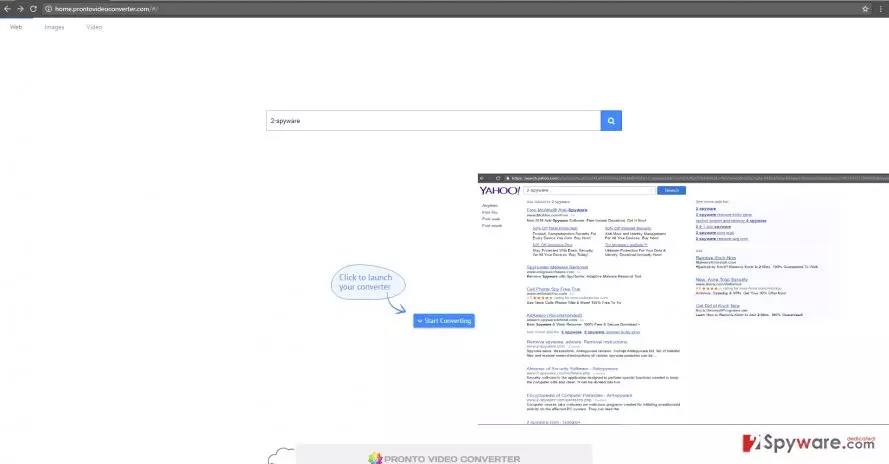
Note that the majority of browser hijackers are supported by third-parties. Since their support for the developers of these PUPs is vital, the latter are obliged to promote their advertising content. As a result, if you are using this search engine for a while, you soon get bothered by home.prontovideoconverter.com redirect tendency. Due to this phenomenon, you may be misled to sponsored web pages which are not always secure. Once you spot that you are about to get redirected to an ad-supported website, cancel it before it loads completely. In addition, Home Pronto Video Converter might install the plug-ins and extensions of third-parties. These additional attachments are rarely of practical use. Most often, they disturb the usual high-speed browser‘s processes. Thus, make a rush and put an end to this browser hijacker. FortectIntego speeds up the elimination procedure.
The transmission ways of the PUP
If you are wondering how this hijacker even managed to get into your computer, let us explain everything in detail. Crooks have developed a profitable PUP distribution model called “bundling.” With the help of this technique, they attach browser hijackers, adware or other PUP of sorts to free applications. You might admit that you rarely give a second look to the installation guides. As a result of such carelessness, home.prontovideoconverter.com hijack successfully takes over the computer. In order to spot on time, you should change the usual sequence of installing new programs. After the installation wizard is launched, opt for “Custom” settings. These will disclose optional add-ons. Only when you remove the checkmarks, proceed to install the software of your interest.
Remove the hijacker right away
You can either opt for manual or automatic home.prontovideoconverter.com removal methods. The latter happens to give more guarantees concerning the full elimination. Moreover, it is faster since the program only requires several minutes to remove home.prontovideoconverter.com virus. However, a manual option might be as effective as the latter one if you proceed through the instructions with enough attention. Lastly, you can decrease the risk of a hijack by a PUP, if you review a program‘s privacy policy and users‘ reviews. The bittersweet experiences of other members of the virtual community might warn you not to install a useless and potentially malignant application.
Uninstall from Windows
Uninstall from Windows 10/8:
- Type Control Panel into the Windows search box and open the result.
- Under Programs, select Uninstall a program.


Uninstall from Windows 7/XP:
- Click on Windows Start > Control Panel (Windows XP users should click on Add/Remove Programs).
- In Control Panel, select Programs > Uninstall a program.


Remove the unwanted program:
- In the Programs and Features window, look for any recently installed suspicious entries, select them, and click Uninstall.
- If User Account Control appears, click Yes to confirm, then complete the removal.


Delete from macOS
Remove the unwanted application:
- From the menu bar, select Go > Applications.
- In the Applications folder, look for any suspicious entries, then drag them to Trash (or right-click and pick Move to Trash).


Delete leftover files and folders:
- Select Go > Go to Folder.
- Enter /Library/Application Support and remove any suspicious folders related to the unwanted program.
- Repeat the same check in the /Library/LaunchAgents and /Library/LaunchDaemons folders, deleting any suspicious entries.

- Finally, empty the Trash to permanently remove the leftovers.

Remove from Microsoft Edge
Delete unwanted extensions from MS Edge:
- Select Menu (three horizontal dots at the top-right of the browser window) and pick Extensions.
- From the list, pick the extension and click on the Gear icon.
- Click Remove.


Clear cookies and other browser data:
- Click on the Menu (three horizontal dots at the top-right of the browser window) and select Settings > Privacy, search, and services..
- Under Clear browsing data, pick Choose what to clear.
- Select Cookies and other site data and Cached images and files. (apart from passwords, although you might want to include Media licenses as well, if applicable) and click on Clear.


Restore new tab and homepage settings:
- Click the menu icon and choose Settings.
- Then find On startup section.
- Click Remove next to any suspicious startup page.
Reset MS Edge if the above steps did not work:
- Press on Ctrl + Shift + Esc to open Task Manager.
- Click on More details arrow at the bottom of the window.
- Select Details tab.
- Now scroll down and locate every entry with Microsoft Edge name in it. Right-click on each of them and select End Task to stop MS Edge from running.


Instructions for Chromium-based Edge
Delete extensions from MS Edge (Chromium):
- Open Edge and click select Settings > Extensions.
- Delete unwanted extensions by clicking Remove.


Clear cache and site data:
- Click on Menu and go to Settings.
- Select Privacy, search and services.
- Under Clear browsing data, pick Choose what to clear.
- Under Time range, pick All time.
- Select Clear now.


Reset Chromium-based MS Edge:
- Click on Menu and select Settings.
- On the left side, pick Reset settings.
- Select Restore settings to their default values.
- Confirm with Reset.
- This will disable extensions and reset startup pages but will not delete bookmarks, saved passwords, or browsing history.


Remove from Mozilla Firefox (FF)
Remove dangerous extensions:
- Open Mozilla Firefox browser and click on the Menu (three horizontal lines at the top-right of the window).
- Select Add-ons.
- In here, select the unwanted extension and click Remove.


Reset the homepage:
- Click three horizontal lines at the top right corner to open the menu.
- Choose Settings.
- Under Home, set your preferred homepage and new tab settings.
Clear cookies and site data:
- Click Menu and pick Settings.
- Go to Privacy & Security section.
- Scroll down to locate Cookies and Site Data.
- Click on Clear Data...
- Select Cookies and Site Data and Temporary cached files and pages, then click Clear.


Reset Mozilla Firefox
If clearing the browser as explained above did not help, reset Mozilla Firefox:
- Open Mozilla Firefox browser and click the Menu.
- Go to Help and then choose Troubleshooting Information.

- Under Give Firefox a tune up section, click on Refresh Firefox...
- Once the pop-up shows up, confirm the action by pressing on Refresh Firefox.



Remove from Google Chrome
Delete malicious extensions from Google Chrome:
- Open Google Chrome, click on the Menu (three vertical dots at the top-right corner) and select More tools > Extensions.
- In the newly opened window, you will see all the installed extensions. Uninstall all suspicious extensions related to the unwanted program by clicking Remove.


Clear cache and web data from Chrome:
- Click on Menu and pick Settings.
- Under Privacy and security, select Clear browsing data.
- Select Browsing history, Cookies and other site data, as well as Cached images and files.
- Click Clear data.


Change your homepage:
- Click menu and choose Settings.
- Look for a suspicious site in the On startup section.
- Click on Open a specific or set of pages and click on three dots to find the Remove option.
Reset Google Chrome:
If the previous methods did not help you, reset Google Chrome to eliminate all the unwanted components:
- Click on Menu and select Settings.
- In the Settings, scroll down and click Advanced.
- Scroll down and locate Reset and clean up section.
- Now click Restore settings to their original defaults.
- Confirm with Reset settings.


Delete from Safari
Remove dangerous extensions:
- Open Safari, click Safari in the menu at the top-left of the screen, and select Preferences.
- Go to the Extensions tab, look for any suspicious entries, and click Uninstall to remove them.


Clear history and website data:
- Click Safari in the menu and pick Clear History.
- Set Clear to all history and confirm with Clear History.


Reset Safari:
- Click Safari in the menu and select Preferences > Advanced.
- Enable Show Develop menu in menu bar.
- From the menu bar, click Develop and select Empty Caches.


Did this guide help?
3 comments
Josh
Too bad its a browser hijacker.
Kim.LL
The utility to convert the files is quite beneficial but the pop-ups are too annoying.
Micasa587612
They are quite persuasive.