

Hreerfdfgo.club is a malicious website that shows fake notifications

Many users have noticed that their desktops are periodically being flooded with Hreerfdfgo.club ads, and were puzzled by it. The pop-ups show up when they are browsing the web, and even if the browser is running in the background. Likewise, even if several other apps are opened, the notifications would be shown on top of all of them, making the activity a rather disruptive phenomenon. What what are these pop-ups, and why are they showing up?
The activity is a part of an elaborate scam engineered by unfair individuals, and users who give into it start experiencing the symptoms of what looks like a virus infection. However, this is not usually the case, as users themselves allow these notifications to be shown to them without knowing much about the consequences of such actions.
In most cases, users are redirected to Hreerfdfgo.club by adware[1] or after they click some fake link on another website. They are commonly caught off guard here, as they end up on a strange page which asks users to click the “Allow” button within the notification prompt. There are plenty of website versions that people might encounter, but most commonly, they are presented with the following statements:
Click Allow if you are not a robot
The download is ready! Click Allow to download the file
Click “Allow” to play the video
Click “Allow” to win the prize and it in our shop
If you are 18+, tap Allow
As evident, while some users would immediately sense the deception, others might believe that the presented messages are true. Many people are familiar with captcha and similar verification techniques employed by millions of websites for DDoS attack protection; some might be interested in a proposition to download software or view a movie for free.
However, this is all fake, and Hreerfdfgo.club is nothing but an empty shell that has no content in it. The main purpose of it is to make people subscribe to notifications so that ads can be delivered directly to their screens later. As soon as users agree, nothing really happens instantaneously, and the intrusive activity only shows up later.
This is why so many people are confused about what these ads are and how to remove them. Luckily, as long as you don't click them and explore websites that you are redirected to, they are very easy to eliminate. For more information, please check the paragraphs below.
| Name | Hreerfdfgo.club |
|---|---|
| Type | Push notifications, ads, pop-ups, scam |
| Distribution | Intrusive pop-ups can start showing up at some point after the “Allow” button is pressed within the notification prompt |
| Symptoms | Pop-up notifications are shown on a desktop at random times |
| Risks | Ads and links to sites displayed by the website might be dangerous: users might suffer from monetary losses, install malware or potentially unwanted programs on their systems, or disclose their sensitive data to cybercrooks |
| Removal | You can disable notifications via browser settings; in case you experience more ads and redirects to suspicious sites, you should check your system with anti-malware like SpyHunterCombo Cleaner to remove adware |
| Further steps | Make sure you clean your browsers after you delete PUPs from the system. To do that automatically, you can use FortectIntego |
How do you end up on Hreerfdfgo.club?
The Internet has over 1.8 billion websites available at any point in time – some are being shut down and others being created every day. Among those websites available, not all are created to be useful or informative. In fact, some portion of these creations is nothing more than an attempt to scam visitors into doing something they otherwise wouldn't.
While push notification scams are not as dangerous as those that spread malware or exploit software vulnerabilities via invisible background scripts, they are dangerous to an extent nonetheless. It is evident that users would not intentionally compromise their computers, so how do they end up on such websites? There are two possibilities usually:
- People are being redirected by adware
- They click on a deceptive link that looks legitimate.
First of all, we would like to recommend staying away from various high-risk websites, such as illegal video streaming, gambling, pirated software distributors, and similar. These places are dangerous due to the lack of moderation and implementation of security measures against malicious attacks.
Software cracks and similar installers can be infected themselves and result in the infiltration of ransomware, Trojans, rootkits,[2] or other dangerous malware. Likewise, employing tools such as ad-blockers would also reduce the possibility of redirects to malicious websites.

Adware could also be the main reason you are being redirected to Hreerfdfgo.club or similar sites. Potentially unwanted programs and malware are commonly installed without users noticing due to software bundling[3] or other deceptive distribution techniques, so they often are not even aware their devices are infected.
To check your computer for aggressive adware, malware, and other malicious programs, you should check Control Panel on Windows or Applications on Mac and remove anything suspicious. Likewise, remember that extensions could also be causing unwanted web browser activity, so remove those as well.
However, malware and adware might sometimes not display any active windows or not be included in the installed program list. Therefore, it is always recommended to check the system with SpyHunterCombo Cleaner, MalwarebytesMalwarebytes, or another powerful anti-malware. After that, you should also clean your web browsers to stop the tracking activities and remove malicious elements that could lead to the return of unwanted ads.
For that, you can refer to the bottom of the article or employ FortectIntego to have it done quicker. Likewise, the app can also fix any issues related to the virus damage that could cause system crashes or errors.
How to stop the intrusive push notifications
While it is necessary to scan your system with security software after noticing suspicious activity taking place on your device, it will not help you remove Hreerfdfgo.club ads from it. Push notifications are not malicious and are just a feature employed by a malicious website to carry misleading and dangerous content. Thus, anti-malware software is not capable of removing them, as it is essentially a setting that you need to revert yourself.
Below you will find the instructions on how to stop the push notifications from being sent from this or any other website.
Google Chrome:
- Open Google Chrome browser and go to Menu > Settings.
- Scroll down and click on Advanced.
- Locate the Privacy and security section and pick Site Settings > Notifications.
- Look at the Allow section and look for a suspicious URL.
- Click the three vertical dots next to it and pick Block. This should remove unwanted notifications from Google Chrome.


Mozilla Firefox:
- Open Mozilla Firefox and go to Menu > Options.
- Click on Privacy & Security section.
- Under Permissions, you should be able to see Notifications. Click the Settings button next to it.

- In the Settings – Notification Permissions window, click on the drop-down menu by the URL in question.
- Select Block and then click on Save Changes. This should remove unwanted notifications from Mozilla Firefox.



Safari:
- Click on Safari > Preferences…
- Go to the Websites tab and, under General, select Notifications.
- Select the web address in question, click the drop-down menu and select Deny.


MS Edge:
- Open Microsoft Edge, and click the Settings and more button (three horizontal dots) at the top-right of the window.
- Select Settings and then go to Advanced.
- Under Website permissions, pick Manage permissions and select the URL in question.
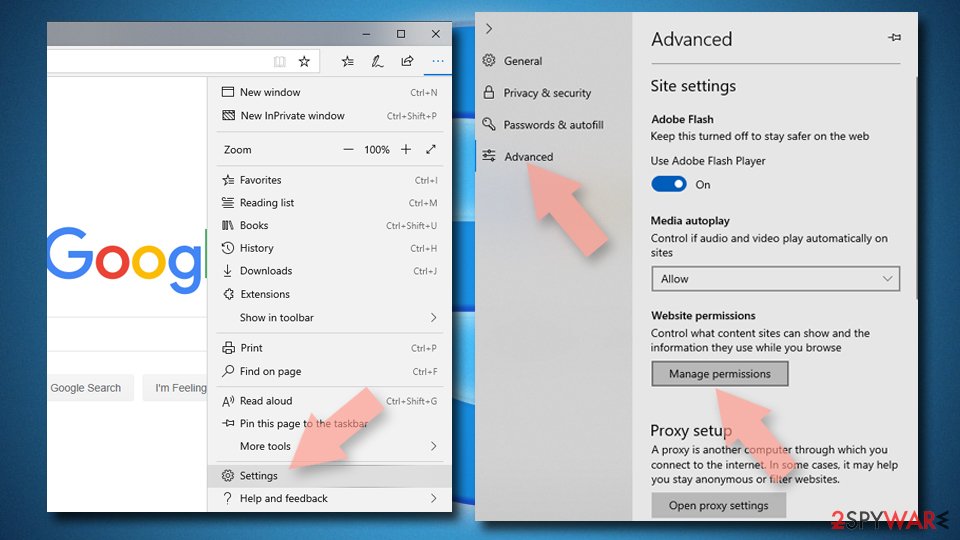
- Toggle the switch to the left to turn notifications off on Microsoft Edge.



MS Edge (Chromium):
- Open Microsoft Edge, and go to Settings.
- Select Site permissions.
- Go to Notifications on the right.
- Under Allow, you will find the unwanted entry.
- Click on More actions and select Block.


Internet Explorer:
- Open Internet Explorer, and click on the Gear icon at the top-right of the window.
- Select Internet options and go to the Privacy tab.
- In the Pop-up Blocker section, click on Settings.
- Locate web address in question under Allowed sites and pick Remove.


Note that you could fully disable the display of push notification prompts for all websites – this is an ideal choice for those who don't want to take extra steps
Check out the instructions below to manually clean your browsers from cookies, caches, and other web data. Alternatively, you can also reset your browsers, which would delete all tracking data, and delete all browser extensions, which is especially useful when dealing with persistent threats that are difficult to remove.
Remove from Microsoft Edge
Delete unwanted extensions from MS Edge:
- Select Menu (three horizontal dots at the top-right of the browser window) and pick Extensions.
- From the list, pick the extension and click on the Gear icon.
- Click Remove.


Clear cookies and other browser data:
- Click on the Menu (three horizontal dots at the top-right of the browser window) and select Settings > Privacy, search, and services..
- Under Clear browsing data, pick Choose what to clear.
- Select Cookies and other site data and Cached images and files. (apart from passwords, although you might want to include Media licenses as well, if applicable) and click on Clear.


Restore new tab and homepage settings:
- Click the menu icon and choose Settings.
- Then find On startup section.
- Click Remove next to any suspicious startup page.
Reset MS Edge if the above steps did not work:
- Press on Ctrl + Shift + Esc to open Task Manager.
- Click on More details arrow at the bottom of the window.
- Select Details tab.
- Now scroll down and locate every entry with Microsoft Edge name in it. Right-click on each of them and select End Task to stop MS Edge from running.


Instructions for Chromium-based Edge
Delete extensions from MS Edge (Chromium):
- Open Edge and click select Settings > Extensions.
- Delete unwanted extensions by clicking Remove.


Clear cache and site data:
- Click on Menu and go to Settings.
- Select Privacy, search and services.
- Under Clear browsing data, pick Choose what to clear.
- Under Time range, pick All time.
- Select Clear now.


Reset Chromium-based MS Edge:
- Click on Menu and select Settings.
- On the left side, pick Reset settings.
- Select Restore settings to their default values.
- Confirm with Reset.
- This will disable extensions and reset startup pages but will not delete bookmarks, saved passwords, or browsing history.


Remove from Mozilla Firefox (FF)
Remove dangerous extensions:
- Open Mozilla Firefox browser and click on the Menu (three horizontal lines at the top-right of the window).
- Select Add-ons.
- In here, select the unwanted extension and click Remove.


Reset the homepage:
- Click three horizontal lines at the top right corner to open the menu.
- Choose Settings.
- Under Home, set your preferred homepage and new tab settings.
Clear cookies and site data:
- Click Menu and pick Settings.
- Go to Privacy & Security section.
- Scroll down to locate Cookies and Site Data.
- Click on Clear Data...
- Select Cookies and Site Data and Temporary cached files and pages, then click Clear.


Reset Mozilla Firefox
If clearing the browser as explained above did not help, reset Mozilla Firefox:
- Open Mozilla Firefox browser and click the Menu.
- Go to Help and then choose Troubleshooting Information.

- Under Give Firefox a tune up section, click on Refresh Firefox...
- Once the pop-up shows up, confirm the action by pressing on Refresh Firefox.



Remove from Google Chrome
Delete malicious extensions from Google Chrome:
- Open Google Chrome, click on the Menu (three vertical dots at the top-right corner) and select More tools > Extensions.
- In the newly opened window, you will see all the installed extensions. Uninstall all suspicious extensions related to the unwanted program by clicking Remove.


Clear cache and web data from Chrome:
- Click on Menu and pick Settings.
- Under Privacy and security, select Clear browsing data.
- Select Browsing history, Cookies and other site data, as well as Cached images and files.
- Click Clear data.


Change your homepage:
- Click menu and choose Settings.
- Look for a suspicious site in the On startup section.
- Click on Open a specific or set of pages and click on three dots to find the Remove option.
Reset Google Chrome:
If the previous methods did not help you, reset Google Chrome to eliminate all the unwanted components:
- Click on Menu and select Settings.
- In the Settings, scroll down and click Advanced.
- Scroll down and locate Reset and clean up section.
- Now click Restore settings to their original defaults.
- Confirm with Reset settings.


Delete from Safari
Remove dangerous extensions:
- Open Safari, click Safari in the menu at the top-left of the screen, and select Preferences.
- Go to the Extensions tab, look for any suspicious entries, and click Uninstall to remove them.


Clear history and website data:
- Click Safari in the menu and pick Clear History.
- Set Clear to all history and confirm with Clear History.


Reset Safari:
- Click Safari in the menu and select Preferences > Advanced.
- Enable Show Develop menu in menu bar.
- From the menu bar, click Develop and select Empty Caches.


Did this guide help?
Be the first to comment