

LauncherSync – a dangerous Mac virus that can put your privacy and security at risk
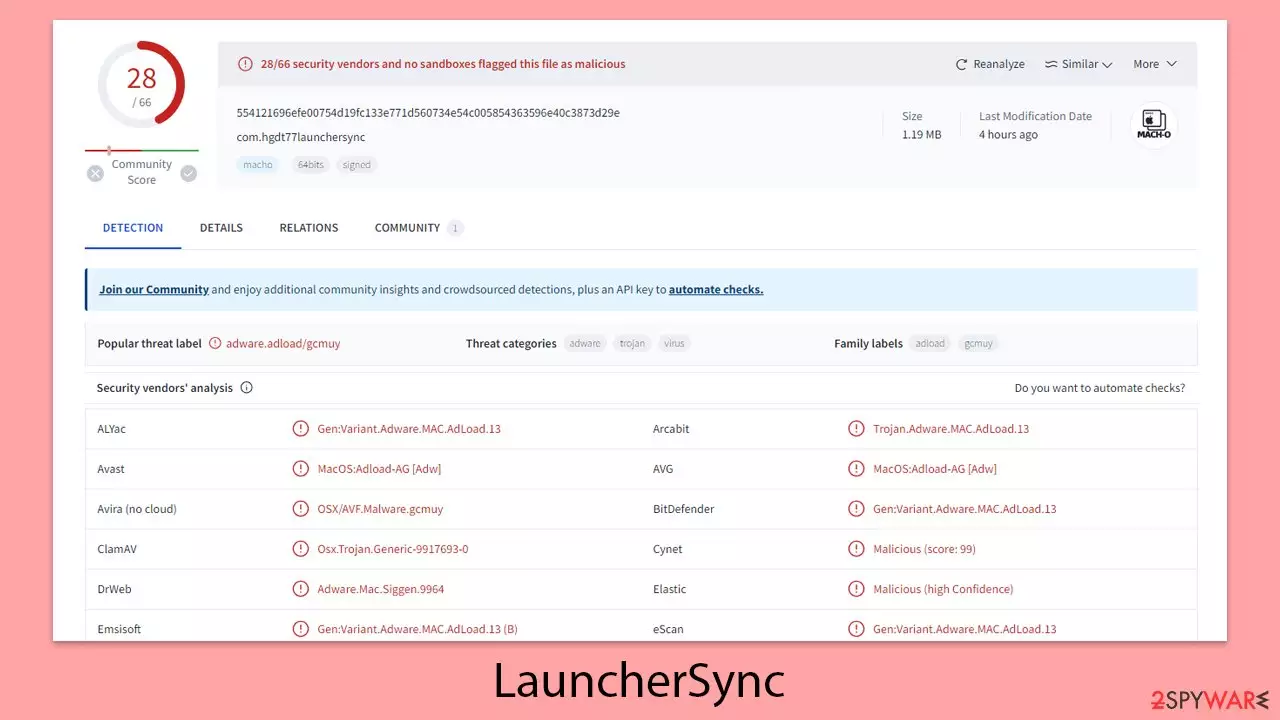
LauncherSync is a potentially unwanted application designed for Mac systems, though it doesn't behave like a typical application. It originates from a notorious malware family called Adload, which has been responsible for infecting thousands of users with its numerous versions.
LauncherSync infiltrates users' computers without their intention, often due to their lack of awareness about malware distribution methods. Common tactics include fake Flash Player updates and repacked or cracked software installers. Users believe they are installing legitimate software and grant installation permission by entering their Apple ID.
The presence of LauncherSync might not be immediately noticeable. The first signs usually appear when users open their browsers like Safari, Chrome, or Firefox. They might find that their homepage has been altered and a new extension added. This extension allows the malware to monitor online activities and display intrusive ads during browsing sessions.
| Name | LauncherSync |
| Type | Mac virus, adware, browser hijacker |
| Malware family | Adload |
| Distribution | Pirated software installers, fake Flash Player updates, misleading ads |
| Symptoms | Installs a new extension and application on the system; changes homepage and new tab of the browser; inserts ads and malicious links; tracks sensitive user data via extension |
| Removal | The easiest way to eliminate unwarned and malicious software on Macs is by performing a full system scan with SpyHunterCombo Cleaner security software. Alternatively, you can attempt to terminate the infection manually |
| System optimization | Third parties can employ cookies to continue tracking your online activities, so we recommended clearing browser caches with FortectIntego |
Methods of distribution
LauncherSync is commonly distributed through two main methods: fake Flash Player updates and pirated software installers. It's important to avoid pirating software, as it is illegal and often leads to malware infections. Sites that offer pirated applications are notorious for poor security, with some specifically designed to distribute malware and harmful scripts.
To prevent this method of infiltration, avoid visiting illegal software distribution sites. Malicious applications can also be bundled with freeware and other illegal software, leading to accidental installation if you aren't careful during the installation process.
Flash Player was once a widely used plugin for playing multimedia content online, but Adobe discontinued it at the end of 2020. Despite this, many users still recall its prominence. Modern browsers like Safari, Chrome, and Firefox now have the same functionality built-in. Any request to install Flash Player is likely a fake and should be ignored to avoid potential malware infections.

What is Adload?
LauncherSync is part of a notorious malware family that many people regularly encounter. This malware family has been active since at least 2017, with hundreds of versions created by an unidentified group of cybercriminals. The most recent versions of LauncherSync include:
Additionally, there are connections to other malware strains like Bundlore and Shlayer, both of which often use the fake Flash Player installer named “Installer.App.” This suggests that the same group of developers might be behind these different malware strains.
LauncherSync versions always have a distinctive icon featuring a teal, blue, or green background with a magnifying glass. Because this malware operates with the highest permissions on the system, it can automatically install additional applications without user consent. As a result, it is common to find several malicious apps installed on a single affected system.
When LauncherSync infiltrates a computer, users might not realize it immediately. The first indications of infection typically appear when browsers like Safari, Chrome, or Firefox are opened, and users notice changes such as a different homepage and the addition of a new extension. This extension allows the malware to monitor online behavior and display intrusive ads during browsing sessions.
Choose automatic LauncherSync removal
Removing standard applications from a Mac is typically straightforward: you just drag them to the Trash, and they leave no leftover files or issues. However, this simplicity does not extend to prominent malware like a LauncherSync variant. These infections are designed to be difficult to remove because the longer they stay on a device, the more profitable they are for cybercriminals.
The urgency to eliminate LauncherSync comes from its potential for extensive damage and its pervasive nature. Traditional removal methods might not be sufficient against such stubborn malware. Therefore, we highly recommend using reliable security software SpyHunterCombo Cleaner or MalwarebytesMalwarebytes, ensuring it is regularly updated. Conducting a comprehensive system scan with such software can effectively identify and remove the LauncherSync infection.
For those who prefer manual removal, detailed instructions are available. However, it is essential to remember that, regardless of the method chosen, clearing the caches of affected browsers like Safari is necessary to ensure all traces of the malware are completely removed. This step is crucial for fully securing your system from the infection's impacts. Additionally, the FortectIntego tool can assist you with clearing the caches automatically.
Manual virus elimination
Malware usually functions through background processes, performing tasks set by its creators. Therefore, when tackling malware, it's crucial to identify and stop these background activities first to ensure they don't interfere with the removal process. On a Mac, this can be done using the Activity Monitor. Here are the steps to access Activity Monitor and terminate these processes:
- Open the Applications folder and go to Utilities
- Double-click the Activity Monitor and shut down all the suspicious processes.
- From the menu bar, select Go > Applications.
- In the Applications folder, look for all related entries.

- Click on the app and drag it to Trash (or right-click and pick Move to Trash)

Your next task is to remove all the virus-related Login items and new Profiles that could be used by it.
- Go to Preferences and pick Accounts
- Click Login items and delete everything suspicious
- Next, pick System Preferences > Users & Groups
- Find Profiles and remove unwanted profiles from the list.
Small configuration files, known as PLIST files, can store various settings information. These files might hinder the proper removal of the virus.
- Select Go > Go to Folder.
- Enter /Library/Application Support and click Go or press Enter.
- In the Application Support folder, look for any dubious entries and then delete them.
- Now enter /Library/LaunchAgents and /Library/LaunchDaemons folders the same way and delete all the related .plist files.


Finally, don't forget that the LauncherSync extension could still be lingering on your system, so you need to make sure it is entirely removed. If you have trouble deleting it, such as the option being unavailable or grayed out, you can use security software to do the job, or you can choose to reset your browser. Detailed instructions on how to carry out these actions are provided below.
Remove from Mozilla Firefox (FF)
Remove dangerous extensions:
- Open Mozilla Firefox browser and click on the Menu (three horizontal lines at the top-right of the window).
- Select Add-ons.
- In here, select the unwanted extension and click Remove.


Reset the homepage:
- Click three horizontal lines at the top right corner to open the menu.
- Choose Settings.
- Under Home, set your preferred homepage and new tab settings.
Clear cookies and site data:
- Click Menu and pick Settings.
- Go to Privacy & Security section.
- Scroll down to locate Cookies and Site Data.
- Click on Clear Data...
- Select Cookies and Site Data and Temporary cached files and pages, then click Clear.


Reset Mozilla Firefox
If clearing the browser as explained above did not help, reset Mozilla Firefox:
- Open Mozilla Firefox browser and click the Menu.
- Go to Help and then choose Troubleshooting Information.

- Under Give Firefox a tune up section, click on Refresh Firefox...
- Once the pop-up shows up, confirm the action by pressing on Refresh Firefox.



Remove from Google Chrome
Delete malicious extensions from Google Chrome:
- Open Google Chrome, click on the Menu (three vertical dots at the top-right corner) and select More tools > Extensions.
- In the newly opened window, you will see all the installed extensions. Uninstall all suspicious extensions related to the unwanted program by clicking Remove.


Clear cache and web data from Chrome:
- Click on Menu and pick Settings.
- Under Privacy and security, select Clear browsing data.
- Select Browsing history, Cookies and other site data, as well as Cached images and files.
- Click Clear data.


Change your homepage:
- Click menu and choose Settings.
- Look for a suspicious site in the On startup section.
- Click on Open a specific or set of pages and click on three dots to find the Remove option.
Reset Google Chrome:
If the previous methods did not help you, reset Google Chrome to eliminate all the unwanted components:
- Click on Menu and select Settings.
- In the Settings, scroll down and click Advanced.
- Scroll down and locate Reset and clean up section.
- Now click Restore settings to their original defaults.
- Confirm with Reset settings.


Delete from Safari
Remove dangerous extensions:
- Open Safari, click Safari in the menu at the top-left of the screen, and select Preferences.
- Go to the Extensions tab, look for any suspicious entries, and click Uninstall to remove them.


Clear history and website data:
- Click Safari in the menu and pick Clear History.
- Set Clear to all history and confirm with Clear History.


Reset Safari:
- Click Safari in the menu and select Preferences > Advanced.
- Enable Show Develop menu in menu bar.
- From the menu bar, click Develop and select Empty Caches.


Did this guide help?
Be the first to comment