

Login.hhtxnet.com browser hijacker – how to remove it from the infected computer?
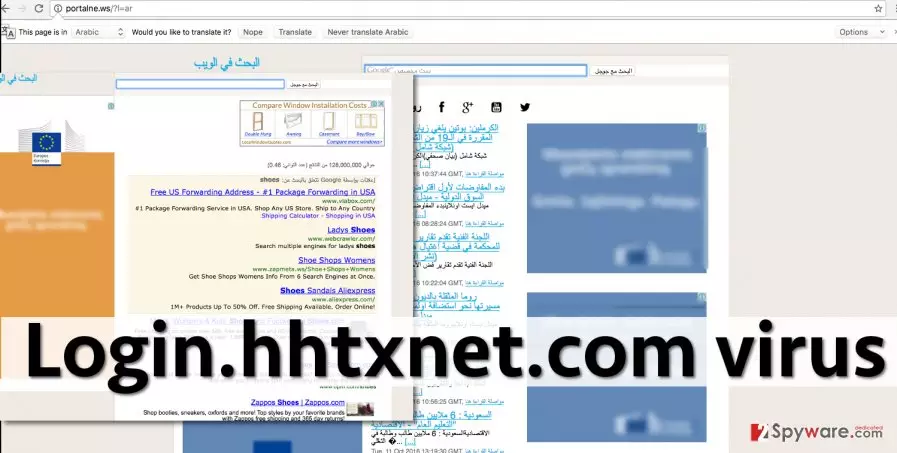
Login.hhtxnet.com virus is a potentially unwanted program (PUP), which is believed to be created by Arabian spyware developers. It opens Portalne.ws site, which is considered to be an untrustworthy search engine. Having this spyware variant on the system is a bad sign, and there are various reasons to remove Login.hhtxnet.com as soon as you can. In this article, we are going to discuss how this spyware-type infection operates and why Login.hhtxnet.com redirect issue can expose your PC to general Internet hazards.
First of all, the fact that this browser hijacker mostly gets inside the computer system using software bundling technique is not praiseworthy. It only proves that Login.hhtxnet.com search is not popular and that hardly any computer users trust it. The second suspicious fact about this browser hijacker is that it significantly alters browser’s settings without even asking the computer user if he or she wants such changes to be applied. It changes the home and new tab page settings to Login.hhtxnet.com and does not ask the victim for permission in a direct way. What is more, you do not have to be an expert to understand that the primary aim of this browser hijacker is to profit from third-party ads it displays. The search engine presented on the aforementioned site is cluttered with banners, sponsored search results, and similar promotional content that can annoy you to death. Besides, these ads might not lead to secure websites, and that is yet another reason not to trust them. In the worst scenario, they can throw you onto high-risk sites filled with spyware or malware download links. Please be very attentive and watch what you click on while spending your time on the Internet because there are many hideous cybercriminals lurking on the world wide web and looking to attack inattentive computer users. If you do not want to use this questionable search engine anymore, you do not have to – just follow Login.hhtxnet.com removal instructions given below this post and delete the related browser hijacker from the system. Alternatively, you can employ FortectIntego program and let it remove the hijacker for you.
How do browser hijackers find a way to enter users’ computers?
Many victims who have their computer infected with spyware think that programs that belong to this category are malicious and fearsome viruses. That is not true. These programs are low-level computer parasites that do not wreak havoc on the compromised computer system and are not as harmful as severe computer viruses. However, they can still cause problems that PC users typically try to avoid. What is more, unlike serious computer viruses, Login.hhtxnet.com hijack happens not because some hacker manually installs it on victim’s computer system, but because the victim installs it unknowingly. Such browser hijackers are traditionally bundled with other free programs, for example, free system tools, vague PC optimizers, download managers, games, search tools, and similar suspicious programs that users wish to use on a daily basis. When you decide to download a new program from the Internet, firstly inspect if its download source is trustworthy. Also, make a security check when installing it – make sure you choose Custom or Advanced settings, and then deselect all additional items added to your download. Then just complete the installation by following commands of the setup wizard.
How can you remove Login.hhtxnet.com browser hijacker from the system?
Despite being non-malicious computer past, this browser hijacker should be eliminated from the system. It is not going to improve your daily life because of its highly questionable search service quality. To remove Login.hhtxnet.com virus, use the following Login.hhtxnet.com removal instructions provided below!
Uninstall from Windows
Uninstall from Windows 10/8:
- Type Control Panel into the Windows search box and open the result.
- Under Programs, select Uninstall a program.


Uninstall from Windows 7/XP:
- Click on Windows Start > Control Panel (Windows XP users should click on Add/Remove Programs).
- In Control Panel, select Programs > Uninstall a program.


Remove the unwanted program:
- In the Programs and Features window, look for any recently installed suspicious entries, select them, and click Uninstall.
- If User Account Control appears, click Yes to confirm, then complete the removal.


Delete from macOS
Remove the unwanted application:
- From the menu bar, select Go > Applications.
- In the Applications folder, look for any suspicious entries, then drag them to Trash (or right-click and pick Move to Trash).


Delete leftover files and folders:
- Select Go > Go to Folder.
- Enter /Library/Application Support and remove any suspicious folders related to the unwanted program.
- Repeat the same check in the /Library/LaunchAgents and /Library/LaunchDaemons folders, deleting any suspicious entries.

- Finally, empty the Trash to permanently remove the leftovers.

Remove from Microsoft Edge
Delete unwanted extensions from MS Edge:
- Select Menu (three horizontal dots at the top-right of the browser window) and pick Extensions.
- From the list, pick the extension and click on the Gear icon.
- Click Remove.


Clear cookies and other browser data:
- Click on the Menu (three horizontal dots at the top-right of the browser window) and select Settings > Privacy, search, and services..
- Under Clear browsing data, pick Choose what to clear.
- Select Cookies and other site data and Cached images and files. (apart from passwords, although you might want to include Media licenses as well, if applicable) and click on Clear.


Restore new tab and homepage settings:
- Click the menu icon and choose Settings.
- Then find On startup section.
- Click Remove next to any suspicious startup page.
Reset MS Edge if the above steps did not work:
- Press on Ctrl + Shift + Esc to open Task Manager.
- Click on More details arrow at the bottom of the window.
- Select Details tab.
- Now scroll down and locate every entry with Microsoft Edge name in it. Right-click on each of them and select End Task to stop MS Edge from running.


Instructions for Chromium-based Edge
Delete extensions from MS Edge (Chromium):
- Open Edge and click select Settings > Extensions.
- Delete unwanted extensions by clicking Remove.


Clear cache and site data:
- Click on Menu and go to Settings.
- Select Privacy, search and services.
- Under Clear browsing data, pick Choose what to clear.
- Under Time range, pick All time.
- Select Clear now.


Reset Chromium-based MS Edge:
- Click on Menu and select Settings.
- On the left side, pick Reset settings.
- Select Restore settings to their default values.
- Confirm with Reset.
- This will disable extensions and reset startup pages but will not delete bookmarks, saved passwords, or browsing history.


Remove from Mozilla Firefox (FF)
Remove dangerous extensions:
- Open Mozilla Firefox browser and click on the Menu (three horizontal lines at the top-right of the window).
- Select Add-ons.
- In here, select the unwanted extension and click Remove.


Reset the homepage:
- Click three horizontal lines at the top right corner to open the menu.
- Choose Settings.
- Under Home, set your preferred homepage and new tab settings.
Clear cookies and site data:
- Click Menu and pick Settings.
- Go to Privacy & Security section.
- Scroll down to locate Cookies and Site Data.
- Click on Clear Data...
- Select Cookies and Site Data and Temporary cached files and pages, then click Clear.


Reset Mozilla Firefox
If clearing the browser as explained above did not help, reset Mozilla Firefox:
- Open Mozilla Firefox browser and click the Menu.
- Go to Help and then choose Troubleshooting Information.

- Under Give Firefox a tune up section, click on Refresh Firefox...
- Once the pop-up shows up, confirm the action by pressing on Refresh Firefox.



Remove from Google Chrome
Delete malicious extensions from Google Chrome:
- Open Google Chrome, click on the Menu (three vertical dots at the top-right corner) and select More tools > Extensions.
- In the newly opened window, you will see all the installed extensions. Uninstall all suspicious extensions related to the unwanted program by clicking Remove.


Clear cache and web data from Chrome:
- Click on Menu and pick Settings.
- Under Privacy and security, select Clear browsing data.
- Select Browsing history, Cookies and other site data, as well as Cached images and files.
- Click Clear data.


Change your homepage:
- Click menu and choose Settings.
- Look for a suspicious site in the On startup section.
- Click on Open a specific or set of pages and click on three dots to find the Remove option.
Reset Google Chrome:
If the previous methods did not help you, reset Google Chrome to eliminate all the unwanted components:
- Click on Menu and select Settings.
- In the Settings, scroll down and click Advanced.
- Scroll down and locate Reset and clean up section.
- Now click Restore settings to their original defaults.
- Confirm with Reset settings.


Delete from Safari
Remove dangerous extensions:
- Open Safari, click Safari in the menu at the top-left of the screen, and select Preferences.
- Go to the Extensions tab, look for any suspicious entries, and click Uninstall to remove them.


Clear history and website data:
- Click Safari in the menu and pick Clear History.
- Set Clear to all history and confirm with Clear History.


Reset Safari:
- Click Safari in the menu and select Preferences > Advanced.
- Enable Show Develop menu in menu bar.
- From the menu bar, click Develop and select Empty Caches.


Did this guide help?
4 comments
Dante
Login.hhtxnet.com engine looks suspicious at the first sight...
Marx
hmmm.... wondering how did it get into my pc although i didnt install anything
marx
oh i updated java recently
Msconfigdude
Bro you probably installed a fake one. Real Java authors dont spread such spyware infections. Check your system for more parasites, Id do that if I were you.